Install Docmost Using Docker Compose
By Vladimir Mikhalev · Docker Captain · CNCF Ambassador · IBM Champion
This article is for those looking for a detailed and straightforward guide on installing Docmost using Docker Compose.
Docmost is an open-source wiki and documentation platform that offers a collaborative alternative to Confluence and Notion.
TIPArchitecture Context
Choose self-hosted Docmost when you need an open-source documentation platform with full data ownership and no per-seat licensing costs. For teams that prioritize ecosystem integrations over cost control, Notion or GitBook provide managed alternatives with richer collaboration features. Self-hosting Docmost makes sense at scale where per-user SaaS pricing becomes a significant line item.
💾 You can find the repository used in this guide on GitHub.
NOTEWe’ll use Traefik as our reverse proxy. It’ll handle obtaining cryptographic certificates from Let’s Encrypt for your domain names and route requests to the corresponding services based on those domains.
CAUTIONTo obtain cryptographic certificates, you will need A-type records in the external DNS zone, which point to the IP address of your server where Traefik is installed. If you have created these records recently, you should wait before starting the installation of the services. Full replication of these records between DNS servers can take from a few minutes to 48 hours or even longer in rare cases.
IMPORTANTDocker Engine and Docker Compose must be installed on the server.
For a step-by-step guide on installing Docker Engine on Ubuntu Server, see Install Docker Engine and Docker Compose on Ubuntu Server
IMPORTANTOpenSSH must be installed on the server, and port 22 must be open to be able to connect to the server using the SSH protocol.
To install OpenSSH on the server you can use the command:
sudo apt install openssh-serverNOTETo connect to the server from a Windows system, you can use tools like PuTTY or MobaXterm.
NOTEThis guide walks you through connecting to a server with the iTerm2 terminal emulator on macOS.
CAUTIONYou will need to open the following TCP ports for access to the services:
- TCP port 80 - to obtain a free cryptographic certificate through the Let’s Encrypt certification center.
- TCP port 443 - to access the Docmost web interface.
We connect to the server on which Docmost is planned to be installed.
Now it is necessary to create networks for your services.
We create a network for Traefik using the command:
docker network create traefik-network 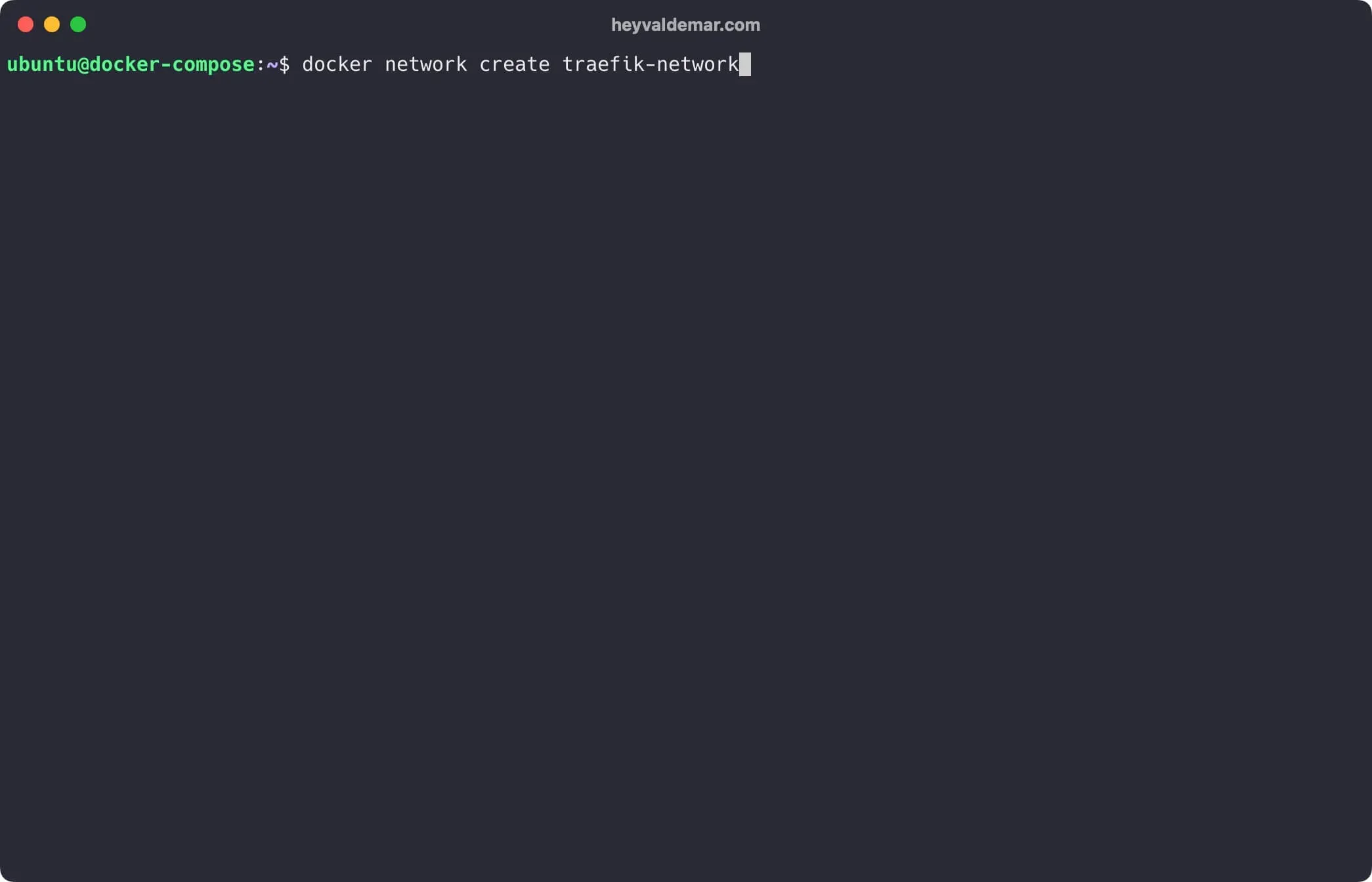
We create a network for Docmost using the command:
docker network create docmost-network 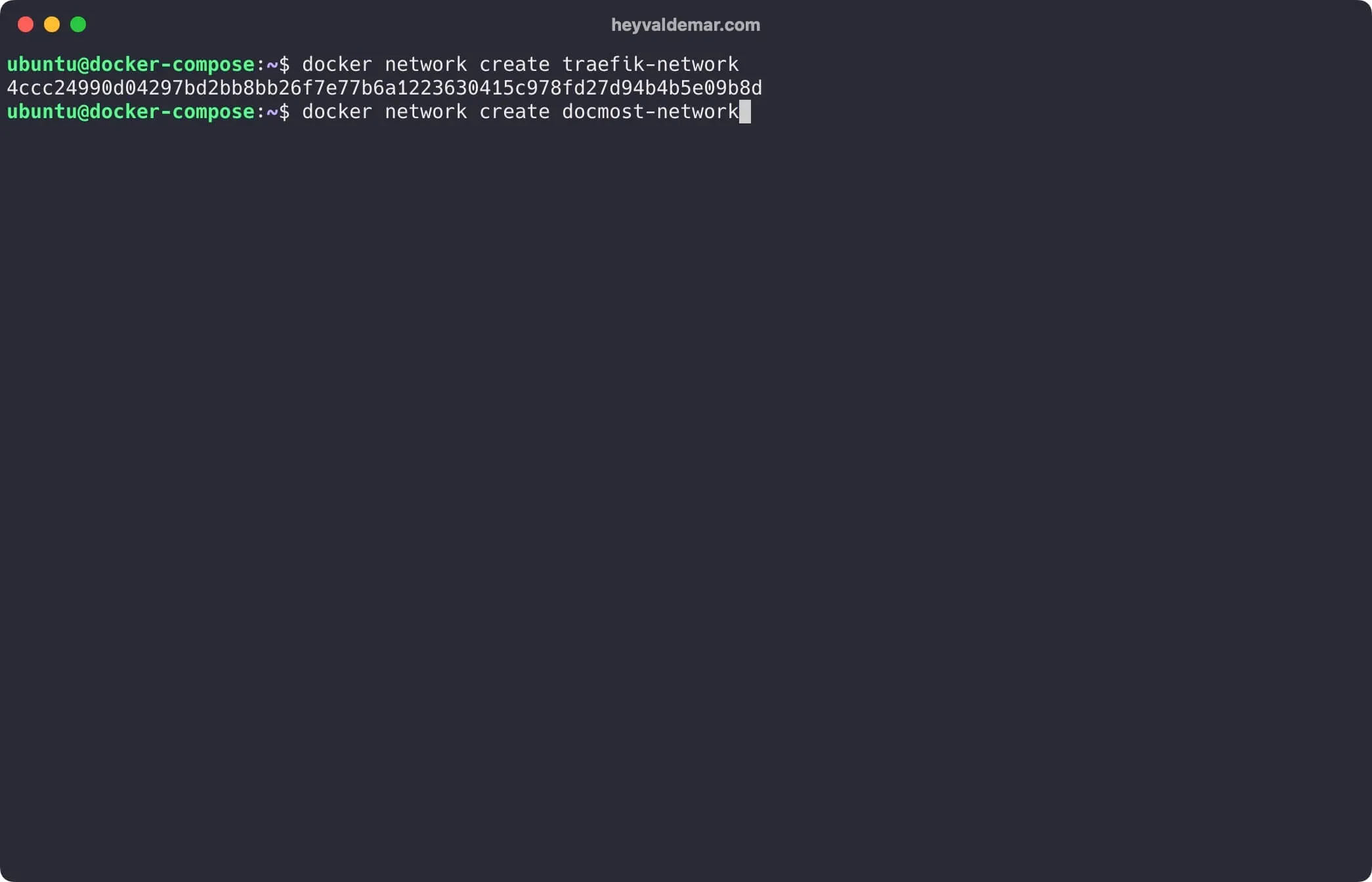
Next, you need to clone the repository that contains the configuration files, which include all the necessary conditions for Docmost to work.
You can clone the repository using the command:
git clone https://github.com/heyvaldemar/docmost-traefik-letsencrypt-docker-compose.git 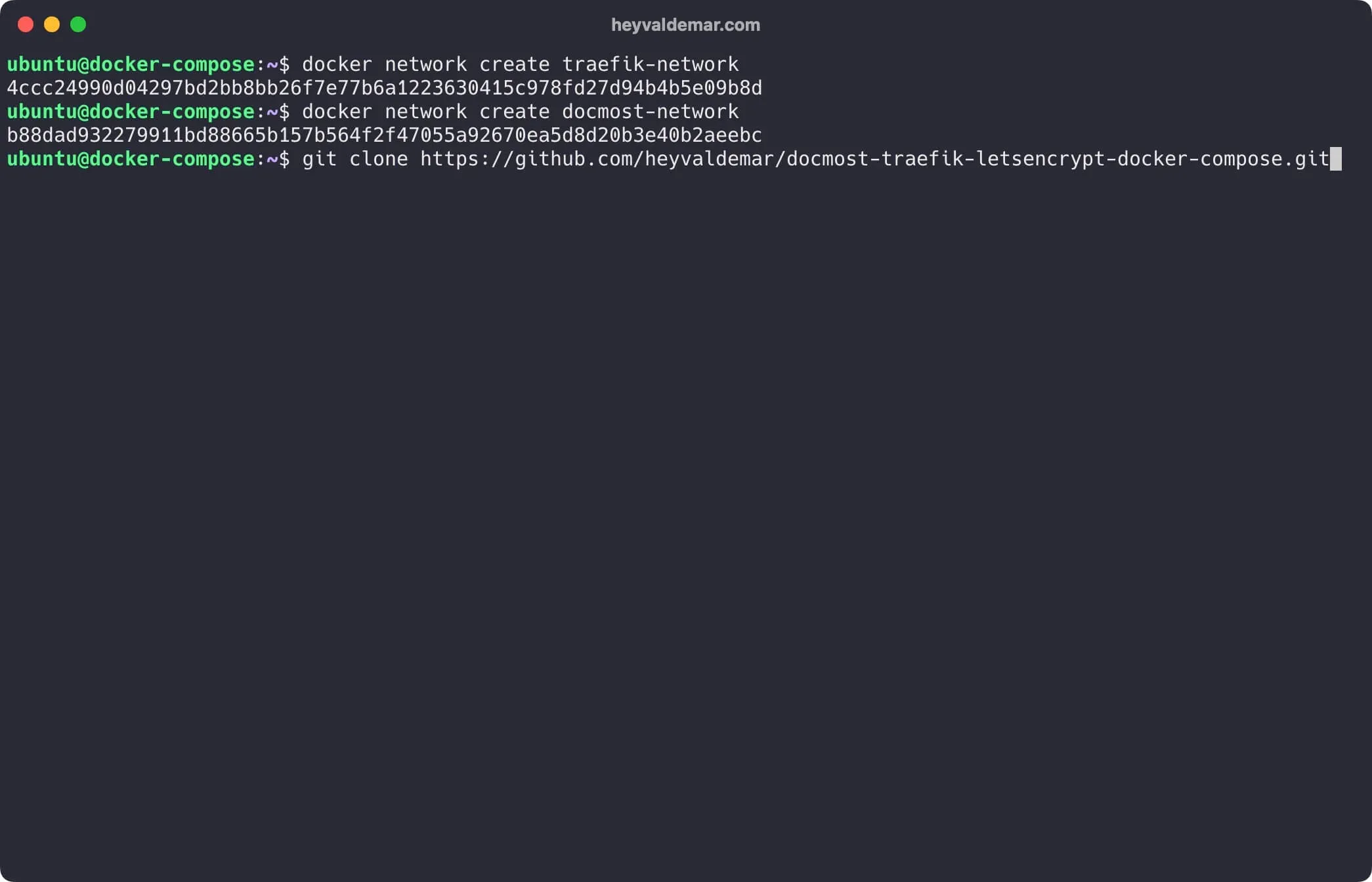
Navigate to the directory with the repository using the command:
cd docmost-traefik-letsencrypt-docker-compose 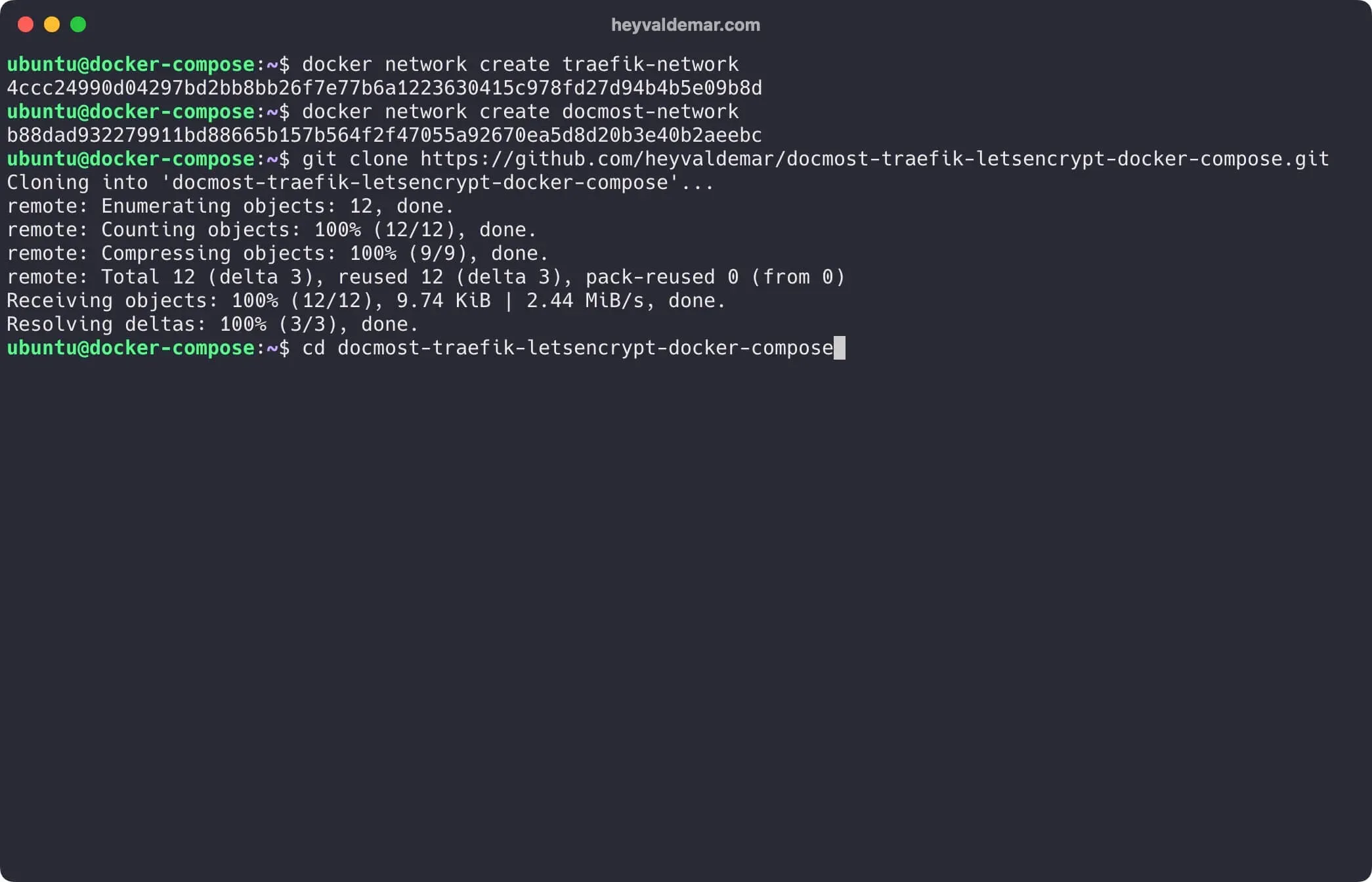
Next, you need to change the variables in the .env file according to your requirements.
IMPORTANTThe
.envfile should be in the same directory asdocmost-traefik-letsencrypt-docker-compose.yml.
Now let’s start Docmost with the command:
docker compose -f docmost-traefik-letsencrypt-docker-compose.yml -p docmost up -d 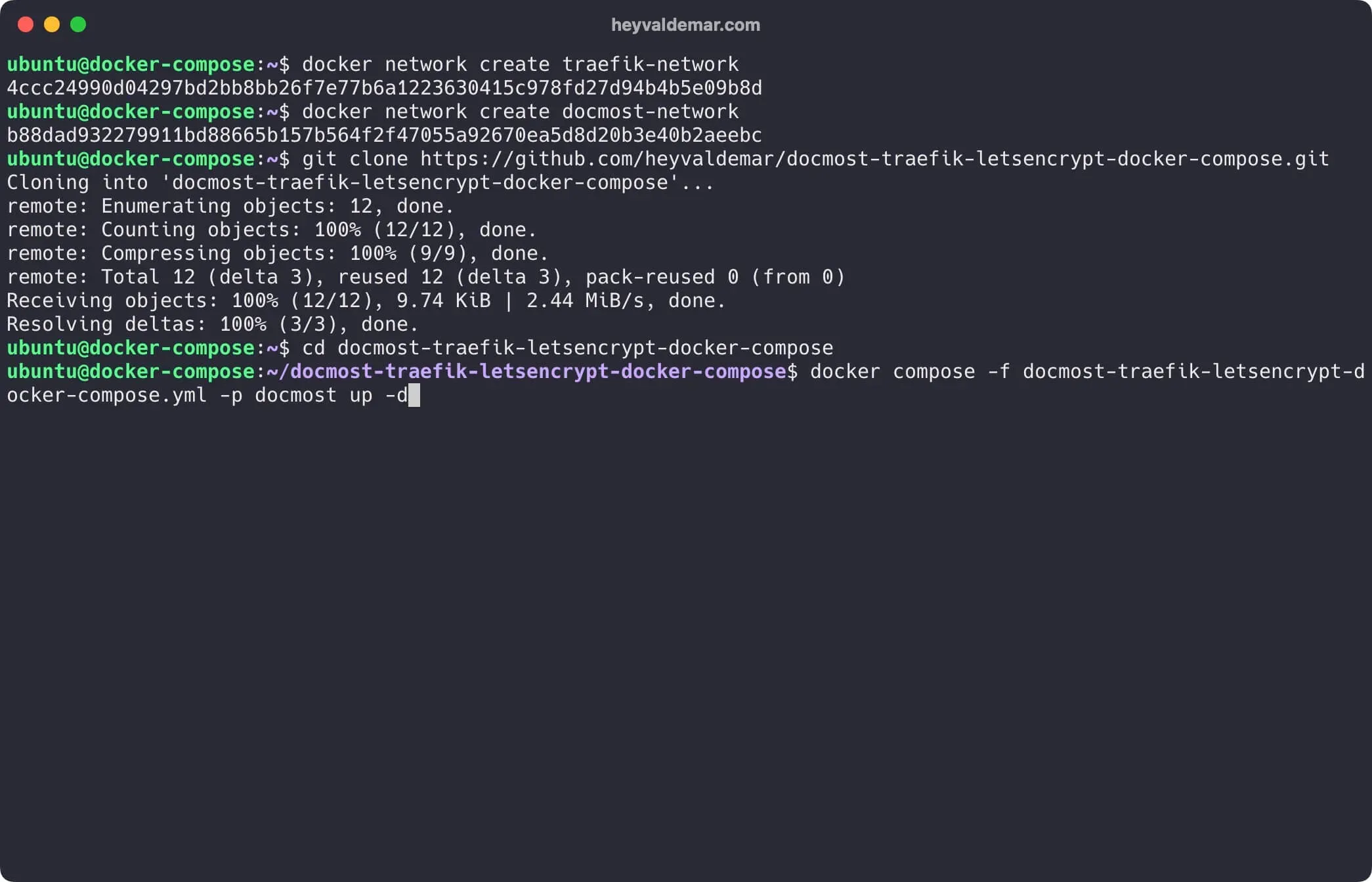
To access the Docmost management panel, go to https://docmost.heyvaldemar.net from your workstation, where docmost.heyvaldemar.net is the domain name of my service. Accordingly, you need to specify your domain name that points to the IP address of your server with the installed Traefik service, which will redirect the request to Docmost.
NOTEYou need to specify the domain name of the service, previously defined in the
.envfile.
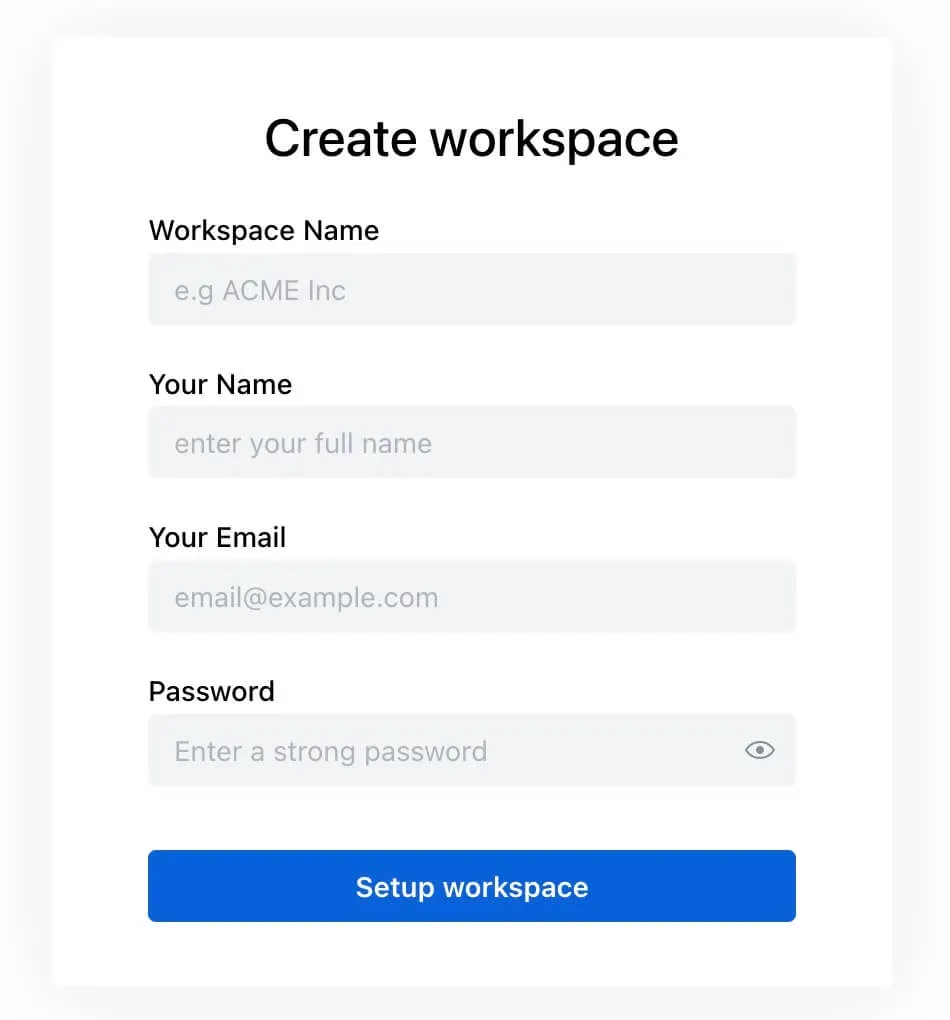
The next step is to provide: workspace name, your full name, an email address and a password to create a Docmost administrator account.
Click on the “Create workspace” button.
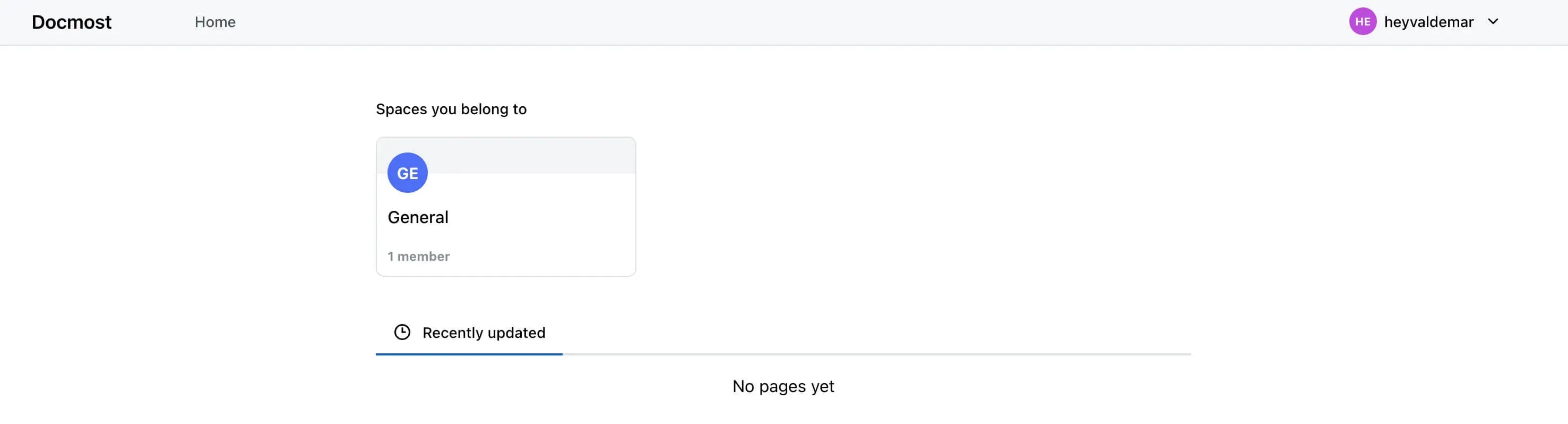
Welcome to the Docmost control panel.
To access the Traefik control panel, go to https://traefik.docmost.heyvaldemar.net from your workstation, where traefik.docmost.heyvaldemar.net is the domain name of my service. Accordingly, you need to specify your domain name that points to the IP address of your server with the installed Traefik.
NOTEYou need to specify the domain name of the service, previously defined in the
.envfile.
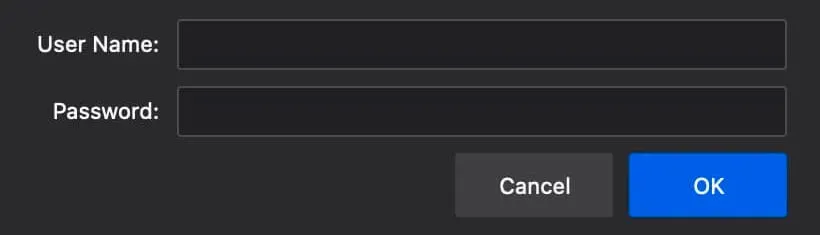
Enter the username and password previously set in the .env file, and click the “OK” button.
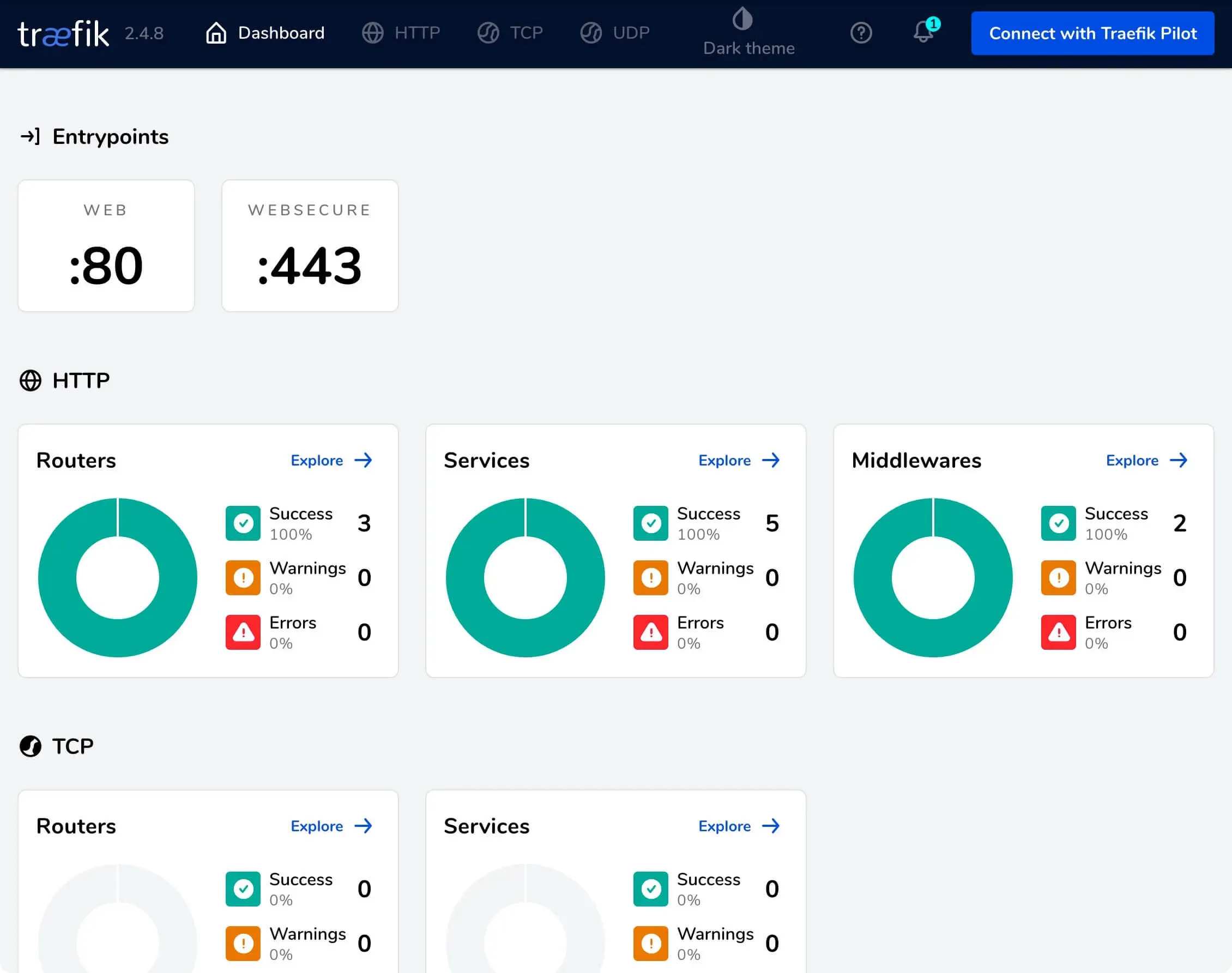
Welcome to the Traefik control panel.