
Install Docker Swarm on Ubuntu Server
By Vladimir Mikhalev · Solutions Architect · Docker Captain · CNCF Ambassador · IBM Champion
This is a straight, detailed walkthrough for getting Docker Swarm running on Ubuntu Server. No filler.
Docker Swarm is Docker’s own clustering tool. It takes a set of Docker servers and turns them into one cluster. The point is availability and performance: Swarm spreads the load across every Docker server in the cluster.
TIPArchitecture Context
Choose Docker Swarm when you need simple container orchestration with minimal operational complexity and built-in Docker integration. Amazon ECS, EKS, or GKE provide managed alternatives with richer ecosystem support. Swarm is justified for small-to-medium deployments where Kubernetes complexity is not warranted, or when your team’s Docker Compose expertise should transfer directly to orchestration.
IMPORTANTDocker Engine and Docker Compose must be installed on the server.
For a step-by-step guide on installing Docker Engine on Ubuntu Server, see Install Docker Engine and Docker Compose on Ubuntu Server
IMPORTANTOpenSSH must be installed on the server, and port 22 must be open to be able to connect to the server using the SSH protocol.
Need OpenSSH? Install it with:
sudo apt install openssh-serverNOTETo connect to the server from a Windows system, you can use tools like PuTTY or MobaXterm.
NOTEThis guide walks you through connecting to a server with the iTerm2 terminal emulator on macOS.
CAUTIONYou will need to open the following TCP and UDP ports for access to the services:
- TCP port 2377 - for cluster management and Raft synchronization.
- TCP and UDP port 7946 - for communication between all Docker Swarm servers.
- UDP port 4789 - for network traffic (inbound container network).
- IP Protocol 50 (ESP) - if you plan to use an encrypted network.
First, connect to the server where Swarm will live.
Find the server’s IP address:
ip a 
Now initialize Swarm:
docker swarm init --advertise-addr 10.170.18.13 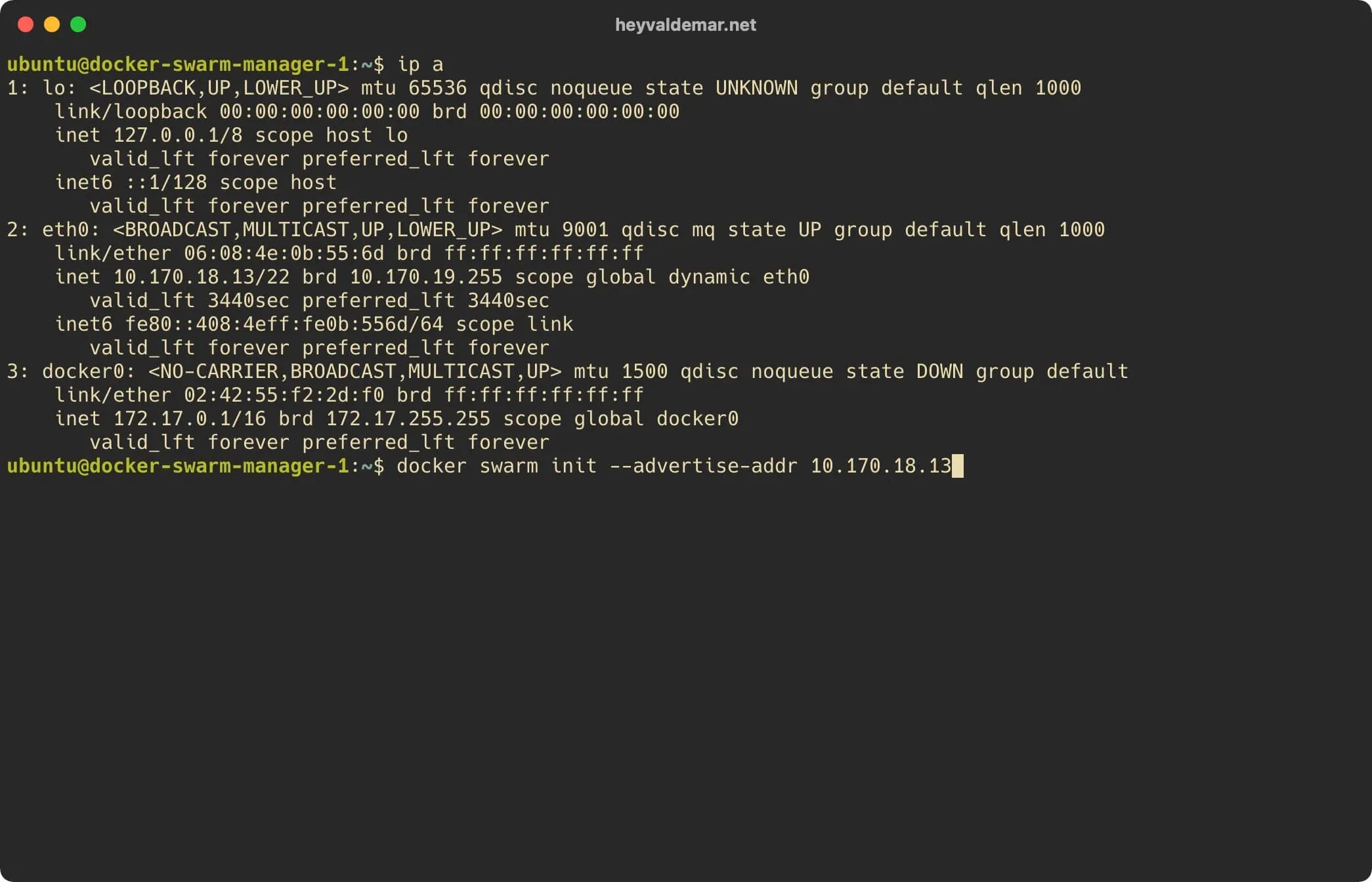
NOTE10.170.18.13 is the IP address of my server. Accordingly, you need to specify the IP address of your server.
That’s it. Swarm is up.
The output prints a command. Run that command on another server and it joins the cluster as a worker.
NOTETo prepare another server for the Docker Swarm cluster, you need to install only the Docker Engine on the new server and run the
docker swarm joincommand with the appropriate token.
NOTEFor a step-by-step guide on installing Docker Engine on Ubuntu Server, see Install Docker Engine and Docker Compose on Ubuntu Server
Workers are one thing. You also want to be able to add more managers. Grab the manager join token:
docker swarm join-token manager 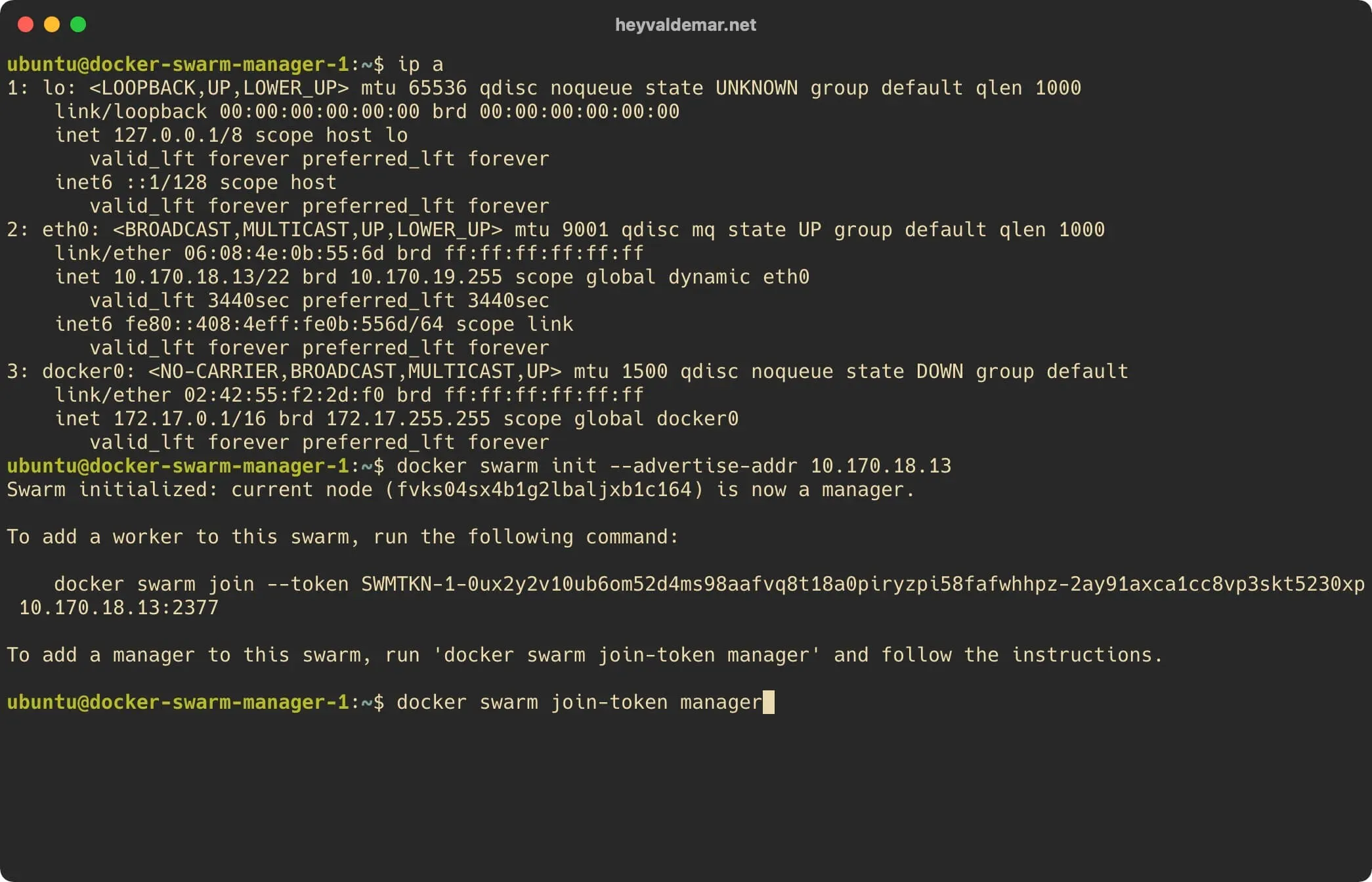
Same idea as before. The printed command joins another server to the cluster, this time with the manager role.
NOTETo prepare another server for the Docker Swarm cluster, you need to install only the Docker Engine on the new server and run the
docker swarm joincommand with the appropriate token.
One last check. Confirm Swarm is actually running:
docker info 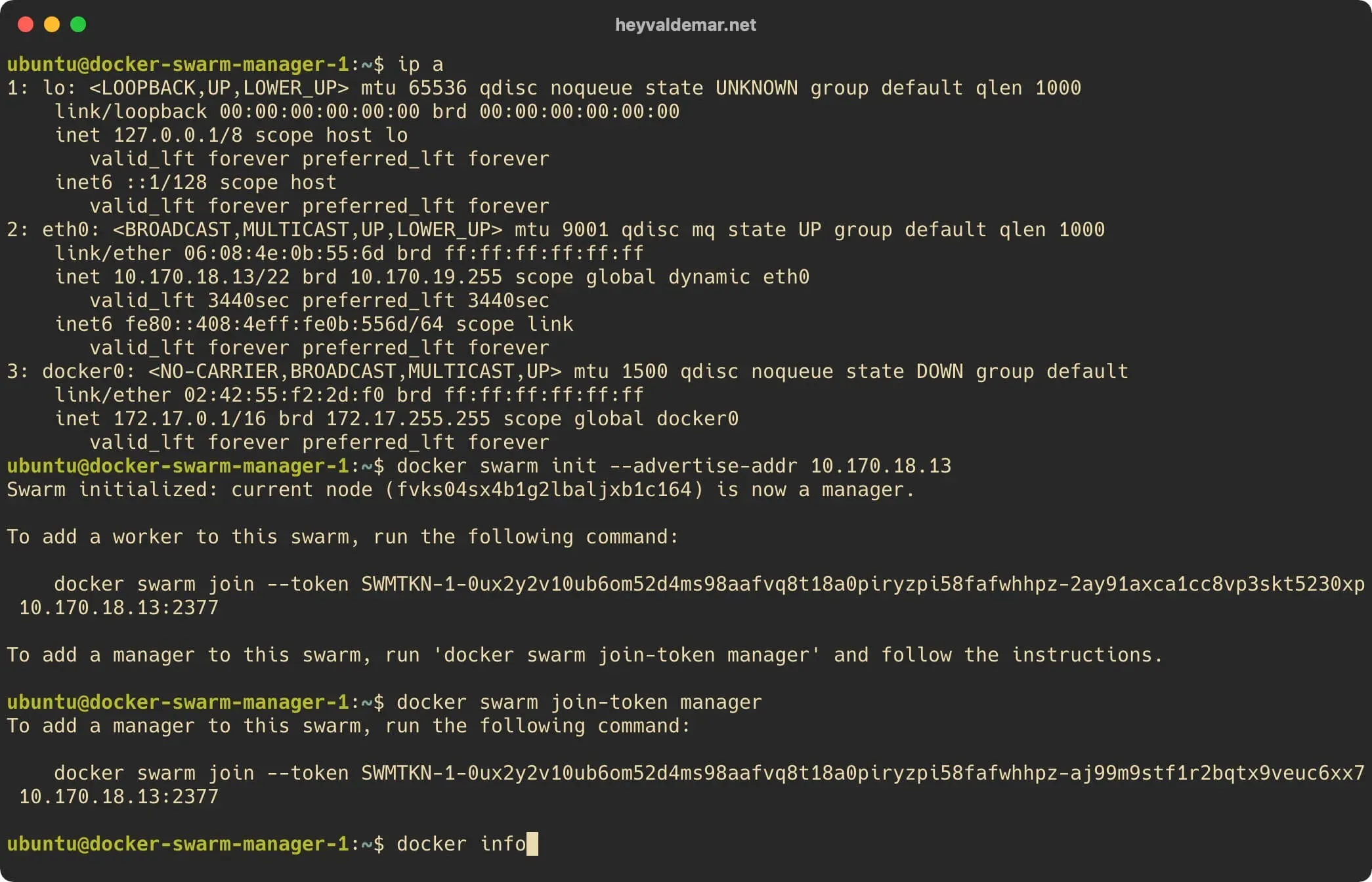
The message back confirms it. Swarm is installed and working.