256 words
1 min read

Export Drivers Using Windows PowerShell

By · Solutions Architect · Docker Captain · IBM Champion
Export Drivers Using Windows PowerShell

This article is for those looking for a detailed and clear guide on how to export drivers using Windows PowerShell.

The ability to export third-party drivers using PowerShell using the Export-WindowsDriver cmdlet was first introduced with Update 1 for Windows 8.1 and Windows Server 2012 R2. This great feature is also present on later operating systems from Microsoft.

Exported drivers can be useful for manual installation on new computers or using automated solutions. In addition, drivers can be added to the Windows installation image.

NOTE

The guide will discuss the export of drivers with their description.

We go into the system under an account with administrator rights.

On the keyboard, press the key combination “Win” and “x” and in the menu that opens, select “Windows PowerShell (Admin)”.
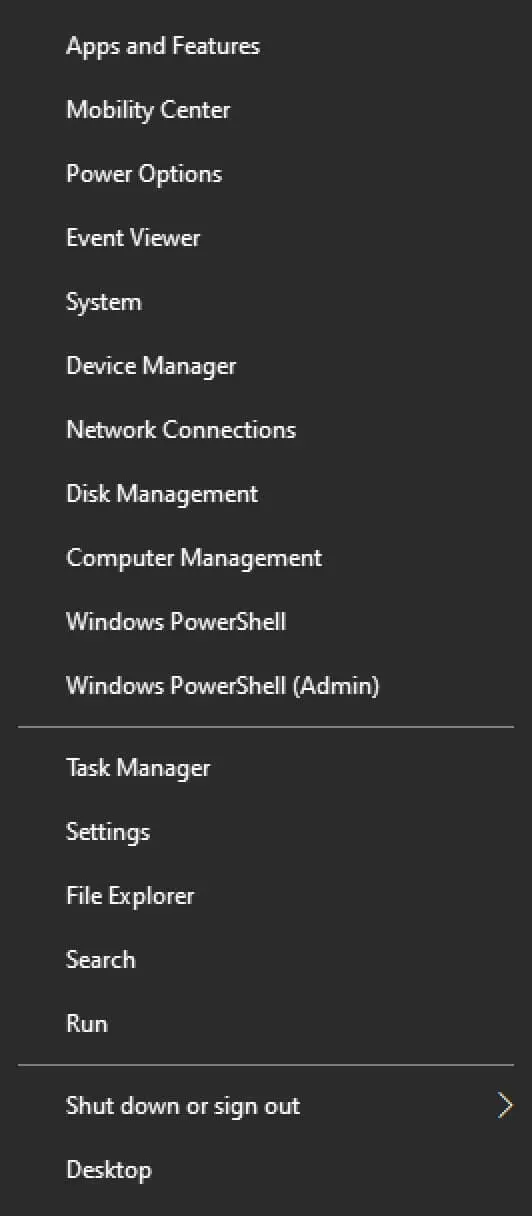
Export Drivers Using Windows PowerShell - Step 1

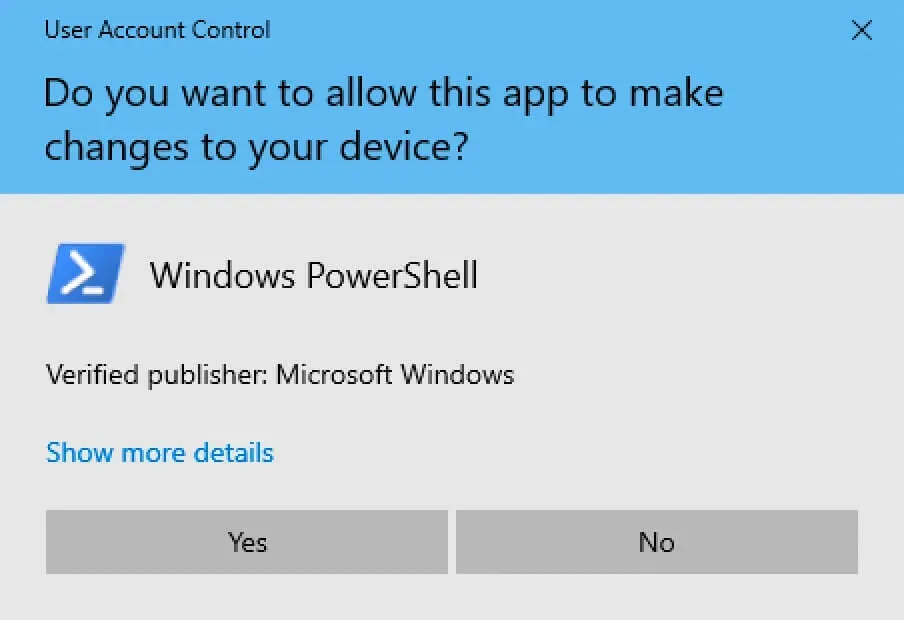
Click on the “Yes” button.

Export Drivers Using Windows PowerShell - Step 2

NOTE

In this manual, the drivers and their descriptions will be exported to the “Temp” folder on the “C” drive. The description of the exported drivers will be saved to the “drivers.txt” file.

Let’s prepare the variable using the command:

Terminal window
$drivers = Export-WindowsDriver -Online -Destination C:\Temp\drivers
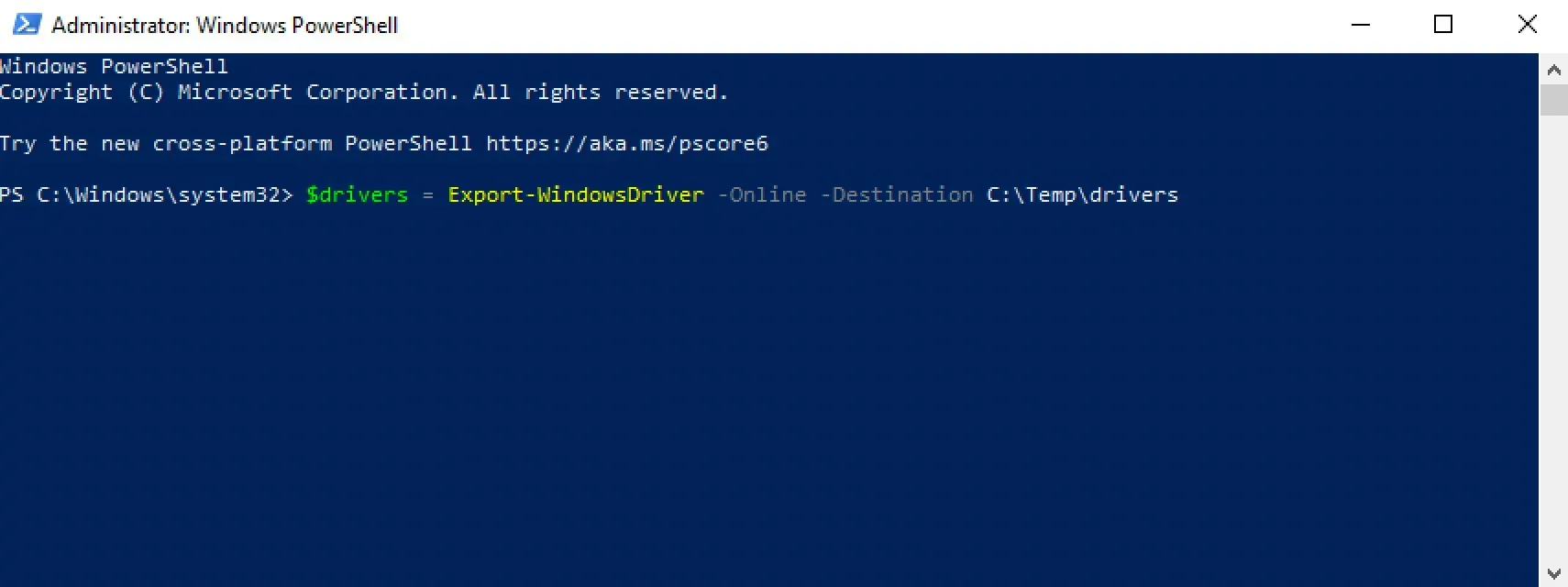
Export Drivers Using Windows PowerShell - Step 3

We export the drivers using the command:

Terminal window
$drivers | ft ProviderName, ClassName, Date, Version -auto | Out-File C:\Temp\Drivers\drivers.txt
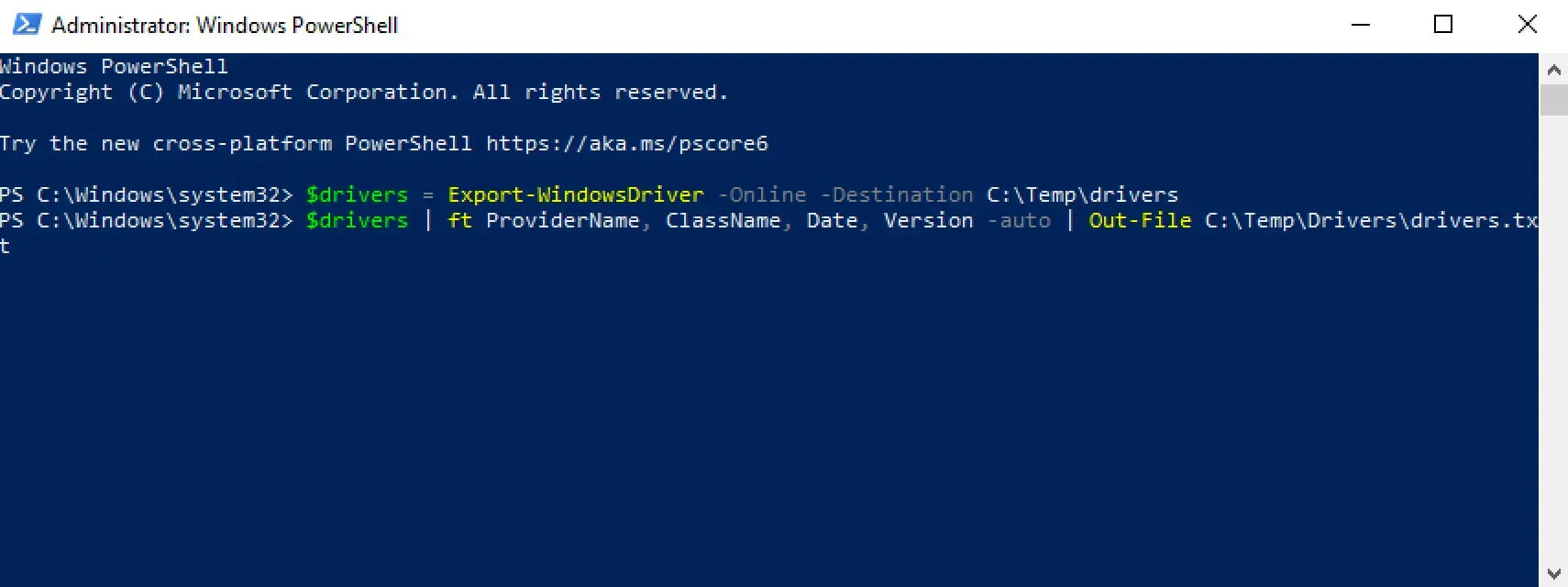
Export Drivers Using Windows PowerShell - Step 4

The drivers and their descriptions have been successfully exported to the “Temp” folder on the “C” drive.
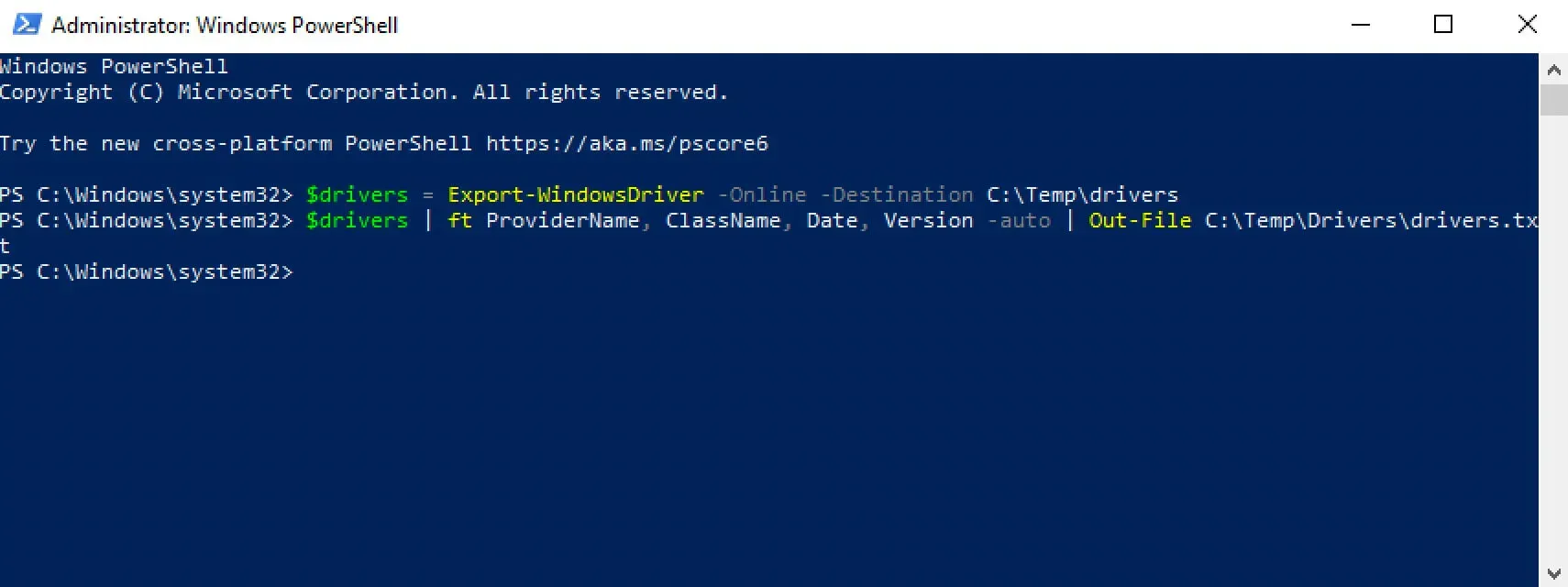
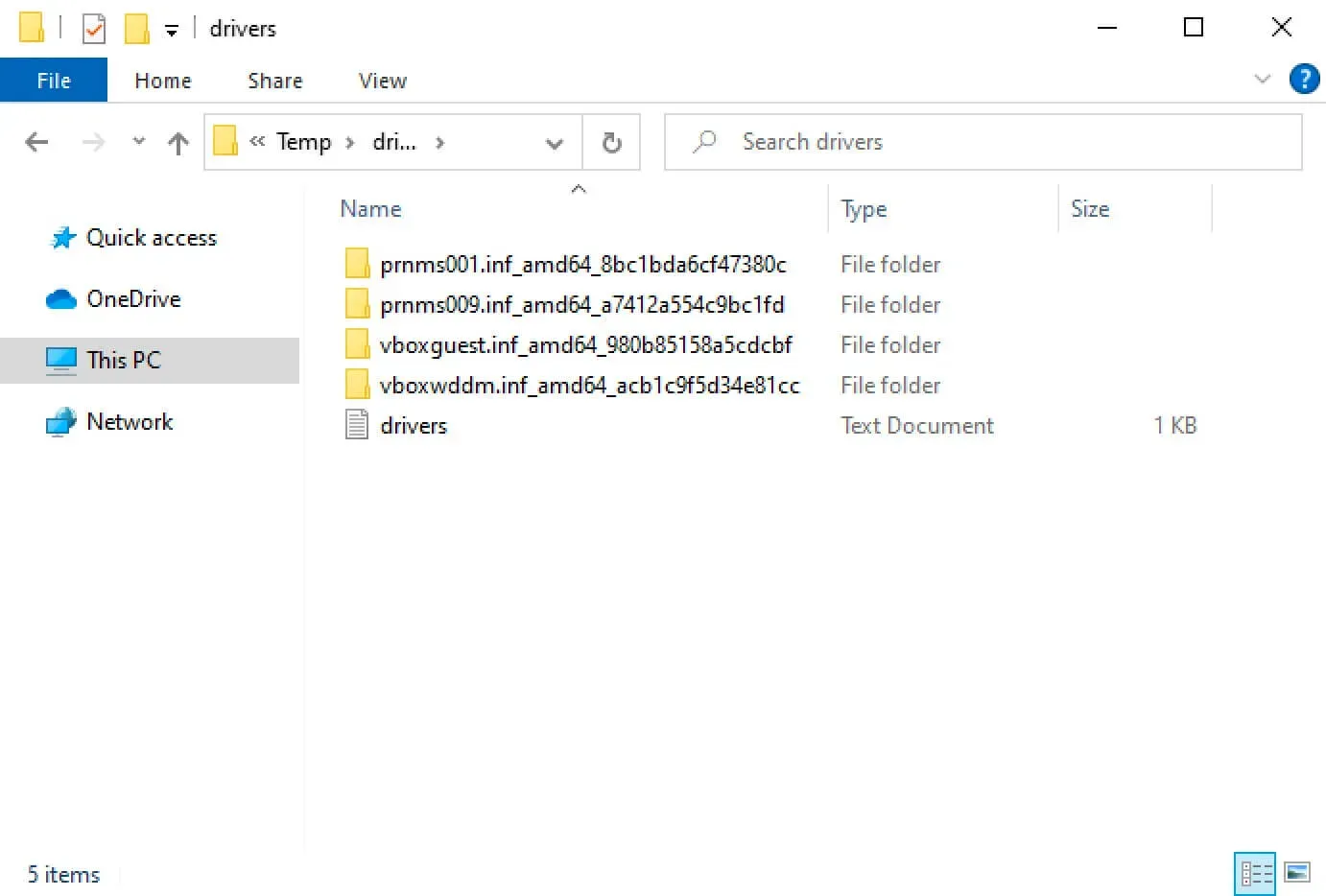
Export Drivers Using Windows PowerShell - Step 5

Export Drivers Using Windows PowerShell - Step 6


Vladimir Mikhalev

Docker Captain  ·  IBM Champion  ·  AWS Community Builder

The Verdict — production-tested analysis on YouTube.

Related Posts

Same category
  1. 1
    Recovering a Corrupt Exchange Database with Stellar Repair — Real-World Lab Test
    SysAdmin & IT Pro · We deliberately broke an Exchange 2019 server to see if Stellar Repair for Exchange could recover a dirty-shutdown EDB file. Step-by-step recovery process, lab setup, and lessons learned.
  2. 2
    Distinctions Between Terminal, Command Line, Shell, and Prompt
    SysAdmin & IT Pro · Learn the differences between terminal, command line, shell, and prompt in Linux. A beginner-friendly guide to essential CLI concepts and tools.
  3. 3
    Install Ubuntu Server 22.04 LTS
    SysAdmin & IT Pro · Step-by-step guide to install Ubuntu Server 22.04 LTS. Covers language, disk setup, OpenSSH, user creation, and system configuration for beginners.
  4. 4
    Install OTRS on Ubuntu Server
    SysAdmin & IT Pro · Comprehensive guide to installing OTRS Community Edition on Ubuntu Server. Learn to configure PostgreSQL, Apache, SSL with Let's Encrypt, and launch OTRS securely.

Random Posts

Random
  1. 1
    Install OpenJDK on Ubuntu Server
    SysAdmin & IT Pro · Step-by-step guide to installing OpenJDK on Ubuntu Server. Learn how to configure Java, set JAVA_HOME, and verify your environment for Java development.
  2. 2
    Install Windows Server 2008 R2
    SysAdmin & IT Pro · Comprehensive step-by-step guide to install Windows Server 2008 R2 using official ISO media. Ensure stability and performance with a clean setup.
  3. 3
    Configure Exchange Server 2019
    SysAdmin & IT Pro · Learn how to configure Exchange Server 2019 with step-by-step instructions for mailbox databases, DNS records, certificates, send connectors, and more.
  4. 4
    Why Snyk is a Great Tool to Use with Docker
    DevOps & Cloud · Secure your Docker containers with Snyk - deep scans, CI/CD integration, and automated fixes for fast, reliable app delivery.
Export Drivers Using Windows PowerShell
https://heyvaldemar.com/export-drivers-using-windows-powershell/
Author
Vladimir Mikhalev
Published
2021-02-10
License
CC BY-NC-SA 4.0