
Install Quake 3 Server Using Docker Compose
By Vladimir Mikhalev · Docker Captain · CNCF Ambassador · IBM Champion
This is a step-by-step guide to running a Quake 3 server with Docker Compose. No fluff. Just the commands and the order to run them in.
QuakeJS runs Quake 3 in the browser. It uses WebGL to render the graphics, so players don’t install anything. That last part matters more than it sounds. You stand up a server, hand someone a URL, and they’re in.
TIPArchitecture Context
Choose a self-hosted Quake III server when you need full control over game configuration, custom maps, and network settings. Cloud game hosting services offer managed alternatives with automatic scaling but limited mod support. Self-hosting is the right approach when you need a dedicated server for LAN parties, competitive play, or custom game modes without recurring hosting fees.
💾 You can find the repository used in this guide on GitHub.
CAUTIONYou will need A-type records in the external DNS zone, which point to the IP address of your server where Quake 3 Server is installed. If you have created these records recently, you should wait before starting the installation of the services. Full replication of these records between DNS servers can take from a few minutes to 48 hours or even longer in rare cases.
CAUTIONAlternatively, you can use the public static IP address of your server to connect directly.
IMPORTANTDocker Engine and Docker Compose must be installed on the server.
For a step-by-step guide on installing Docker Engine on Ubuntu Server, see Install Docker Engine and Docker Compose on Ubuntu Server
IMPORTANTOpenSSH must be installed on the server, and port 22 must be open to be able to connect to the server using the SSH protocol.
To install OpenSSH on the server you can use the command:
sudo apt install openssh-serverNOTETo connect to the server from a Windows system, you can use tools like PuTTY or MobaXterm.
NOTEThis guide walks you through connecting to a server with the iTerm2 terminal emulator on macOS.
CAUTIONYou will need to open the following TCP ports for access to the services:
- TCP port 80 - for accessing Quake 3 via the web interface.
- TCP port 27960 - for Quake 3 gaming servers, used for connecting clients to the server.
Connect to the box where Quake 3 Server is going to live.
The repository holds the configuration files. Everything the server needs to come up is in there. Clone it first.
You can clone the repository using the command:
git clone https://github.com/heyvaldemar/quake3-server-docker-compose.git 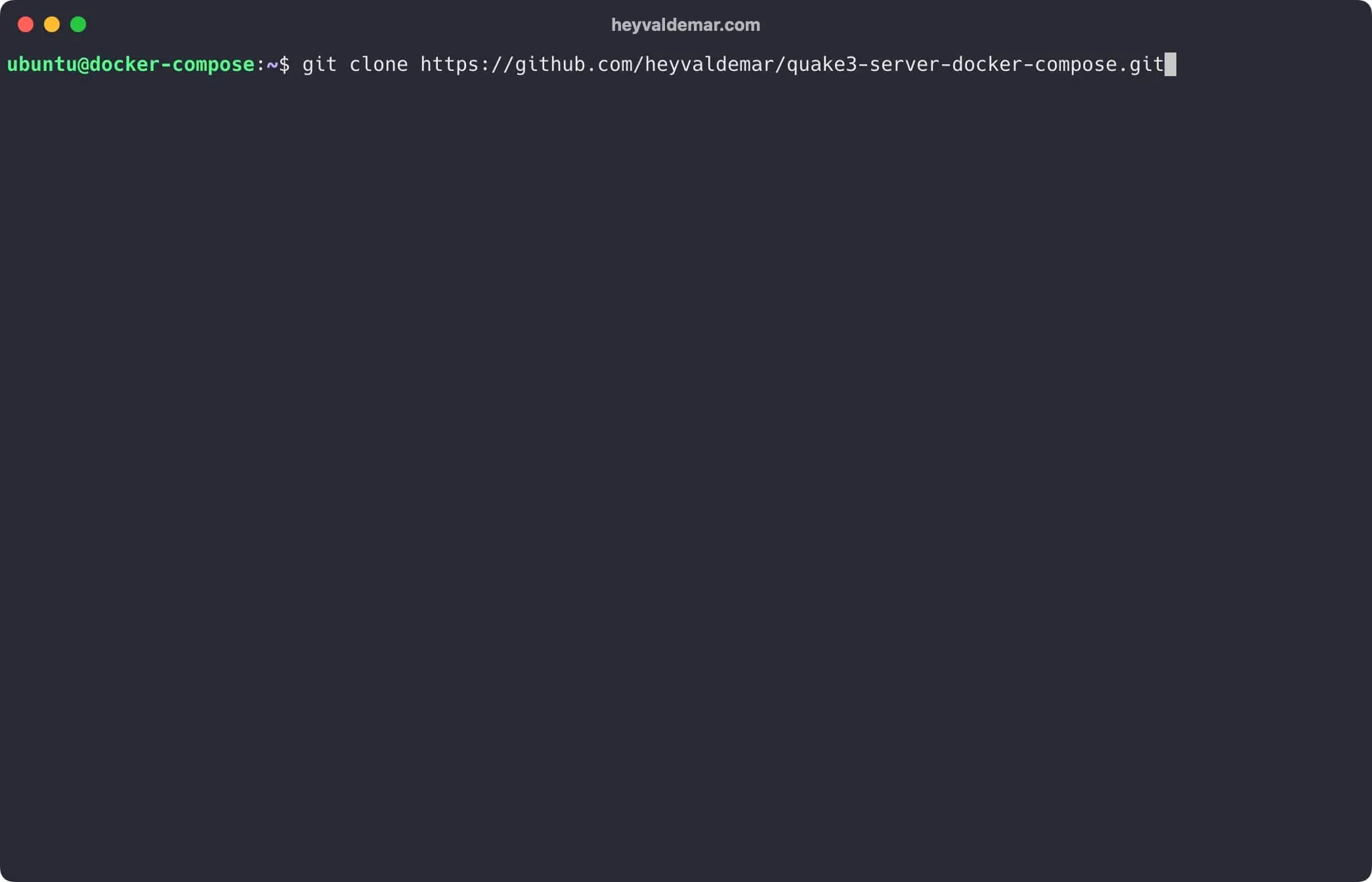
Navigate to the directory with the repository using the command:
cd quake3-server-docker-compose 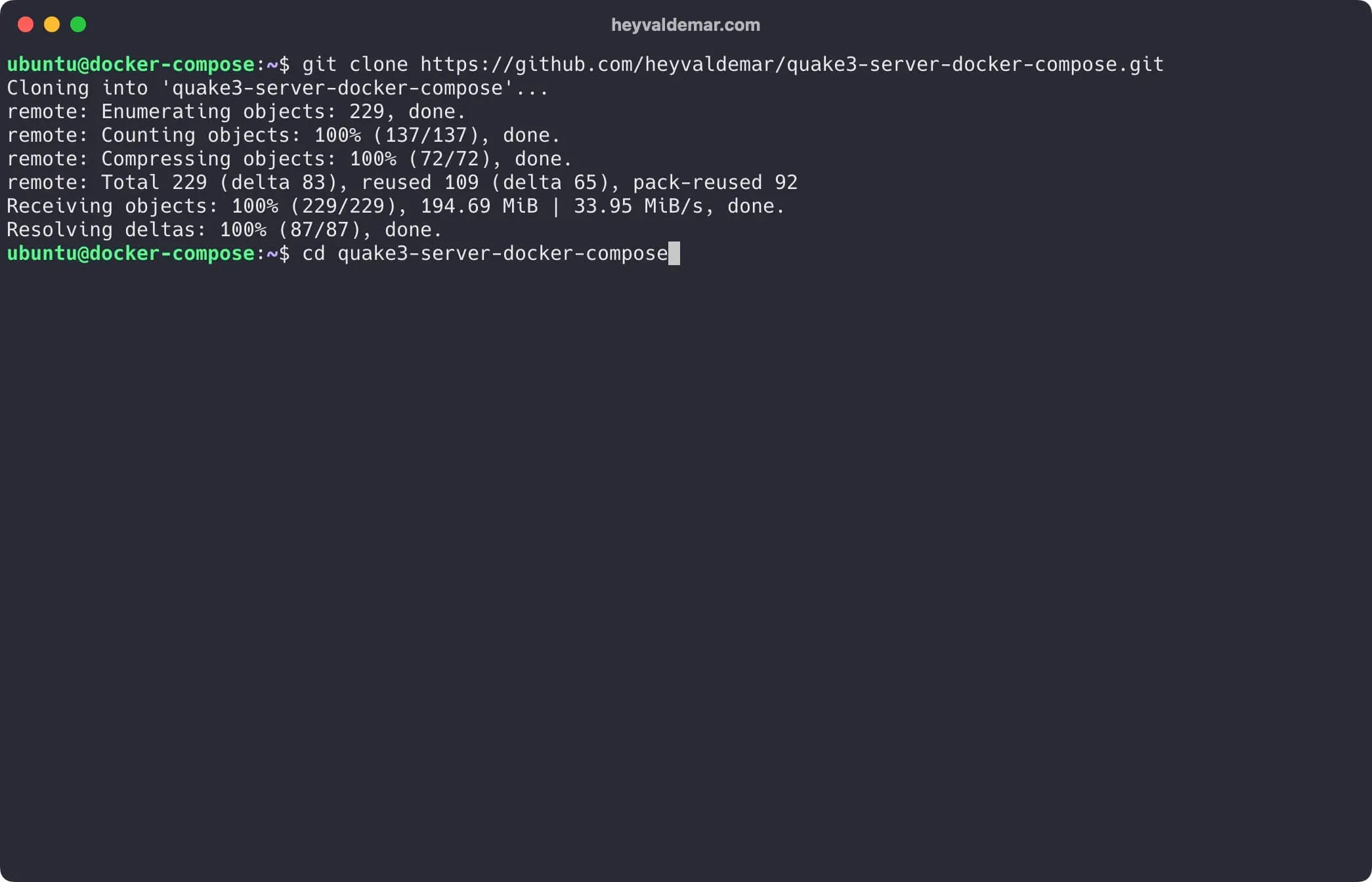
Now edit the variables in .env and server.cfg to match your setup.
NOTEThe
.envandserver.cfgfile should be in the same directory asquake3-server-docker-compose.yml.
Start it up with the command:
docker compose -f quake3-server-docker-compose.yml -p quake3-server up -d 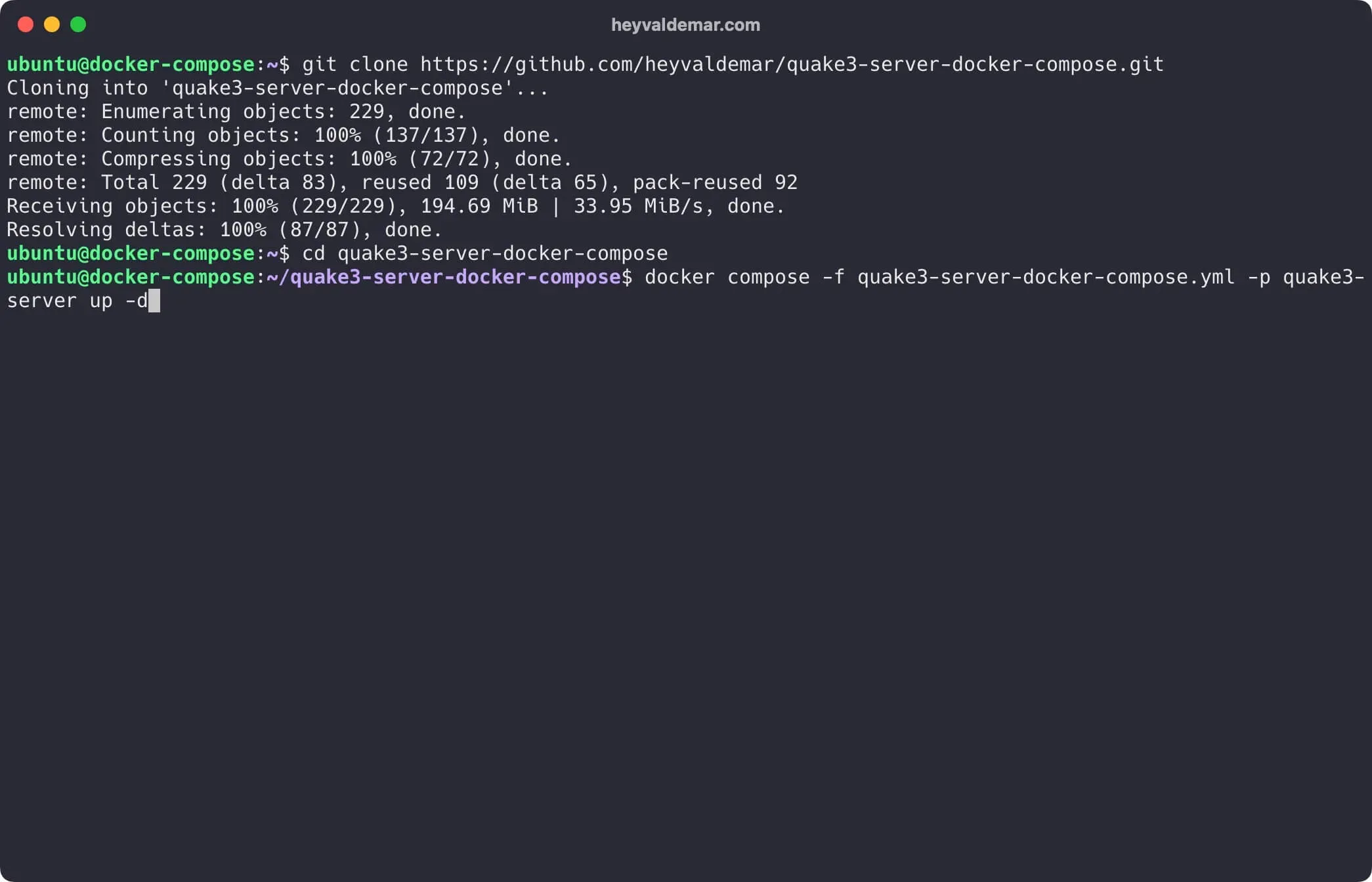
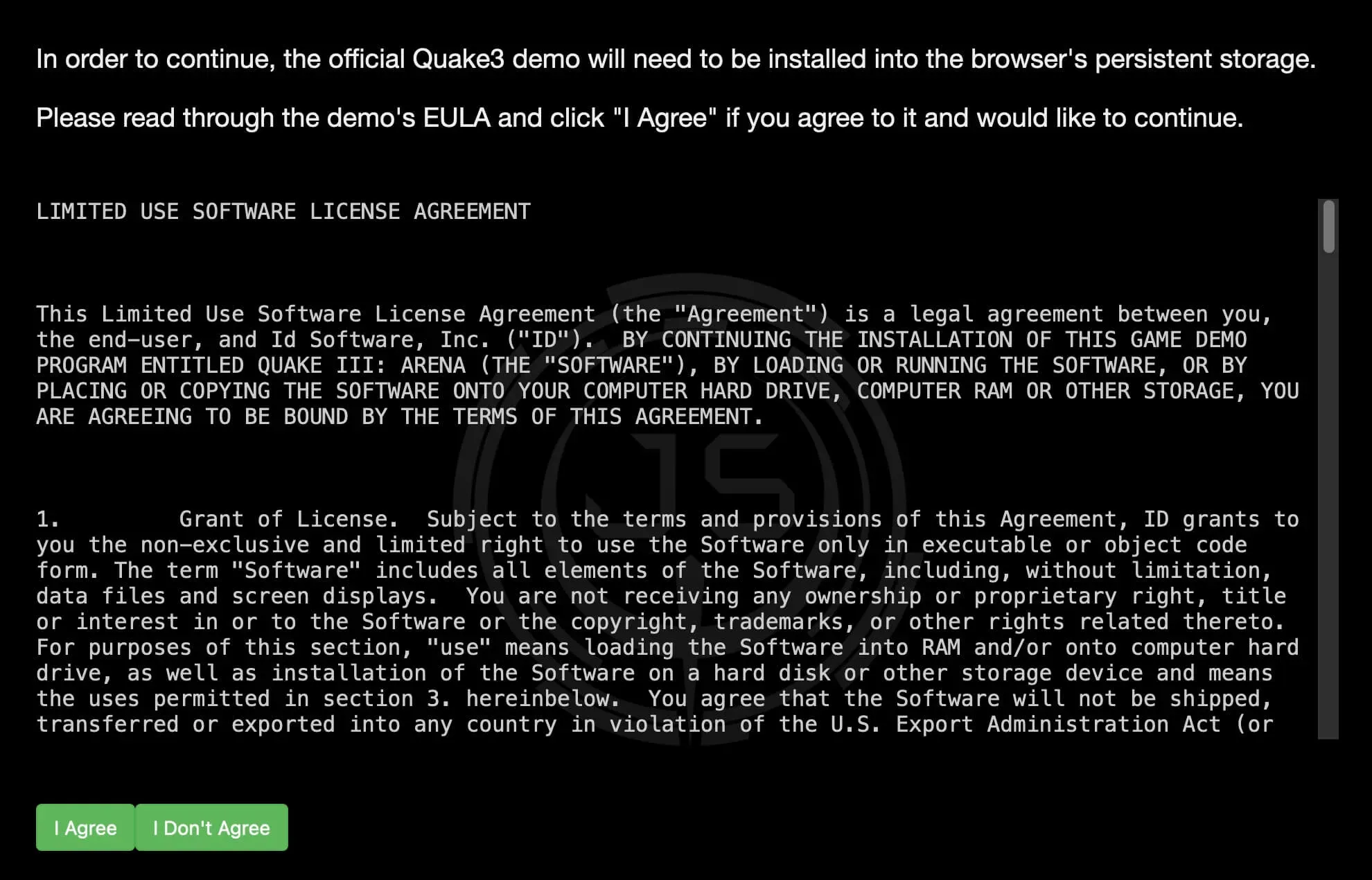
To reach Quake 3, open http://quake3.heyvaldemar.net from your workstation. That’s my domain. Swap in the name or IP address of your own server, the one running Quake 3 Server.
Accept the license and click “I agree”.
Have fun.
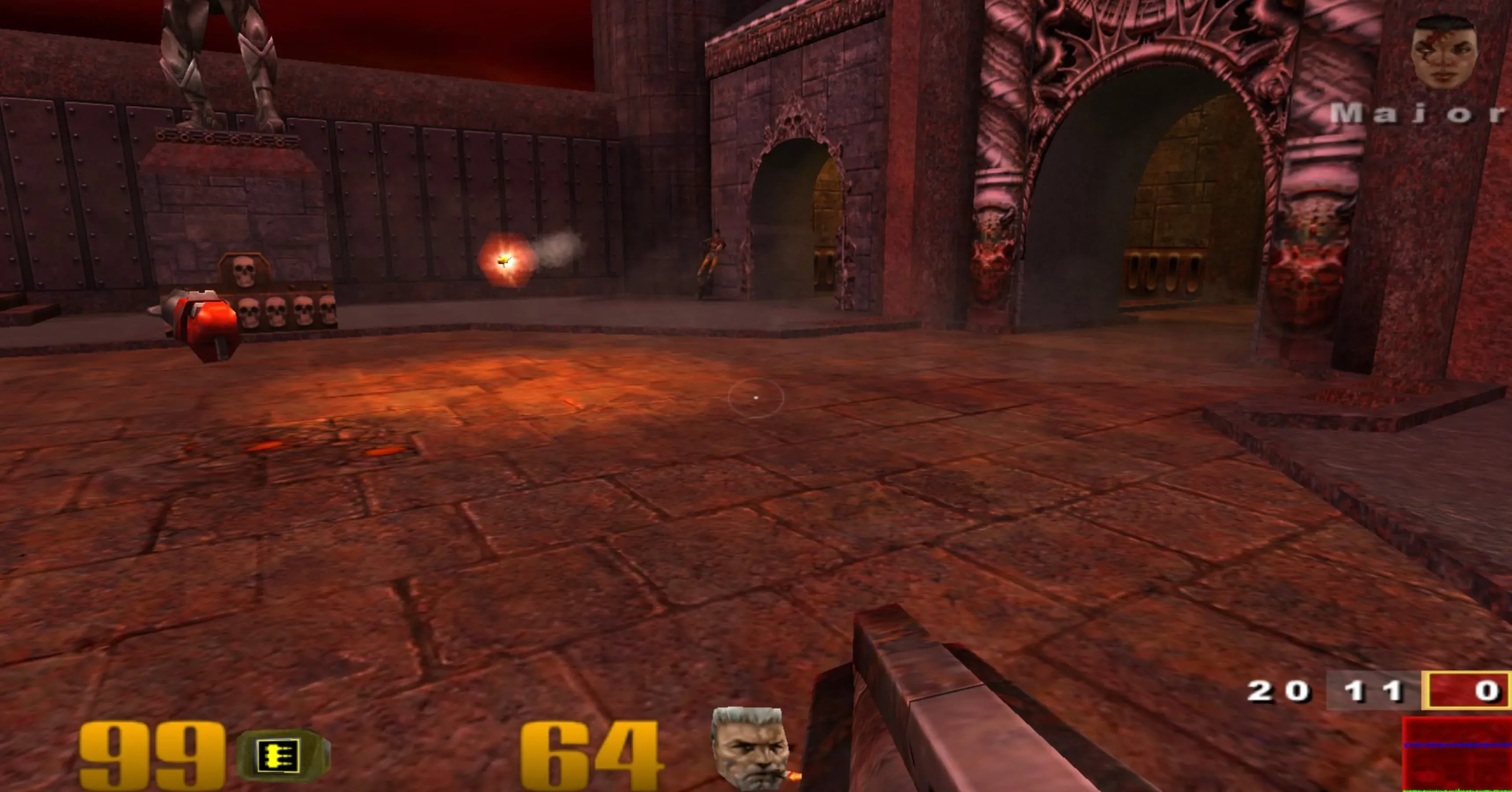
To connect from a game client, type in the server’s domain name. It has to resolve to the IP address of the host running Quake 3 Server. No domain? Point the client straight at the server’s public static IP instead.
IMPORTANTIf you are using a domain name, ensure that the A records in your DNS zone are correctly set up to point to this IP. If the records were created recently, it is recommended to wait before starting to use the services. The propagation of DNS records can take anywhere from a few minutes to 48 hours or more.
Edited server.cfg? The server won’t pick up the changes on its own. Restart the container that hosts it. The command below does exactly that:
QUAKE3_SERVER_CONTAINER=$(docker ps -aqf "name=quake3-server-quake3-server") \&& docker container restart $QUAKE3_SERVER_CONTAINEROnce it comes back, your config edits are live. No full shutdown, no downtime to speak of, just a quick bounce of the container.