Install Windows Server 2019
By Vladimir Mikhalev · Docker Captain · CNCF Ambassador · IBM Champion
This article is for those looking for a detailed and straightforward guide on installing Windows Server 2019.
NOTEI strongly recommend that you never use any third-party builds of Windows. Use only original installation images. This will help you avoid a lot of problems and get maximum performance and stability.
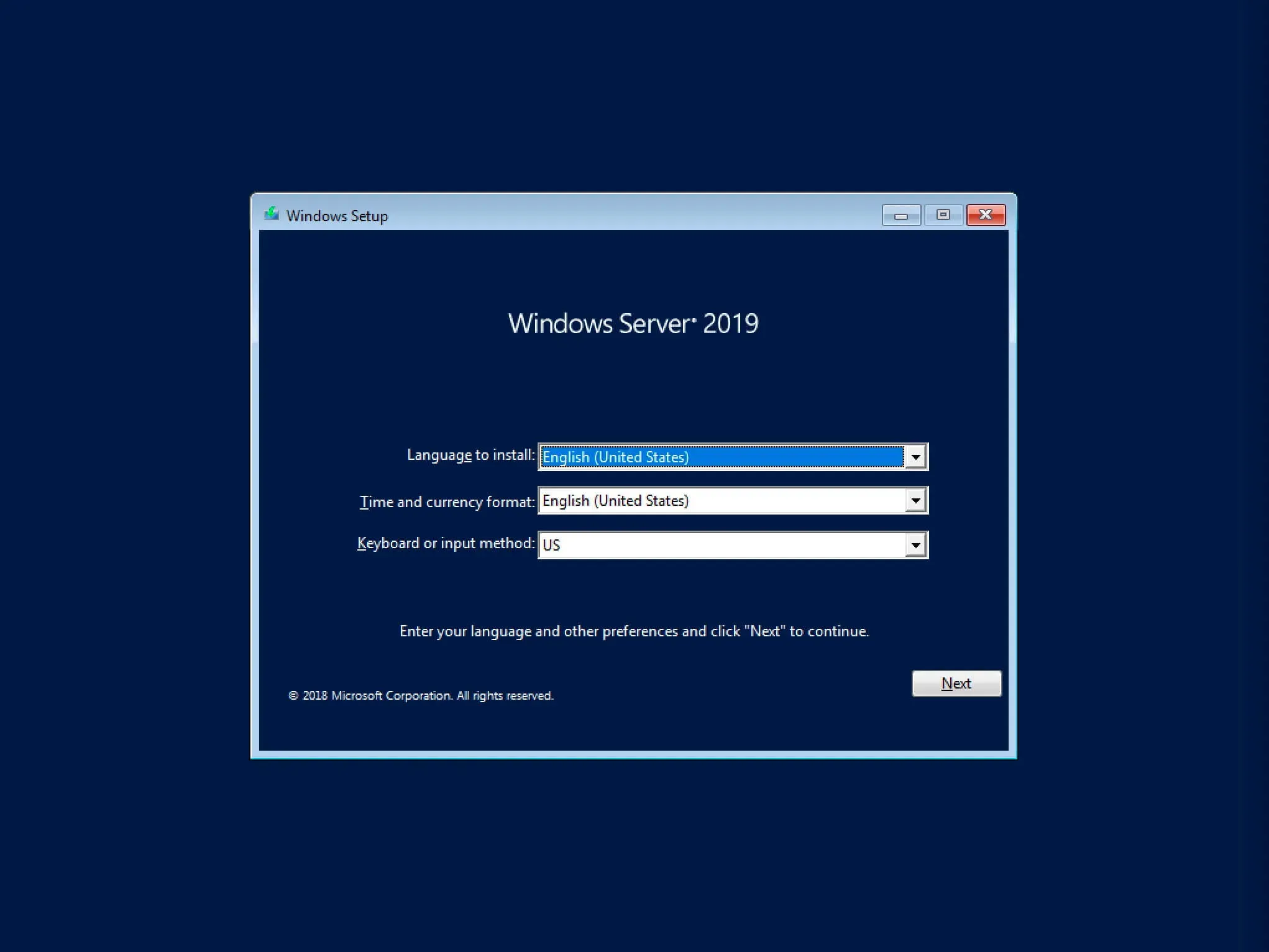
After successfully booting from the Windows Server 2019 installation flash drive or DVD, the first step is to select the language options.
Click on the “Next” button.
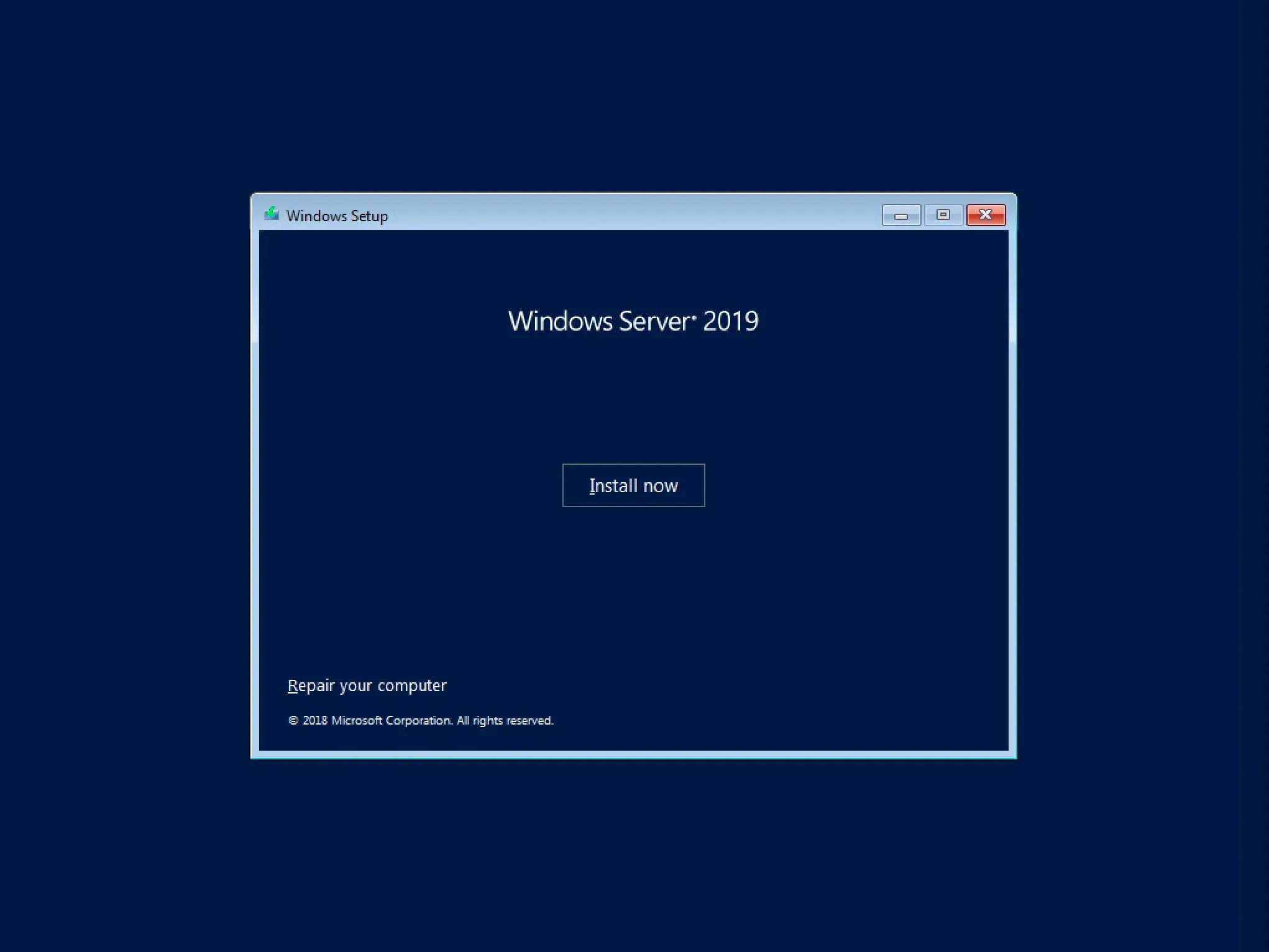
Click on the “Install now” button.
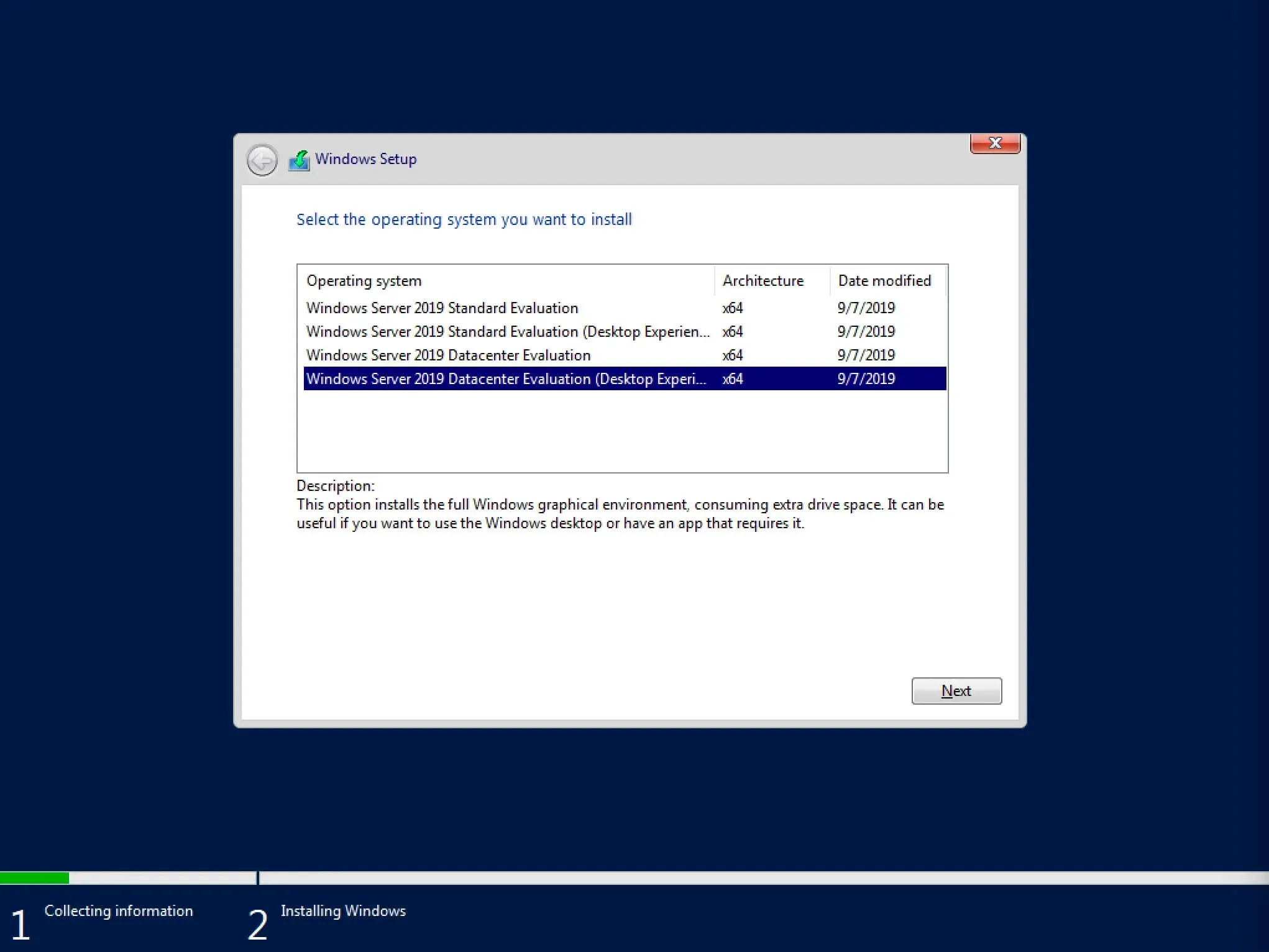
NOTEIf you need to install Windows Server 2019 in Server Core mode (no GUI), then you need to select “Windows Server 2019 Standard Evaluation” or “Windows Server 2019 Datacenter Evaluation”.
This example is for installing Windows Server 2019 Datacenter Evaluation (Desktop Experience).
Select “Windows Server 2019 Datacenter Evaluation (Desktop Experience)” and click “Next”.
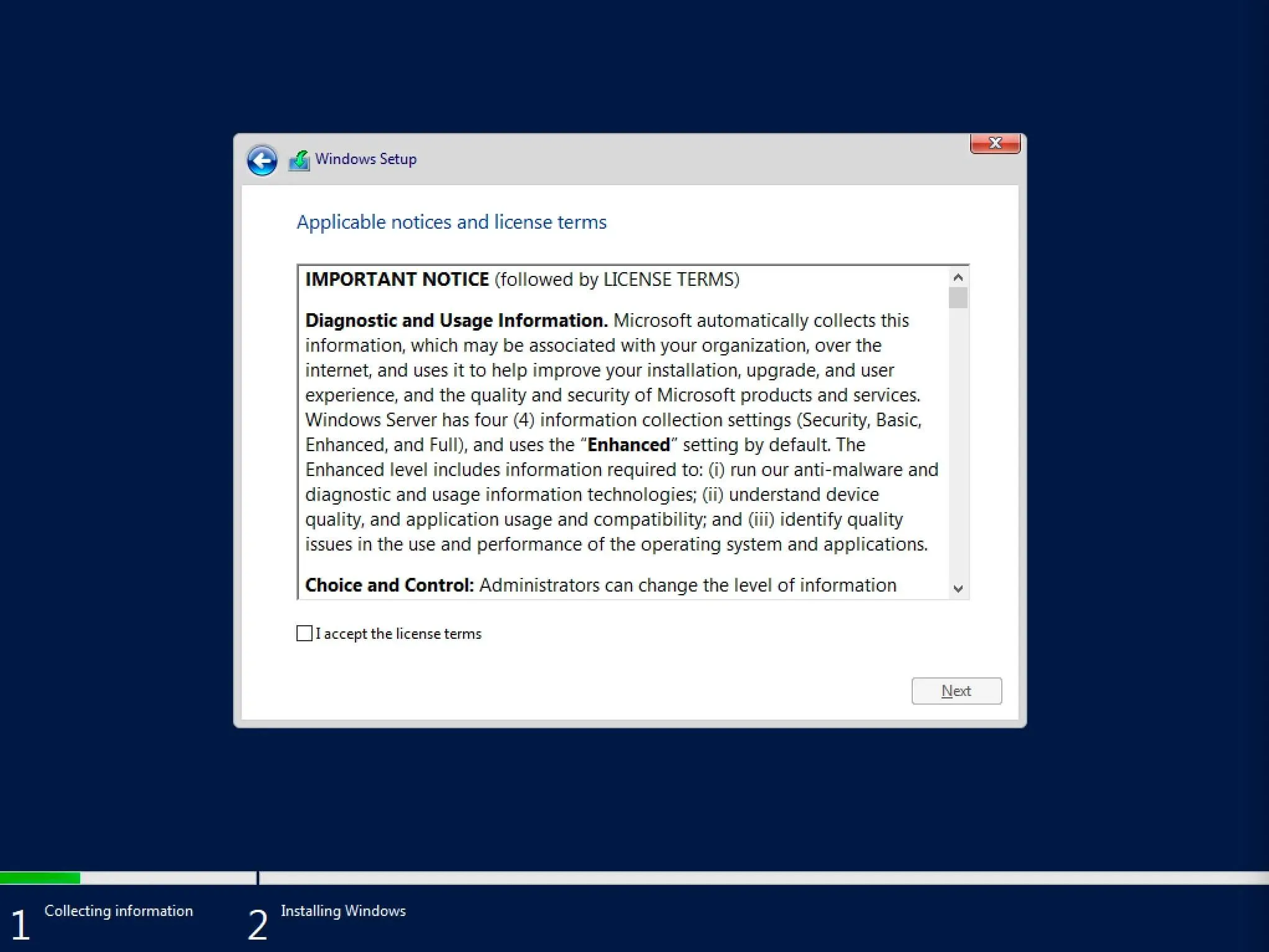
Now you need to accept the license terms.
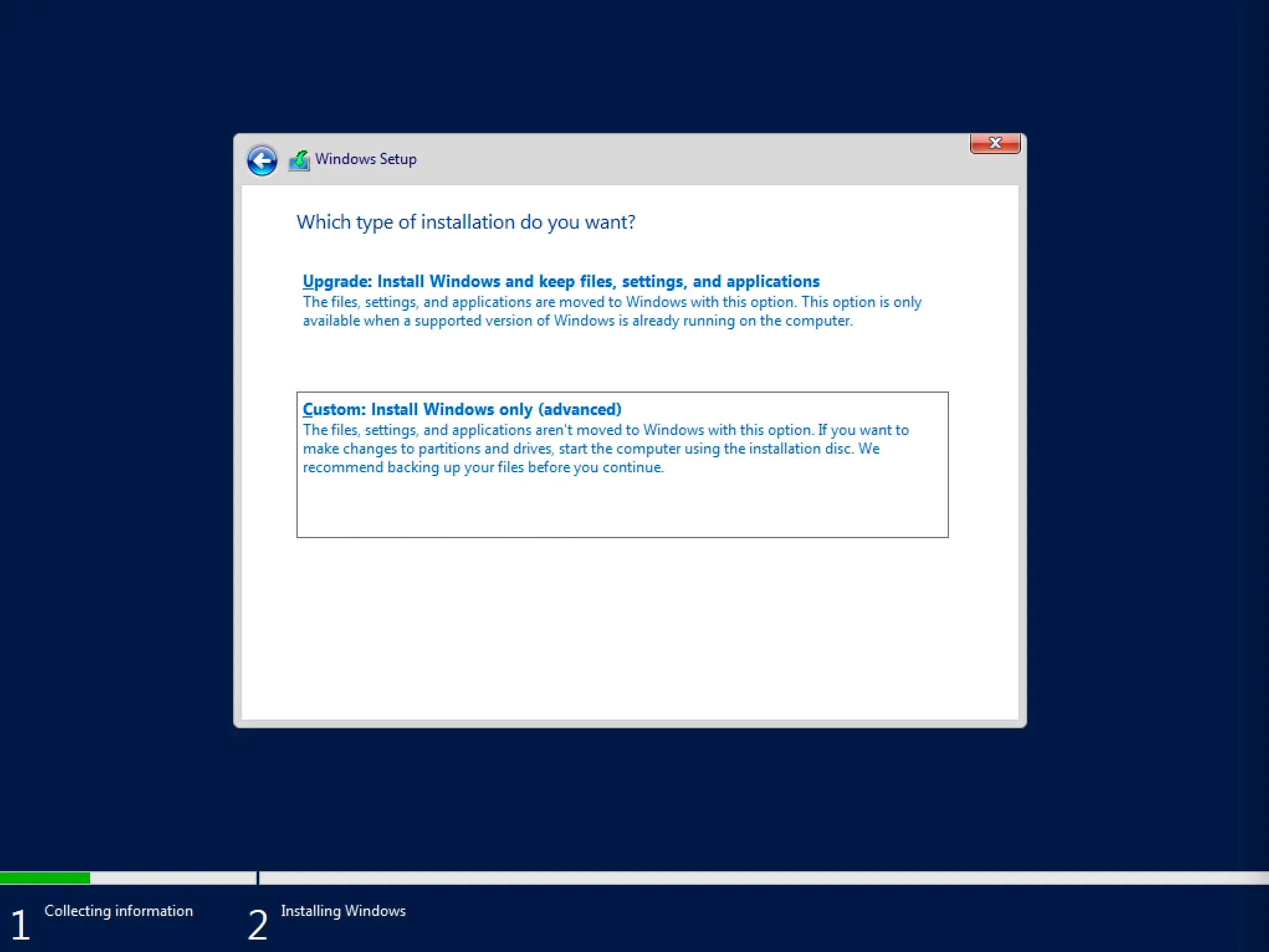
This step offers two installation options:
-
“Upgrade”. This is not the best option. As practice shows, numerous programs may not be compatible with the new operating system, and after the update, you will not be able to work with them, in addition, there is a possibility of dragging problems from the old operating system to the new one, thus losing all stability.
-
“Custom”. This is the best option for installing any version of the Windows operating system. It allows you to start working with the system “from scratch”, so after installation, you will get maximum performance and stability. All that remains is to install the drivers and the software familiar to work.
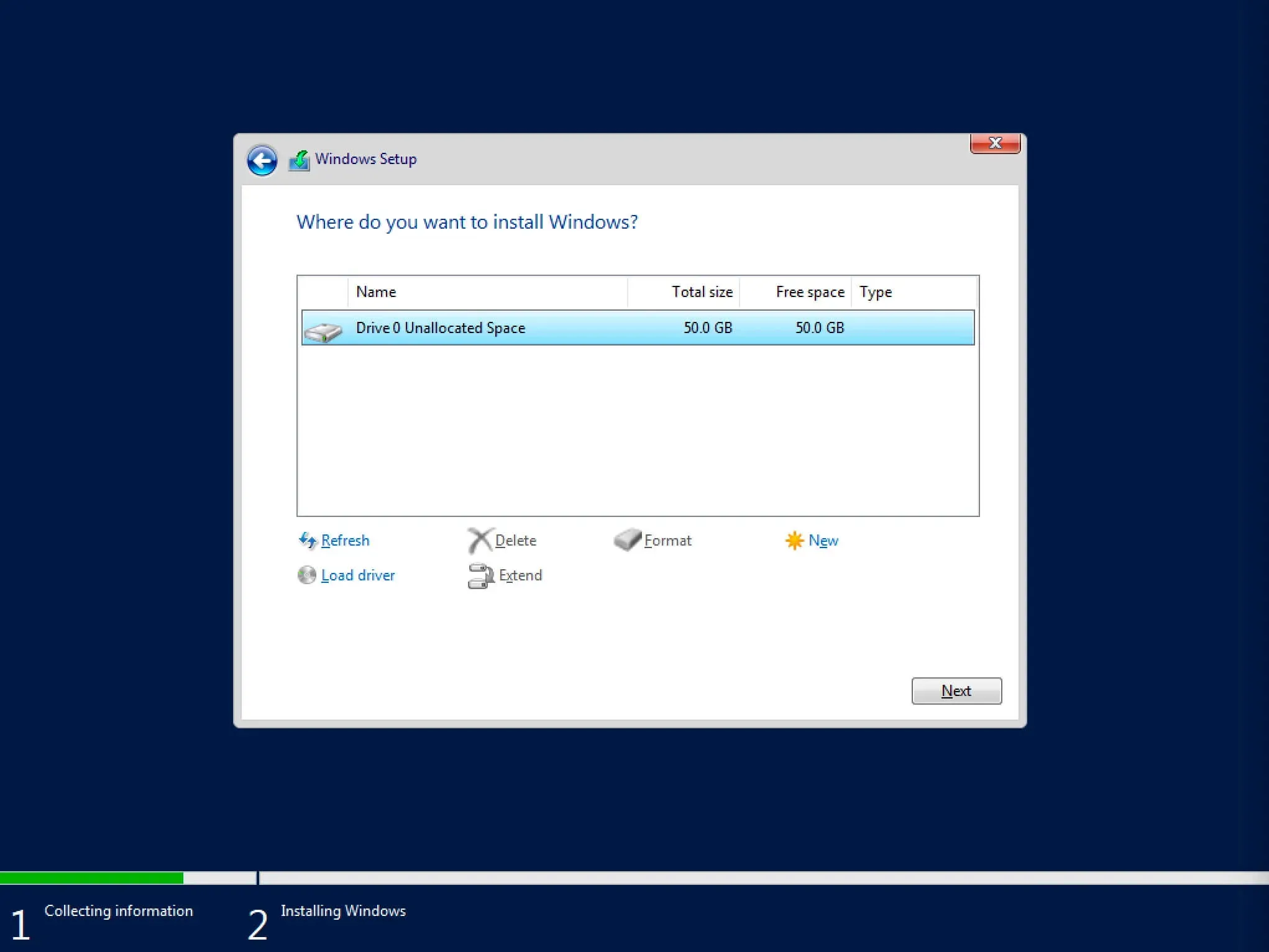
Now you need to choose which disk the new operating system will be installed on and allocate space for installation.
If you have more than one disk installed or the disk already has several partitions, all this will be displayed at this stage. Care must be taken to understand in advance which partition you want to install the operating system on.
NOTEIn this example, one 50 GB disk is installed.
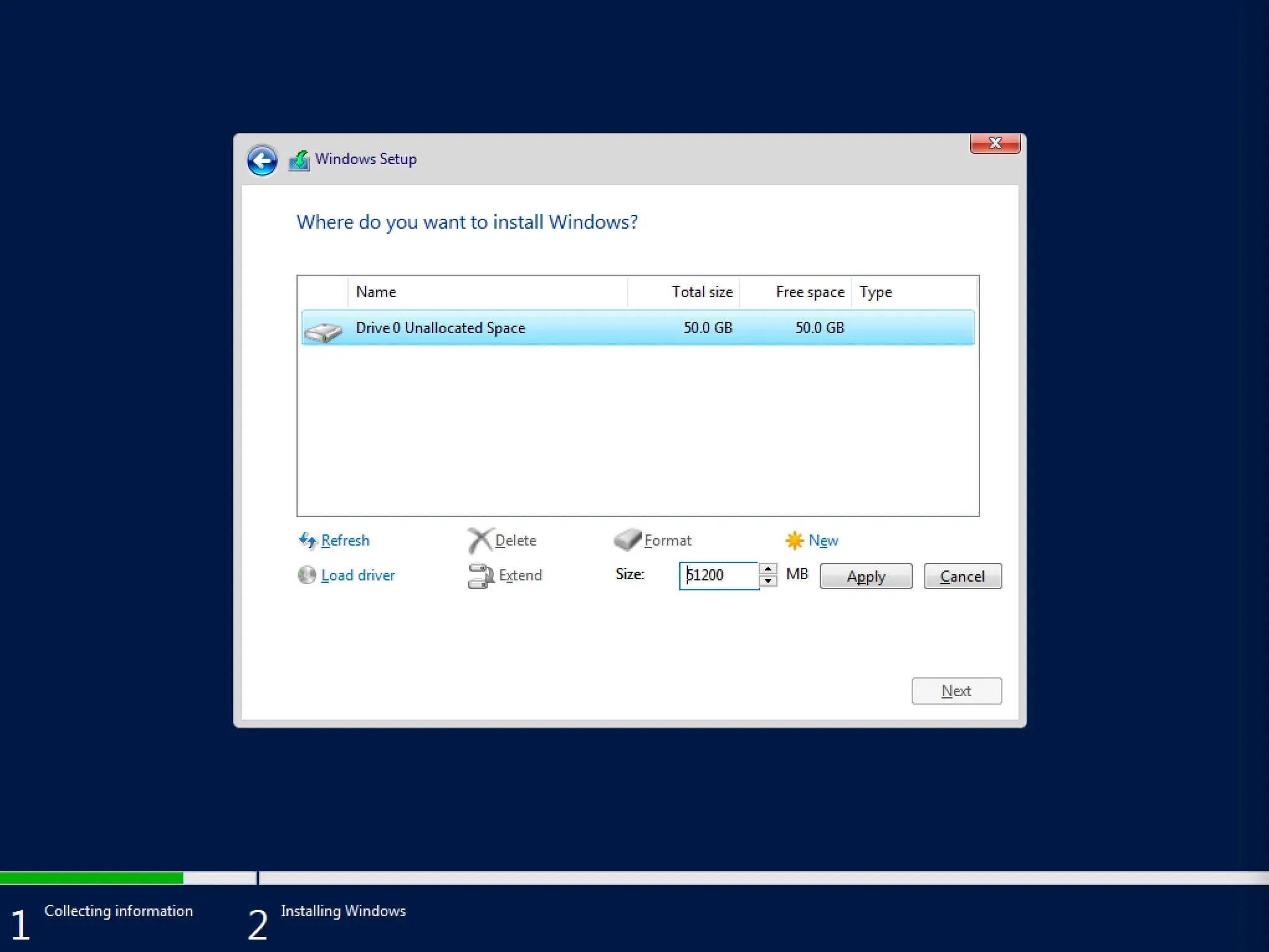
Click on the “New” button.
In this case, all free disk space will be allocated for the system, so we leave the value in the “Size” section by default.
Click on the “Apply” button.
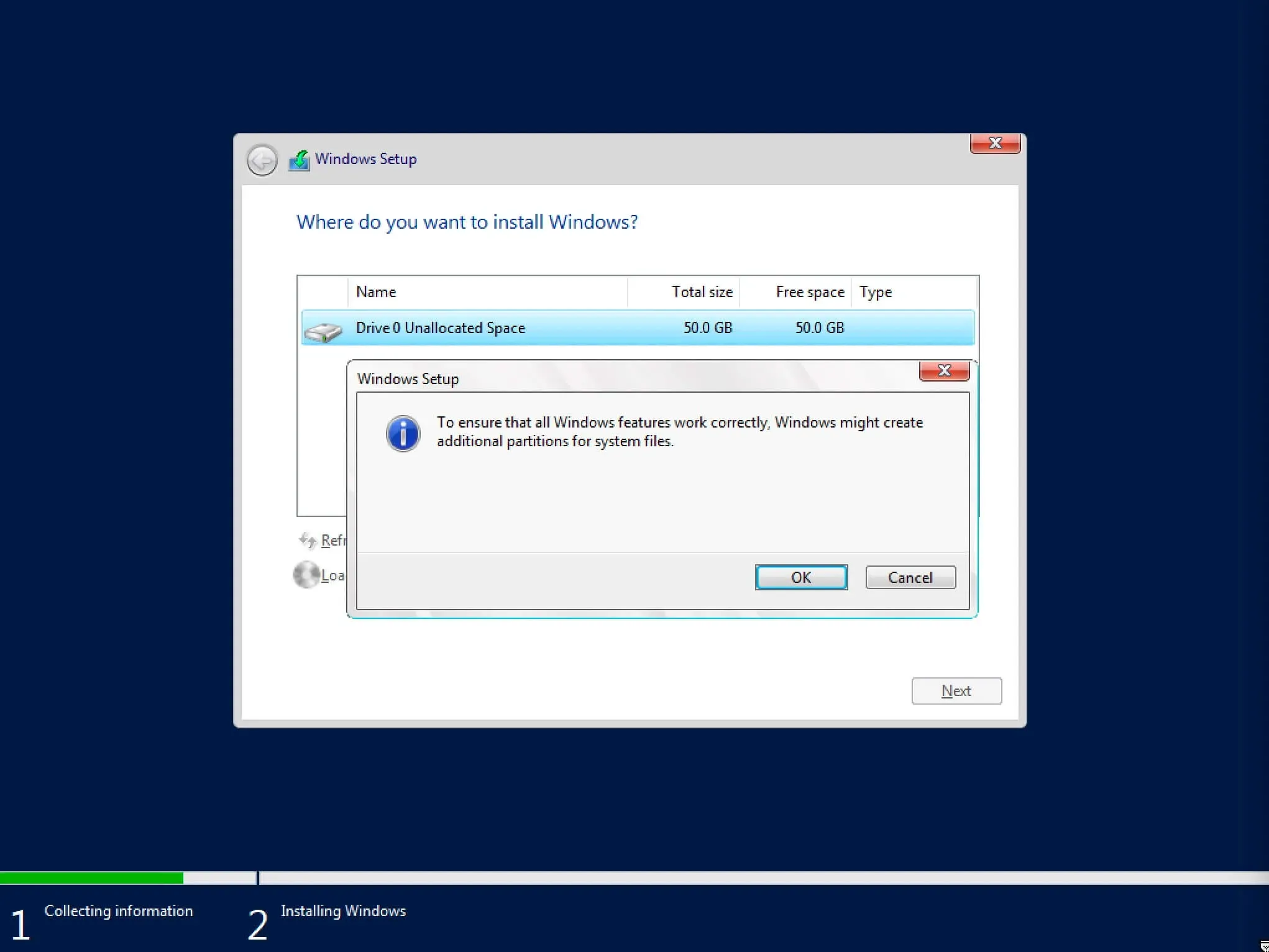
The operating system notifies that it may need to create additional partitions on the disk to store system files.
Click on the “OK” button.
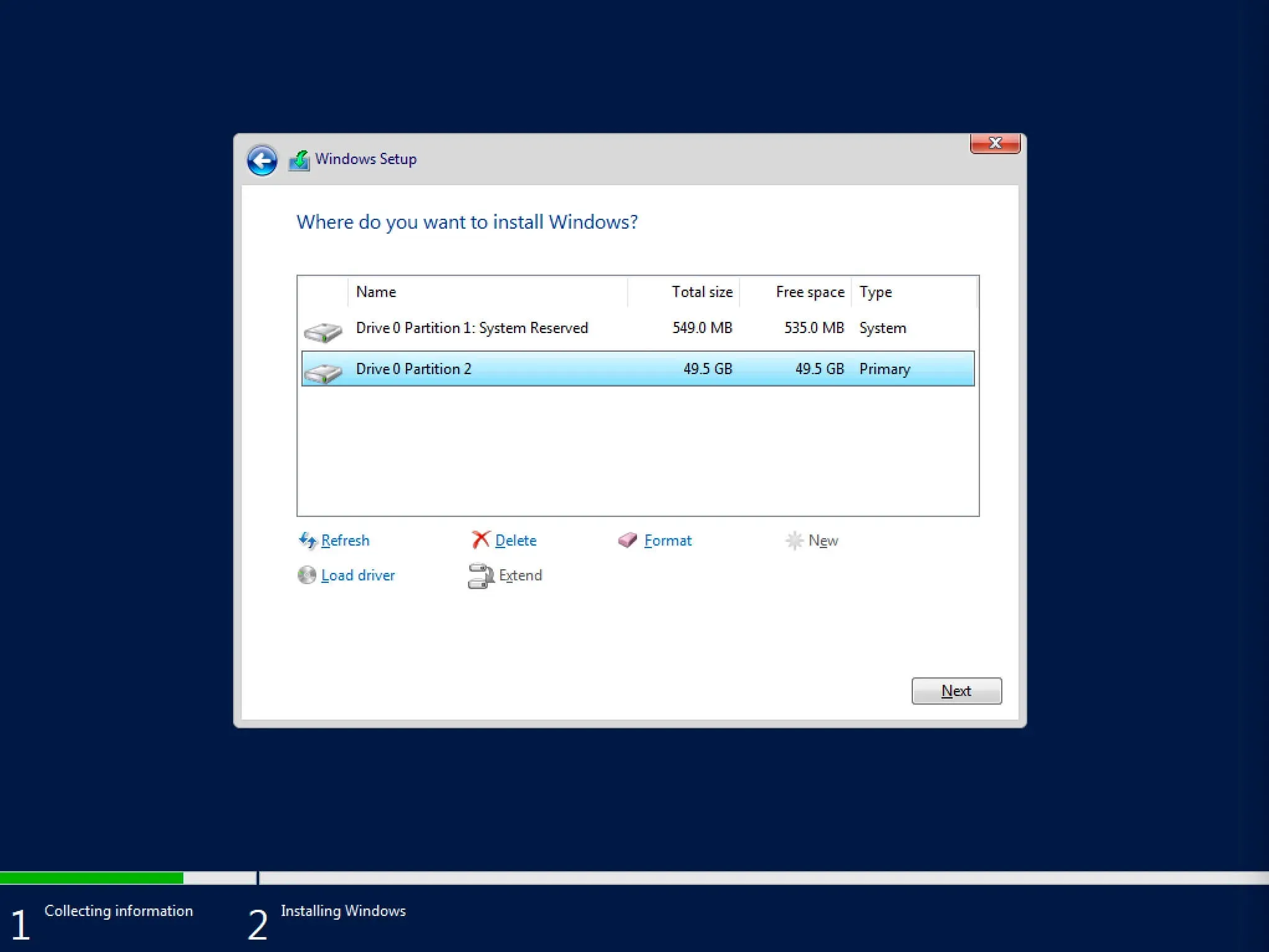
Thus, all free disk space was allocated for the operating system, but at the same time, the system reserved a small partition for itself.
Now you need to select the partition on which the operating system is supposed to be installed and click on the “Next” button.
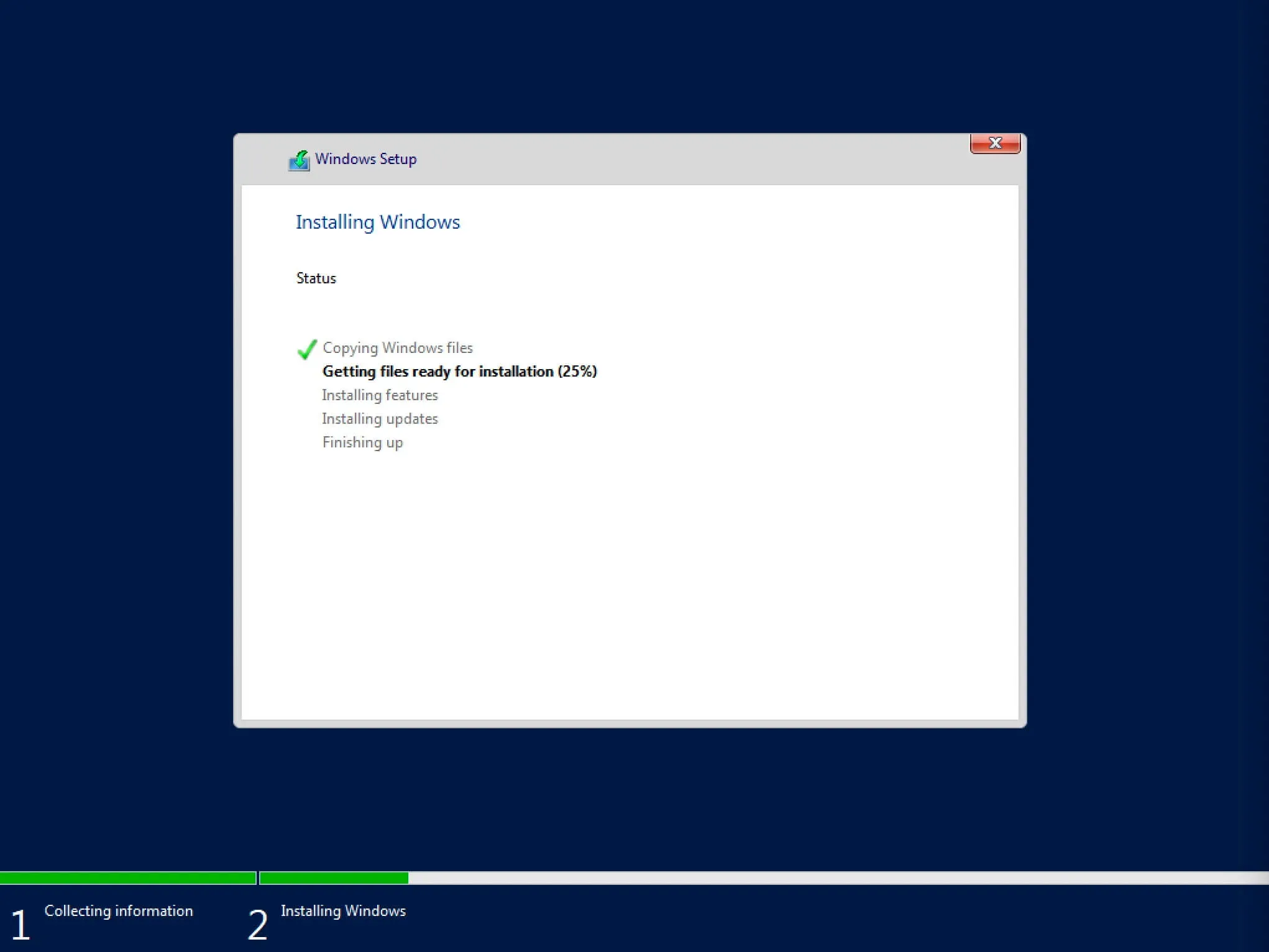
The process of installing the operating system has begun.
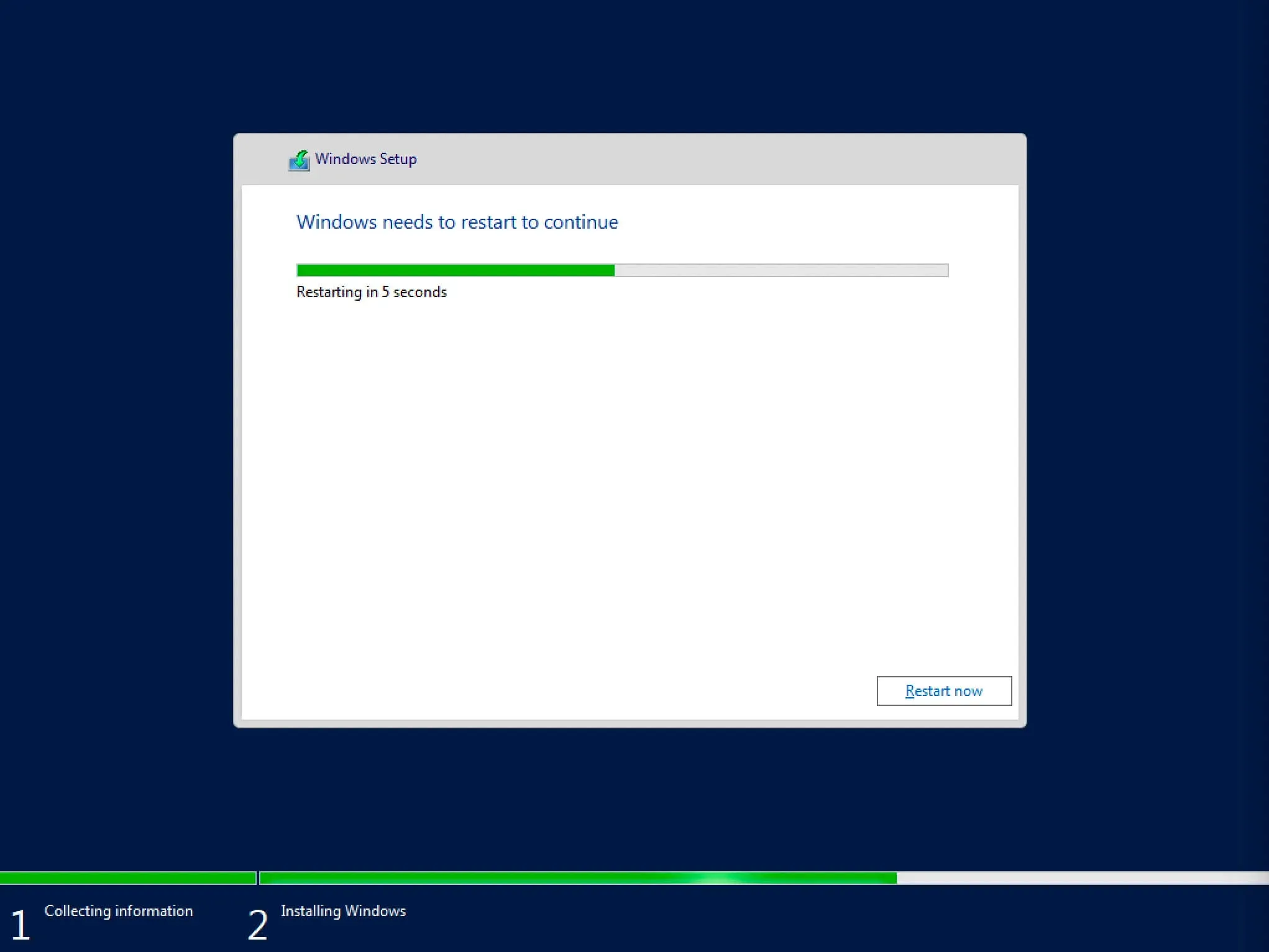
The computer will automatically restart.
Now you need to provide a strong password for the “Administrator” account.
Click on the “Finish” button.
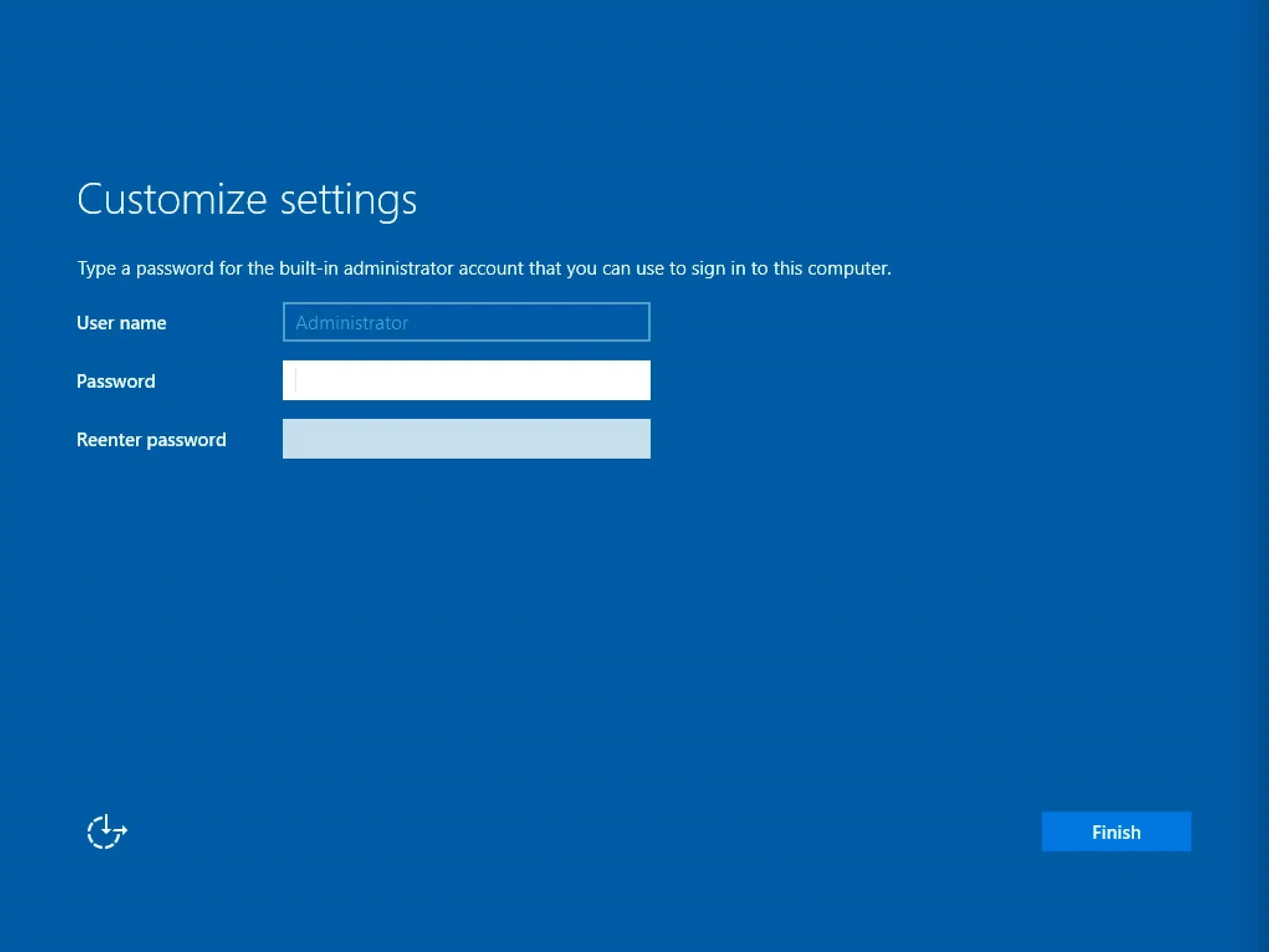
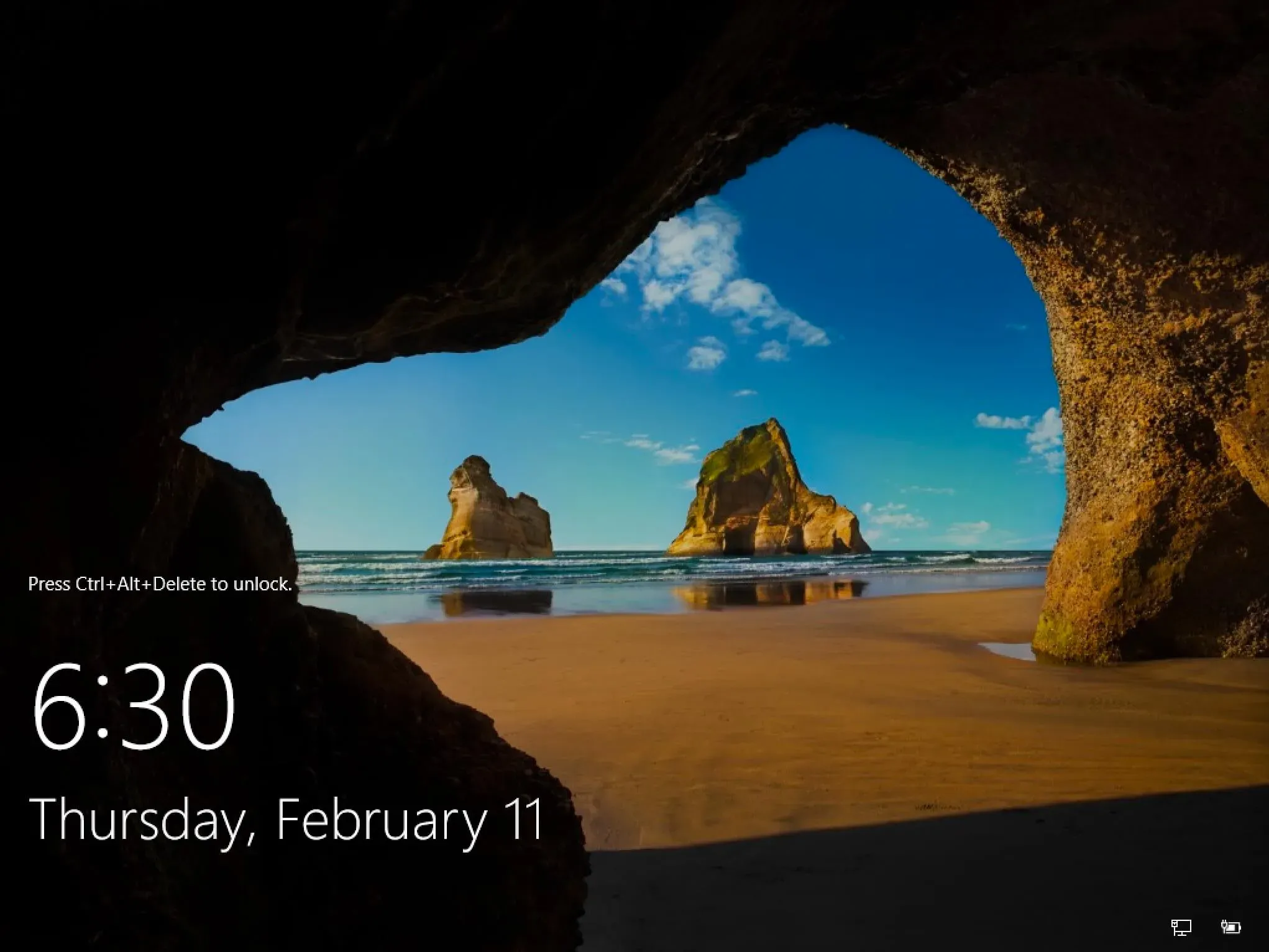
After completing the settings, you will be greeted by the Windows Server 2019 lock screen.
Press “Ctrl + Alt + Delete”.
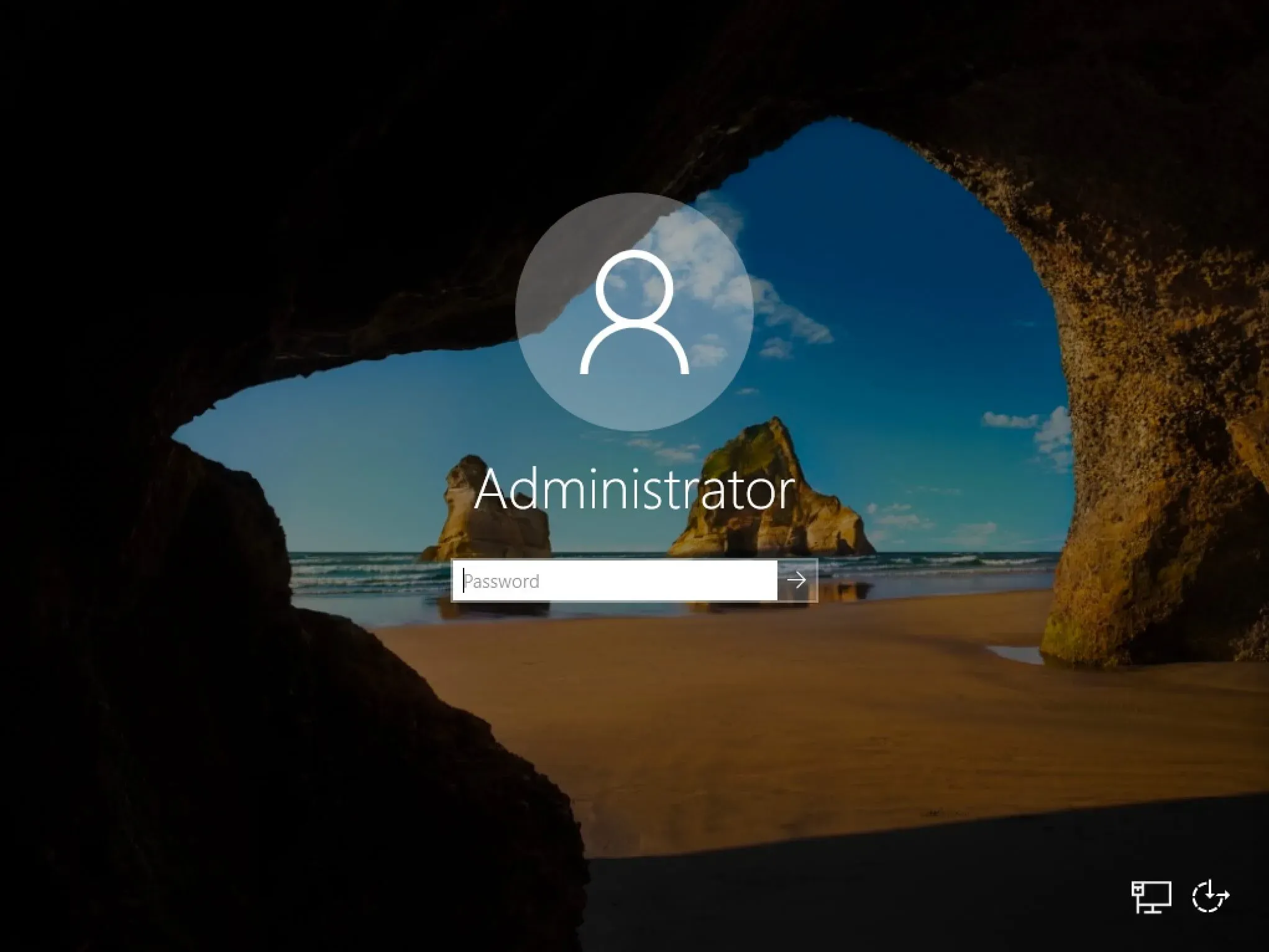
Next, you need to log into the system under the “Administrator” account.
Next, you will be able to turn on network discovery so that the server is visible to other computers on the network.
NOTENetwork discovery is not recommended to be enabled on public networks.
Click on the “Yes” button.
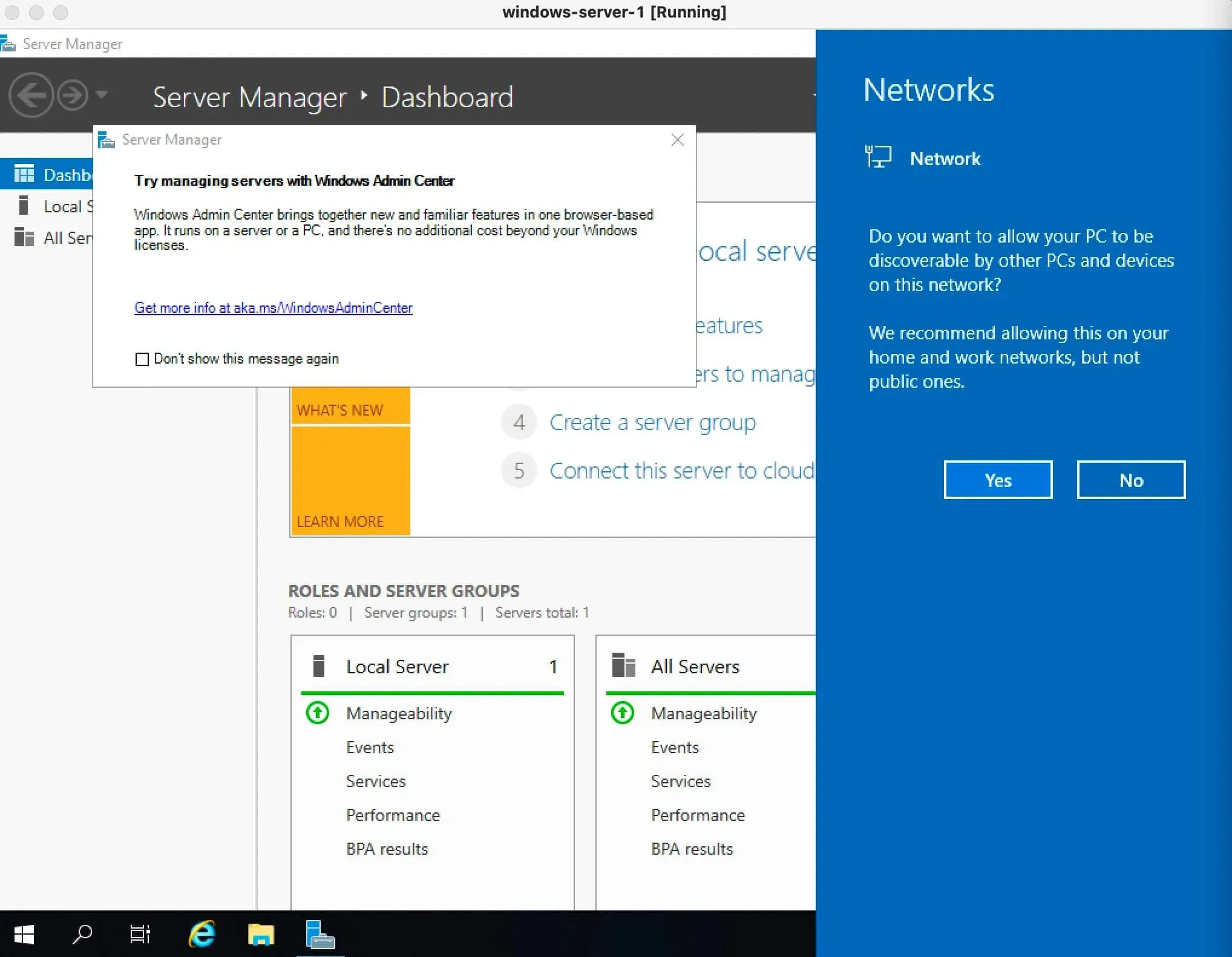
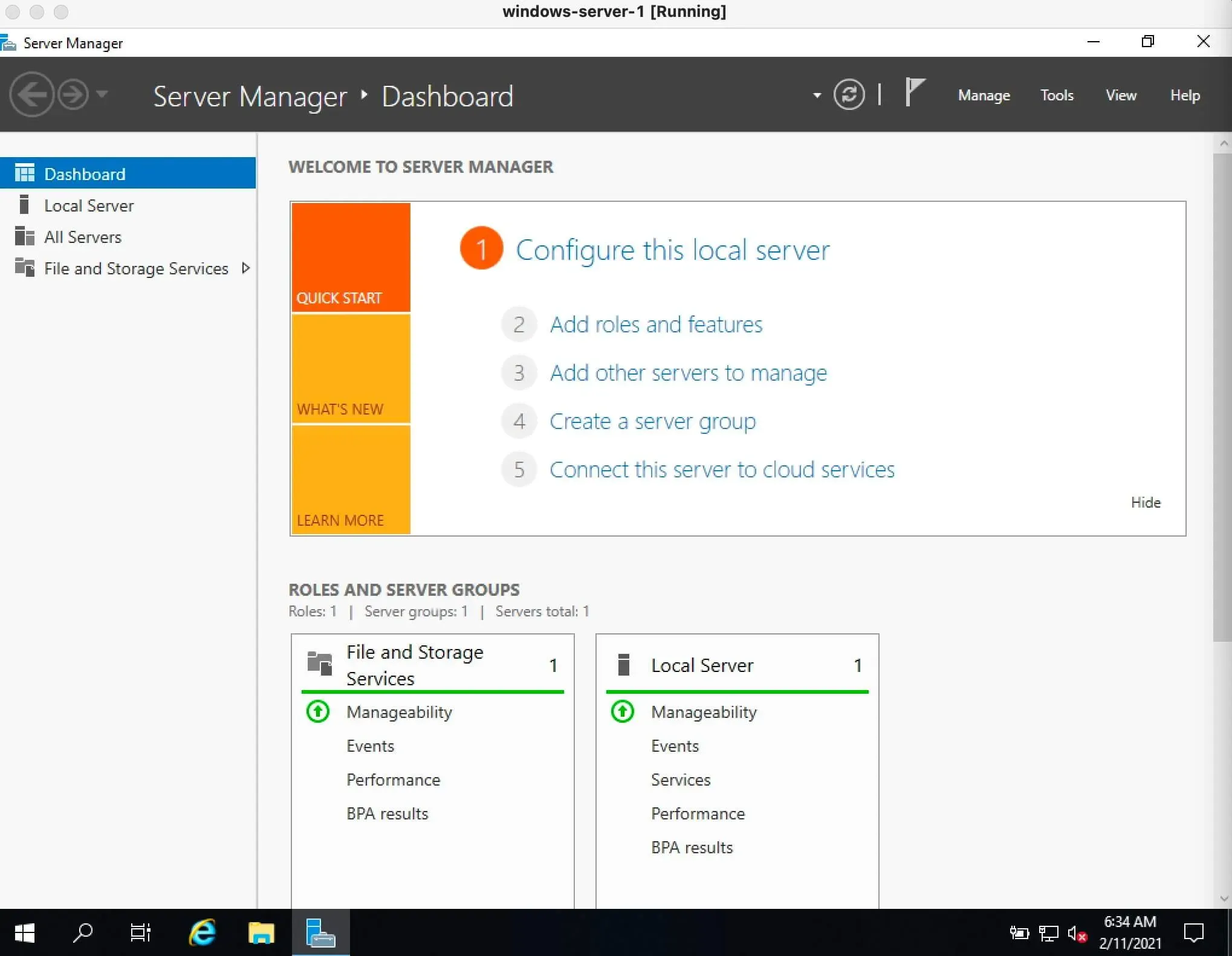
Windows Server 2019 installation is complete.