Basic Setup of Windows Server 2012 R2
By Vladimir Mikhalev · Docker Captain · CNCF Ambassador · IBM Champion
This article is for those looking for a detailed and clear guide on how to basic setup Windows Server 2012 R2.
IMPORTANTWe will consider the case when you already have a server with the Windows Server 2012 R2 operating system installed on it.
For details on installing Windows Server 2012 R2, read my guide: Install Windows Server 2012 R2.
NOTETo learn how to install Active Directory Domain Services on Windows Server 2012 R2, read: Install Active Directory Domain Services on Windows Server 2012 R2.
Let’s give the server the correct name according to your organization’s standards.
We go into the system under an account with administrator rights.
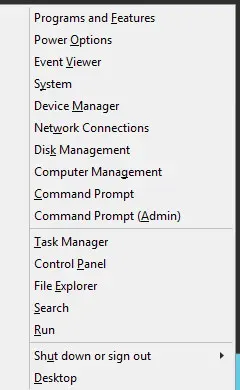
On the keyboard, press the key combination “Win” and “x”, then select “System” in the menu that opens.
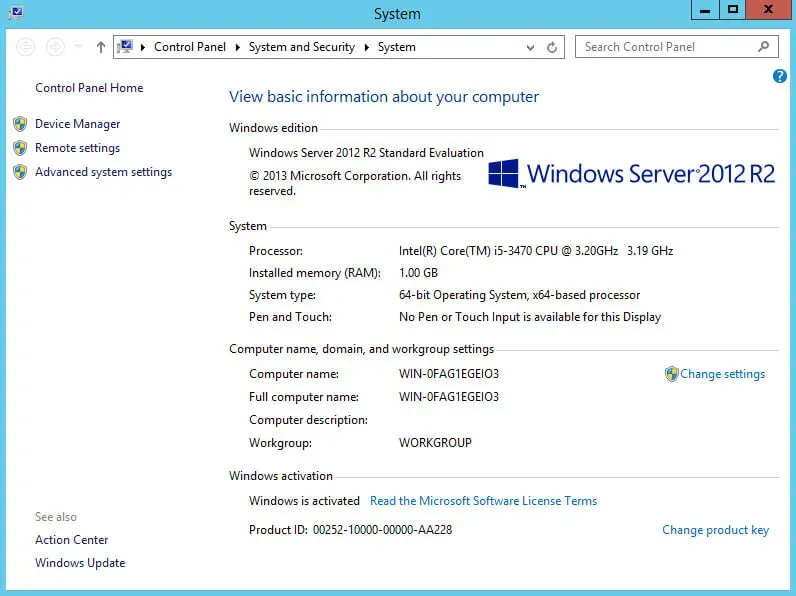
Next, in the “System” window in the “Computer name, domain, and workgroup settings” section, click on the “Change settings” button.
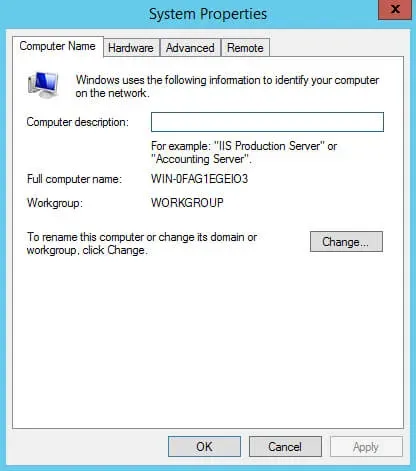
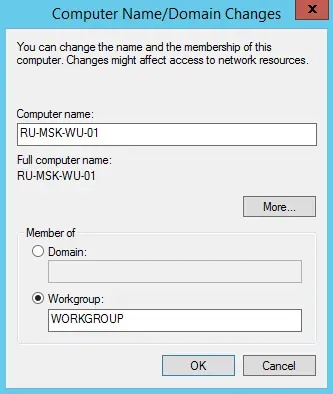
In the “System Properties” window on the “Computer Name” tab, click on the “Change” button.
I highly recommend that you think ahead about the name of the servers in your organization.
Next, specify the new server name in the “Computer Name” field and click on the “OK” button.
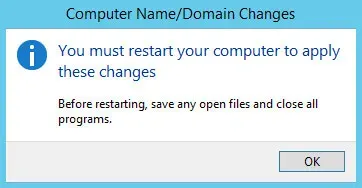
The system will warn you that you need to restart the server to apply the new settings.
Click on the “OK” button.
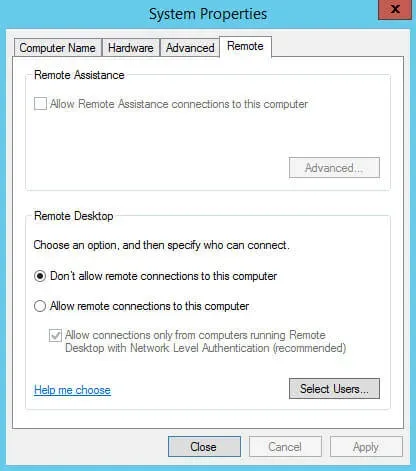
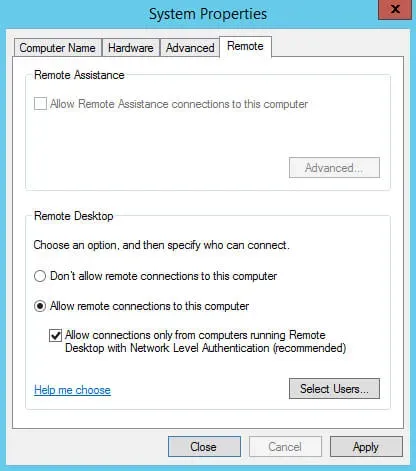
Now let’s allow access to the server desktop via the RDP protocol.
Go to the “Remote” tab and select “Allow remote connections to this computer”.
Click on the “OK” button.
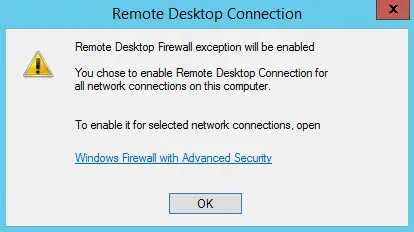
Click on the “Apply” button.
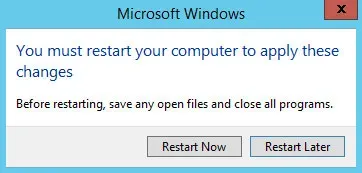
Now the system will offer to restart the server for the new settings to take effect.
Click on the “Restart Now” button.
We will indicate the correct time zone.
We go into the system under an account with administrator rights.
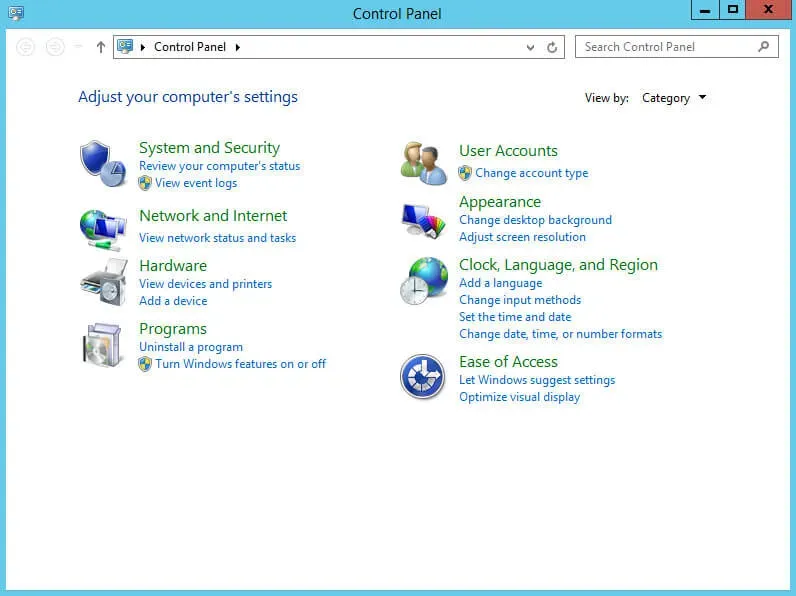
On the keyboard, press the key combination “Win” and “x”, then select “Control Panel” in the menu that opens.
We select “Set the time and date”.
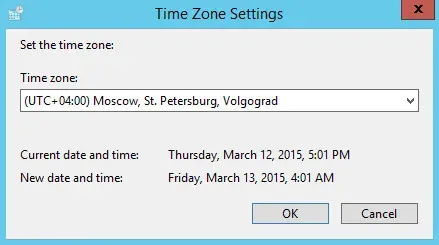
Next, click on the “Change time zone” button.
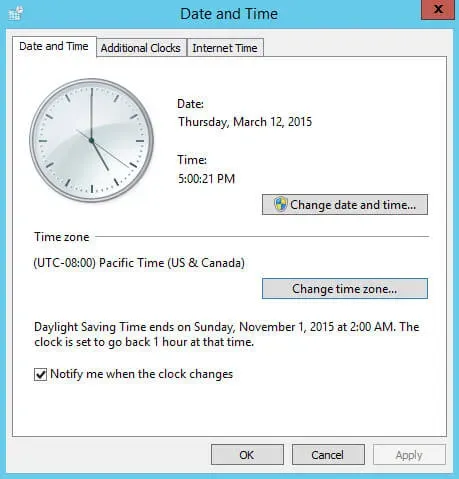
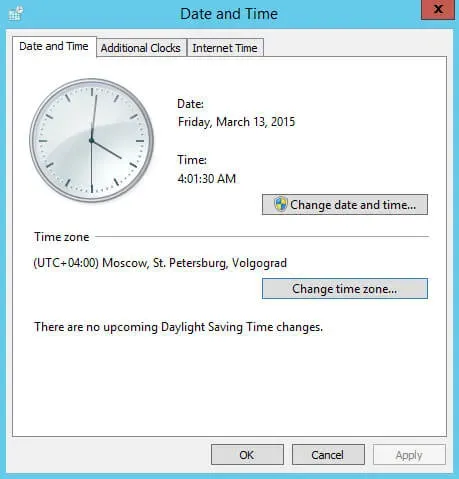
Select the time zone in which the server is located and click on the “OK” button.
In the “Date and Time” window, click on the “OK” button.
Now we will indicate the regional standards.
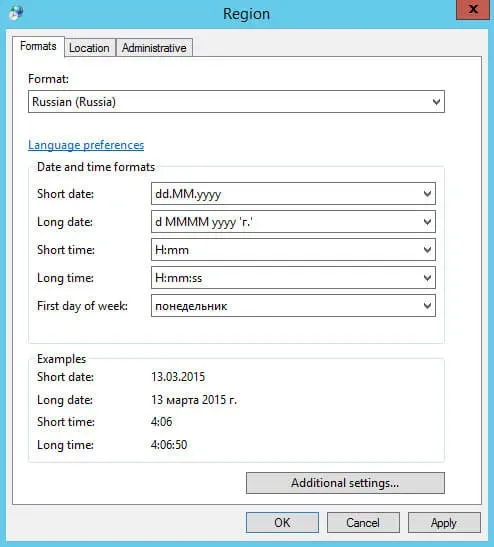
Go back to the “Control Panel” and choose “Change date, time, or number formats”.
In the “Format” menu, select the country where the server is located, and go to the “Location” tab.
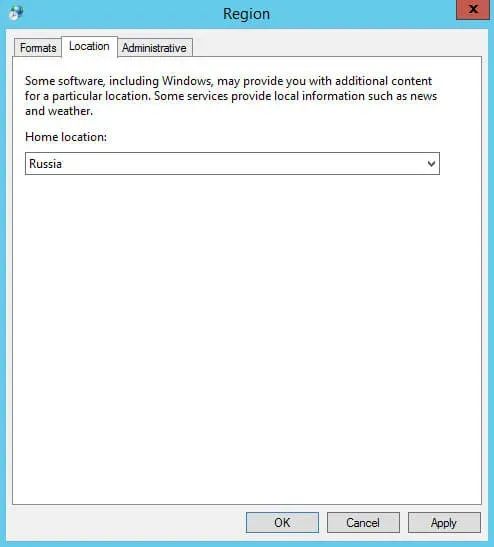
In the “Home location” field, select the country where the server is located, and go to the “Administrative” tab.
Next, click on the “Copy settings” button.
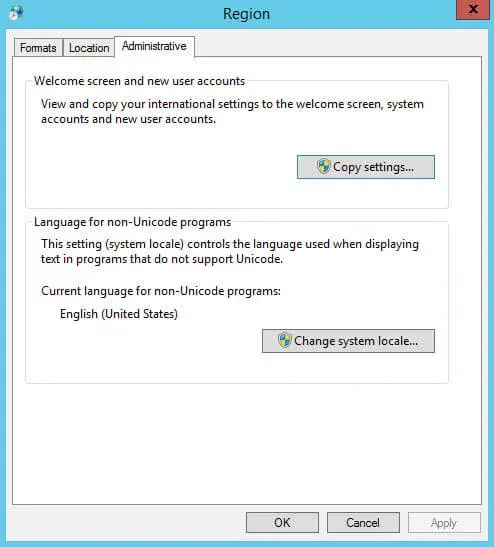
We put a tick on the item “Welcome screen and system accounts” and on the item “New user accounts”.
Click on the “OK” button.
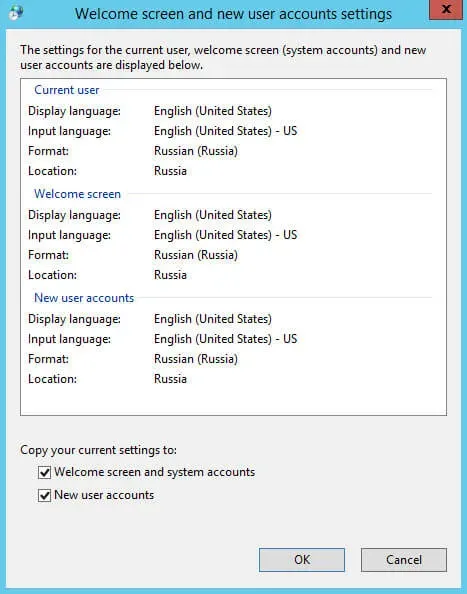
Next, click on the “Change system locale” button.
In the “Current system locale” field, select the country where the server is located and click on the “OK” button.
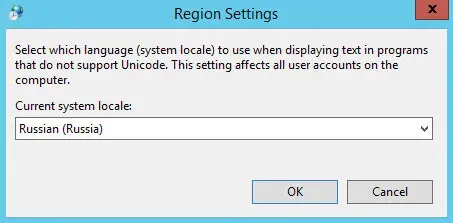
The system will offer to restart the server for the new settings to take effect.
Click on the “Restart Now” button.
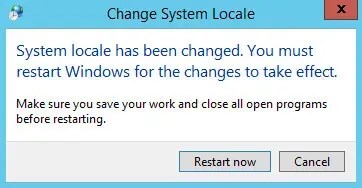
Next, the server will start to reboot.
Now you need to register a static IP address in the network connection settings.
After rebooting the server, go to the system under an account with administrator rights.
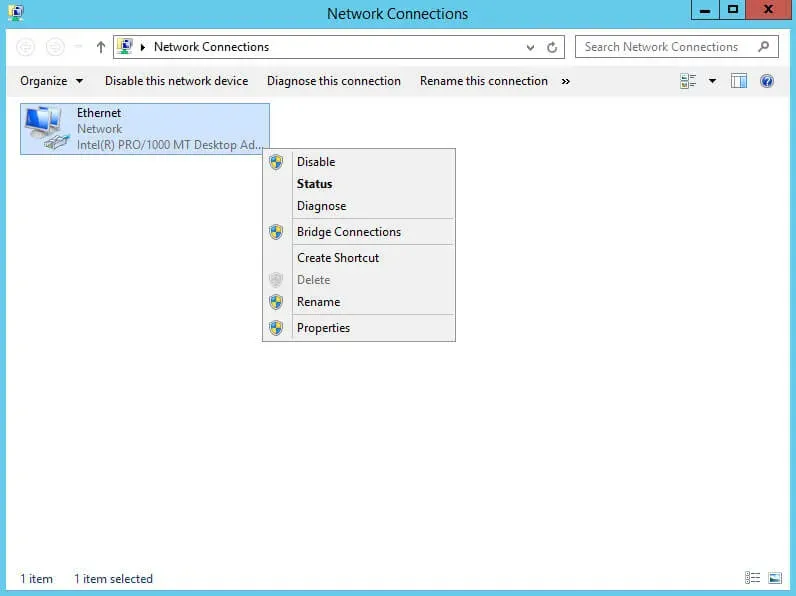
On the keyboard, press the key combination “Win” and “x”, then select “Network Connections” in the menu that opens.
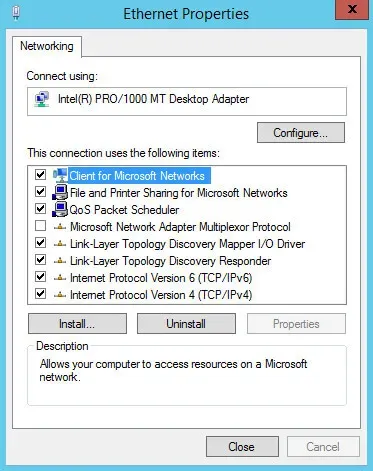
Now right-click on the “Ethernet” network connection and select “Properties”.
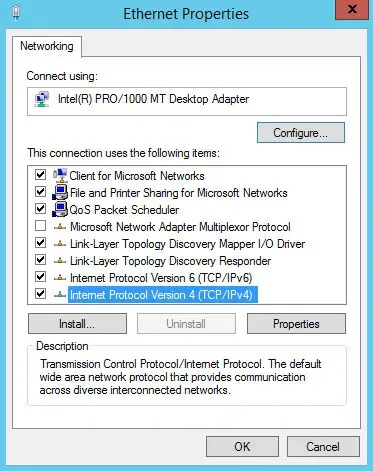
Select “Internet Protocol Version 4” and click on the “Properties” button.
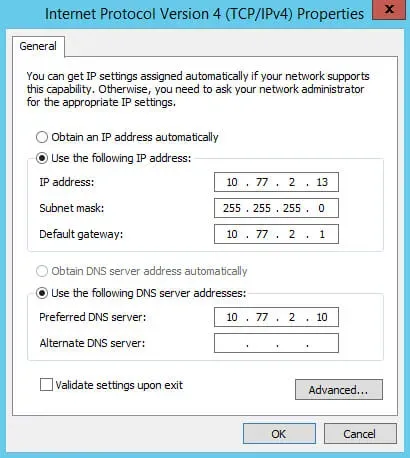
Next, select the “Use the following IP address” item and specify a free IP address, subnet mask, and gateway.
NOTEYou must understand in advance how your network works and know which IP addresses are available.
In the “Preferred DNS server” field, enter the IP address of your DNS server.
This guide specifies the DNS server that is located on the domain controller.
NOTETo learn how to install Active Directory Domain Services on Windows Server 2012 R2, read: Install Active Directory Domain Services on Windows Server 2012 R2.
Click the “OK” button.
In the “Ethernet Properties” window, click on the “Close” button.
Now let’s add the server to the domain.
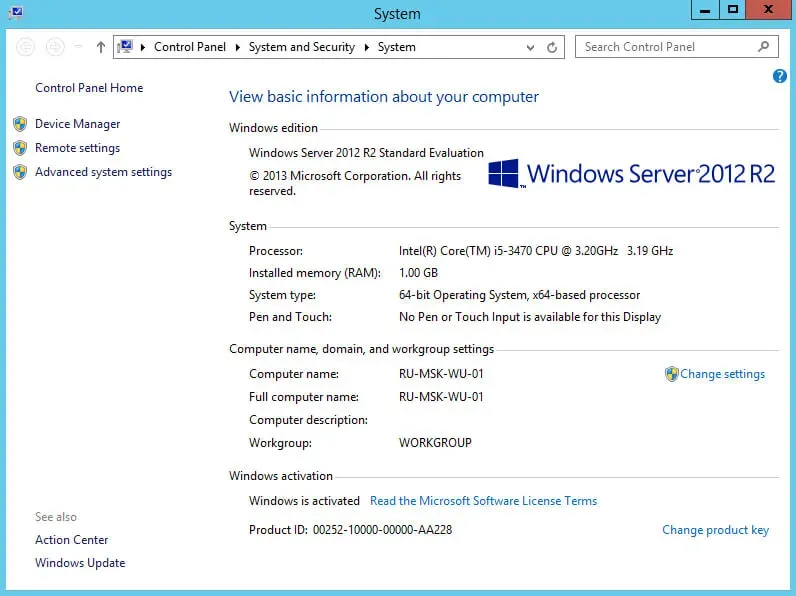
On the keyboard, press the key combination “Win” and “x”, then select “System” in the menu that opens.
Next, in the “System” window in the “Computer name, domain, and workgroup settings” section, click on the “Change settings” button.
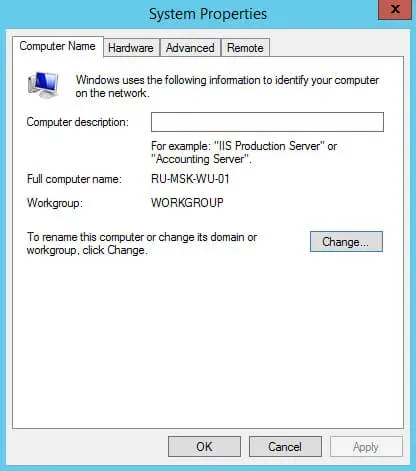
In the “System Properties” window on the “Computer Name” tab, click on the “Change” button.
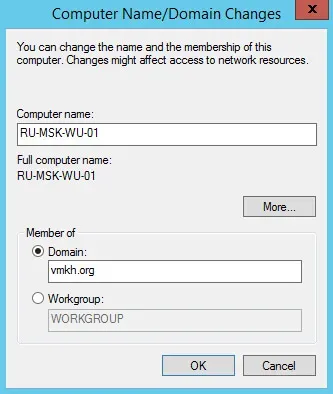
Next, in the “Domain” field, indicate the domain to which you want to add the server, and click on the “OK” button.
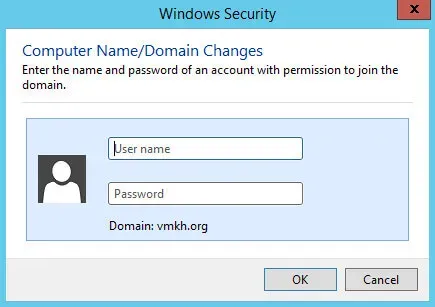
We specify the login and password for an account that has the right to add computers to the domain.
For example, a domain administrator has such rights.
Click on the “OK” button.
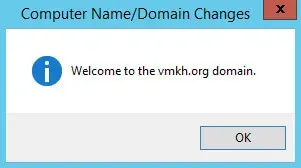
The server was successfully added to the domain.
Click on the “OK” button.
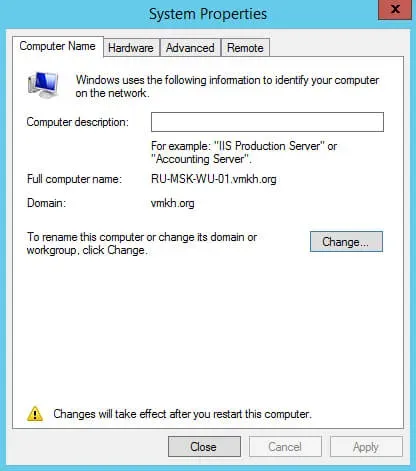
The system will warn you that you need to restart the server to apply the new settings.
Click on the “OK” button.
In the “System Properties” window, click on the “Close” button.
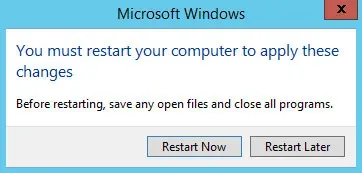
Now the system will offer to restart the server for the new settings to take effect.
Click on the “Restart Now” button.
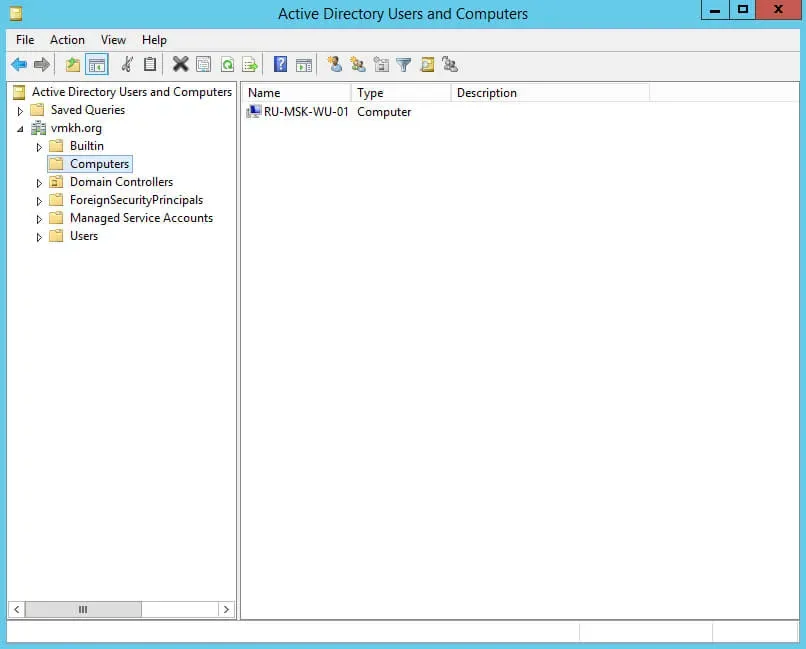
On the domain controller in the Active Directory Users and Computers snap-in, you can see the server that you added to the domain. It will appear in the “Computers” container.