Install Active Directory Domain Services on Windows Server 2019
By Vladimir Mikhalev · Docker Captain · CNCF Ambassador · IBM Champion
This article is for those looking for a detailed and straightforward guide on installing Active Directory Domain Services on Windows Server 2019.
IMPORTANTIn this guide, we will consider the case when you already have a server with the Windows Server 2019 operating system installed on it.
For details on installing Windows Server 2019, read my guide: Install Windows Server 2019.
NOTETo learn how to install Active Directory Domain Services on Windows Server 2019 Server Core (without a GUI), read: Install Active Directory Domain Services on Windows Server 2019 Server Core.
CAUTIONBefore installing the Active Directory Domain Services role, make sure to assign the server a proper name according to your organization’s standards. Then, configure a static IP address, subnet mask, gateway, and DNS server address.
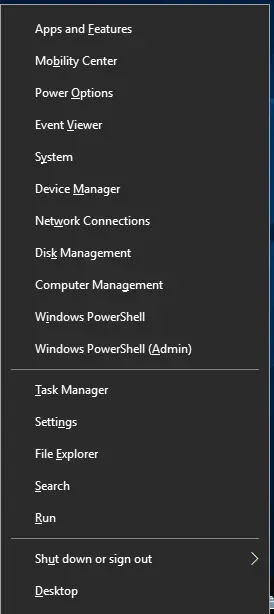
We go into the system under an account with administrator rights and on the keyboard press the combination of keys “Win” and “X”, then select “System” in the menu that opens.
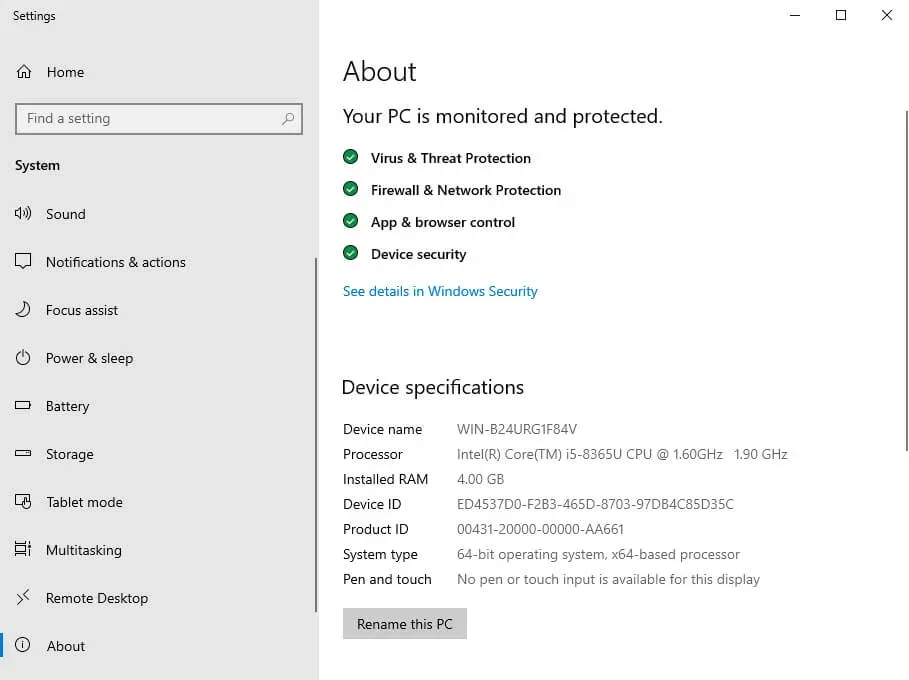
Choose “Rename this PC”.
I highly recommend that you think ahead about the name of the servers in your organization.
Next, specify the new server name and click on the “Next” button.
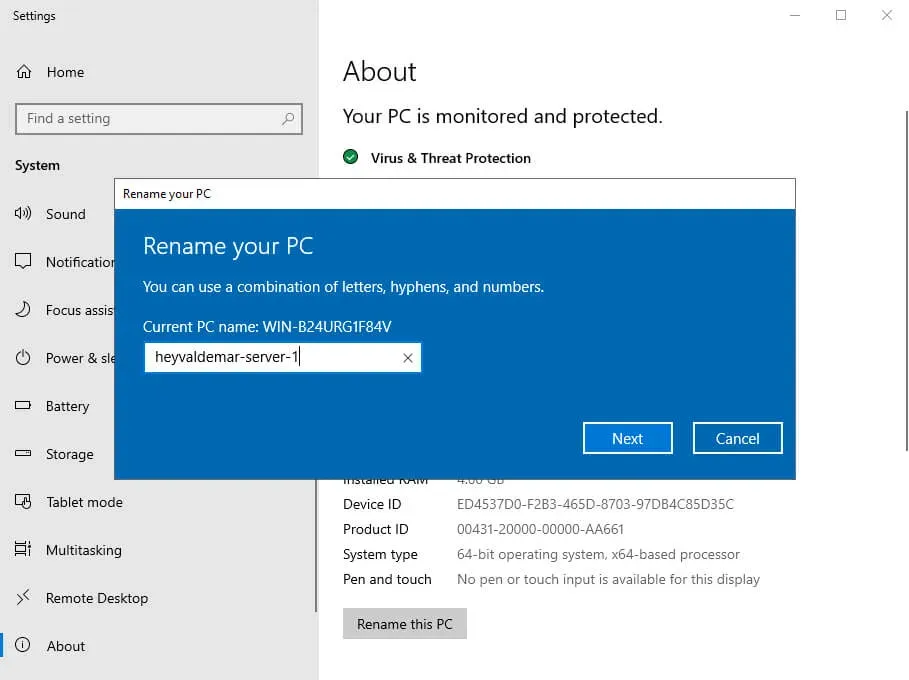
Now the system will offer to restart the server for the new settings to take effect.
Click on the “Restart now” button.
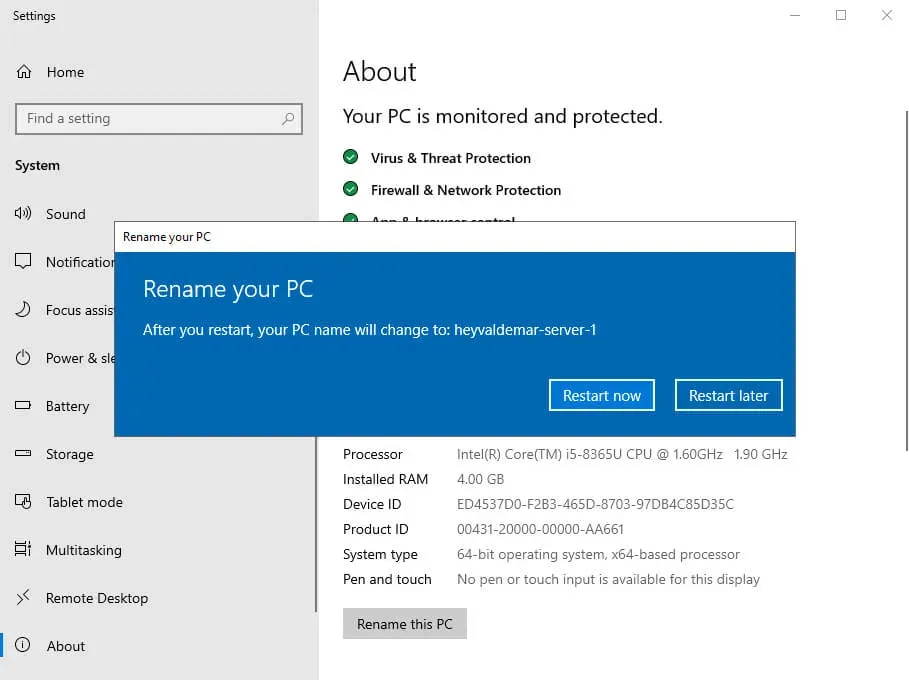
Select “Operating System: Reconfiguration (Planned)” as the reason for the server reboot and click on the “Continue” button.
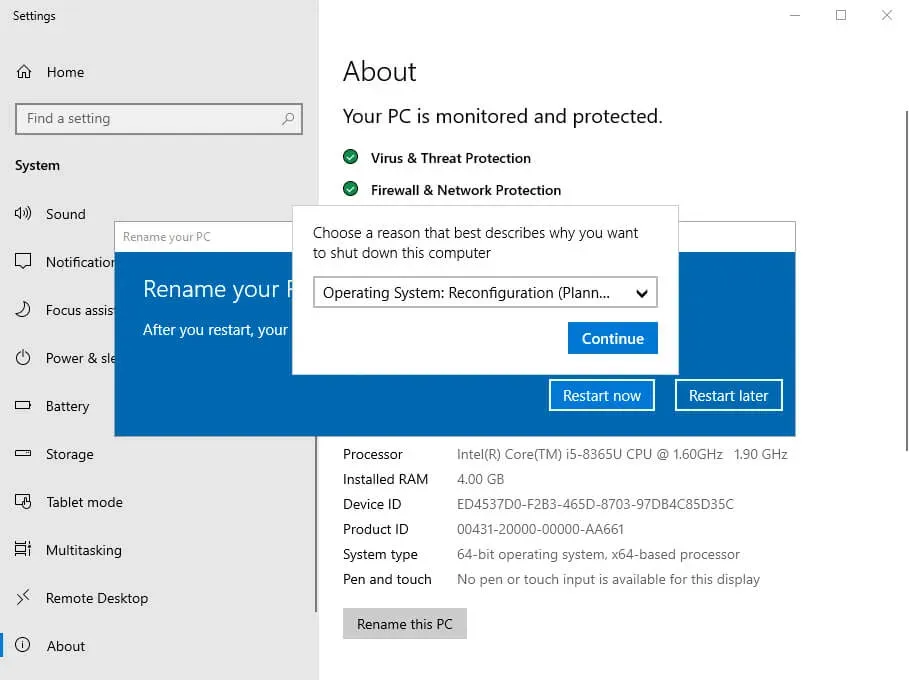
Next, the server will start to reboot.

Now you need to register a static IP address in the network connection settings.
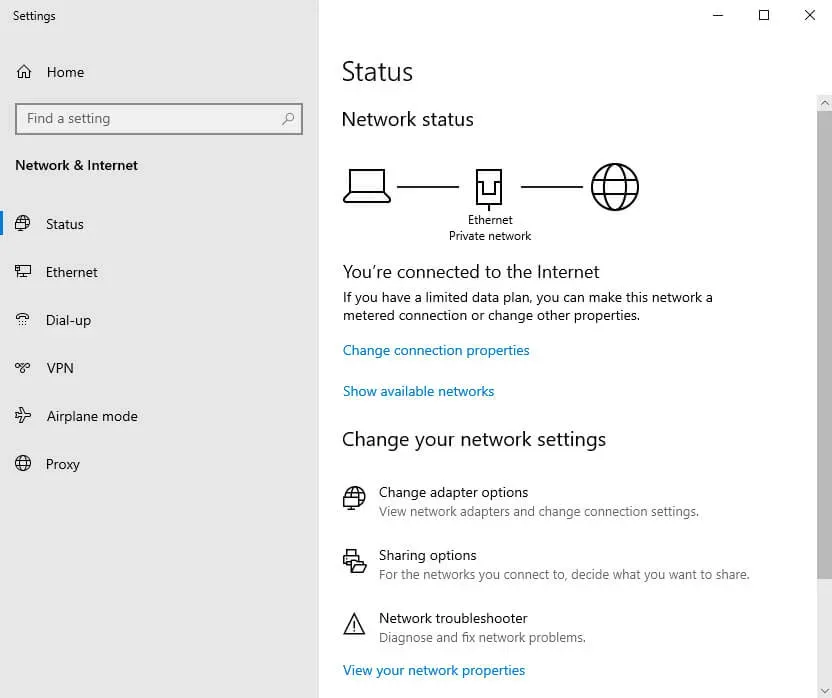
We go into the system under an account with administrator rights and on the keyboard press the combination of keys “Win” and “X”, then select “Network Connections” in the menu that opens.
Next, select “Change adapter options”.
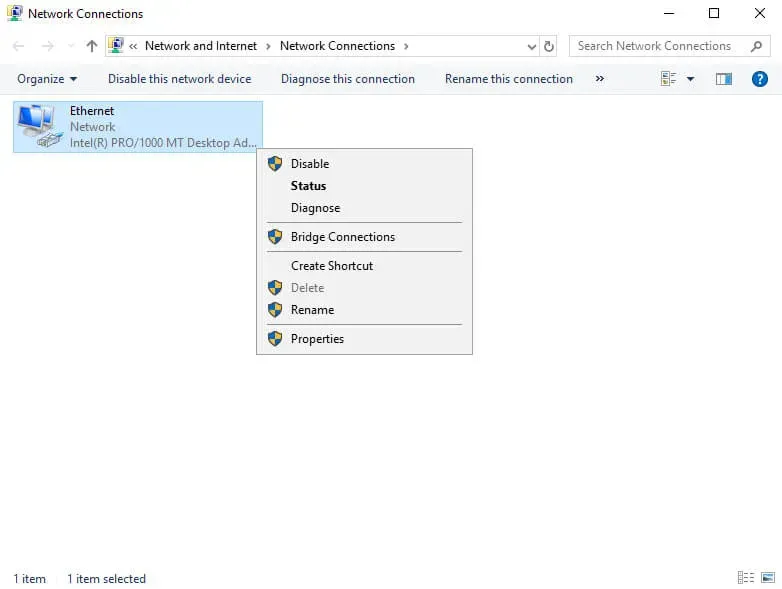
Now right-click on the “Ethernet” network connection and select “Properties”.
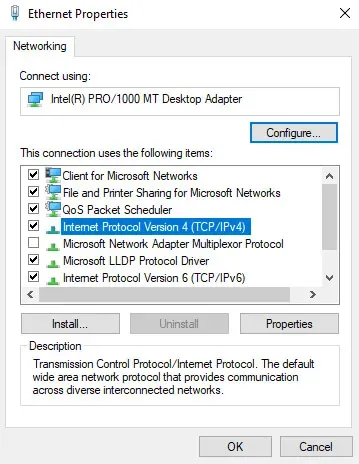
Select “Internet Protocol Version 4” and click on the “Properties” button.
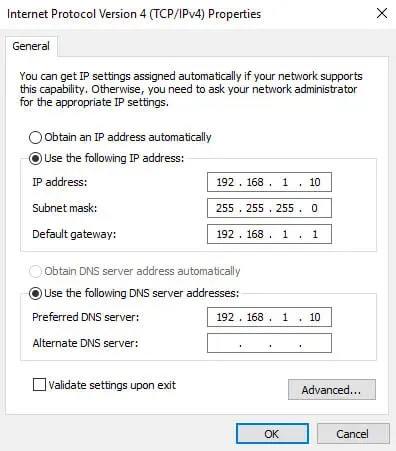
Next, select the “Use the following IP address” item and specify a free IP address, subnet mask, and gateway.
NOTEYou must understand in advance how your network works and know which IP addresses are available.
In the “Preferred DNS server” field, specify the IP address of this server, since your server will have the “DNS Server” role, which is installed together with the “Active Directory Domain Services” role.
Click on the “OK” button.
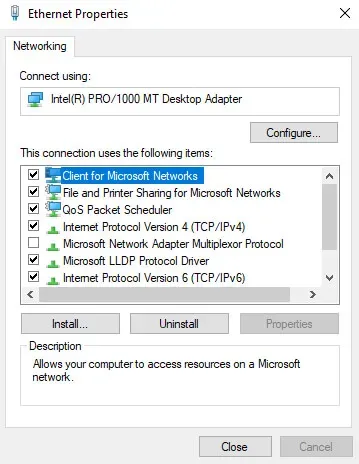
In the “Ethernet Properties” window, click on the “Close” button.
You can now begin installing the Active Directory Domain Services role.
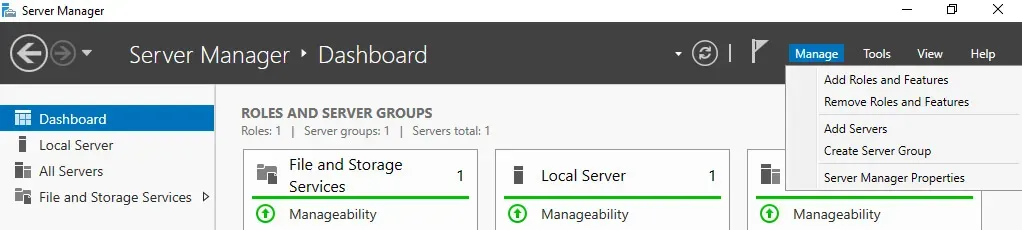
Open the “Server Manager”, click on the “Manage” button in the upper right corner of the screen and select “Add Roles and Features”.
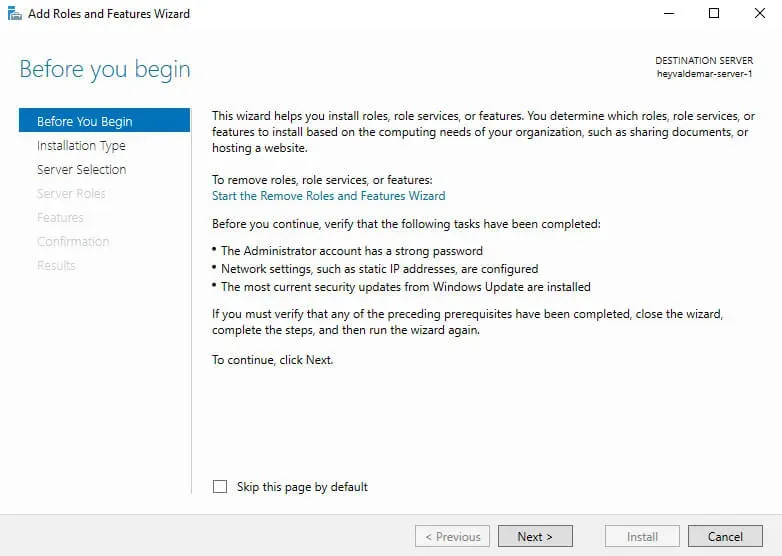
Click on the “Next” button.
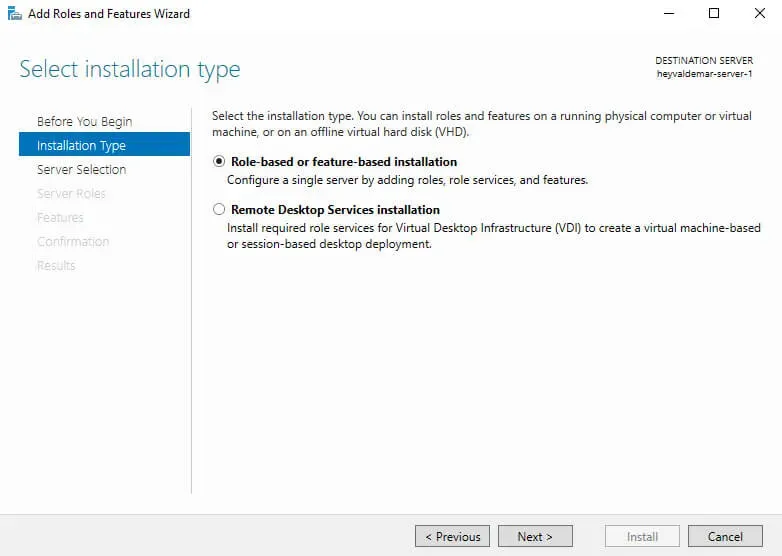
Select the installation type “Role-based or feature-based installation” and click on the “Next” button.
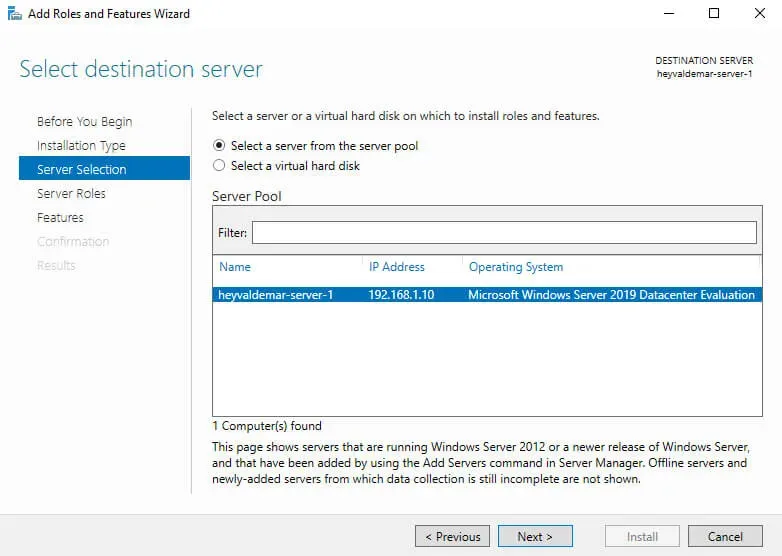
Next, select the server on which the role will be installed.
Click on the “Next” button.
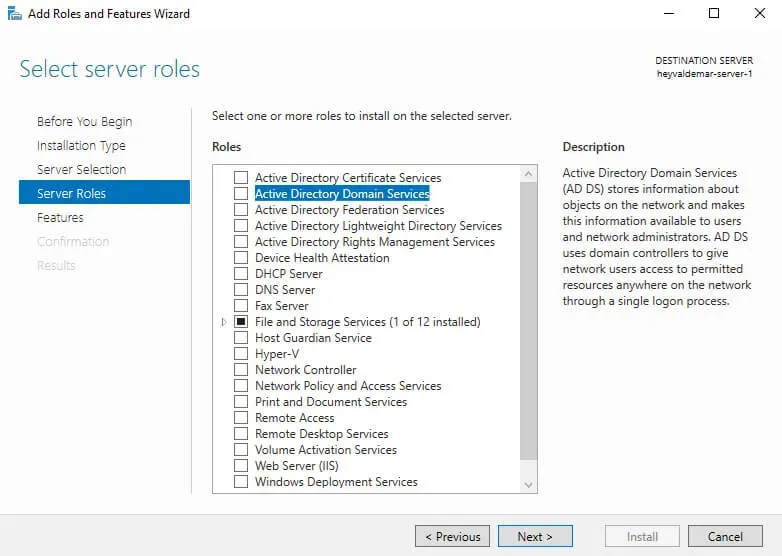
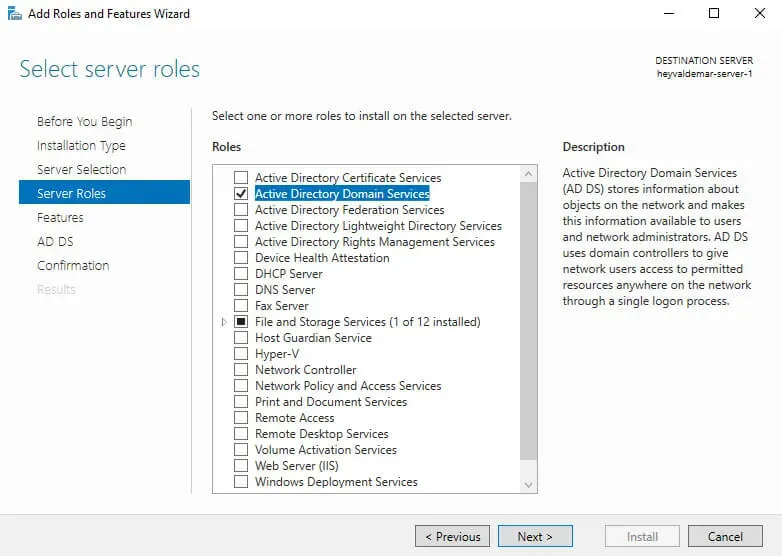
Select the “Active Directory Domain Services” role.
In the next step, the Role Installation Wizard will warn you that several components need to be installed to install the Active Directory Domain Services role.
Click on the “Add Features” button.
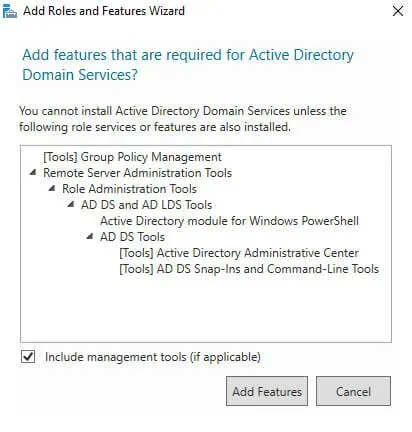
It is not necessary to select the DNS Server role at this point. It will be installed later.
Click on the “Next” button.
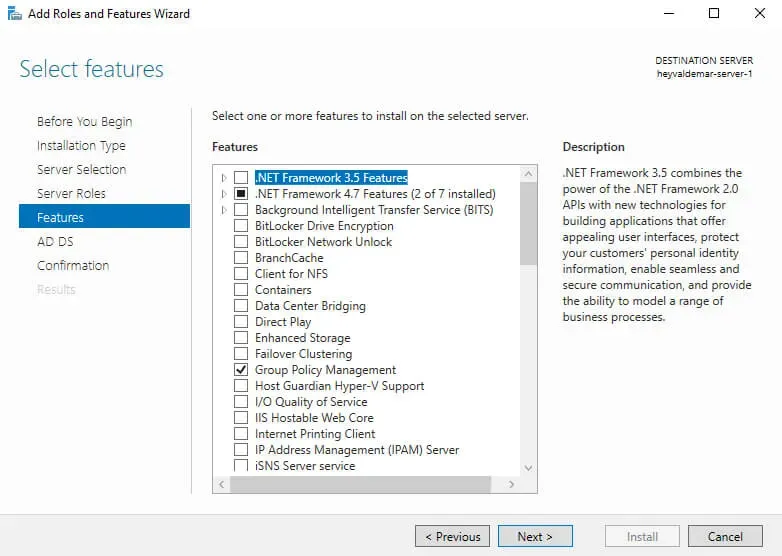
At the stage of adding components, we leave all the default values.
Click on the “Next” button.
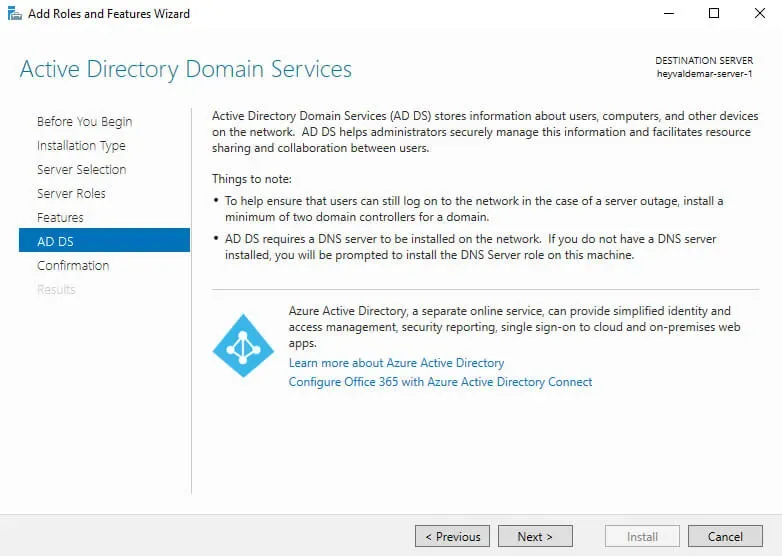
Next, the “Role Installation Wizard” invites you to familiarize yourself with additional information regarding the “Active Directory Domain Services” role.
Click on the “Next” button.
To start the installation of the selected role, click on the “Install” button.
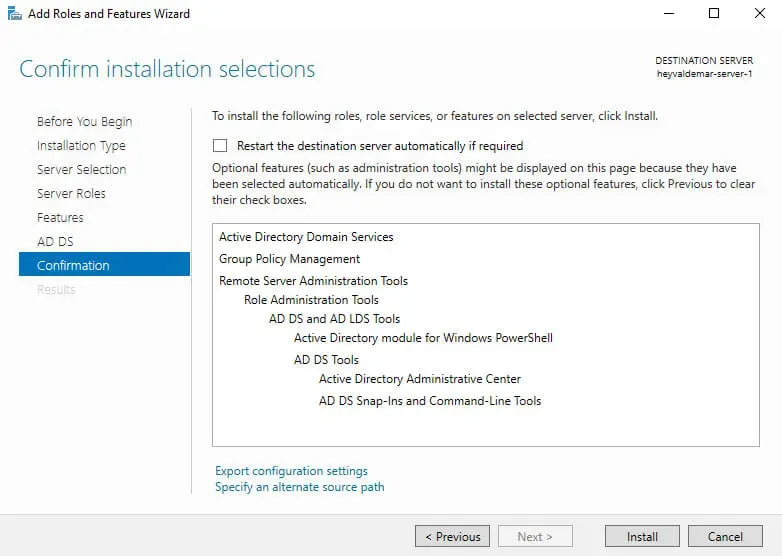
The installation of the selected role and the components required for it has begun.
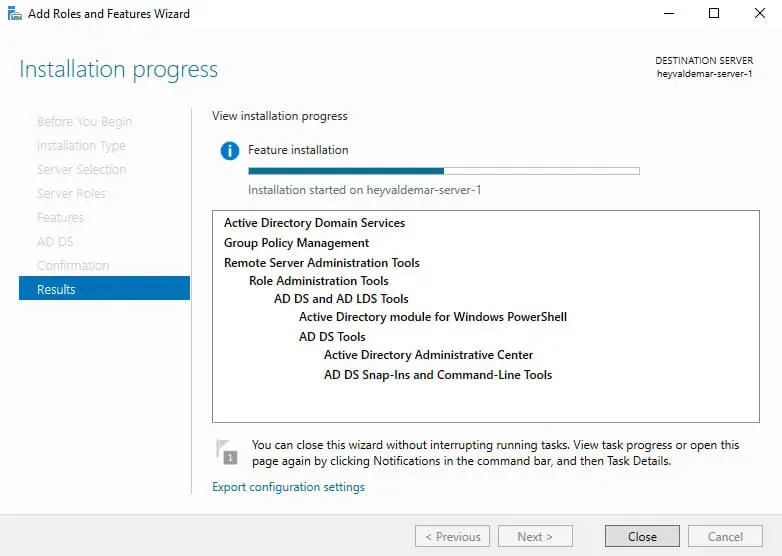
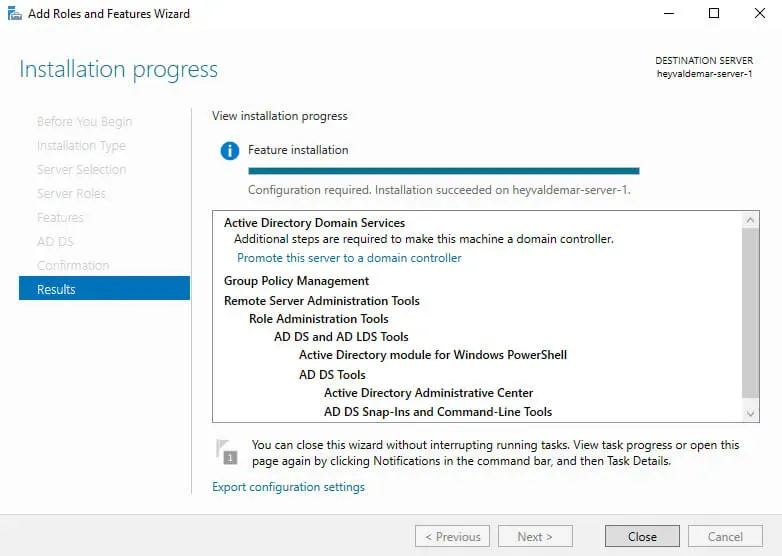
Installation of the Active Directory Domain Services role is now complete.
Now click on the “Promote this server to a domain controller” button to promote your server to the domain controller level.
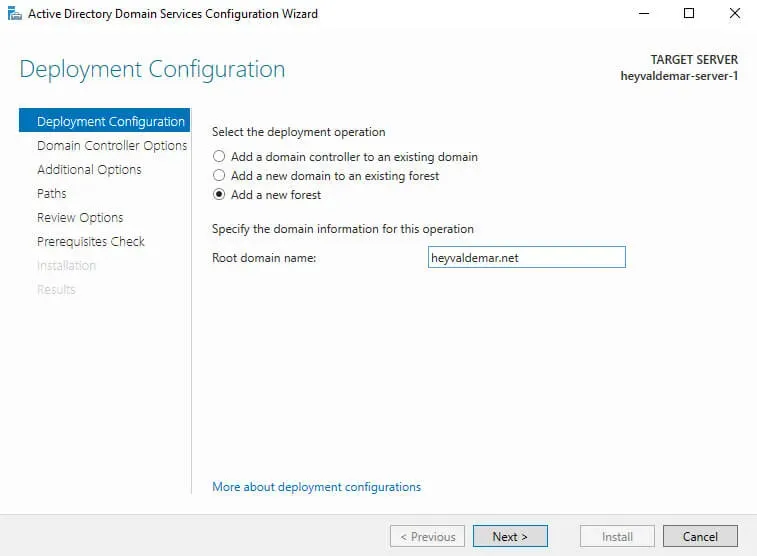
I highly recommend that you think ahead about which domain name you will use when adding a new forest.
NOTEIn this tutorial, we will add a new forest, so in the “Active Directory Domain Services Configuration Wizard” window, select the “Add a new forest” item and in the “Root domain name” field, specify the desired name for the root domain.
Click on the “Next” button.
The next step is to select the functional level of the new forest and root domain. If you are adding a new forest and plan to use servers based on the Windows Server 2019 operating system in the future, you do not have to change the functional level of the forest and root domain.
Specify the password for DSRM (Directory Service Restore Mode) and click on the “Next” button.
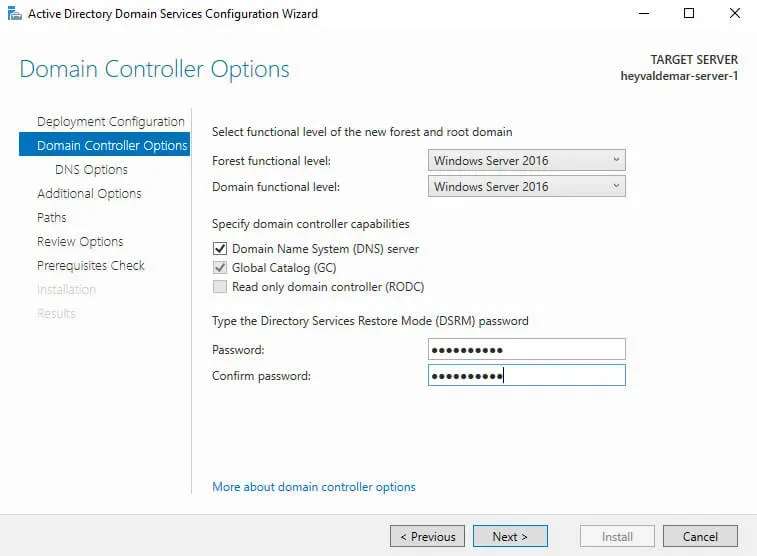
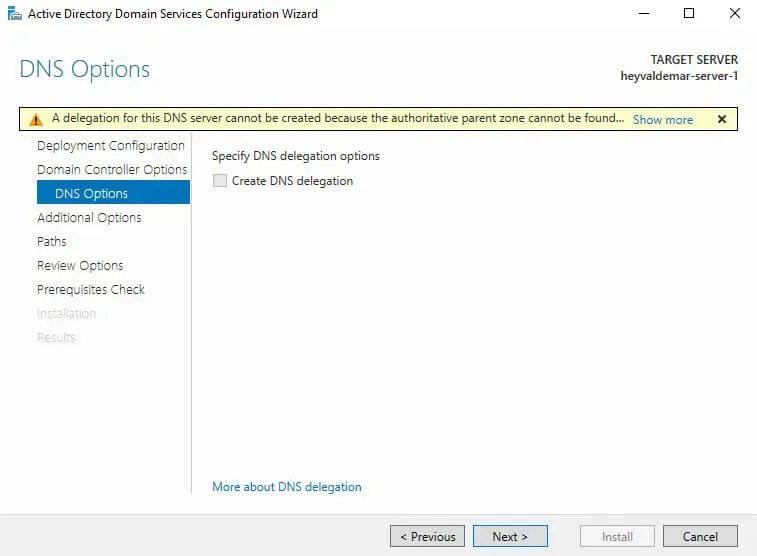
At this point, the AD DS Configuration Wizard will warn you that a delegation for this DNS server cannot be created.
Click on the “Next” button.
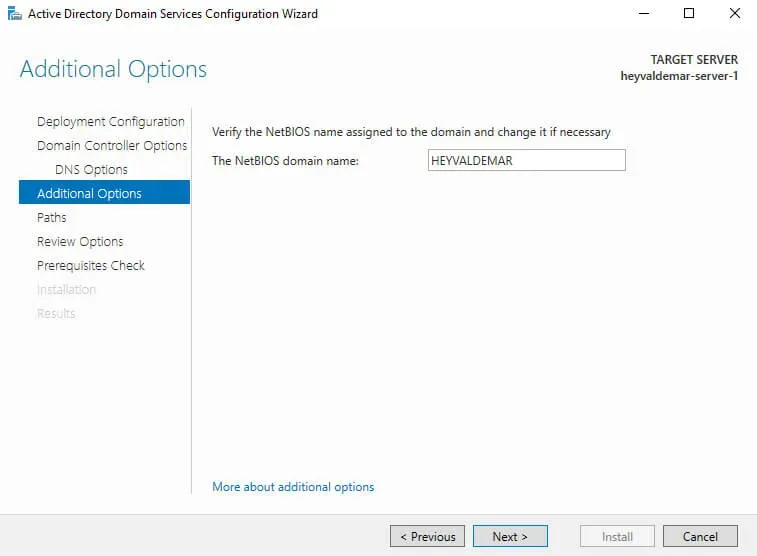
Next, you can change the NetBIOS name that was assigned to your domain. I recommend leaving the default NetBIOS value.
Click on the “Next” button.
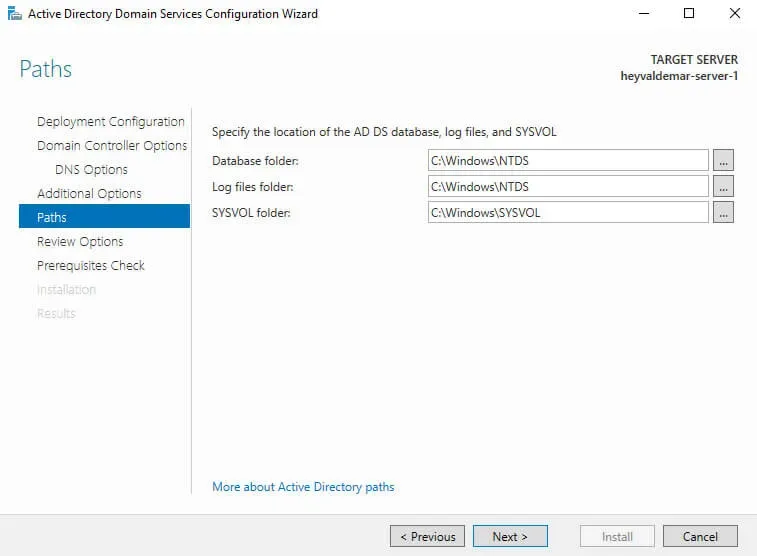
You can now change the paths for the AD DS database directories, log files and the SYSVOL folder. I recommend leaving these default values.
Click on the “Next” button.
The next step displays a summary of the server configuration.
Click on the “Next” button.
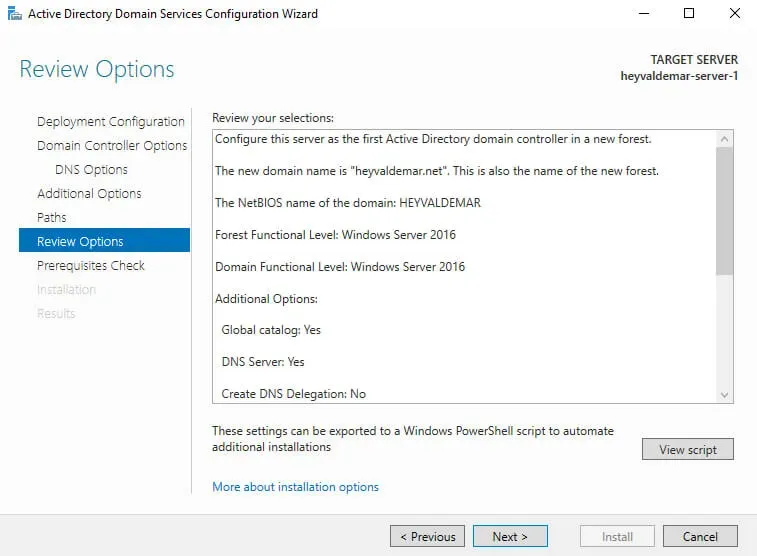
Next, the “AD DS Configuration Wizard” will check if all prerequisites have been met and display a report.
All prerequisite checks are passed successfully means all prerequisite checks are passed.
Click on the “Install” button.
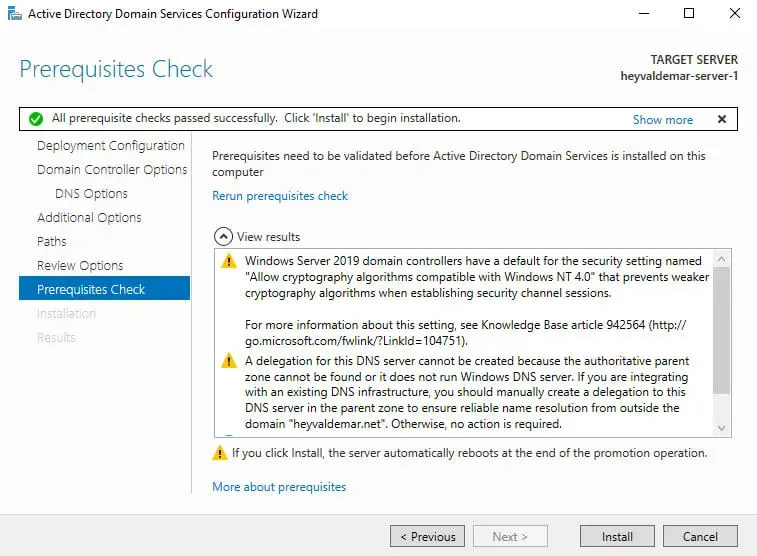
The process of promoting the server to a domain controller has begun.
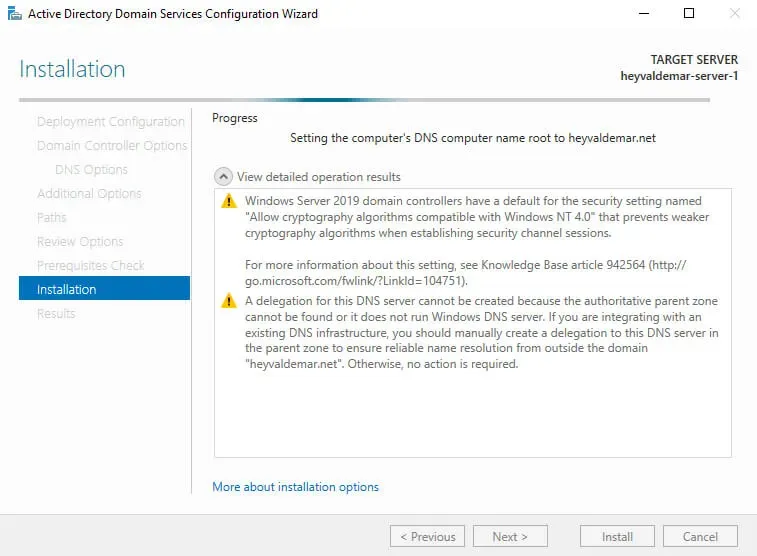
After your server is promoted to a domain controller, the server will automatically reboot.
Before the server starts to reboot, you will see a warning.

The promotion of the server to the domain controller is completed.
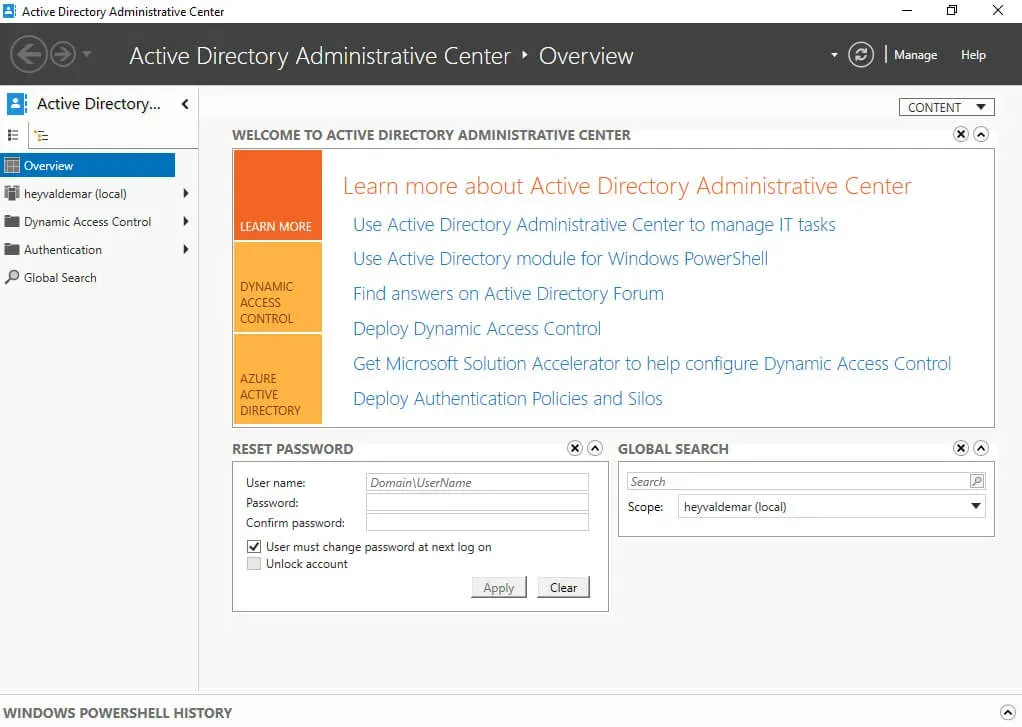
You can use the Active Directory Administrative Center or the Active Directory Users and Computers snap-in to manage users, groups, and other Active Directory objects.
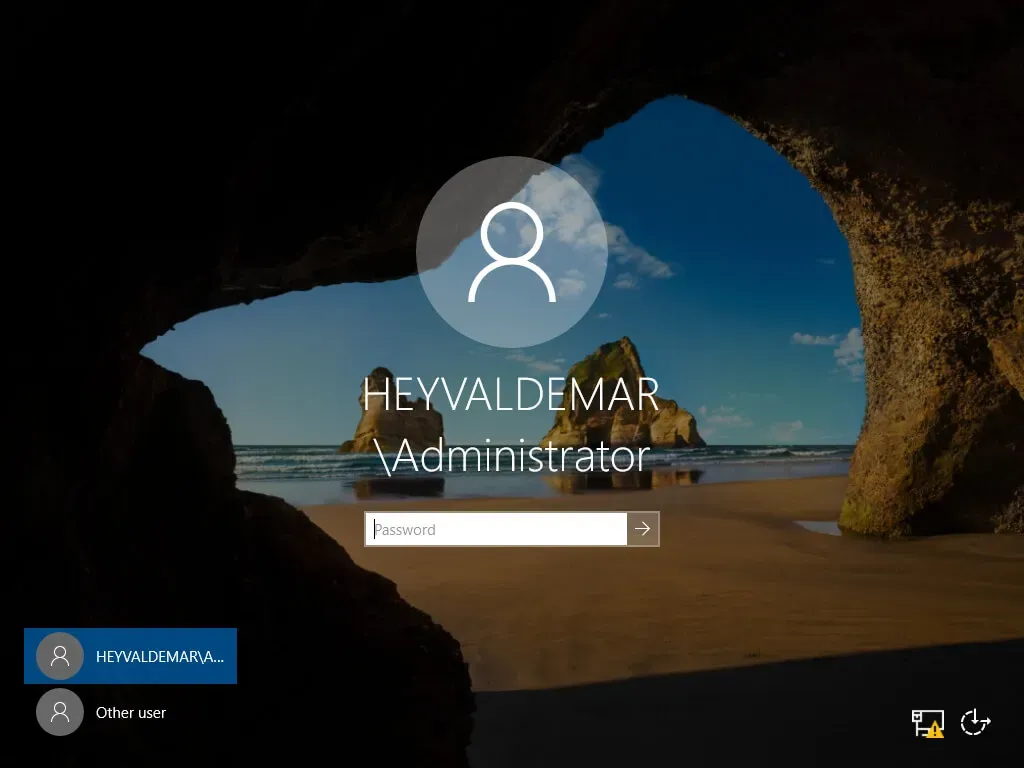
We go into the system under an account with domain administrator rights.
Open Server Manager, click on the “Tools” button in the upper right corner of the screen, and select “Active Directory Administrative Center”.

The Active Directory Administrative Center will open.
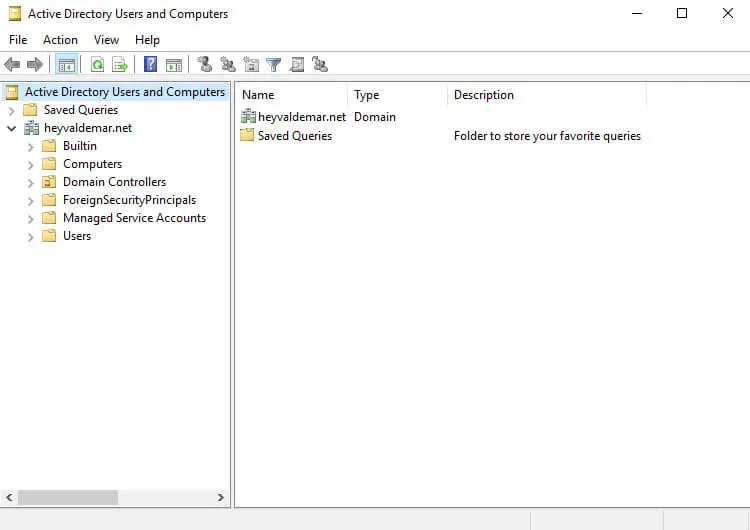
You can also use the Active Directory Users and Computers snap-in to manage users, groups, and other objects in the Active Directory.
In Server Manager, click on the “Tools” button in the upper right corner of the screen and select “Active Directory Users and Computers”.
The Active Directory Users and Computers snap-in opens.