Install Active Directory Domain Services on Windows Server 2019 Server Core
By Vladimir Mikhalev · Docker Captain · CNCF Ambassador · IBM Champion
This article is for those looking for a detailed and straightforward guide on installing Active Directory Domain Services on Windows Server 2019 Server Core.
IMPORTANTIn this guide, we will consider the case when you already have a server with the Windows Server 2019 Server Core operating system installed on it.
For details on installing Windows Server 2019, read my guide: Install Windows Server 2019.
NOTETo learn how to install Active Directory Domain Services on Windows Server 2019, read: Install Active Directory Domain Services on Windows Server 2019.
CAUTIONBefore installing the Active Directory Domain Services role, make sure to assign the server a proper name according to your organization’s standards. Then, configure a static IP address, subnet mask, gateway, and DNS server address.
We go into the system under an account with administrator rights and start Windows PowerShell using the command:
powershell 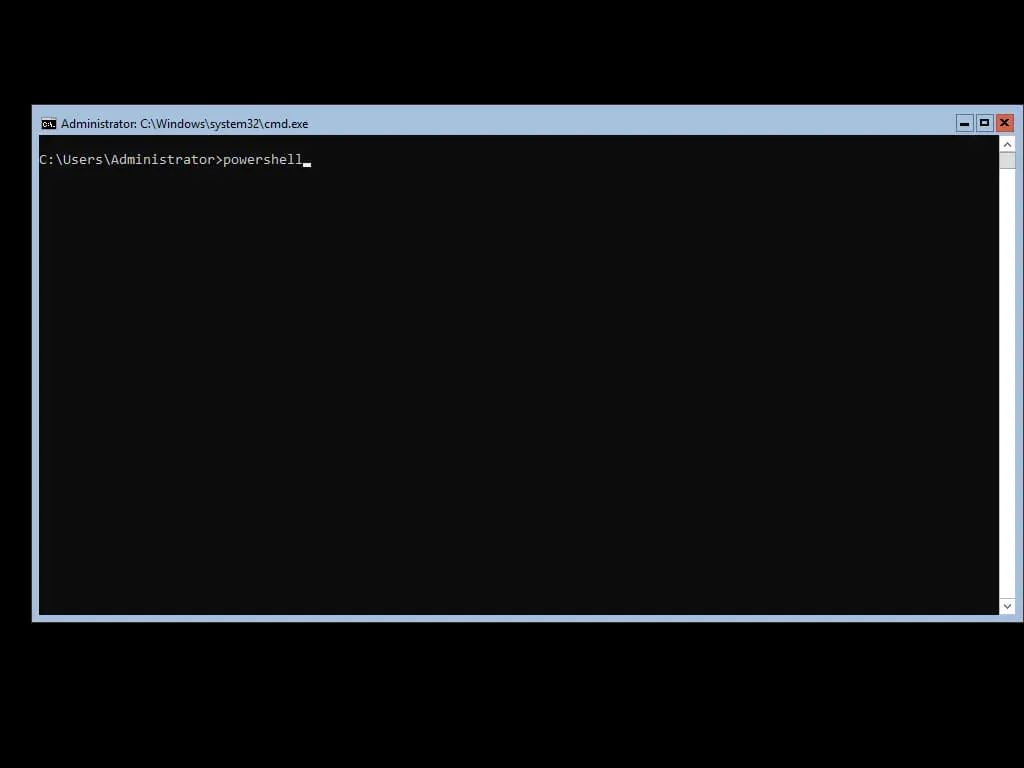
I highly recommend that you think ahead about the name of the servers in your organization.
NOTEThis tutorial will use “heyvaldemar-server-1” as the new server name.
We give the server a new name, and then reboot it for the changes to take effect using the command:
Rename-Computer -NewName heyvaldemar-server-1 -Restart 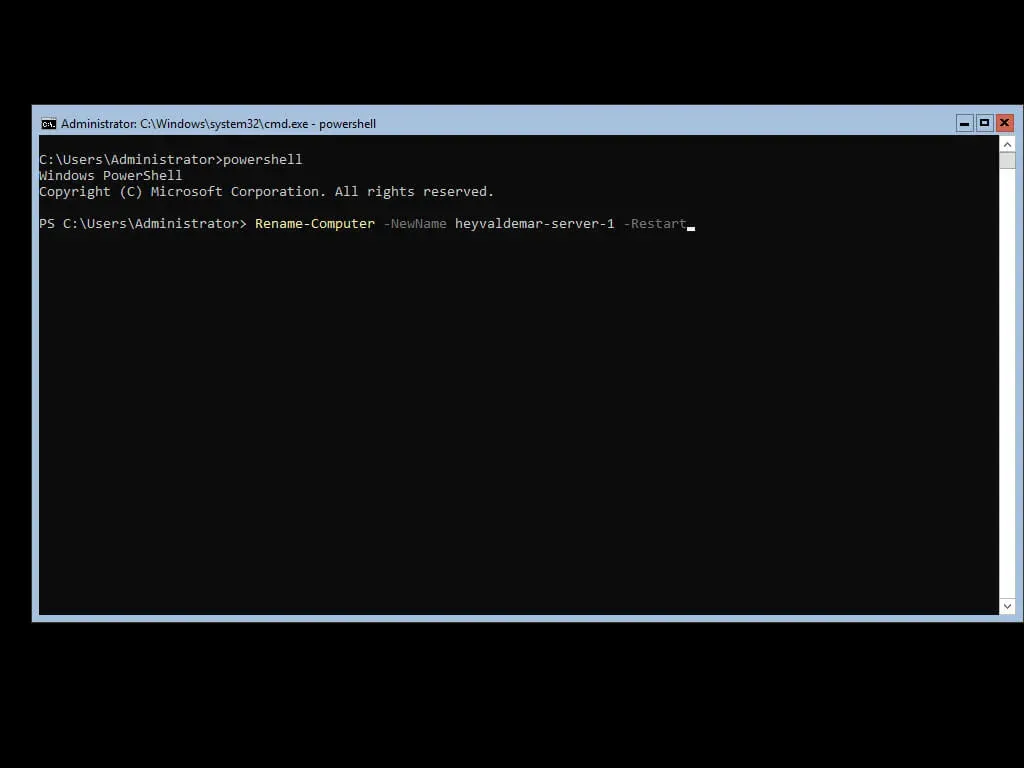
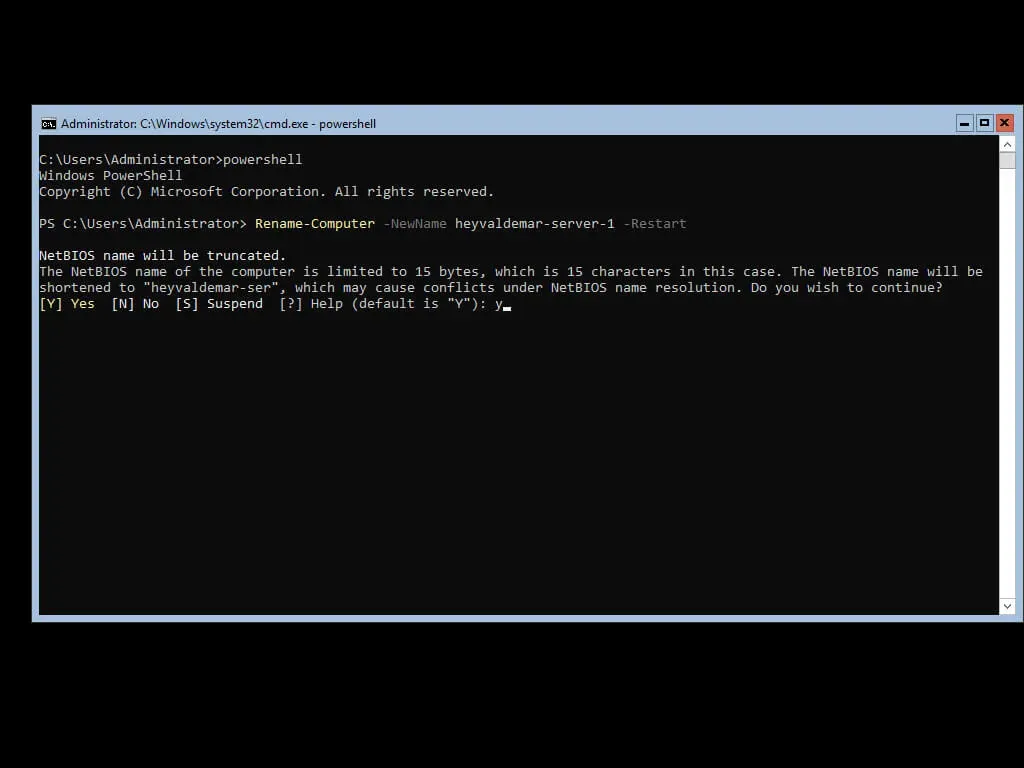
Since the selected server name contains more than 15 characters, the system notifies that the NetBIOS name for the server will be truncated to 15 characters.
Press the “y” button, then “Enter”.
After restarting the server, log in again under an account with administrator rights and start Windows PowerShell using the command:
powershell
Now you need to assign a static IP address, subnet mask, gateway, and DNS server address to the server.
To configure a network interface, you need to find out its index using the command:
Get-NetIPAddress 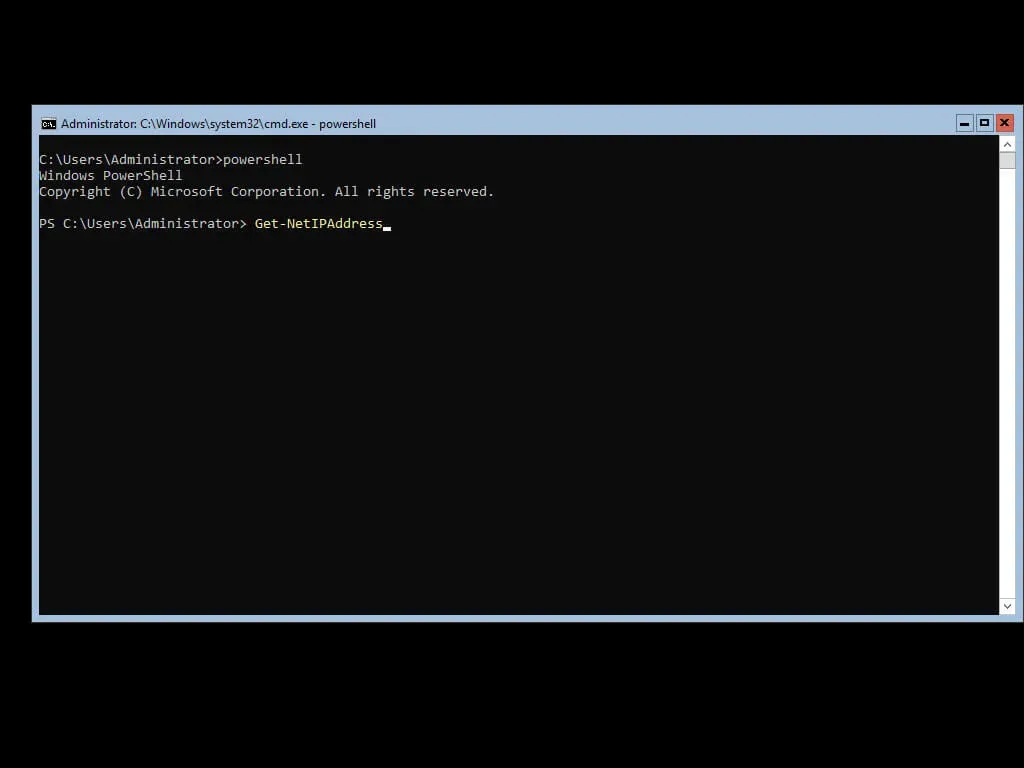
In this case, the network interface is indexed “4”.
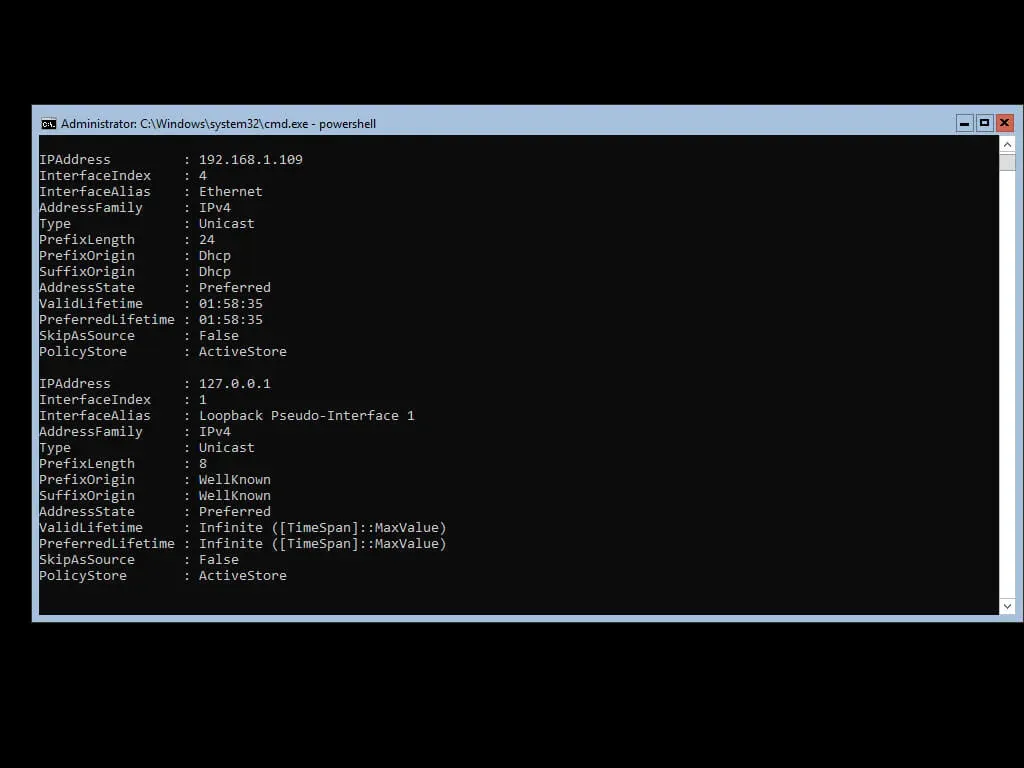
NOTEIn this guide, the server will be assigned an IP address of 192.168.1.10, a subnet mask of 255.255.255.0 (24), and a gateway of 192.168.1.1.
NOTEYou must understand in advance how your network works and know which IP addresses are available.
We assign the server an IP address, mask, and gateway, specifying the previously obtained index of the network interface, using the command:
New-NetIPAddress -InterfaceIndex 4 -IPAddress 192.168.1.10 -PrefixLength 24 -DefaultGateway 192.168.1.1 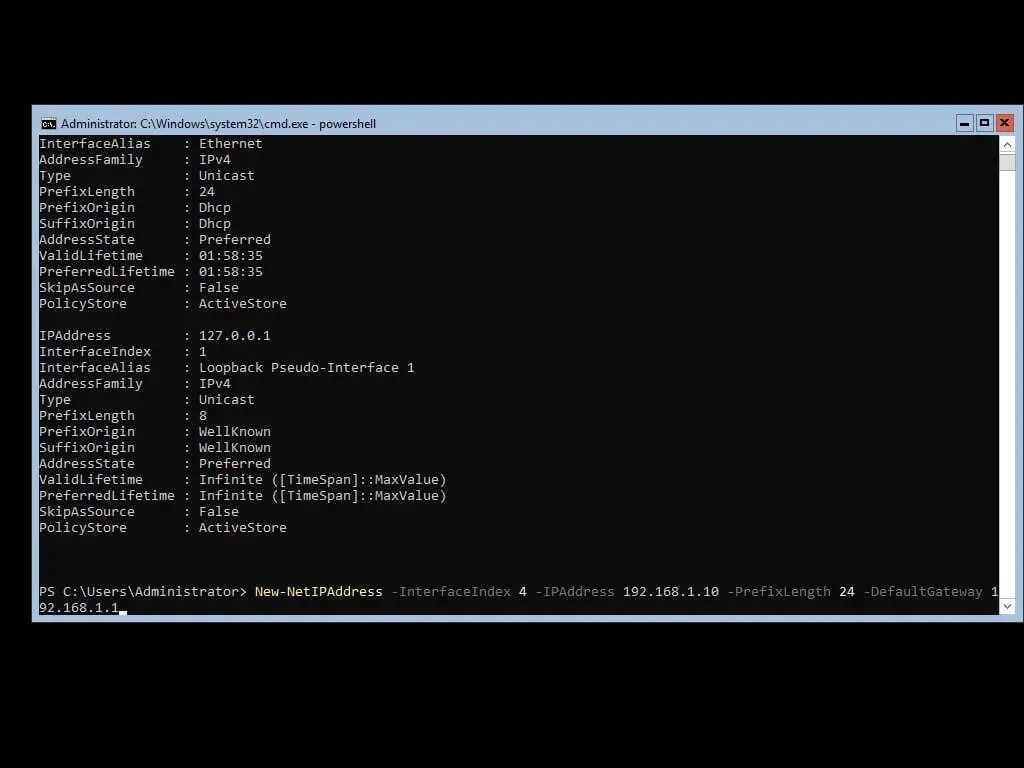
As the DNS server, you must specify the IP address of the current server, since it will have the DNS Server role, which is installed with the Active Directory Domain Services role.
We register the IP address of the DNS server using the command:
Set-DnsClientServerAddress -InterfaceIndex 4 -ServerAddresses 192.168.1.10 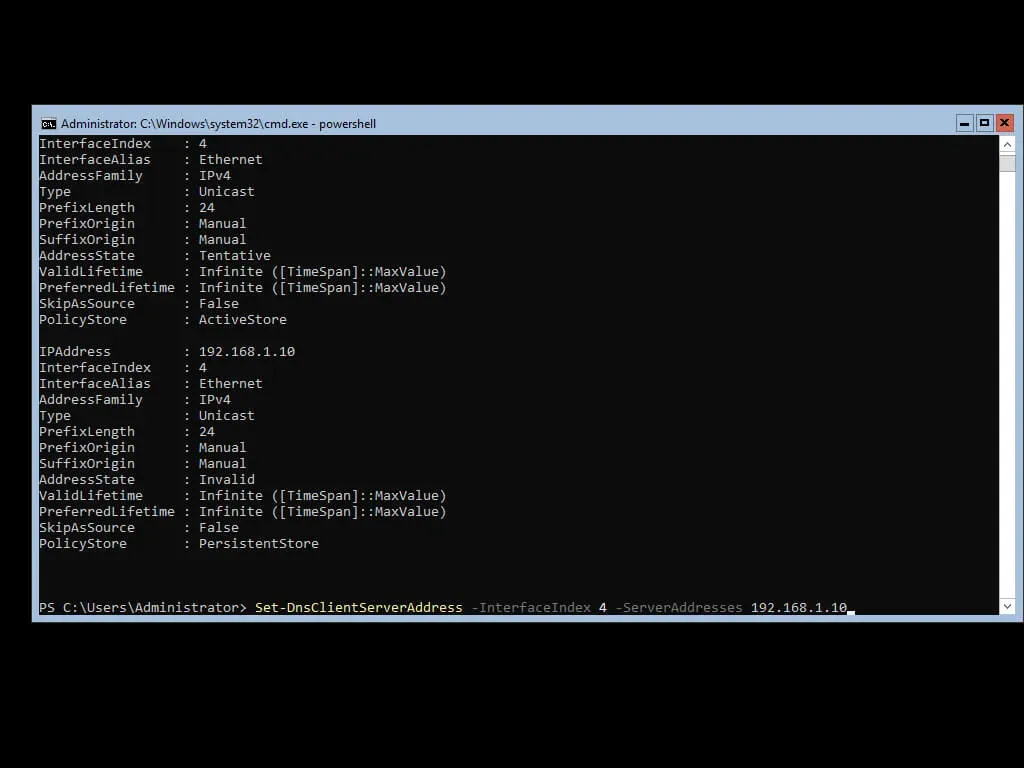
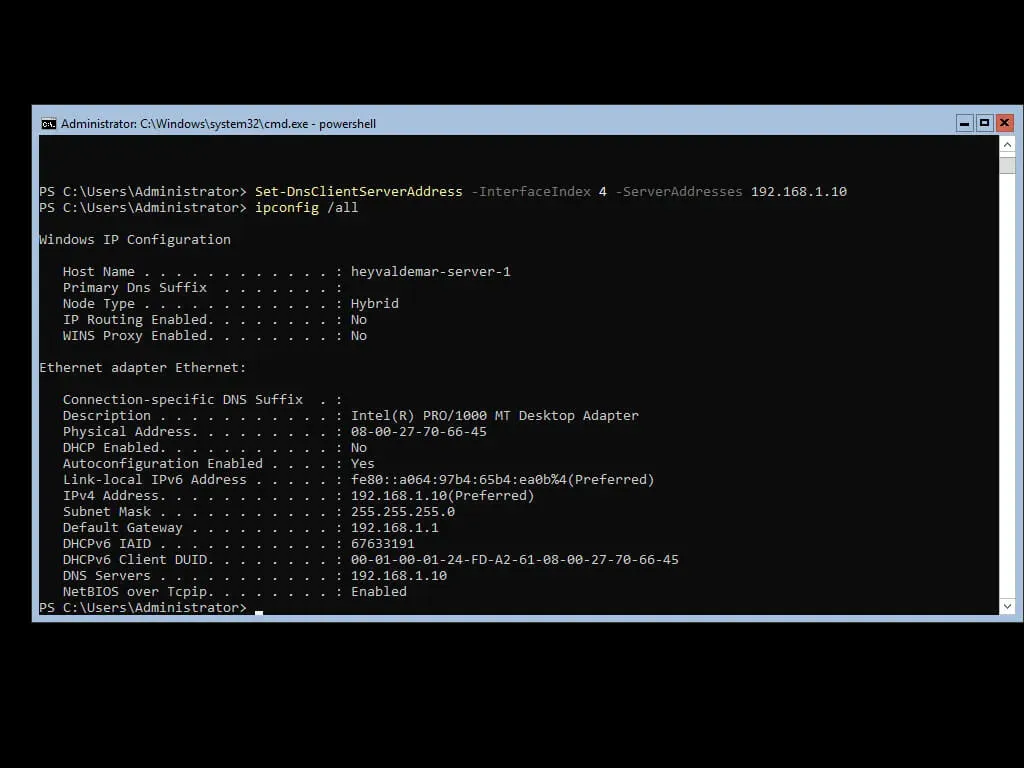
Check that the server is assigned the correct IP address, subnet mask, gateway, and DNS server address using the command:
ipconfig /all 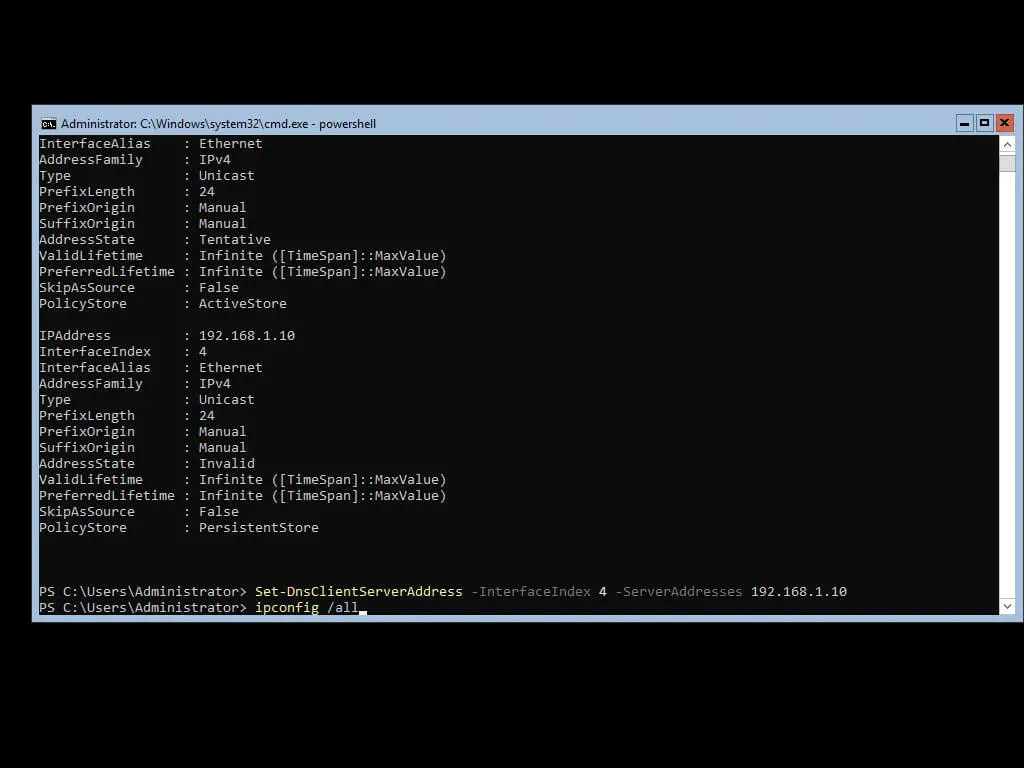
The server has been assigned the correct IP address, subnet mask, gateway, and DNS server address.
Now let’s connect to the server from a personal computer using Windows PowerShell remote management tools.
NOTEIn this guide, Windows 10 is used as the operating system on a personal computer. For installation instructions, refer to Install Windows 10.
NOTETo enable Windows PowerShell Remote Management, the user must have local administrator rights on their computer.
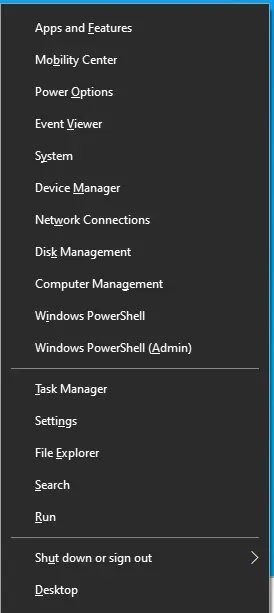
On the keyboard, press the key combination “Win” and “x”, then select “Windows PowerShell (Admin)” in the menu that opens.
To connect to the server from a personal computer, you need to change the network category from “Public” to “Private”. To do this, you need to find out the index of the network interface using the command:
Get-NetConnectionProfile 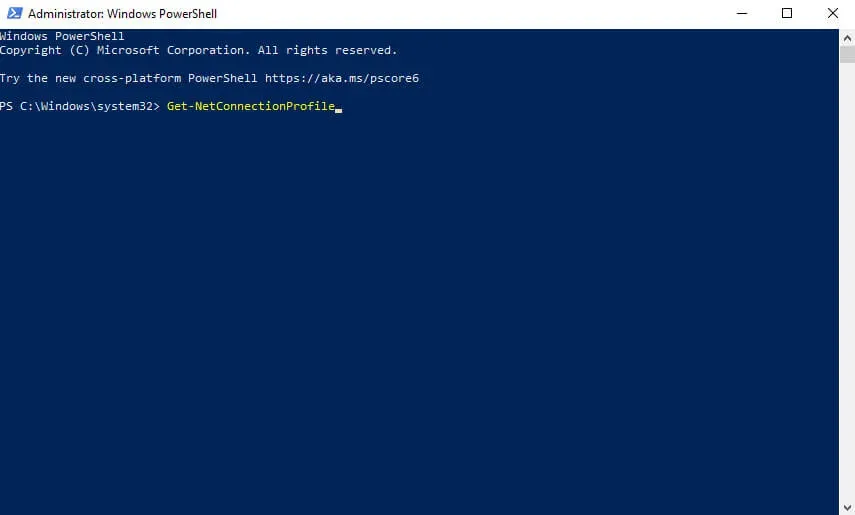
In this case, the network interface is indexed “6”.
Let’s change the network category from “Public” to “Private” by specifying the previously obtained index of the network interface using the command:
Set-NetConnectionProfile -InterfaceIndex 6 -NetworkCategory Private 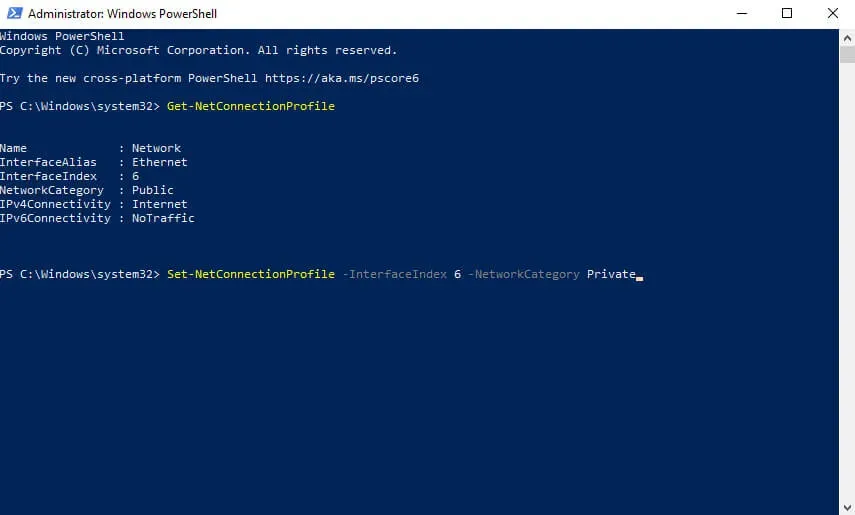
Now let’s enable the tools for remote administration using the command:
Enable-PSRemoting -force 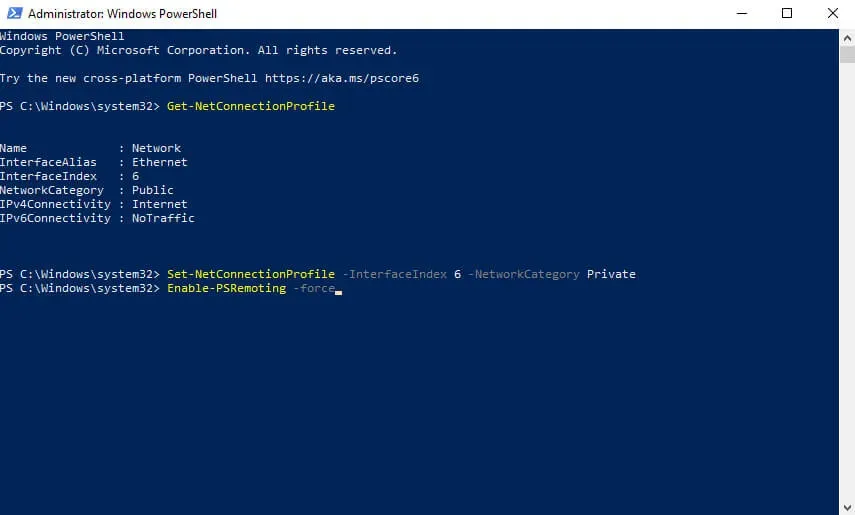
To trust any computer on the network to make a remote connection, run the command:
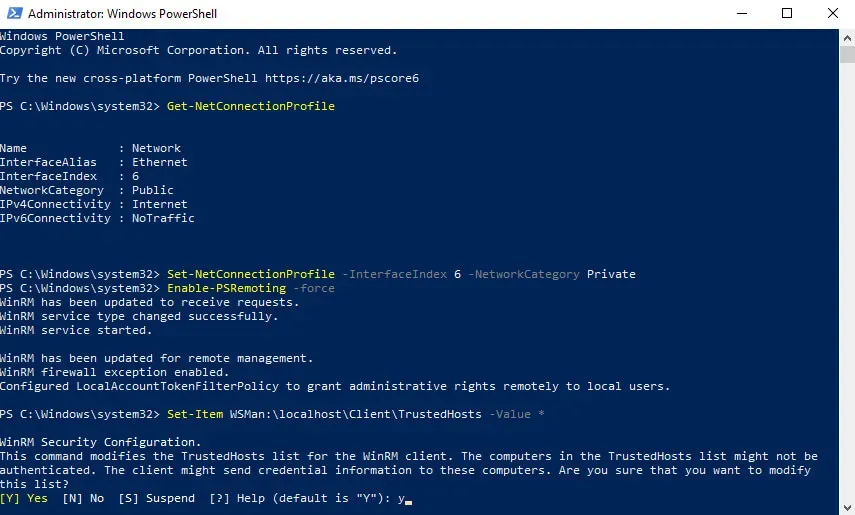
Set-Item WSMan:\localhost\Client\TrustedHosts -Value * 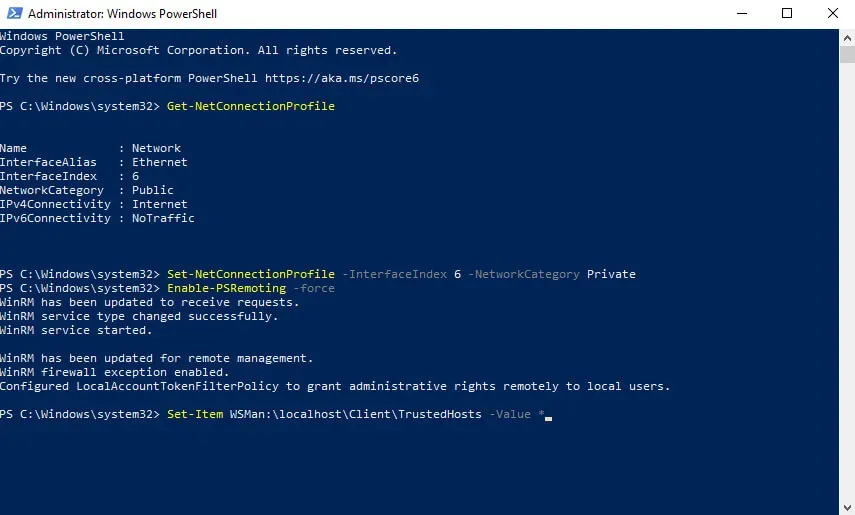
At the next step, the system will notify that the entered command will make changes to the list of trusted hosts.
Press the “y” button, then “Enter”.
NOTEIn this guide, the server is assigned the IP address 192.168.1.10 and the name heyvaldemar-server-1, and uses the Administrator account to manage the operating system on the server.
We connect to the server using the command:
Enter-PSSession -ComputerName 192.168.1.10 -Credential heyvaldemar-server-1\Administrator 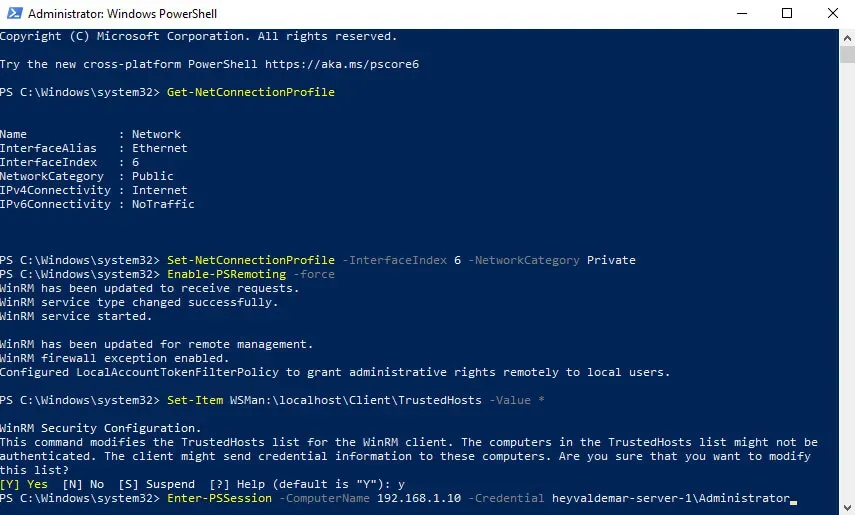
Specify the password for an account with administrator rights and click on the “OK” button.
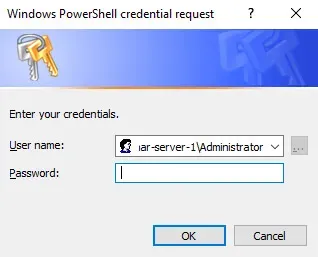
The connection to the server has been established.
You are now ready to install the Active Directory Domain Services role.
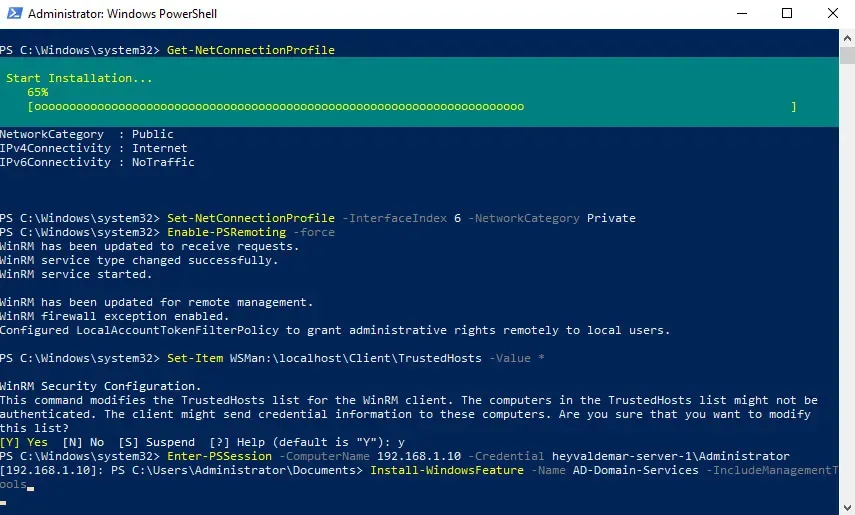
Install-WindowsFeature -Name AD-Domain-Services -IncludeManagementTools 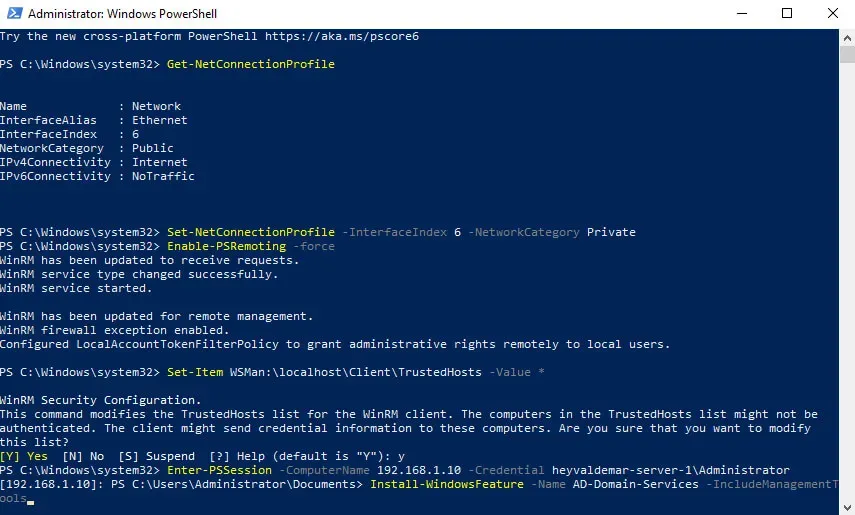
The installation of the selected role and the components required for it has begun.
To increase the role of your server to the level of a domain controller, run the command:
Install-ADDSForest -DomainName "heyvaldemar.net" -CreateDnsDelegation:$false -DatabasePath "C:\Windows\NTDS" -DomainMode "7" -DomainNetbiosName "HEYVALDEMAR" -ForestMode "7" -InstallDns:$true -LogPath "C:\Windows\NTDS" -NoRebootOnCompletion:$True -SysvolPath "C:\Windows\SYSVOL" -Force:$true 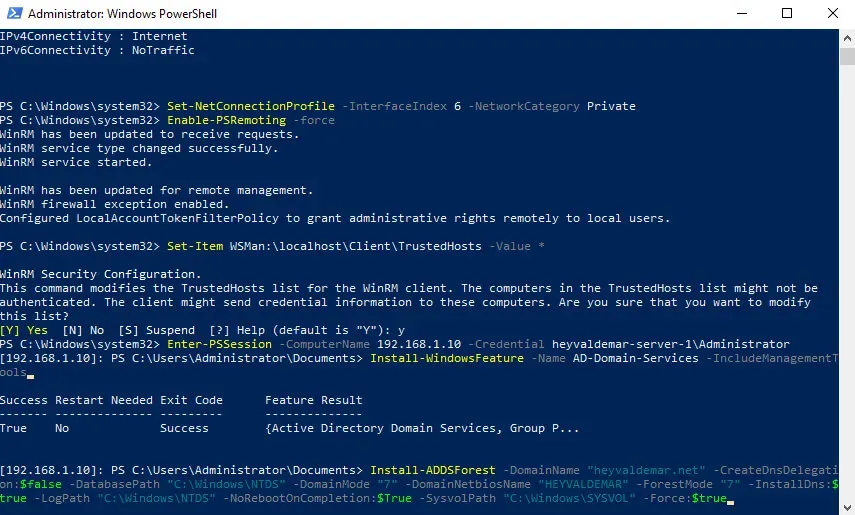
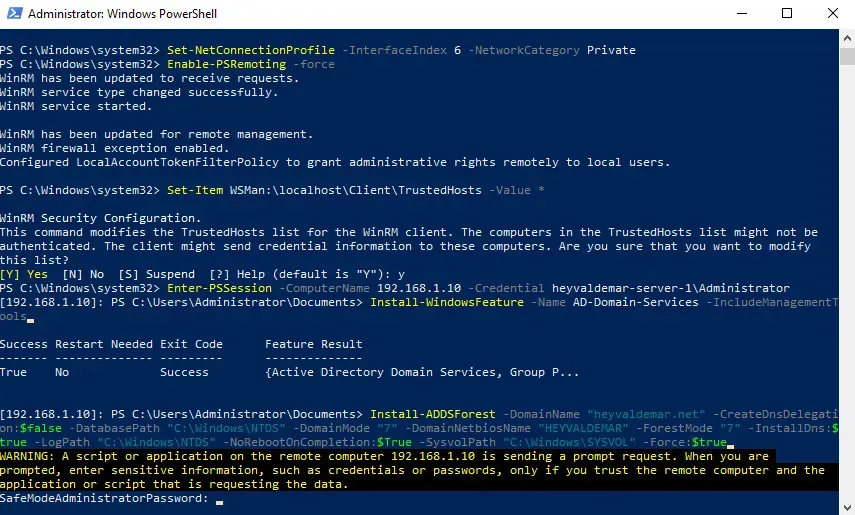
Specify the password for DSRM (Directory Service Restore Mode) and press the “Enter” button.
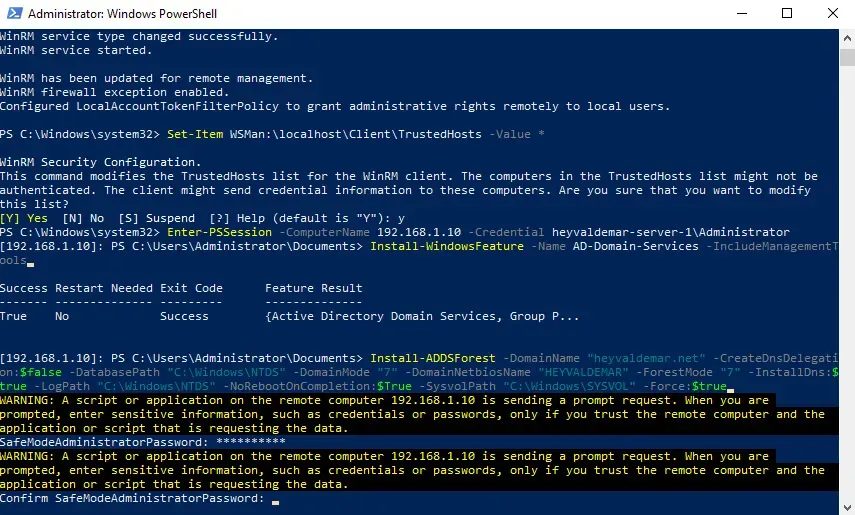
Specify the previously entered password again and press the “Enter” button.
The process of promoting the server to a domain controller has begun.
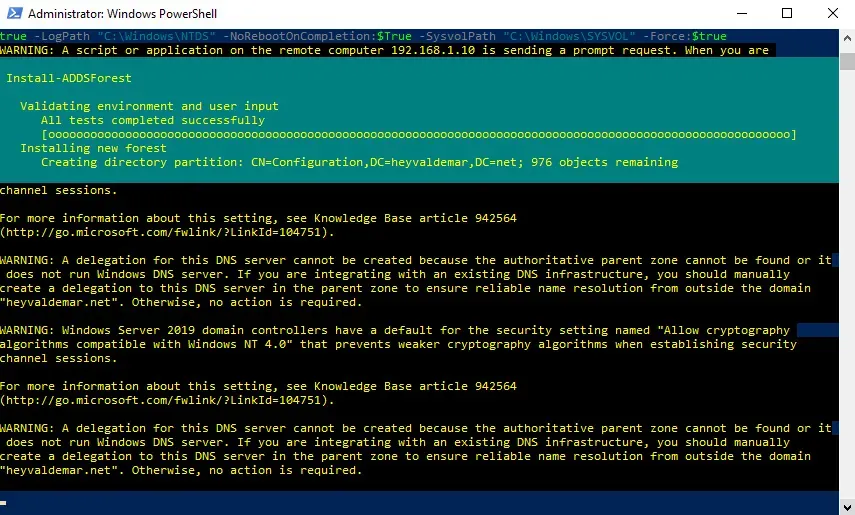
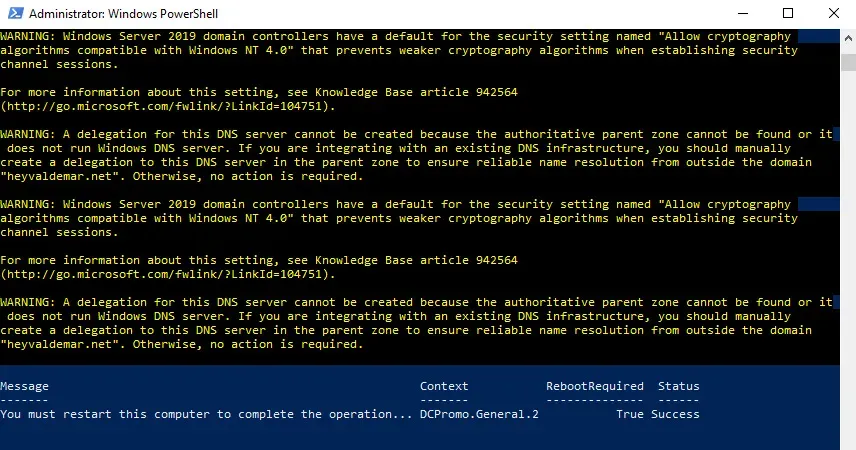
Server promotion to a domain controller is complete.
We return to the server and reload it using the command:
shutdown -r 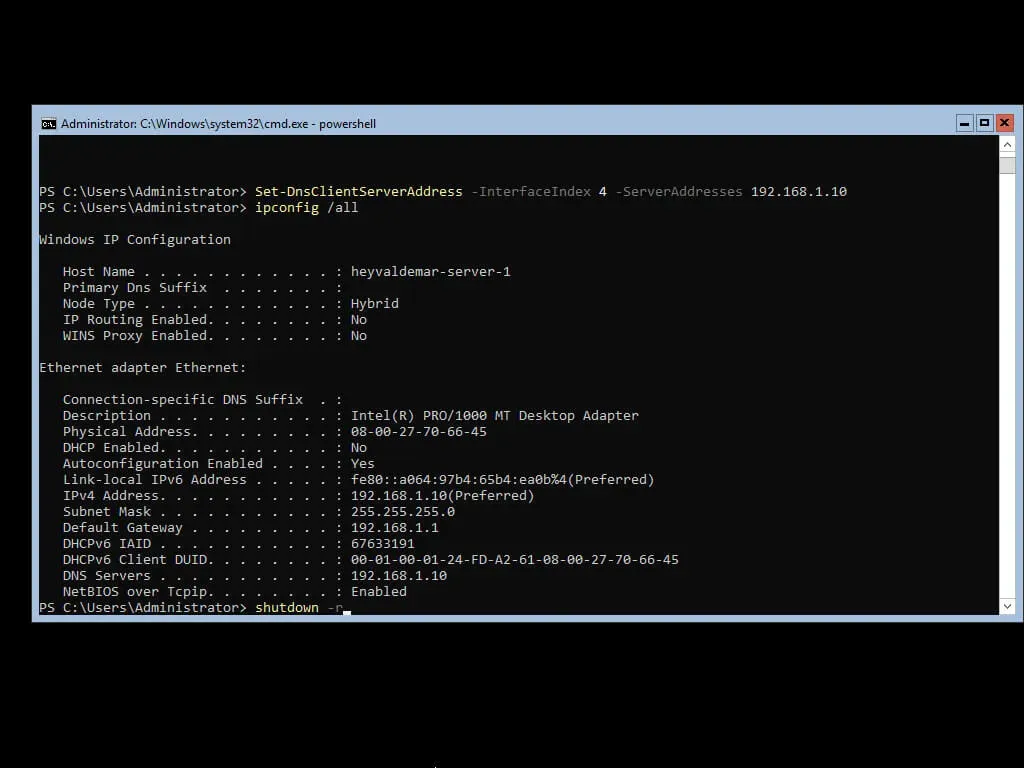
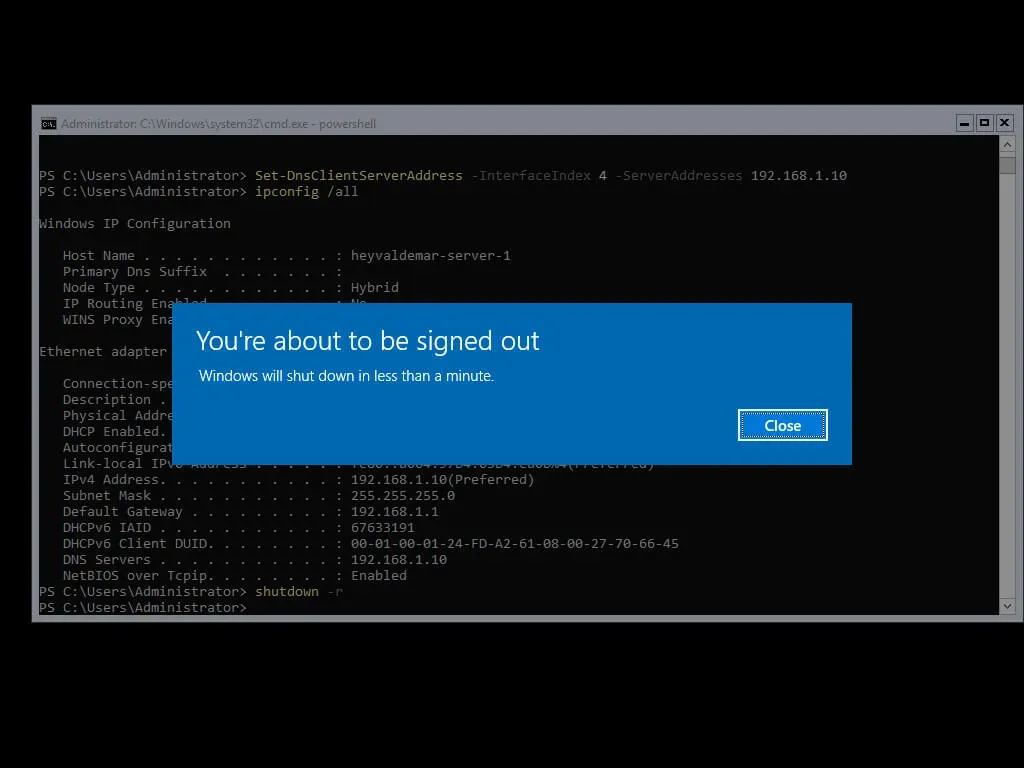
Before the server starts to reboot, you will see a warning.
We will now reconnect to the server from our personal computer using the Windows PowerShell remote management tools to confirm the successful installation of the services.
NOTEIn this manual, the server is assigned the IP address 192.168.1.10, in addition, the server is a domain controller
heyvaldemar.net, and the Administrator account is used to manage the operating system on the server.
We connect to the server using the command:
Enter-PSSession -ComputerName 192.168.1.10 -Credential heyvaldemar\Administrator 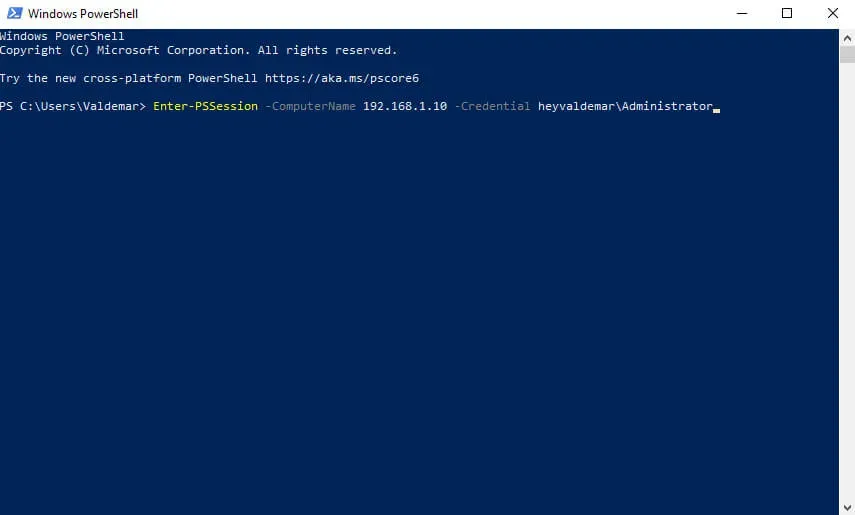
Specify the password for an account with domain administrator rights and click on the “OK” button.
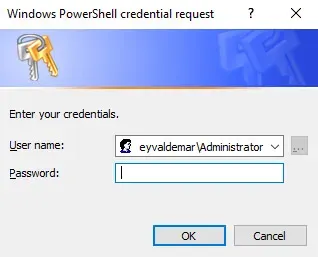
The connection to the server has been established.
Check the status of the services required for the domain controller to work using the command:
Get-Service adws,kdc,netlogon,dns 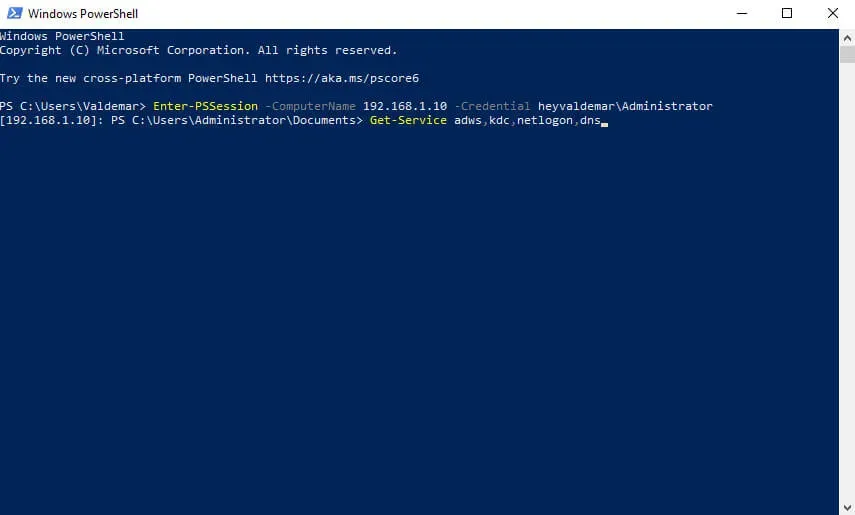
The services required for the domain controller are running.
To view detailed information about configuring a domain controller, you can run the command:
Get-ADDomainController 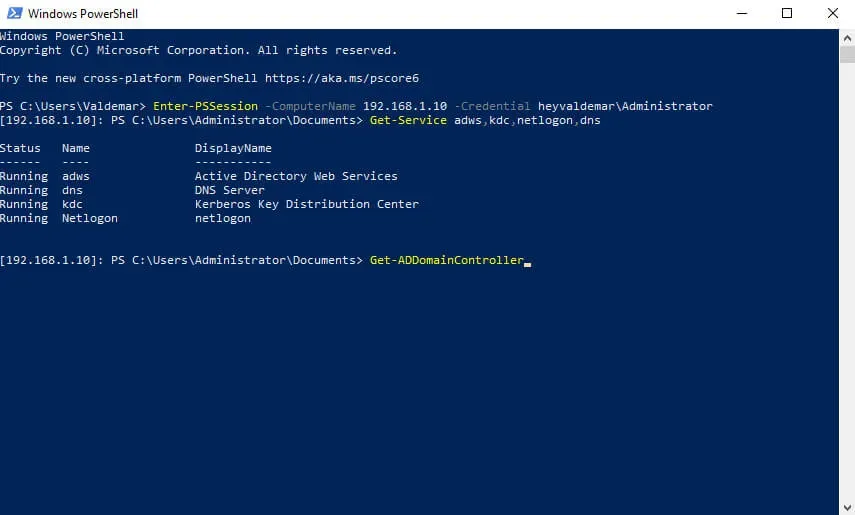
To view detailed information about the Active Directory domain, you can run the command:
Get-ADDomain heyvaldemar.net 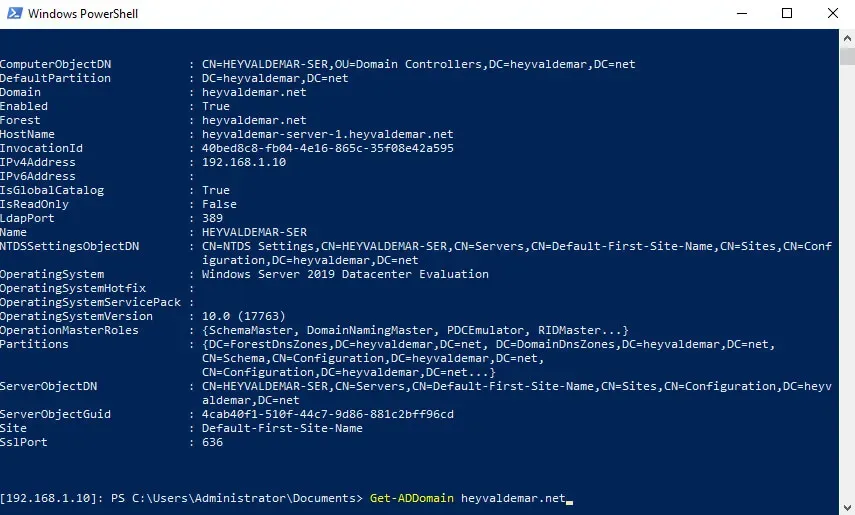
To view detailed information about the Active Directory forest, you can run the command:
Get-ADForest heyvaldemar.net 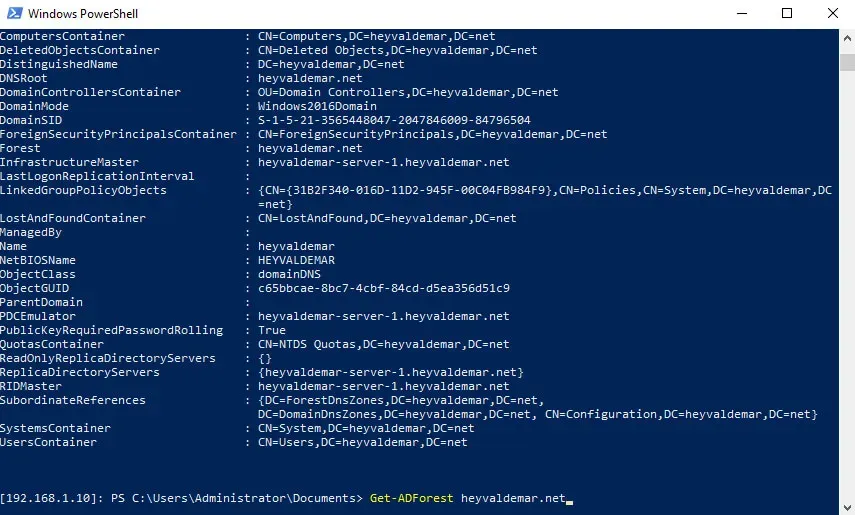
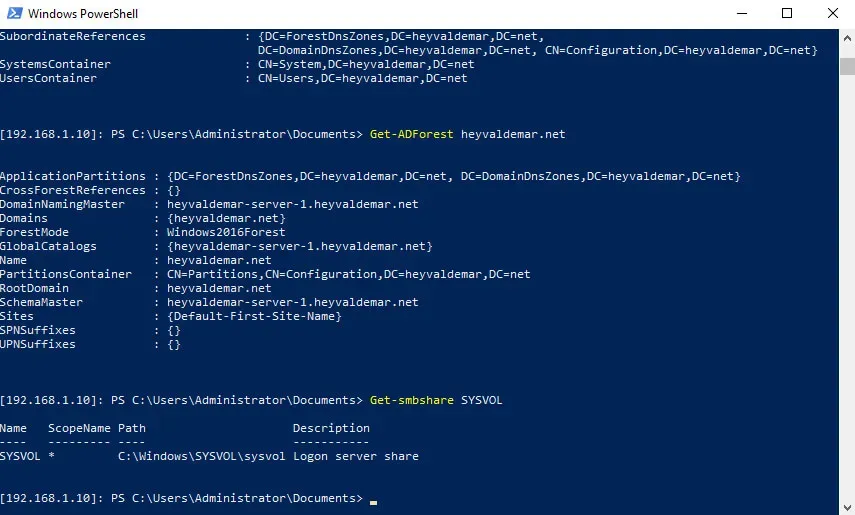
To check the availability of the SYSVOL shared folder, you can run the command:
Get-smbshare SYSVOL 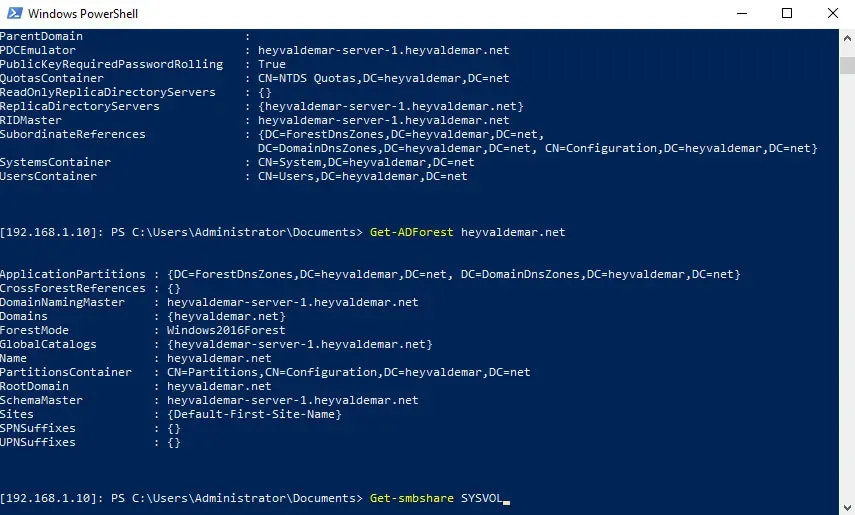
The shared folder “SYSVOL” is available. It is used to provide clients with Group Policy settings and logon and logon scripts.
We return to the workstation.
Now you can install the remote administration tools on your personal computer to manage the roles available on the server using a graphical interface.
NOTEIn Windows 10 (version 1903), the installation of the RSAT (Remote Server Administration Tools) components can be performed through the Windows graphical interface.
For earlier versions of Windows 10, the RSAT installer must be downloaded from the Microsoft download page.
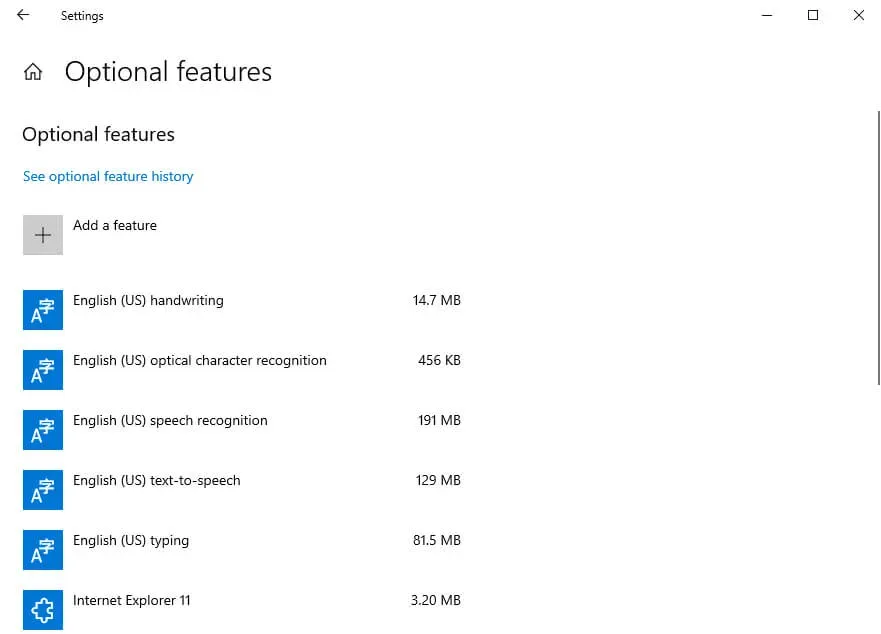
On the keyboard, press the key combination “Win” and “x”, then select “Apps and Features” in the menu that opens.
Next, select “Optional Features”.
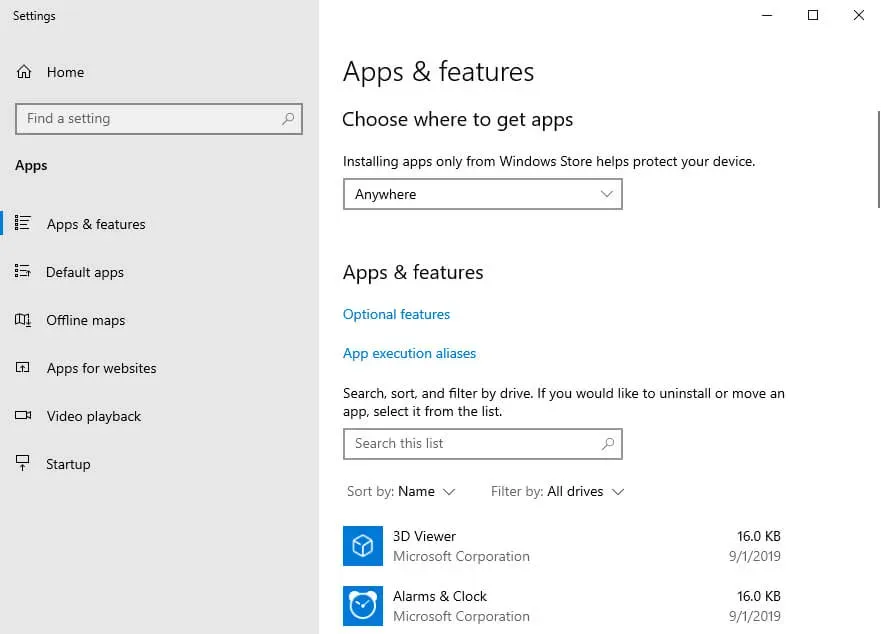
Now choose “Add a feature”.
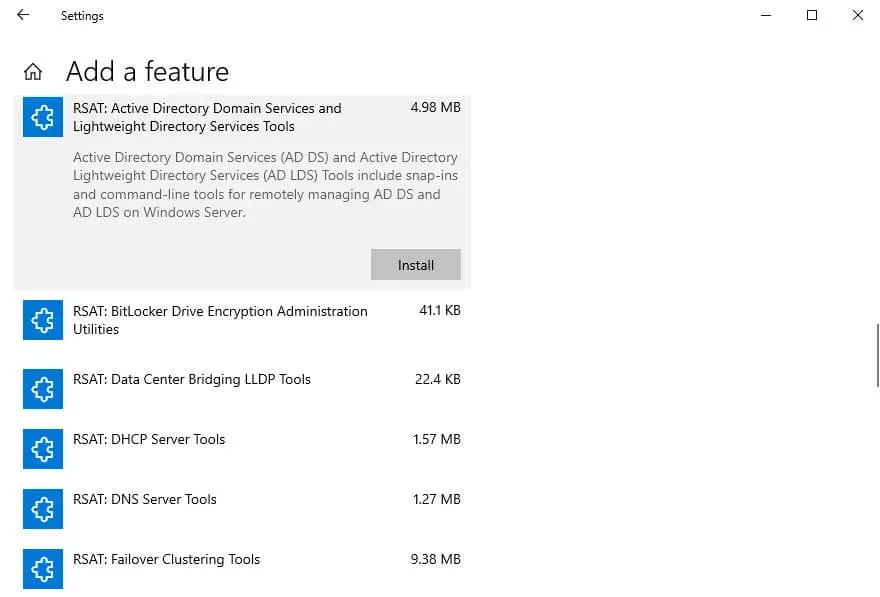
To install Active Directory remote administration tools, select “RSAT: Active Directory Domain Services and Lightweight Directory Services Tools” and click on the “Install” button.
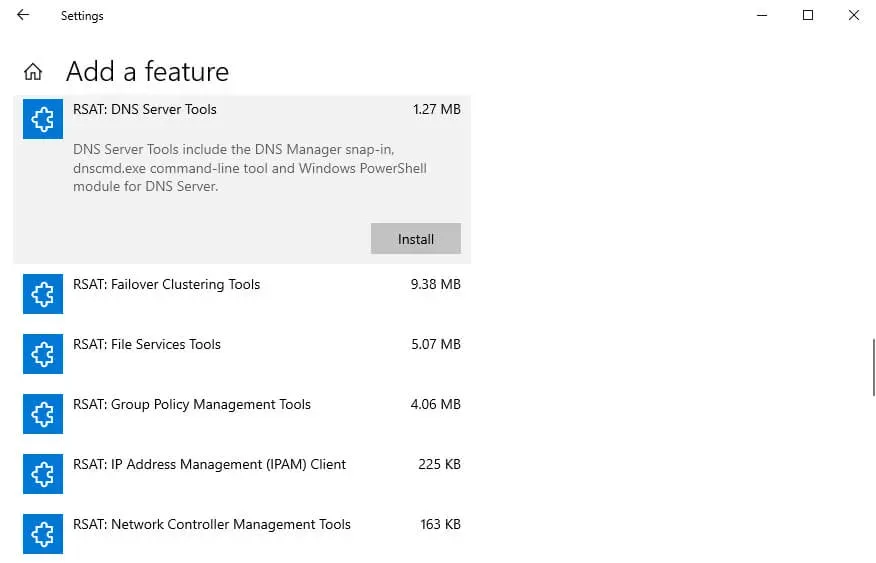
To install the remote DNS administration tools, select “RSAT: DNS Server Tools” and click on the “Install” button.
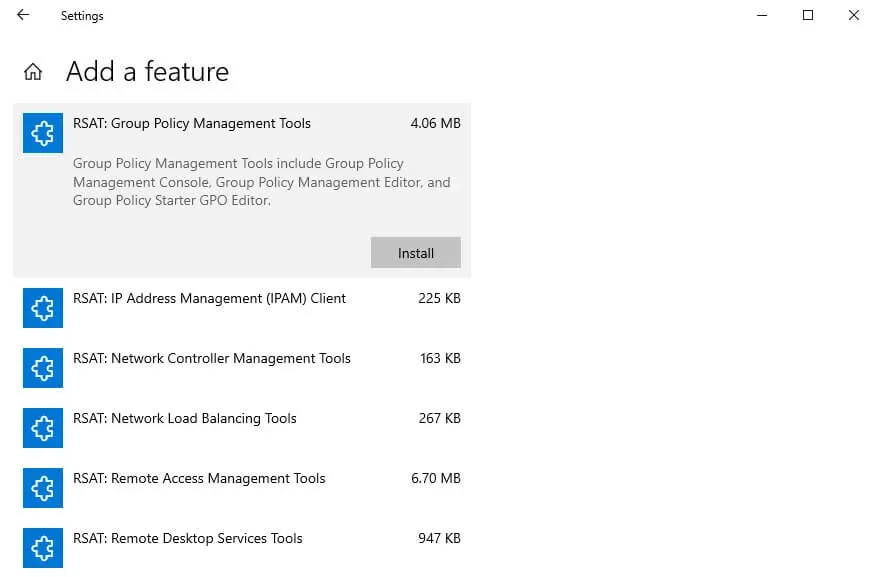
To install the Group Policy remote administration tools, select “RSAT: Group Policy Management Tools” and click on the “Install” button.
Now you will be able to manage the roles available on the server using a graphical interface.
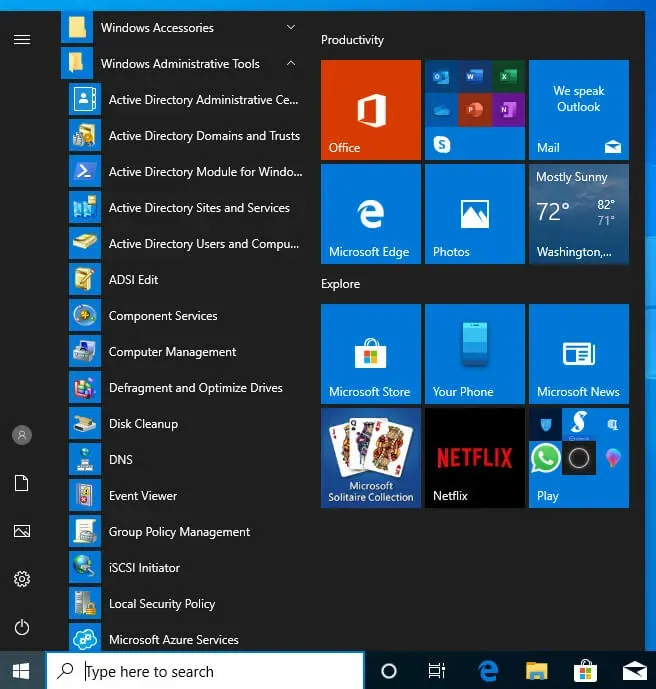
Installed remote administration tools can be found in the Start menu under Windows Administrative Tools.