Auto-run Scripts when macOS Boots
By Vladimir Mikhalev · Solutions Architect · Docker Captain · IBM Champion
This article is for those looking for a detailed and straightforward guide on installing auto-run scripts when macOS boots.
NOTEThis guide walks you through connecting to a server with the iTerm2 terminal emulator on macOS.
We go into the system under an account with administrator rights and start the terminal emulator.
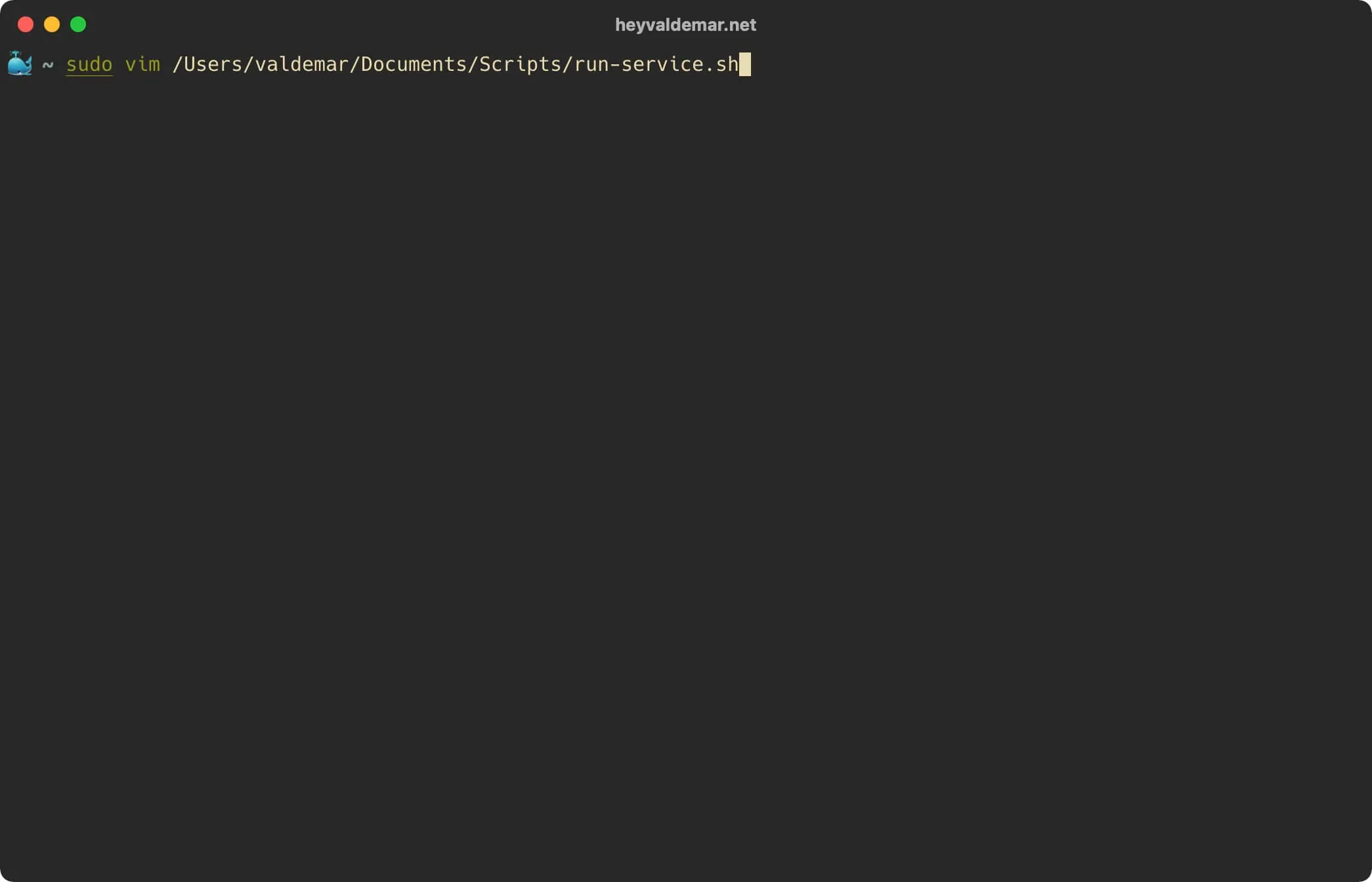
Now let’s create a script that will contain the scripts required to execute when macOS boots, using the command:
sudo vim /Users/valdemar/Documents/Scripts/run-service.shNOTEIn this tutorial, a script called “run-service.sh” is created in the user’s home directory. You can create a script in any convenient place for permanent storage.
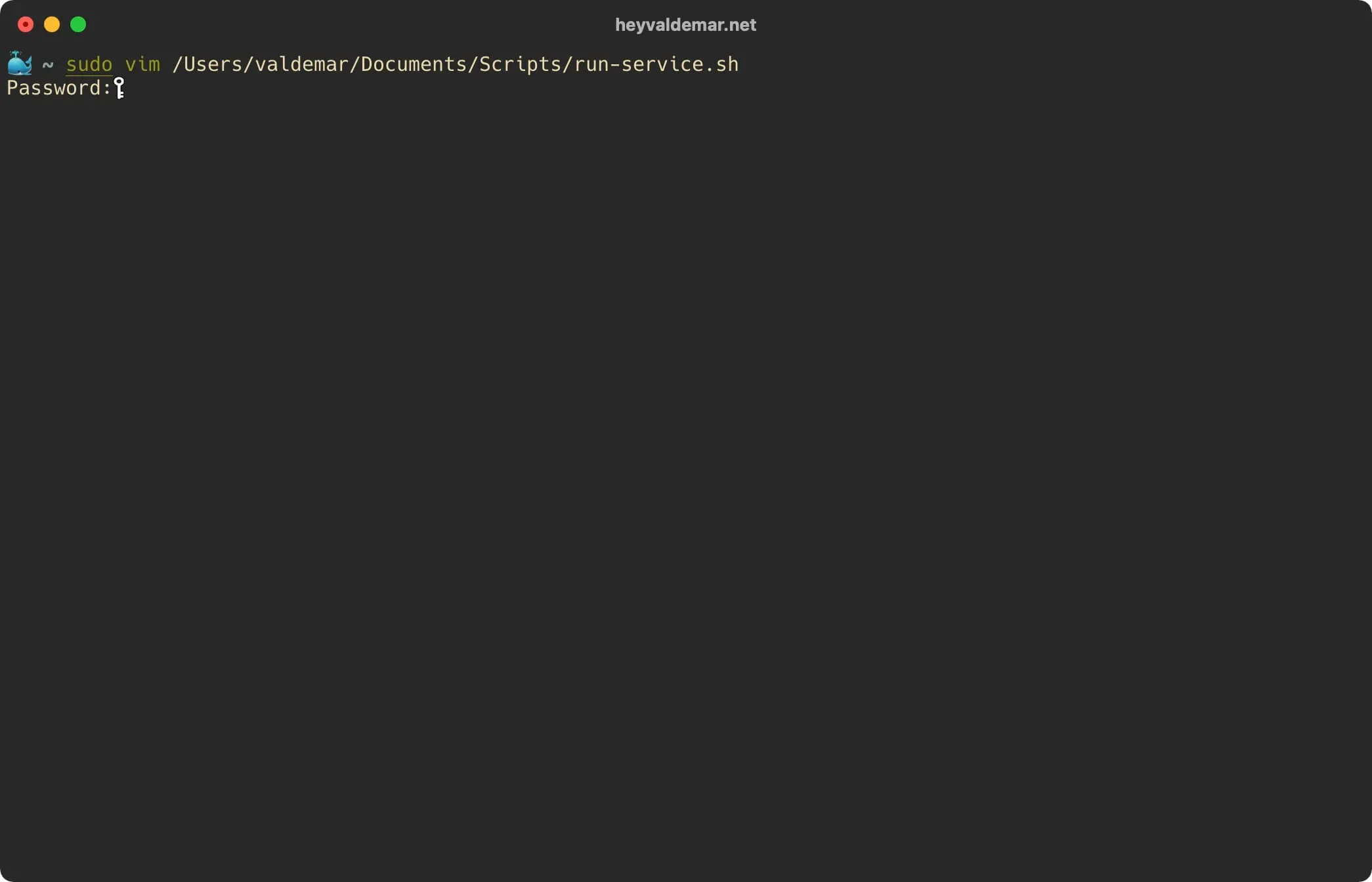
Specify the password for the account and press “Enter”.
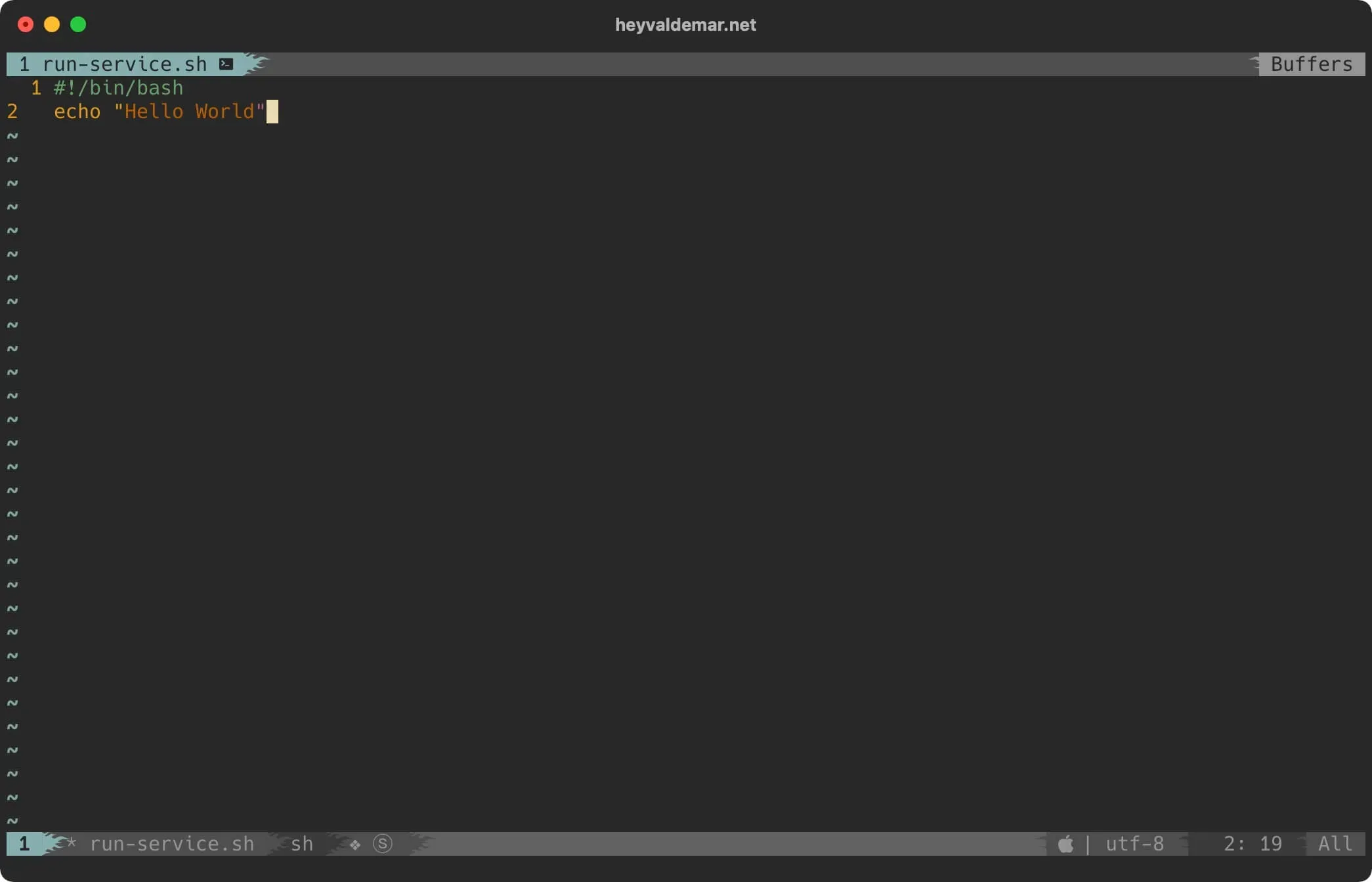
Hit the “i” button to go into edit mode, then add the scripts you need to execute when you boot macOS.
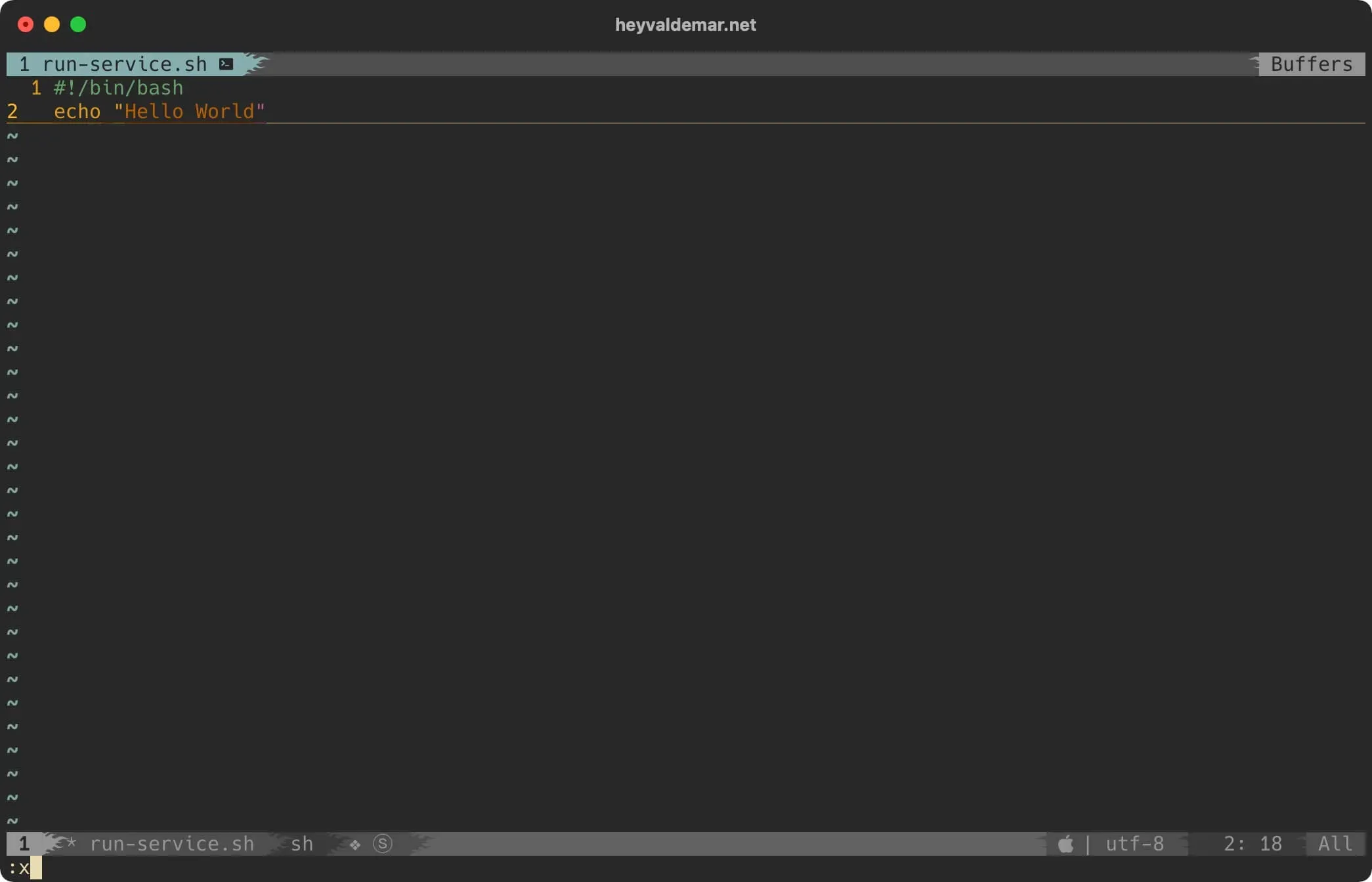
Now press the “Esc” button to exit edit mode, then type "
Let’s enable the execution of the file “run-service.sh” using the command:
sudo chmod +x /Users/valdemar/Documents/Scripts/run-service.sh
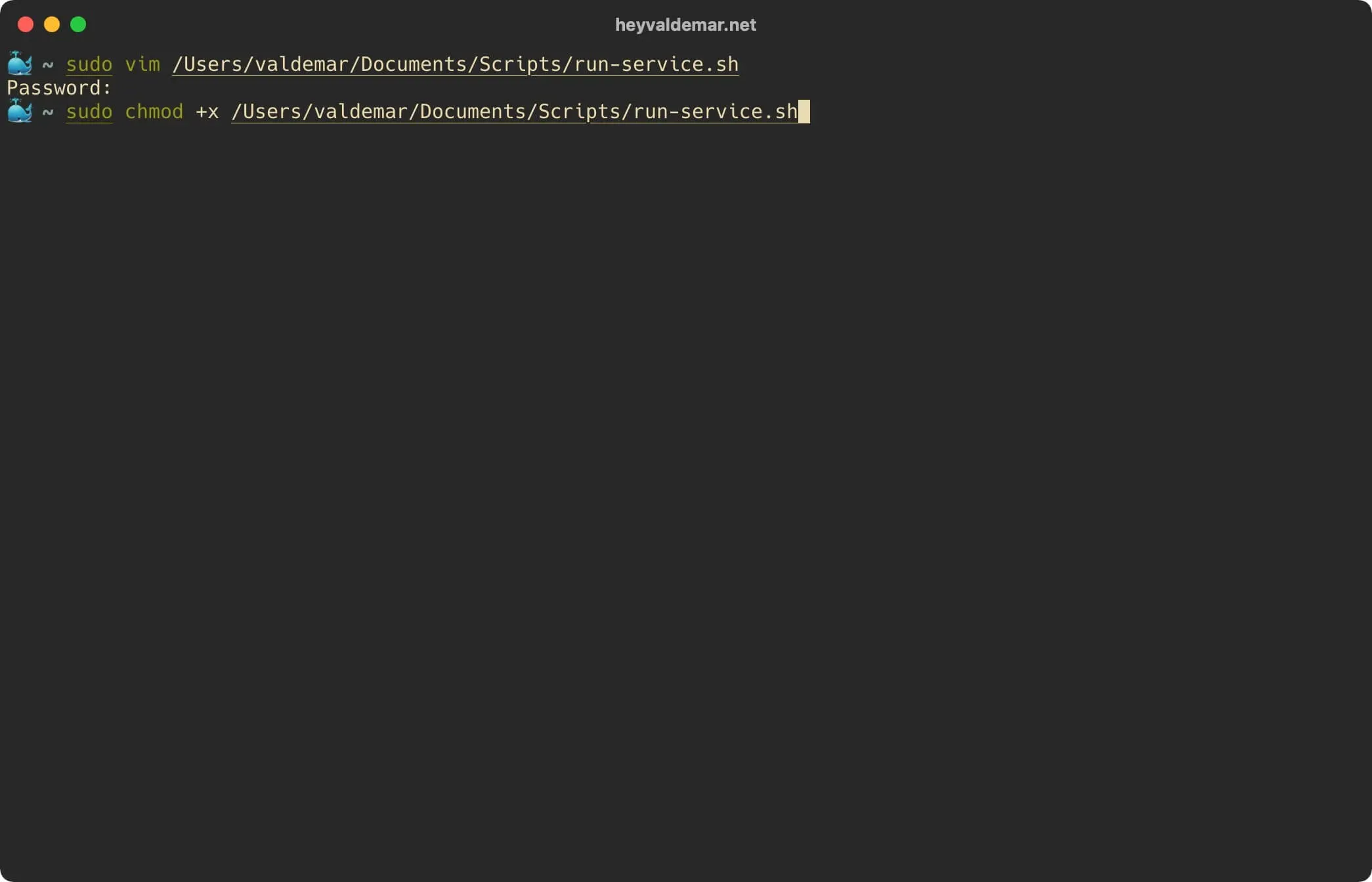
Now you need to use the Cron Task Scheduler to schedule the script to run after the operating system starts up.
Open the task scheduler using the command:
sudo crontab -e
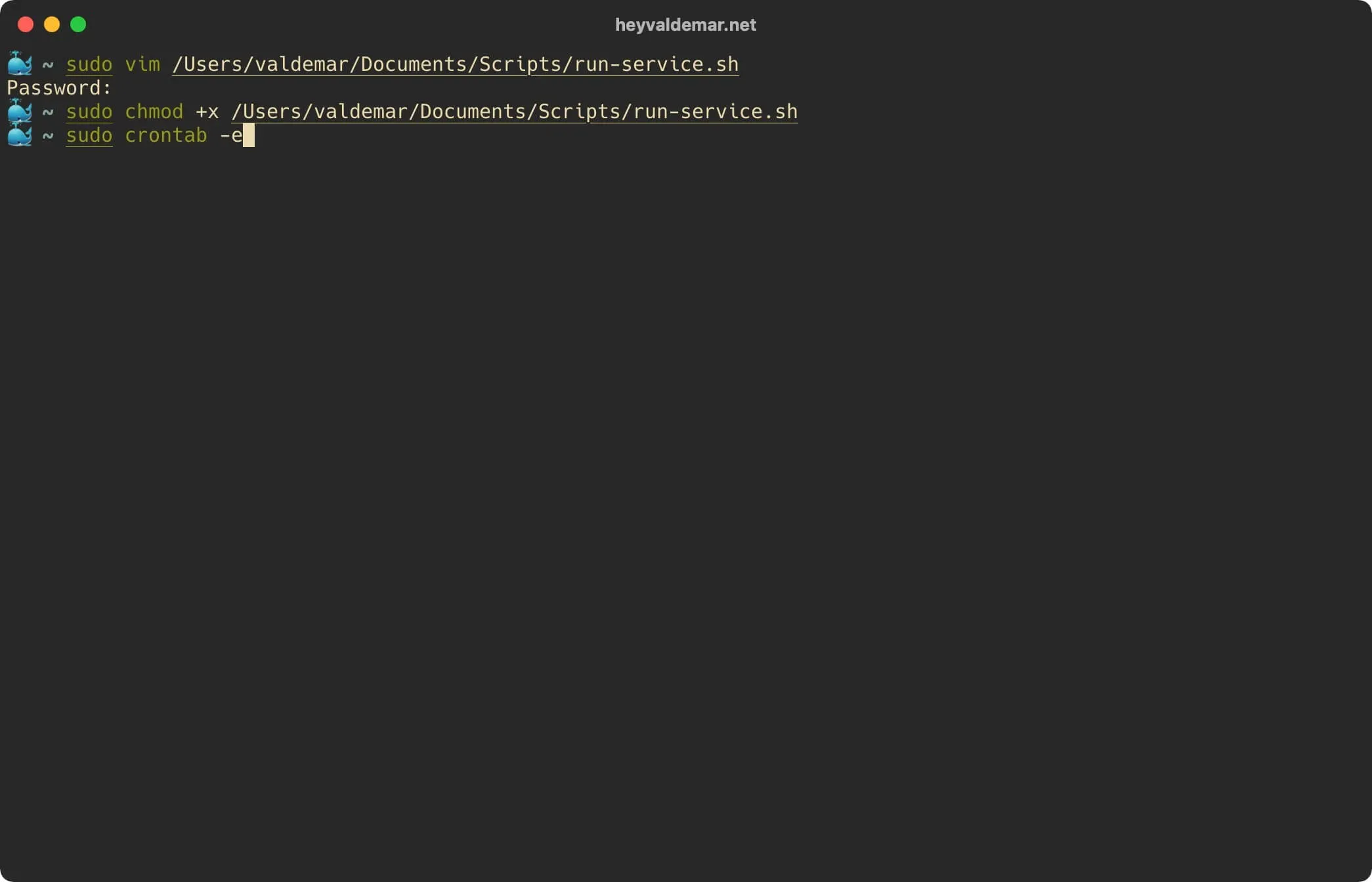
Hit the “i” button to switch to edit mode, then add a line with the “@reboot” parameter and specify the full path to the previously created script:
@reboot /Users/valdemar/Documents/Scripts/run-service.sh
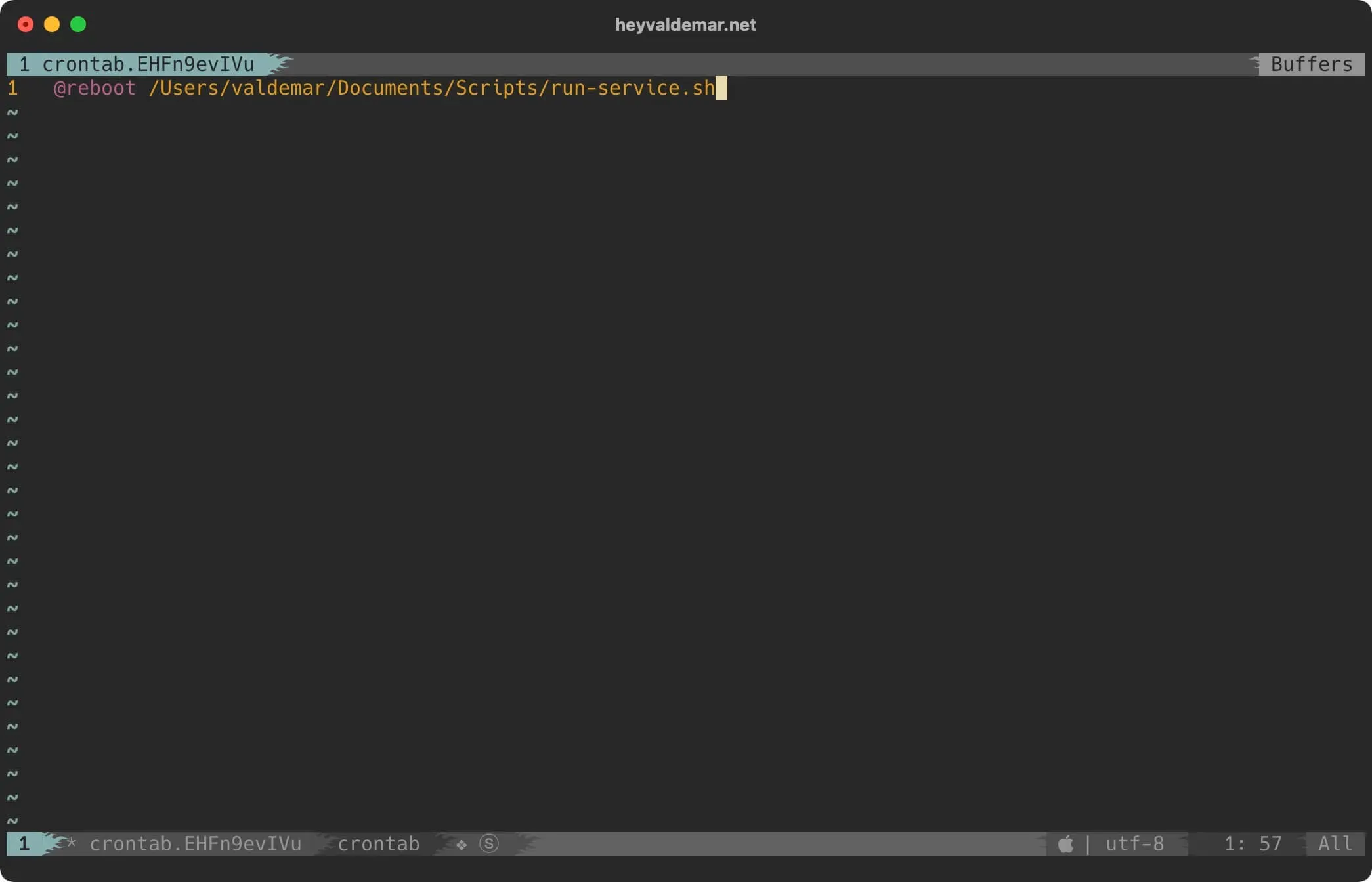
Now press the “Esc” button to exit edit mode, then type "
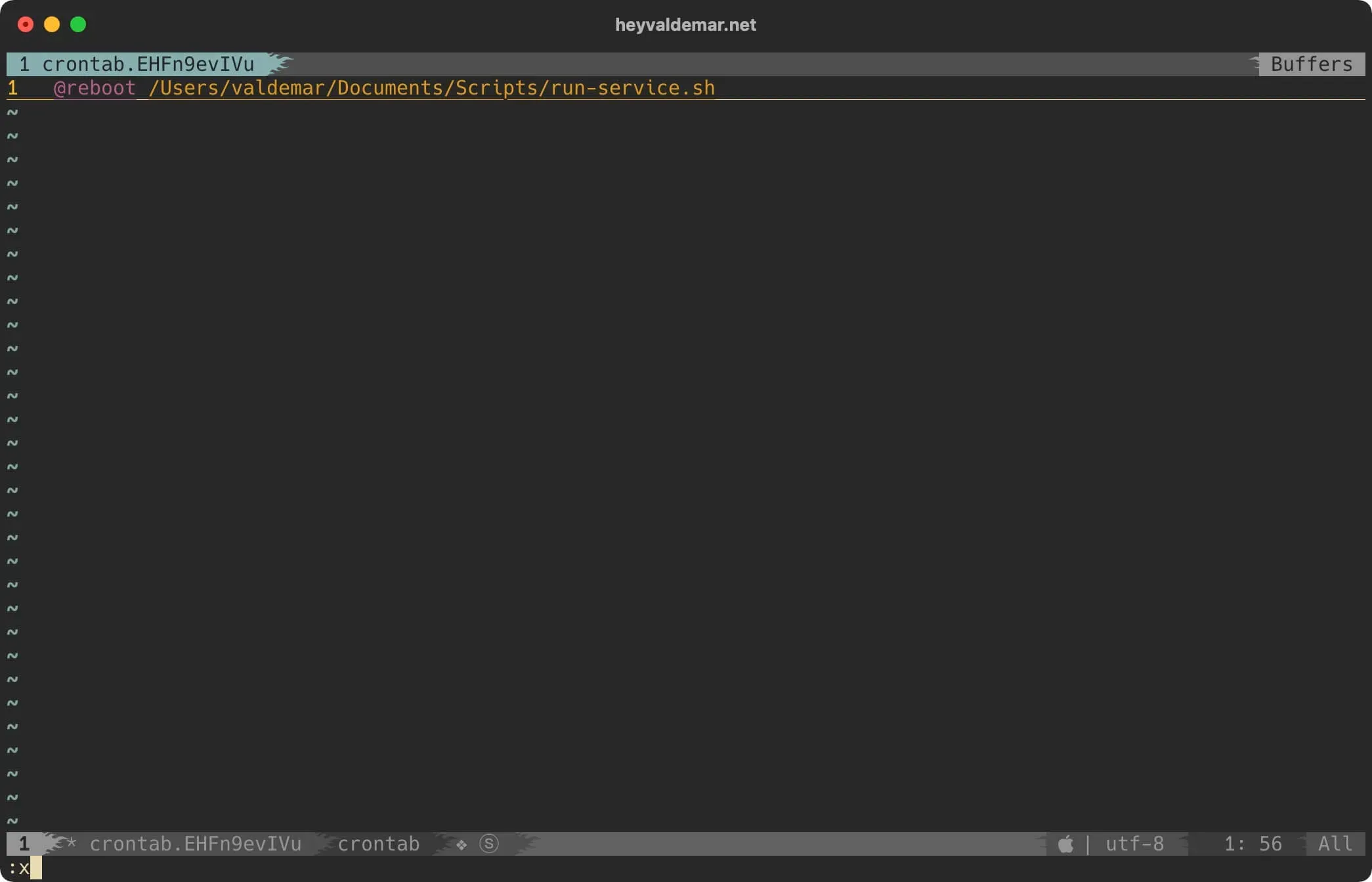
The script will now automatically run when macOS boots, even before the user logs in.
Related Posts
- 1Recovering a Corrupt Exchange Database with Stellar Repair — Real-World Lab TestSysAdmin & IT Pro · We deliberately broke an Exchange 2019 server to see if Stellar Repair for Exchange could recover a dirty-shutdown EDB file. Step-by-step recovery process, lab setup, and lessons learned.
- 2Distinctions Between Terminal, Command Line, Shell, and PromptSysAdmin & IT Pro · Learn the differences between terminal, command line, shell, and prompt in Linux. A beginner-friendly guide to essential CLI concepts and tools.
- 3Install Ubuntu Server 22.04 LTSSysAdmin & IT Pro · Step-by-step guide to install Ubuntu Server 22.04 LTS. Covers language, disk setup, OpenSSH, user creation, and system configuration for beginners.
- 4Install OTRS on Ubuntu ServerSysAdmin & IT Pro · Comprehensive guide to installing OTRS Community Edition on Ubuntu Server. Learn to configure PostgreSQL, Apache, SSL with Let's Encrypt, and launch OTRS securely.
Random Posts
- 1Why Snyk is a Great Tool to Use with DockerDevOps & Cloud · Secure your Docker containers with Snyk - deep scans, CI/CD integration, and automated fixes for fast, reliable app delivery.
- 2Learn Docker CP Command for Effective File ManagementDevOps & Cloud · Master the Docker cp command to transfer files between host and containers. Boost DevOps efficiency with expert tips, use cases, and best practices.
- 3Install Bitwarden on Ubuntu Server 20.04 LTSSelf-Hosting · Step-by-step guide to install Bitwarden on Ubuntu Server 20.04 LTS using Docker and Let's Encrypt. Secure your passwords with this open-source solution.
- 4Install Minecraft on WindowsSysAdmin & IT Pro · Step-by-step guide on how to install Minecraft Java Edition on Windows. Learn how to download, install, and launch Minecraft quickly and easily.