Enable Logging in Windows Firewall
By Vladimir Mikhalev · Docker Captain · CNCF Ambassador · IBM Champion
This article is for those looking for a detailed and straightforward guide on installing enable logging in Windows Firewall.
WARNINGFor security reasons, it is not recommended to disable Windows Firewall unless you are using a complete antivirus solution that includes a different firewall. In the case when Windows Firewall blocks the operation of an application, you need to study this event in detail using a file with logs and make an allowing rule for this application in Windows Firewall, if it is really necessary.
NOTEThis tutorial will cover several ways to enable logging in to Windows Firewall.
We go into the system under an account with administrator rights.
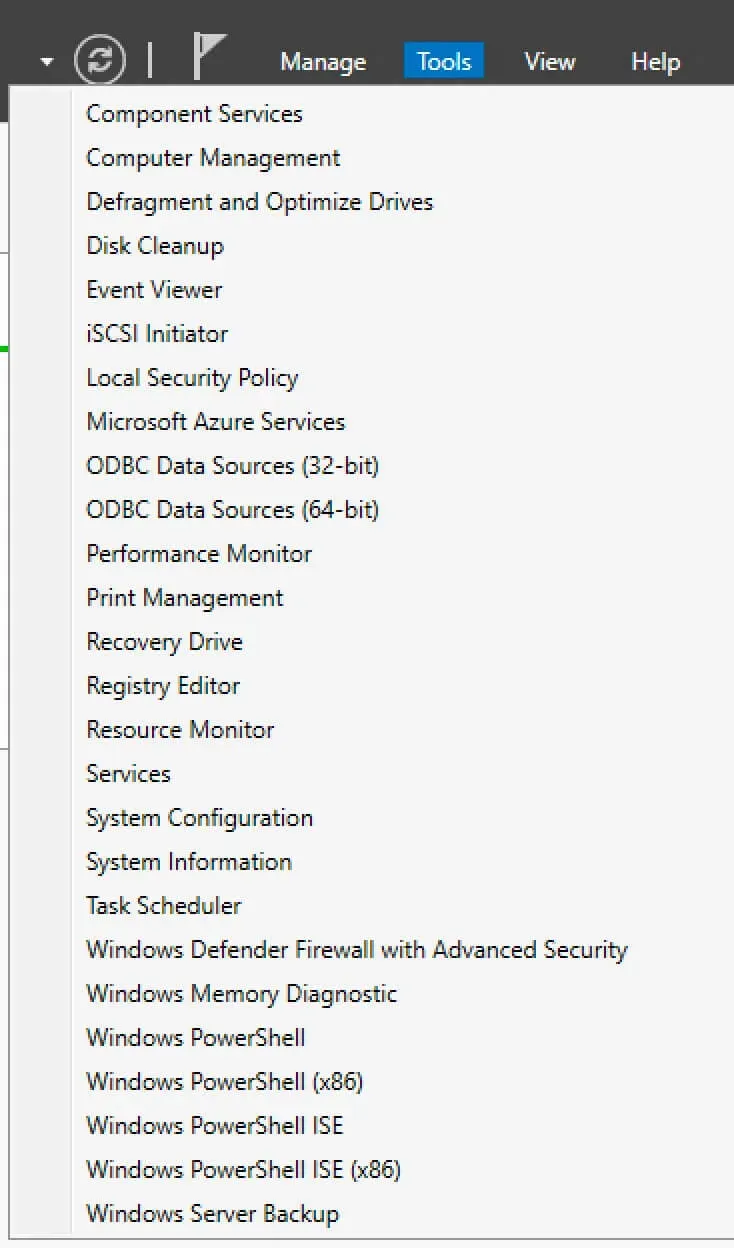
Open Server Manager, click on the “Tools” button in the upper right corner of the screen and select “Windows Firewall with Advanced Security”.
Next, right-click on “Windows Firewall with Advanced Security on Local Computer” and select “Properties”.
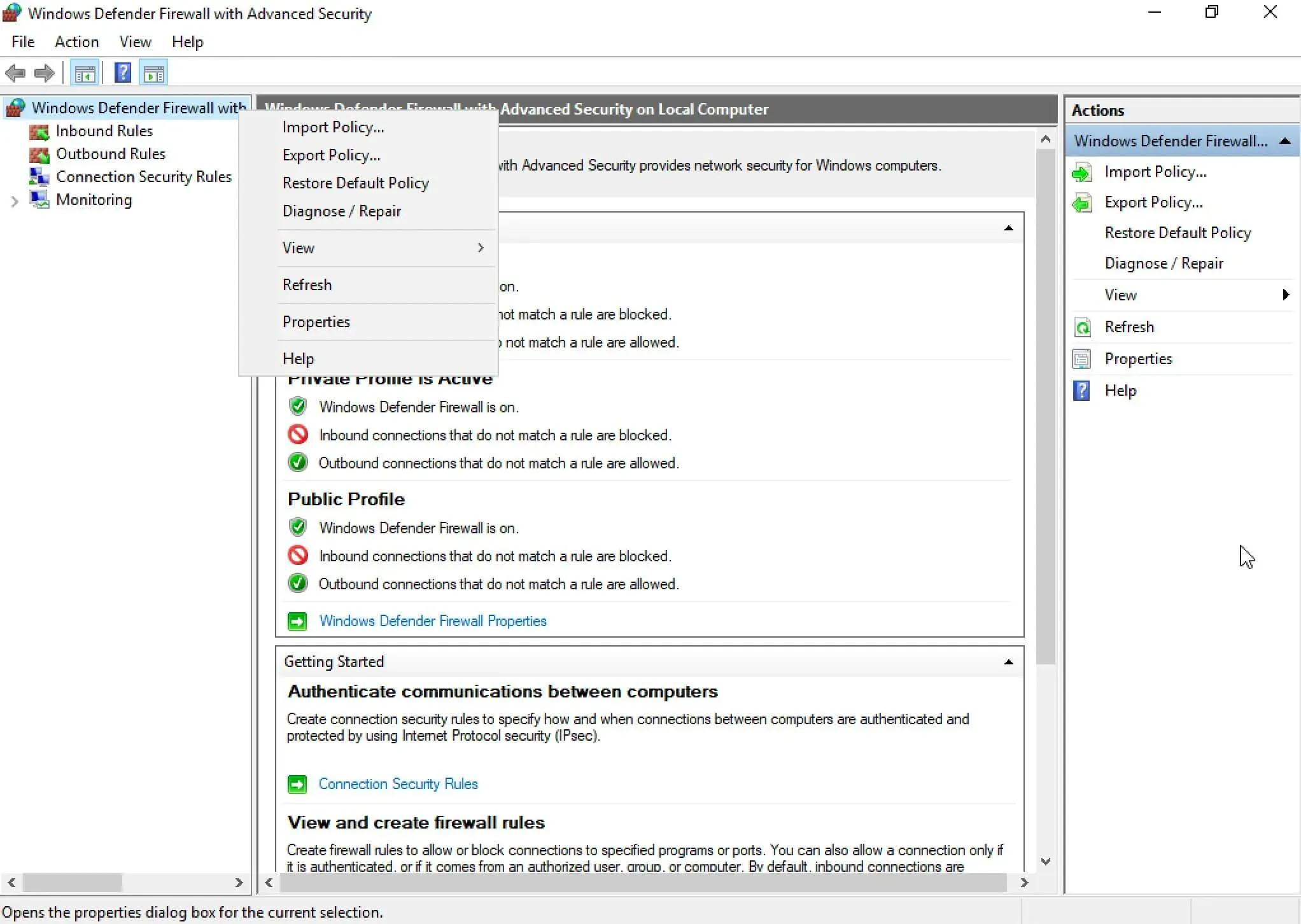
NOTEIn this guide, logging in Windows Firewall for a domain profile will be configured. Similarly, you can configure logging for other profiles.
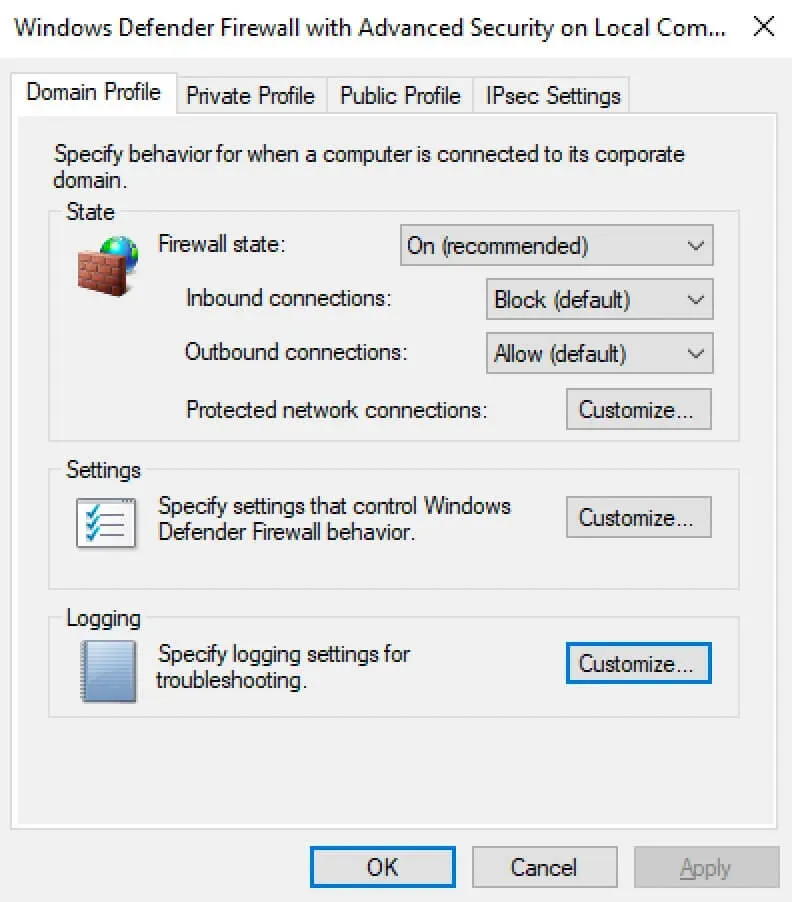
On the “Domain Profile” tab, in the “Logging” section, select “Customize”.
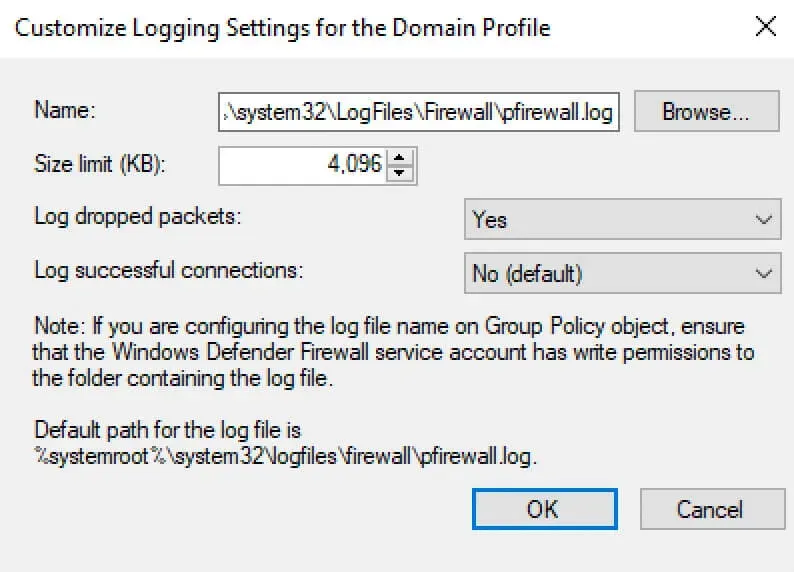
Further, in the “Name” field, you can specify where the file with the Windows Firewall logs will be stored.
In the “Size Limit” field, specify the maximum size of the file with logs.
To enable logging of dropped packets, select “Yes” in the “Log dropped packets” section.
Click on the “OK” button.
You can also enable logging in to Windows Firewall using Windows PowerShell.
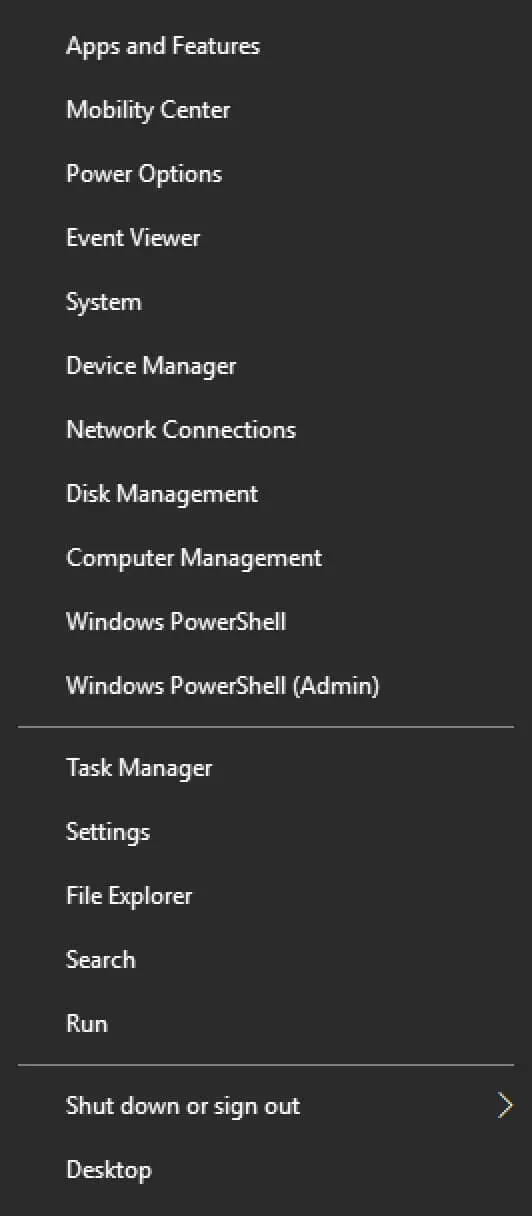
On the keyboard, press the key combination “Win” and “x” and in the menu that opens, select “Windows PowerShell (Admin)”.
NOTEIn this guide, logging in Windows Firewall for a domain profile will be configured. Similarly, you can configure logging for other profiles.
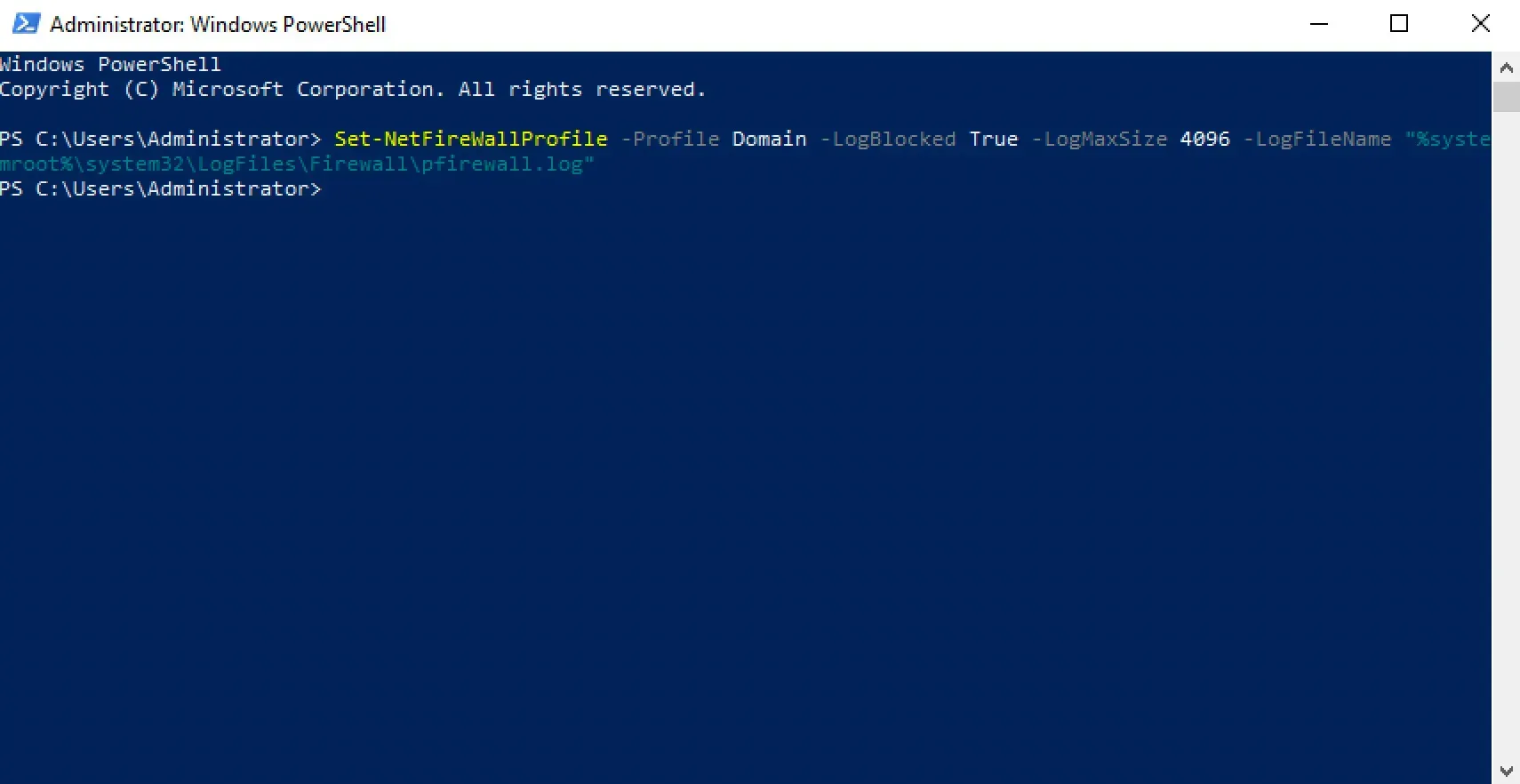
We enable logging using the command:
Set-NetFireWallProfile -Profile Domain -LogBlocked True -LogMaxSize 4096 -LogFileName "%systemroot%\system32\LogFiles\Firewall\pfirewall.log" 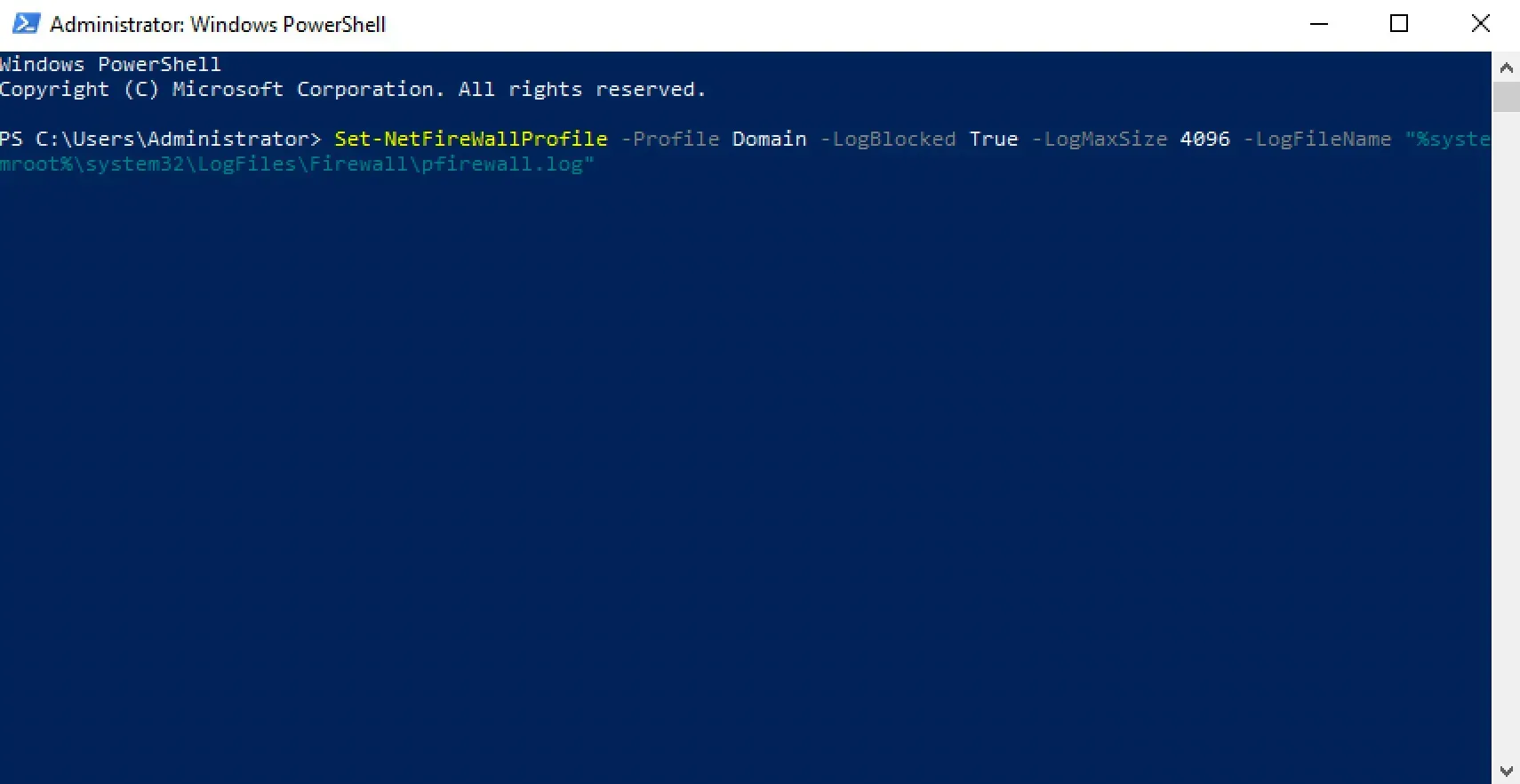
Now, looking at the file with the logs, you can examine in detail which application was blocked using Windows Firewall, and make an allow rule for it if it is really necessary.