Restore Windows Firewall Defaults
By Vladimir Mikhalev · Docker Captain · CNCF Ambassador · IBM Champion
This article is for those looking for a detailed and clear guide on how to restore Windows Firewall defaults.
This guide will cover several ways to restore the default Windows Firewall settings.
We go into the system under an account with administrator rights.
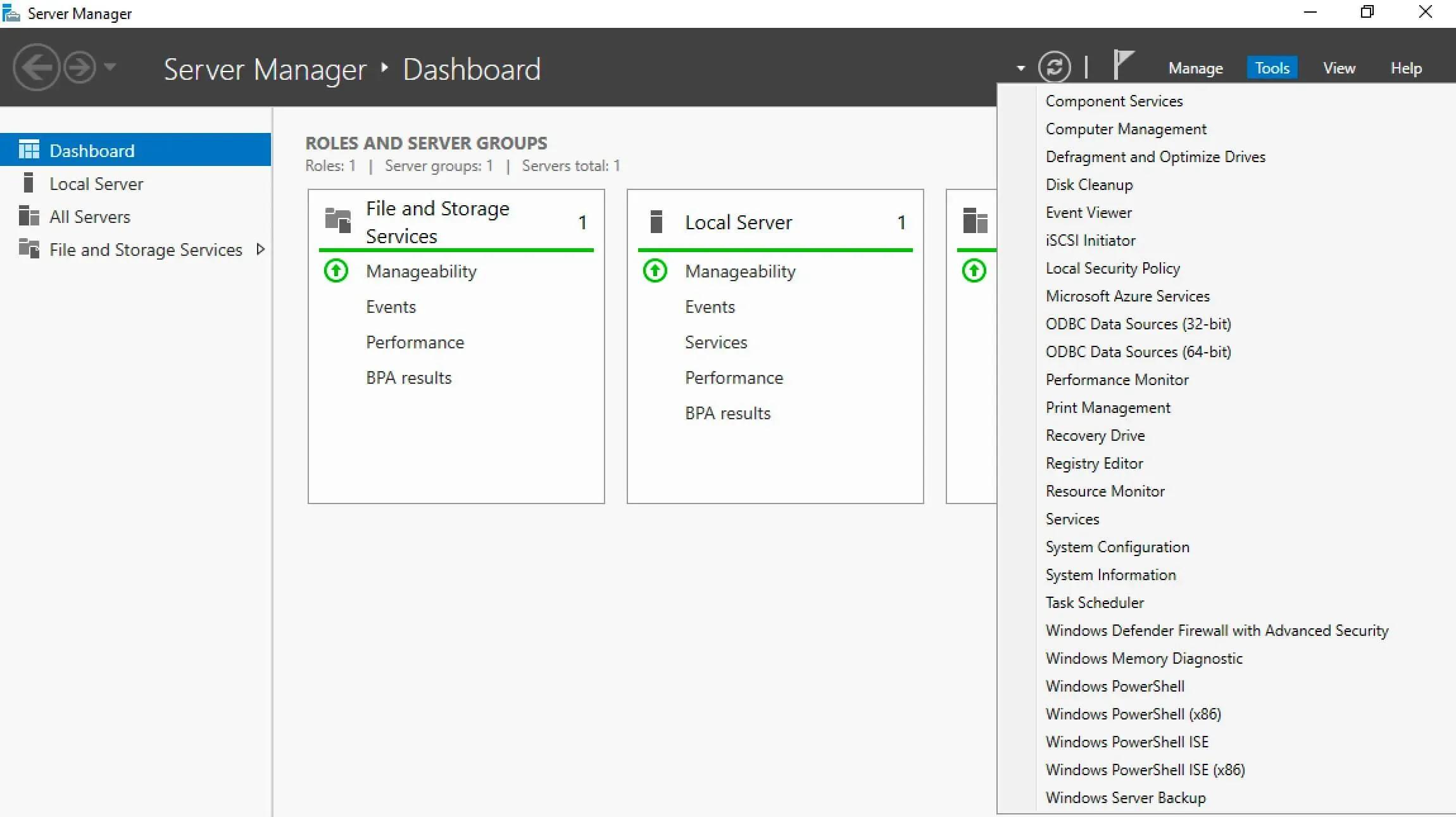
Open Server Manager, click on the “Tools” button in the upper right corner of the screen, and select “Windows Defender Firewall with Advanced Security”.
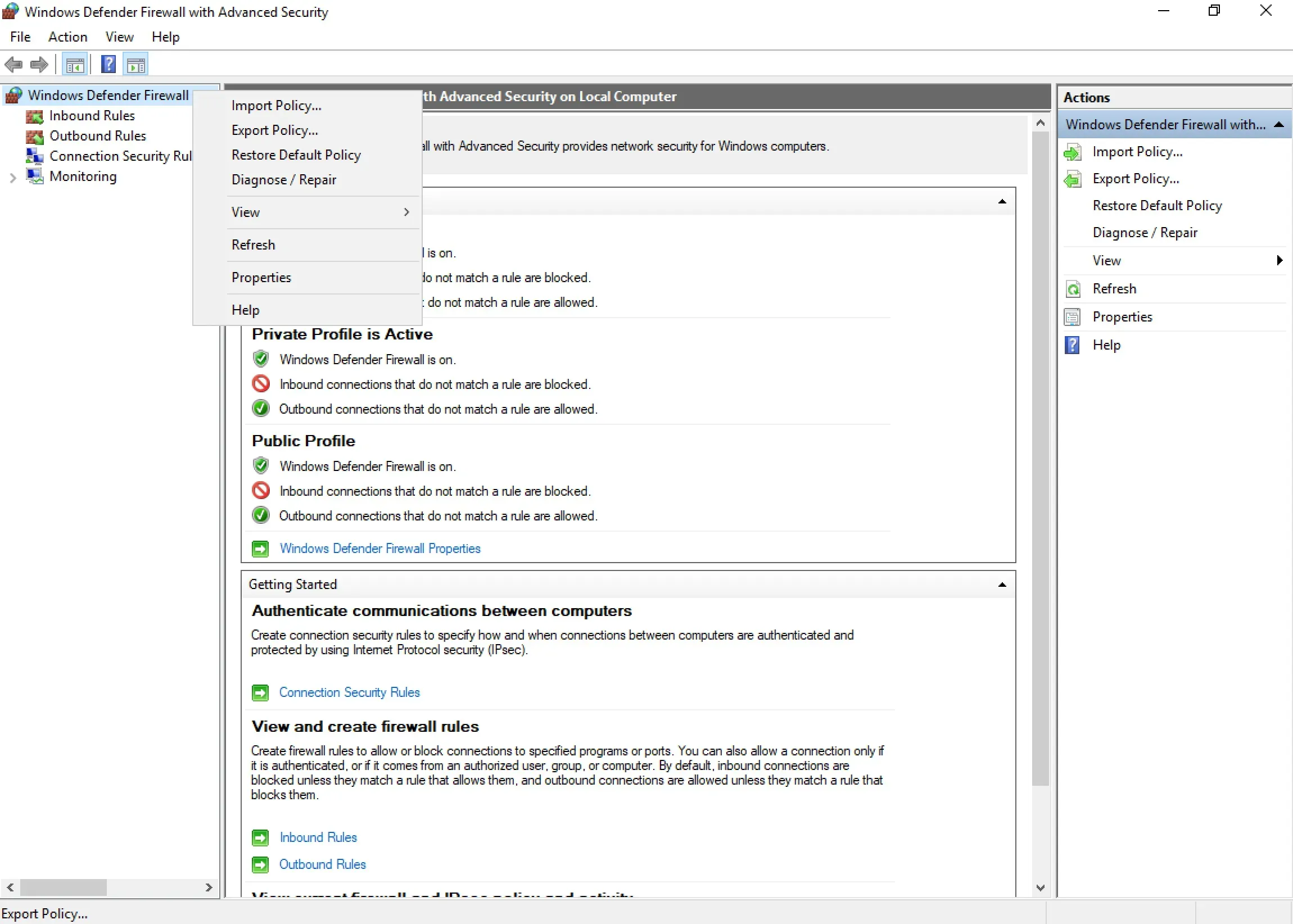
You can now export the current settings from Windows Firewall and, if necessary, return to them after restoring the default settings.
Right-click on “Windows Firewall with Advanced Security on Local Computer” and select “Export Policy”.
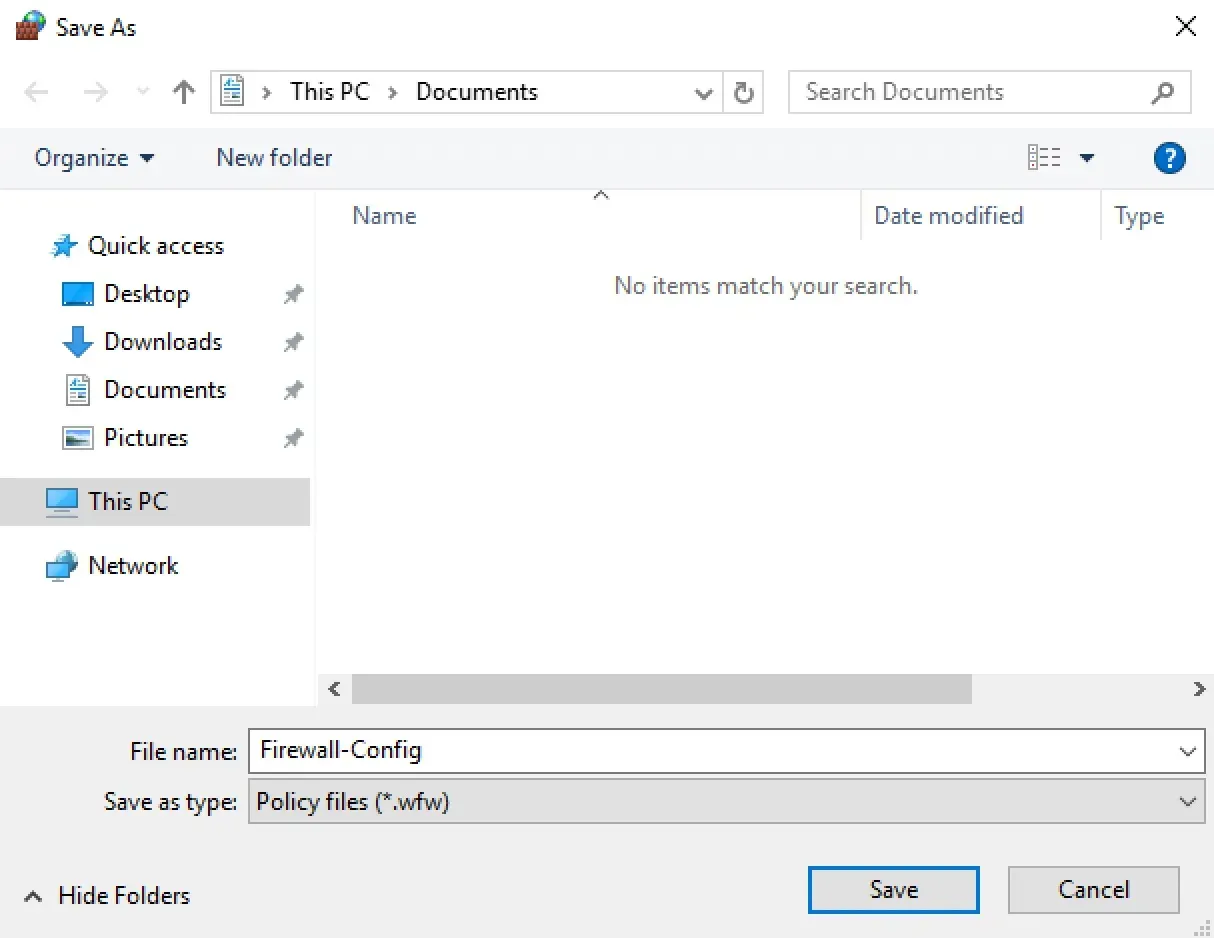
Assign a name and save the file with Windows Firewall settings.
NOTEIn this manual, the settings file will be saved in the “Documents” folder.
Click on the “Save” button.
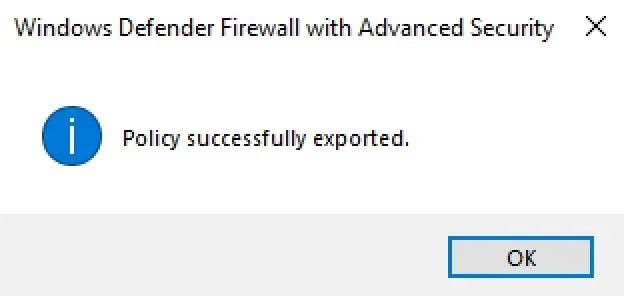
Windows Firewall settings exported successfully.
Click on the “OK” button.
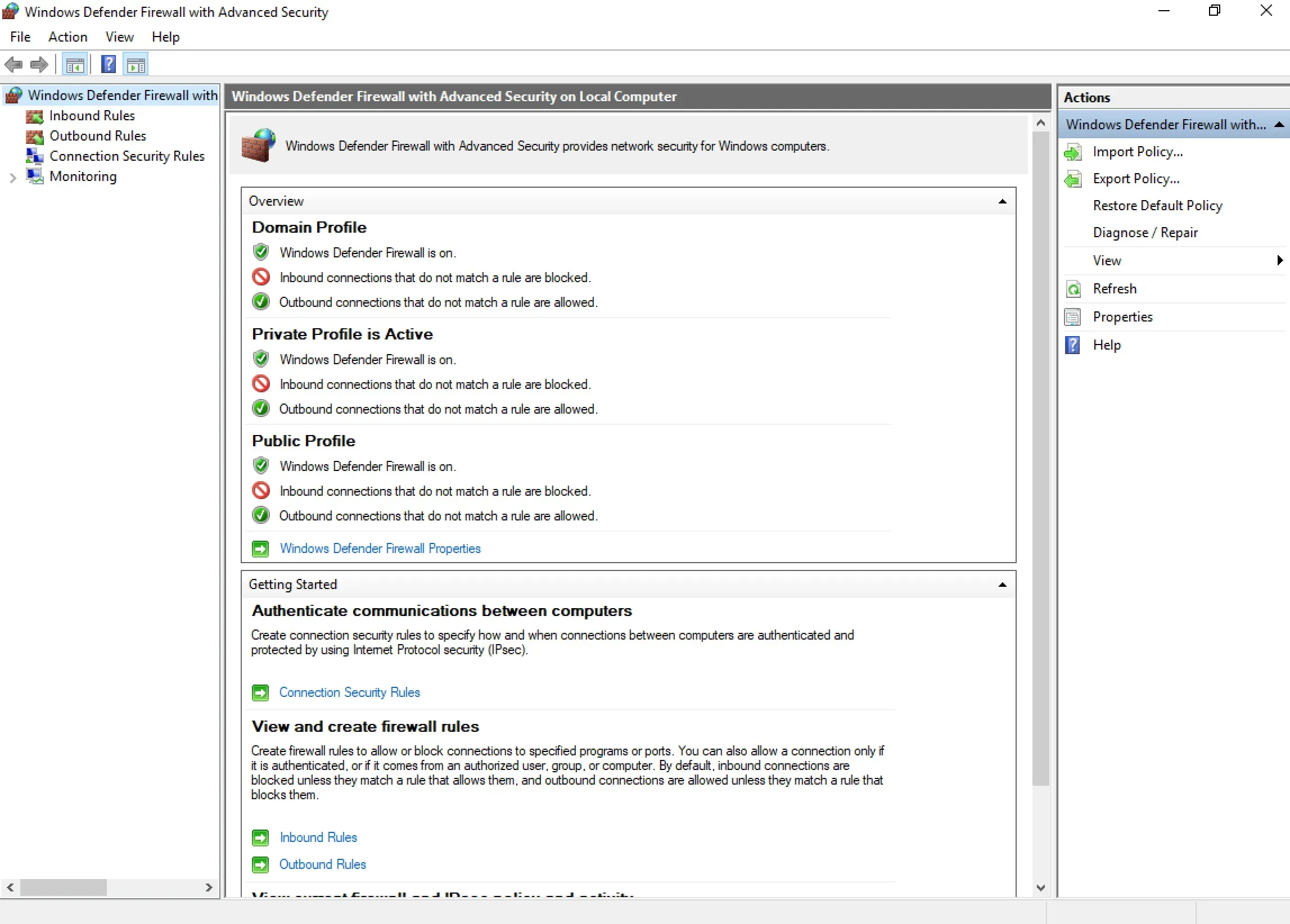
Now you can restore the default settings in Windows Firewall.
In the “Actions” section, select “Restore Default Policy”.
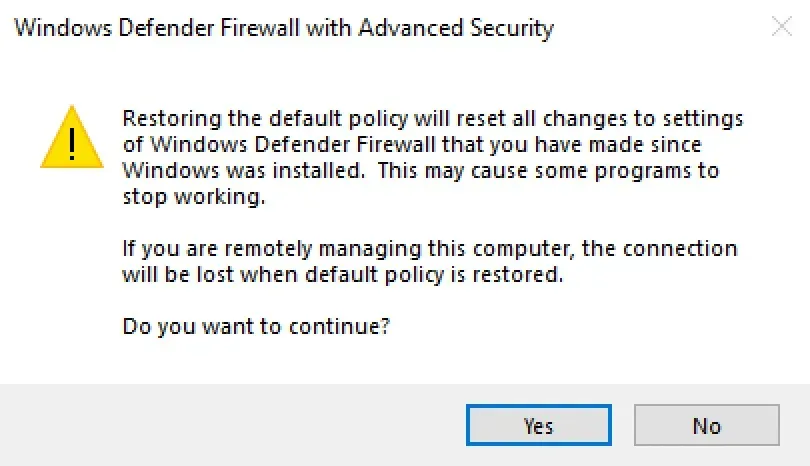
Next, you need to confirm the restoration of the default settings.
Click on the “Yes” button.
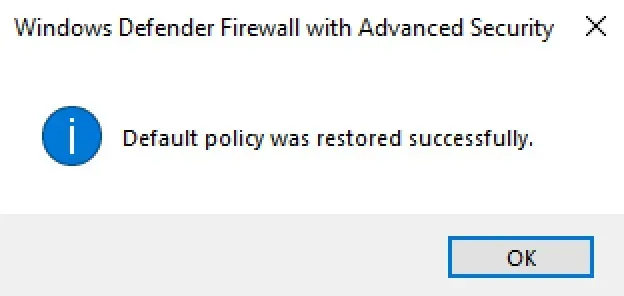
Windows Firewall defaults have been restored successfully.
In addition, you can restore the default settings in Windows Firewall using the command line.
Press “Start”, specify “cmd” in the search bar, and select “Command Prompt”.
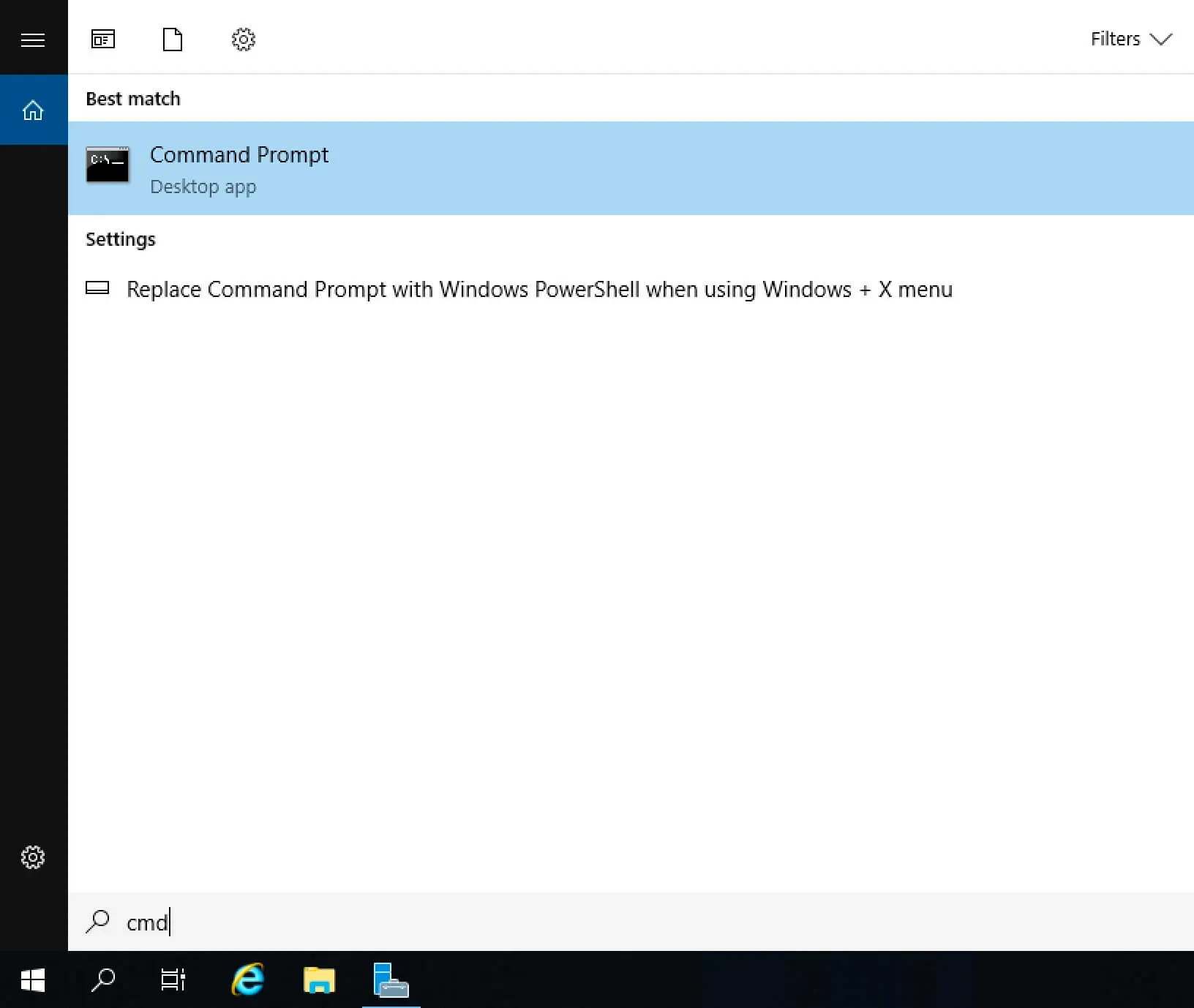
We export the current settings from Windows Firewall to return to them if necessary after restoring the default settings.
NOTEIn this manual, the configuration file will be saved to the “C” drive.
We export the current settings from Windows Firewall using the command:
netsh advfirewall export C:\Firewall-Config.wfw 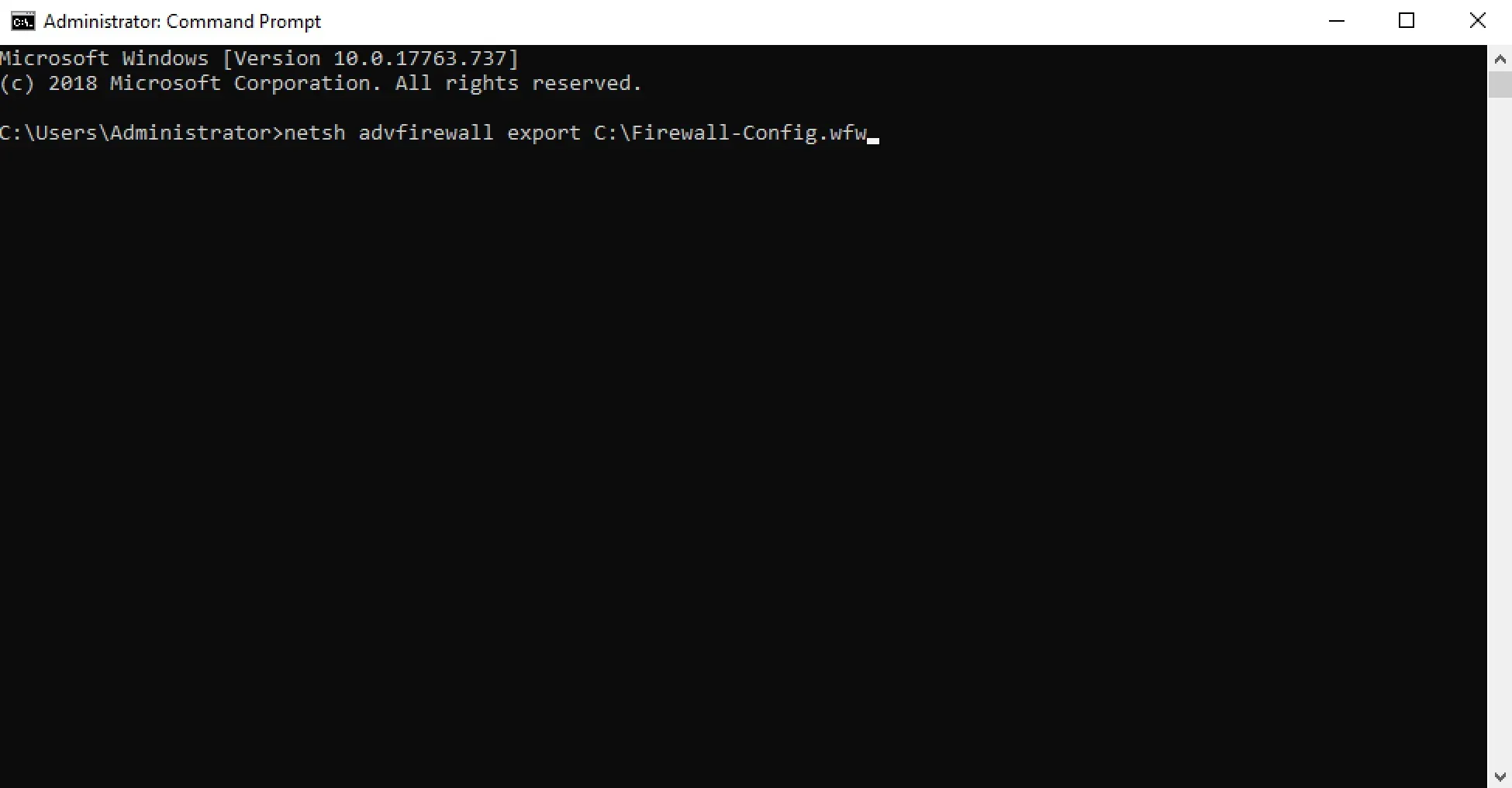
Now you can restore the default settings in Windows Firewall.
Restore the default settings in Windows Firewall using the command:
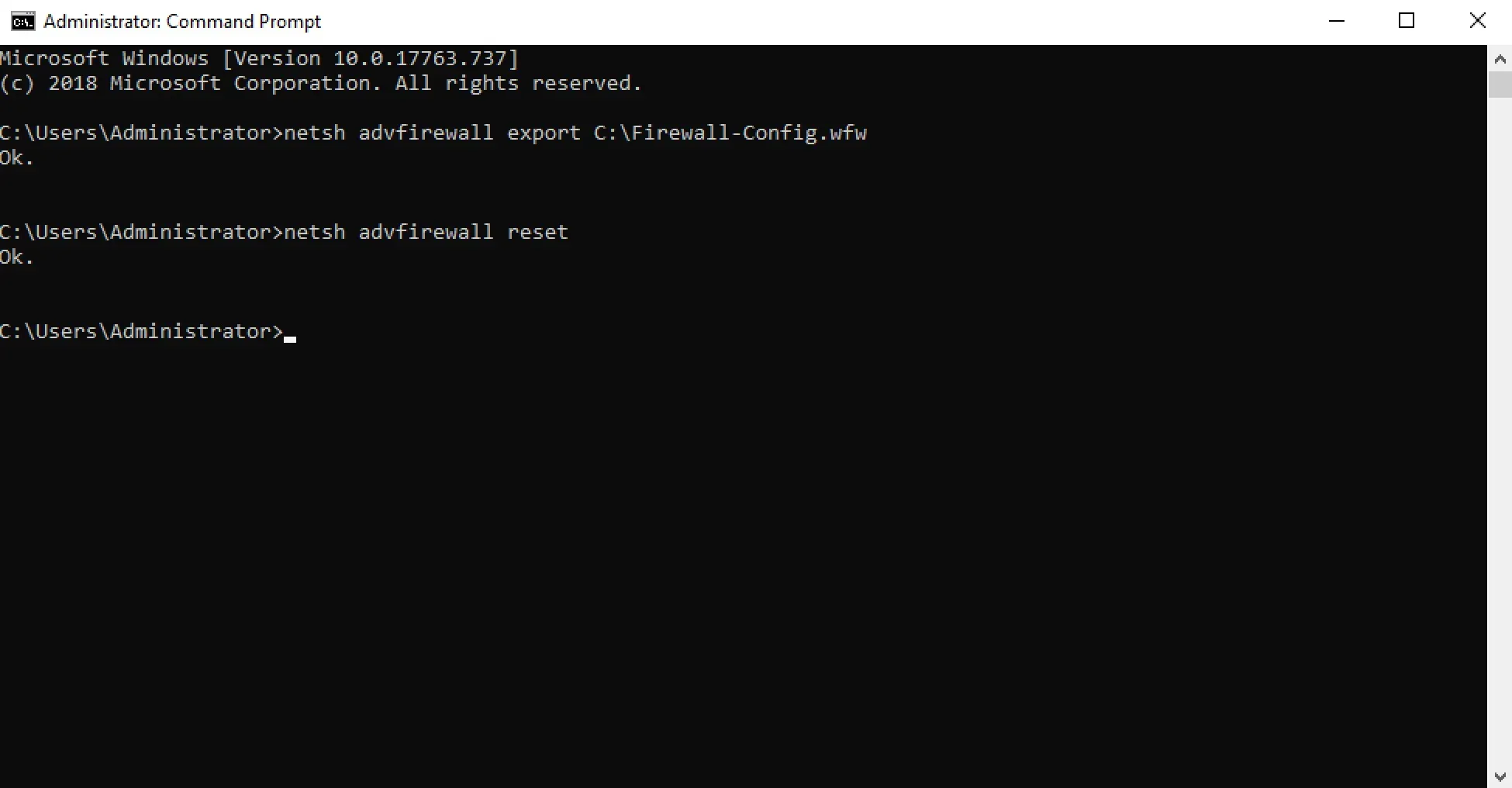
netsh advfirewall reset 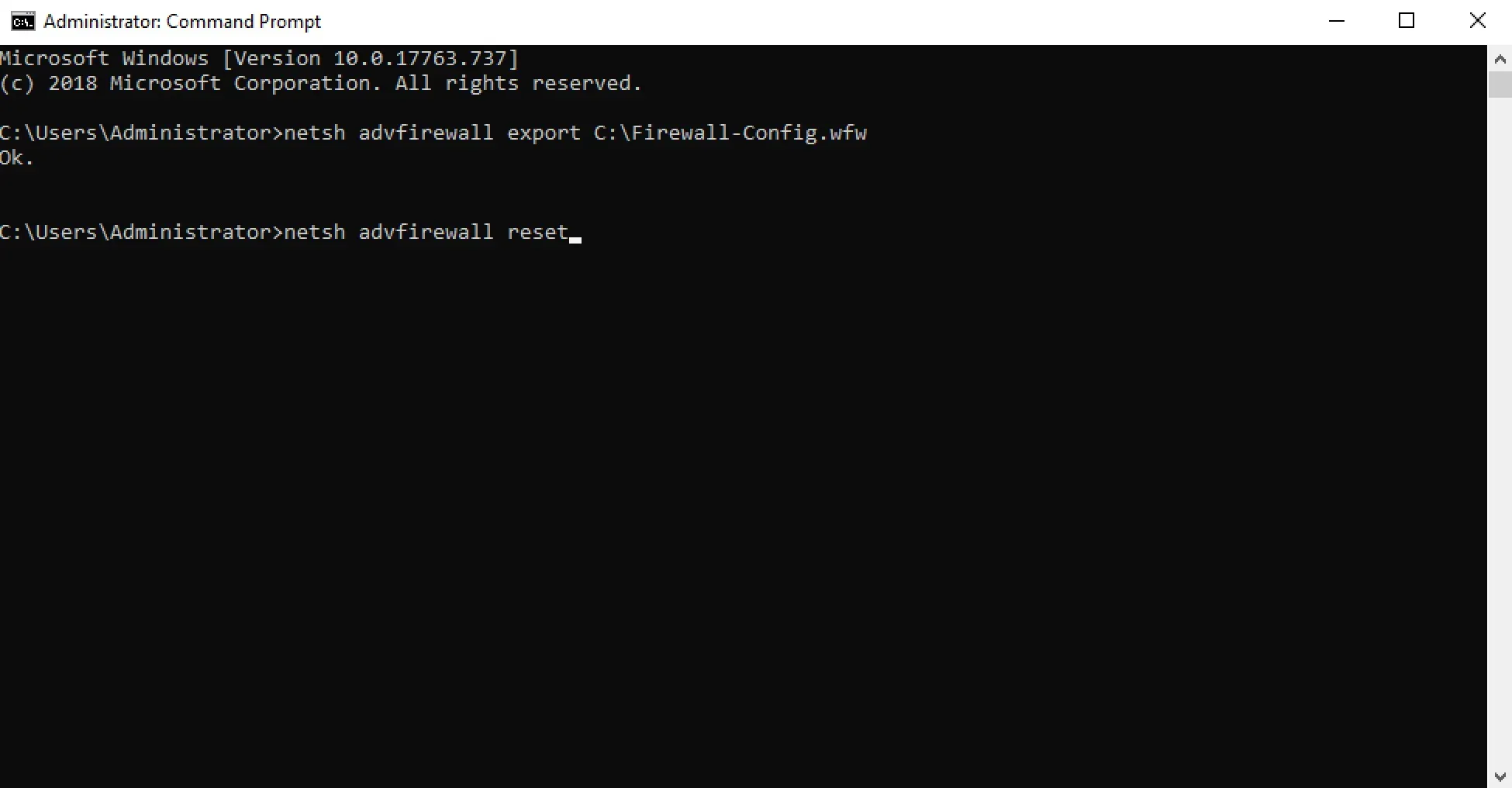
Windows Firewall defaults have been restored successfully.
You can also restore the default settings in Windows Firewall using Windows PowerShell.
On the keyboard, press the key combination “Win” and “x” and in the menu that opens, select “Windows PowerShell (Admin)”.
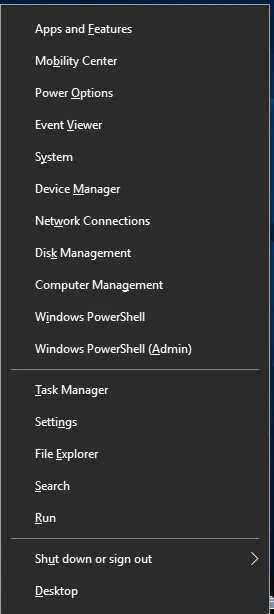
Restore the default settings in Windows Firewall using the command:
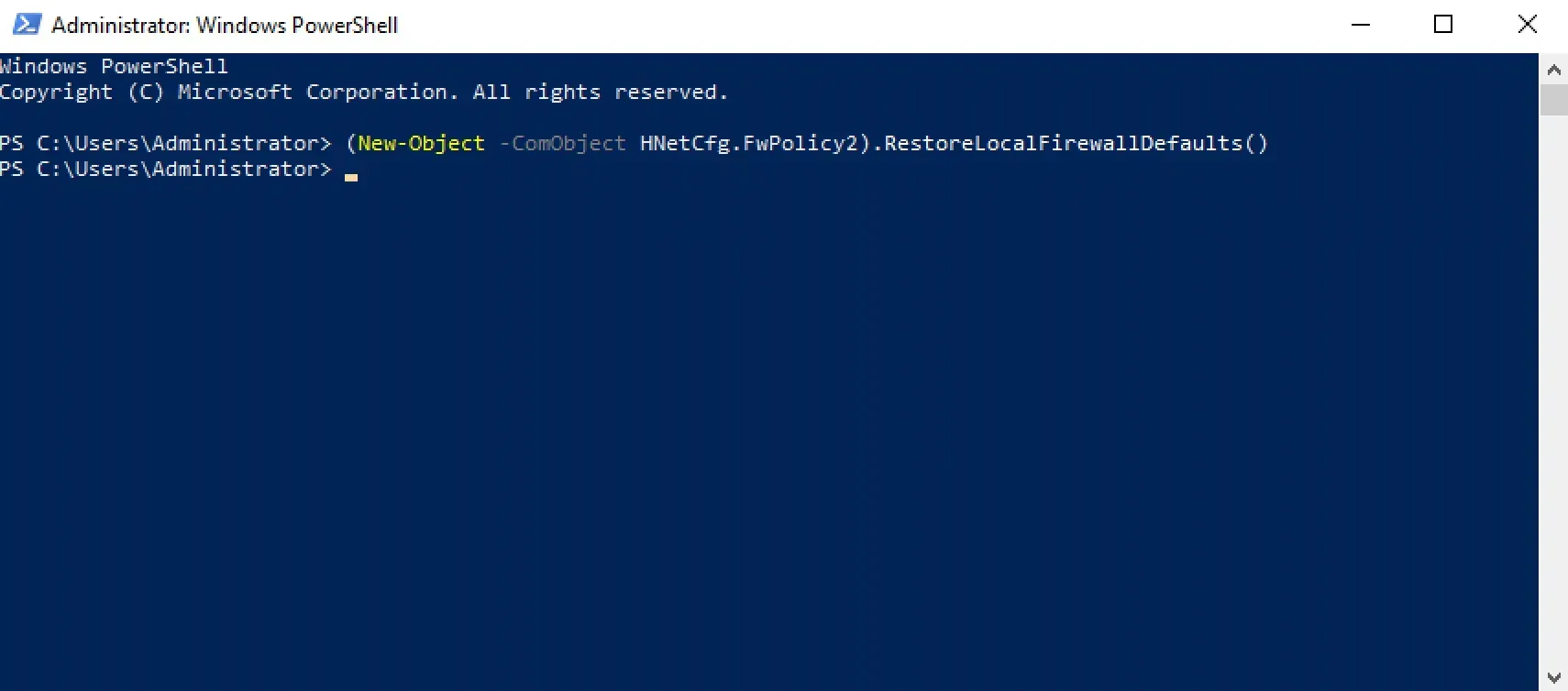
(New-Object -ComObject HNetCfg.FwPolicy2).RestoreLocalFirewallDefaults() 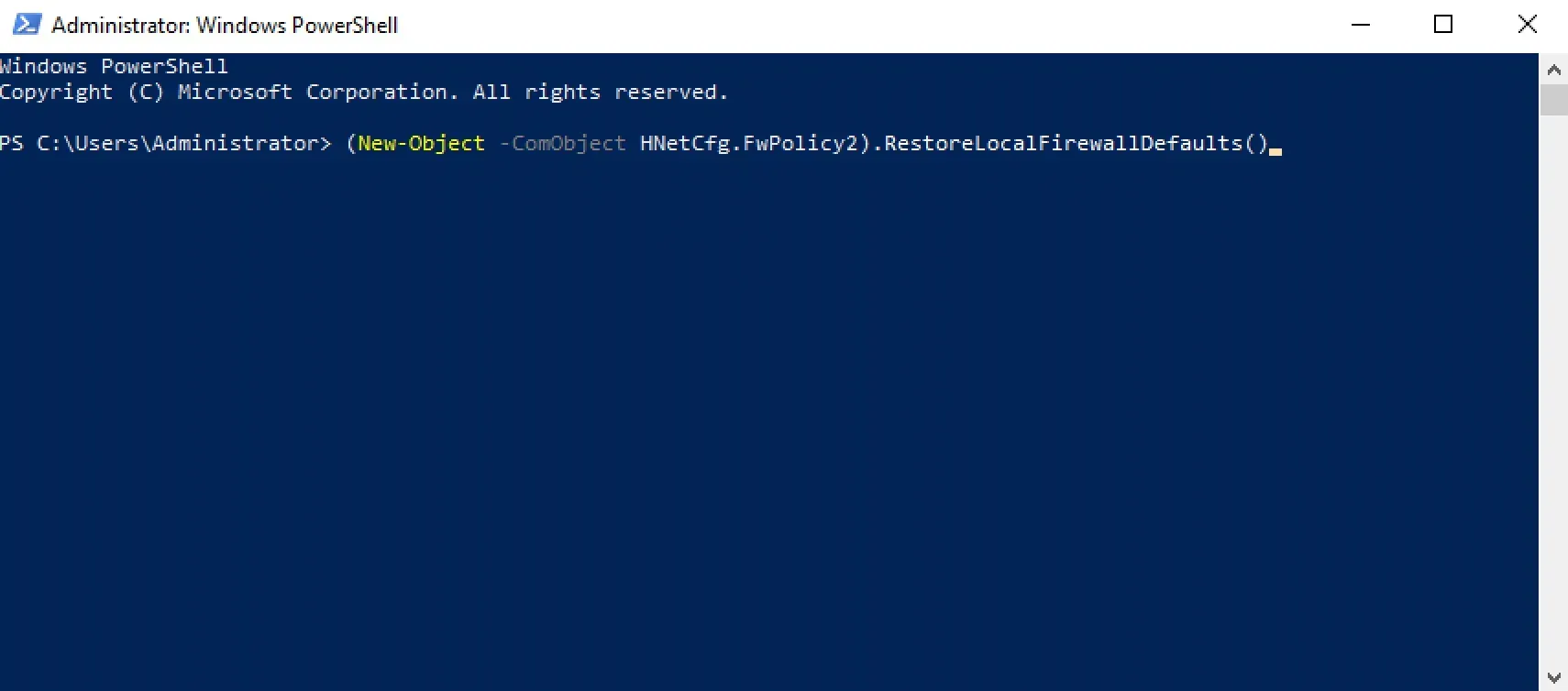
Windows Firewall defaults have been restored successfully.