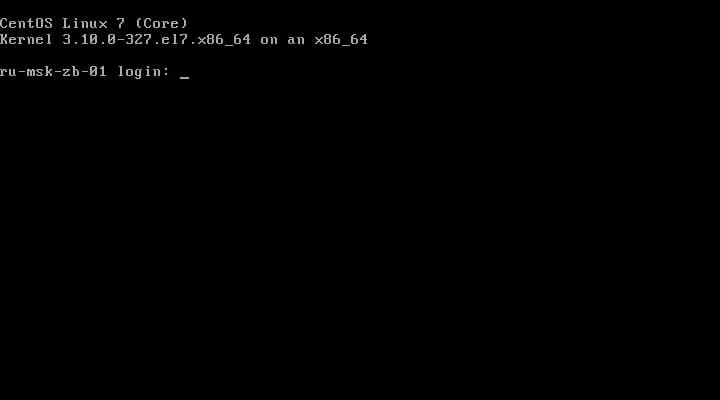
Install CentOS 7 Minimal
By Vladimir Mikhalev · Docker Captain · CNCF Ambassador · IBM Champion
This article is for those looking for a detailed and straightforward guide on installing CentOS 7 Minimal.
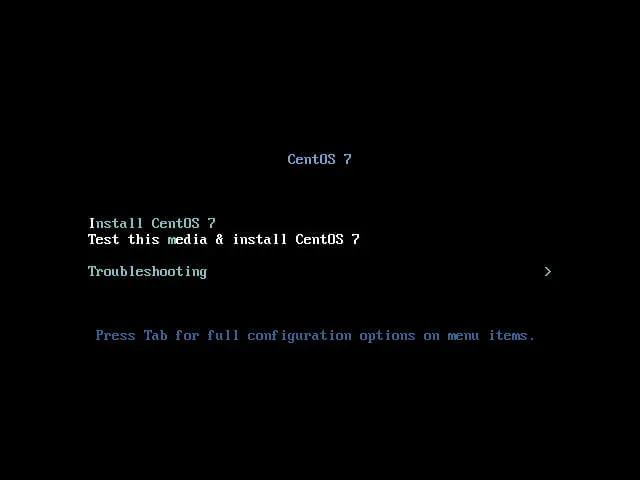
After successfully booting from a CentOS 7 installation flash drive or DVD, the first step is to select in which language the welcome menu will be displayed.
Select “Install CentOS 7” from the welcome menu.
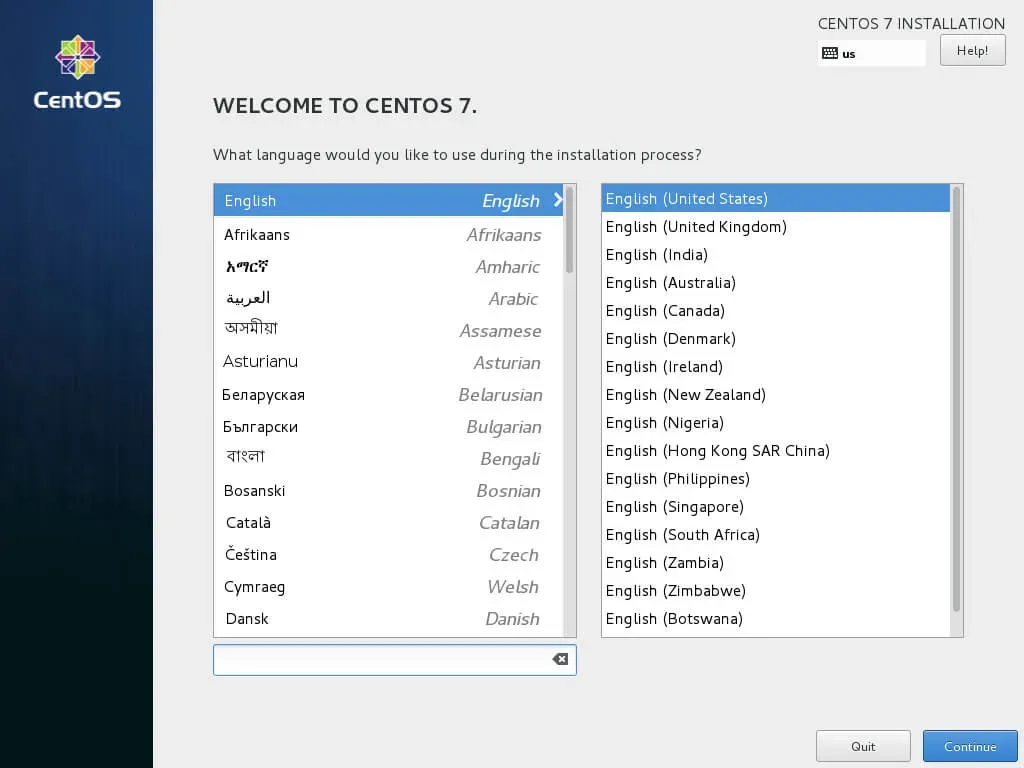
Now you need to choose in which language the installation process of CentOS 7 will be displayed. I highly recommend using English.
Select “English” and click on the “Continue” button.
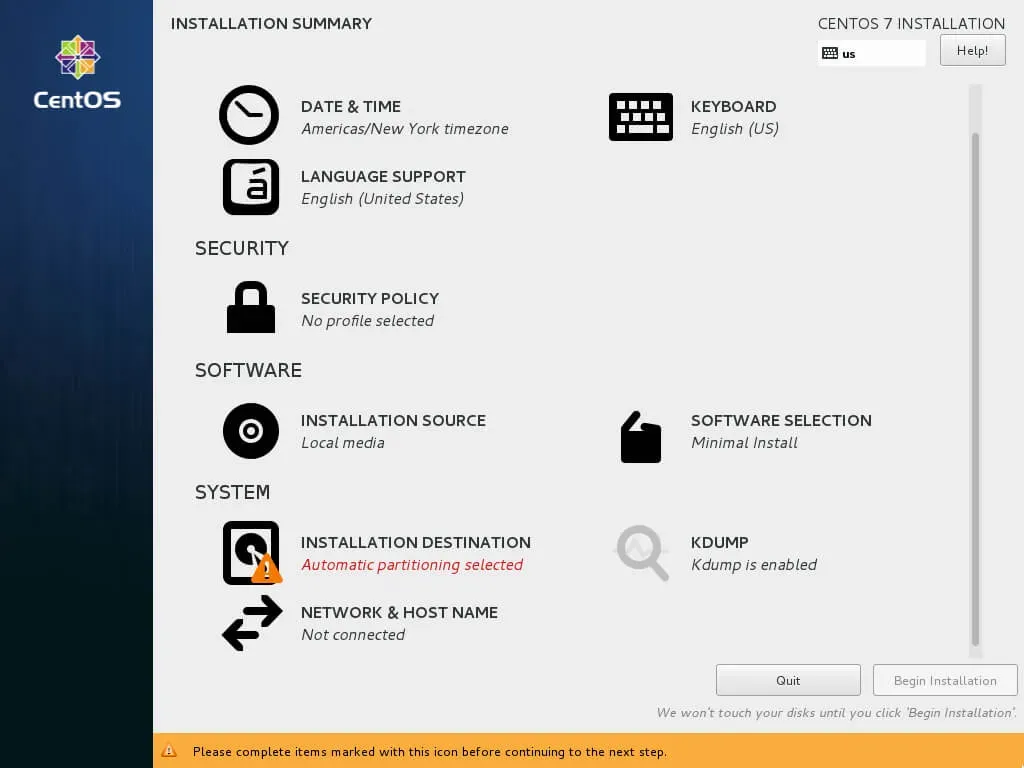
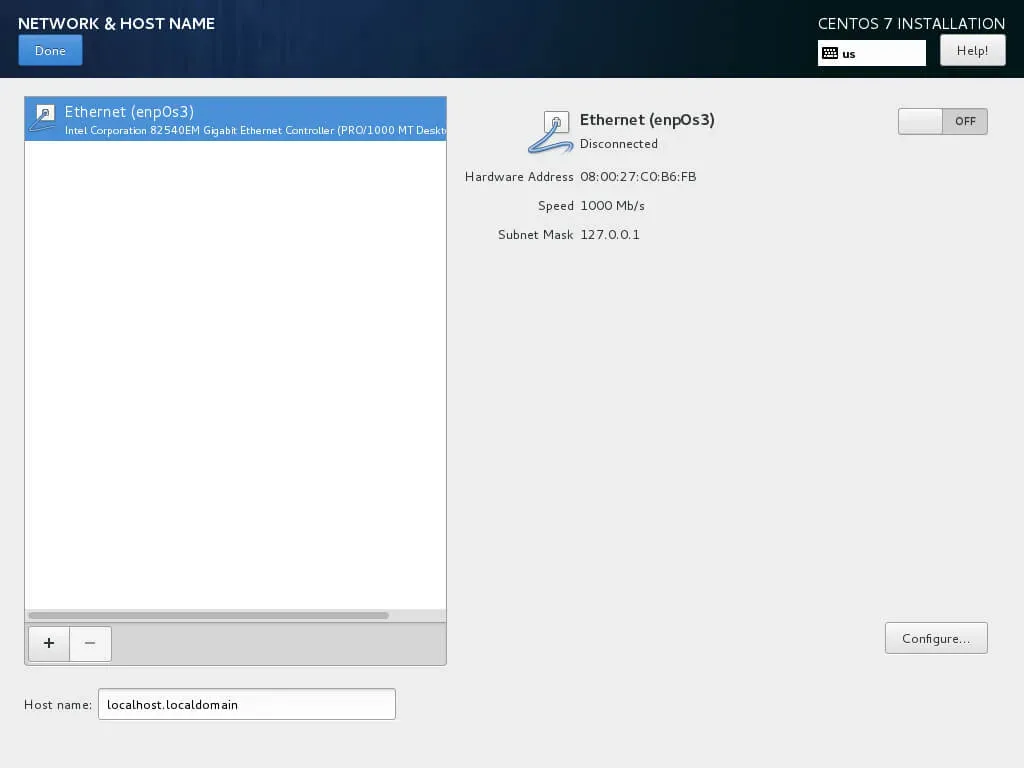
Now you need to enable the network adapter and provide a name for the new server.
In the “System” section, select “Network & Host Name”.
Select the network adapter that you want to enable, and click on the power button in the upper right corner of the screen.
If you need to assign a static IP address to the server, then select a network adapter and click on the “Configure” button.
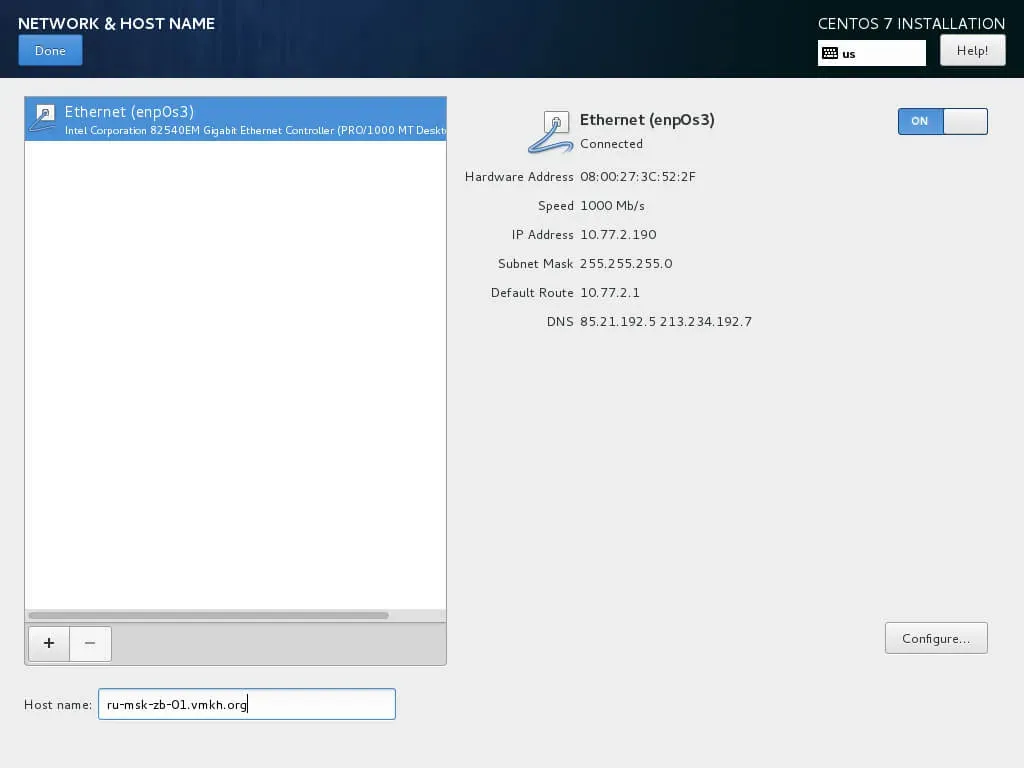
Now you need to assign a name to the new server.
In the “Host name” field, specify the full name of the server.
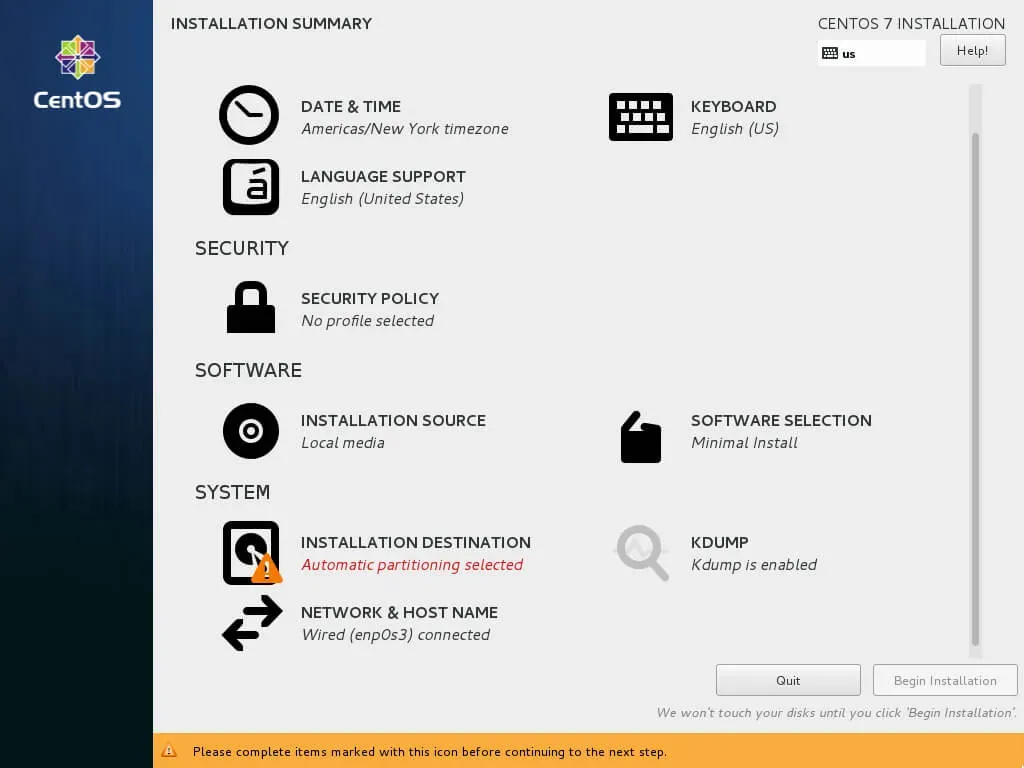
Now you need to choose which disk the new operating system will be installed on.
In the “System” section, select “Installation Destination”.
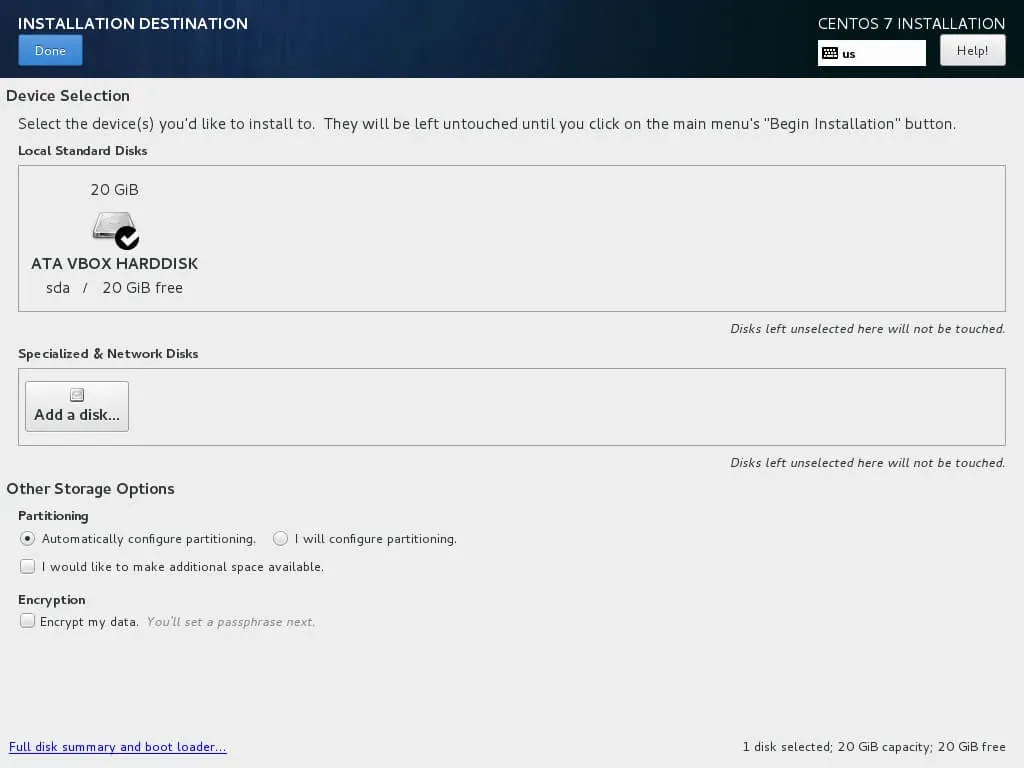
NOTEIn this example, one 20 GB disk is installed.
NOTEAll free disk space will be allocated for the system.
Leave the default settings and click on the “Done” button.
Next, you need to specify the geographic location of your server on which the system is being installed.
In the “Localization” section, select “Date & Time”.
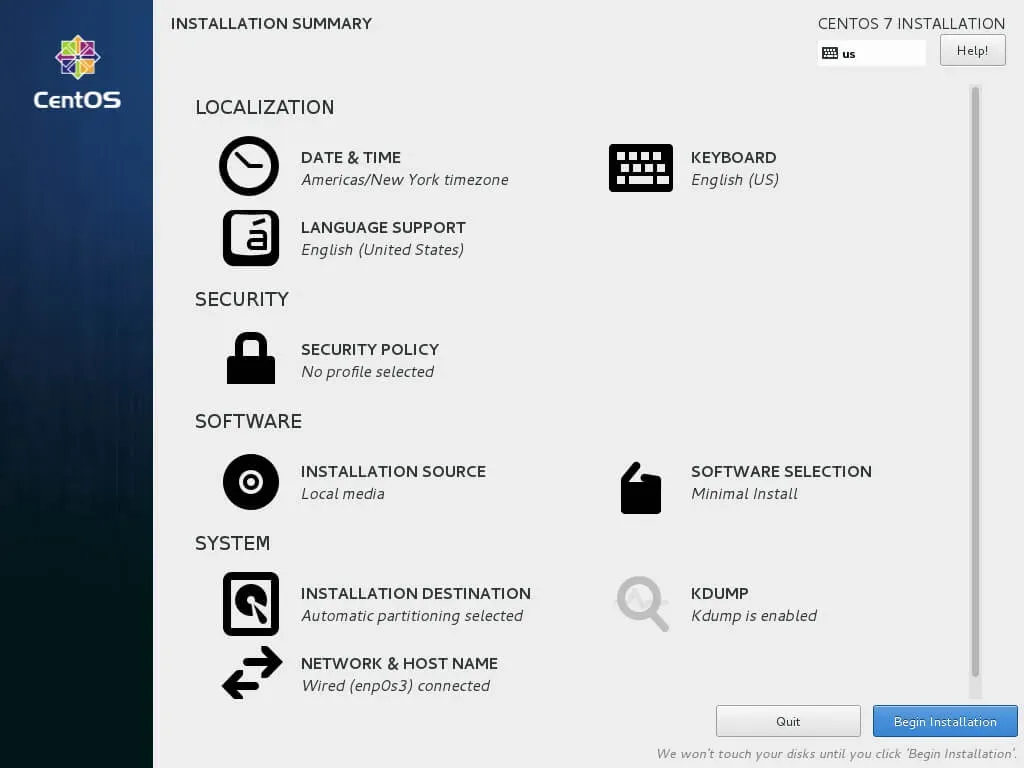
NOTEIn this guide, we consider a server located in Russia, in the city of Moscow.
Select the region, city and click on the “Done” button.
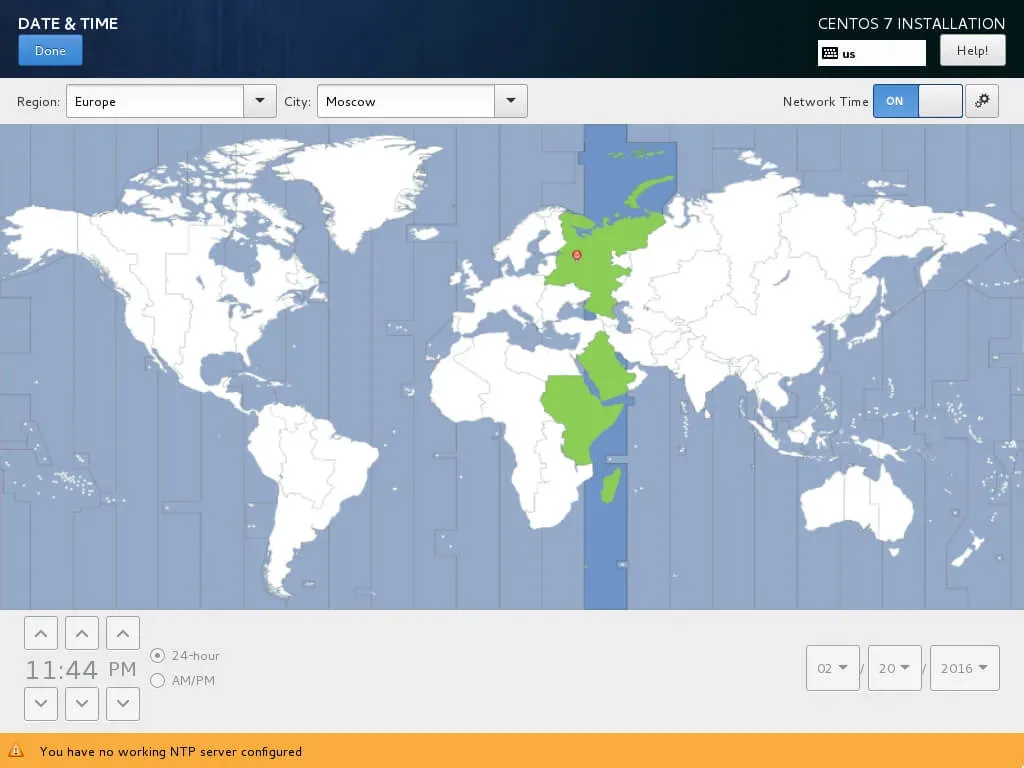
If you need to specify additionally the repository and proxy server settings, you can do this in the “Software” section by selecting “Installation Source”.
This guide does not use a proxy server.
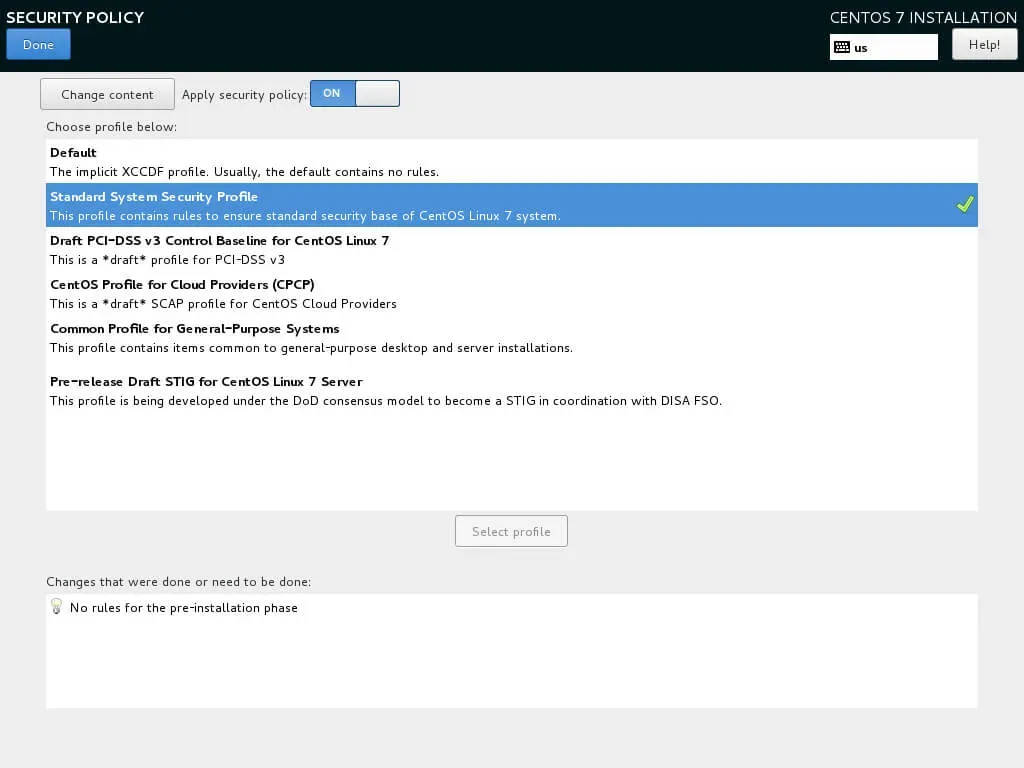
Next, you need to select a security policy for your server.
In the “Security” section, select “Security Policy”.
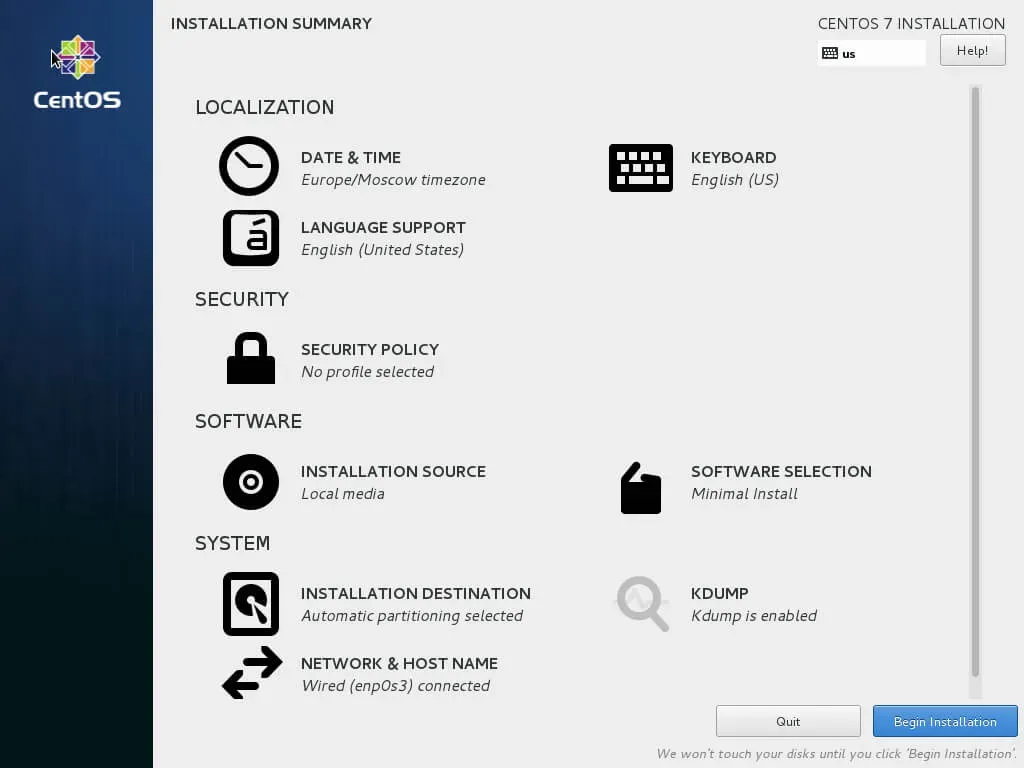
Select “Standard System Security Profile” and click on the “Select Profile” button.
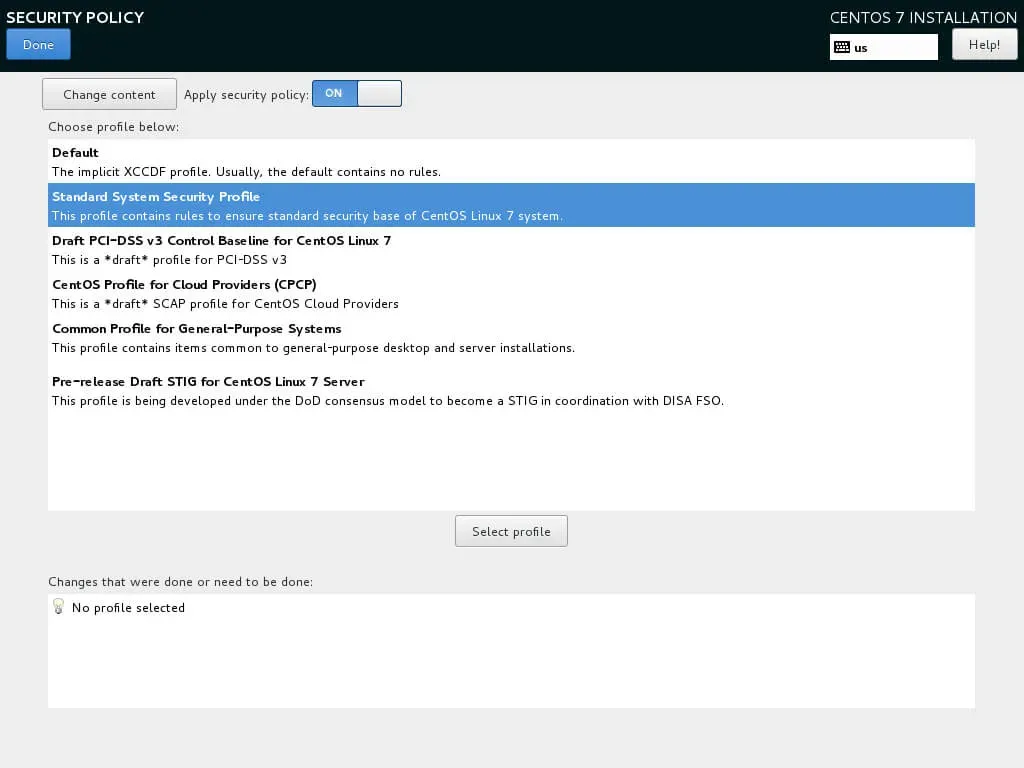
Click on the “Done” button.
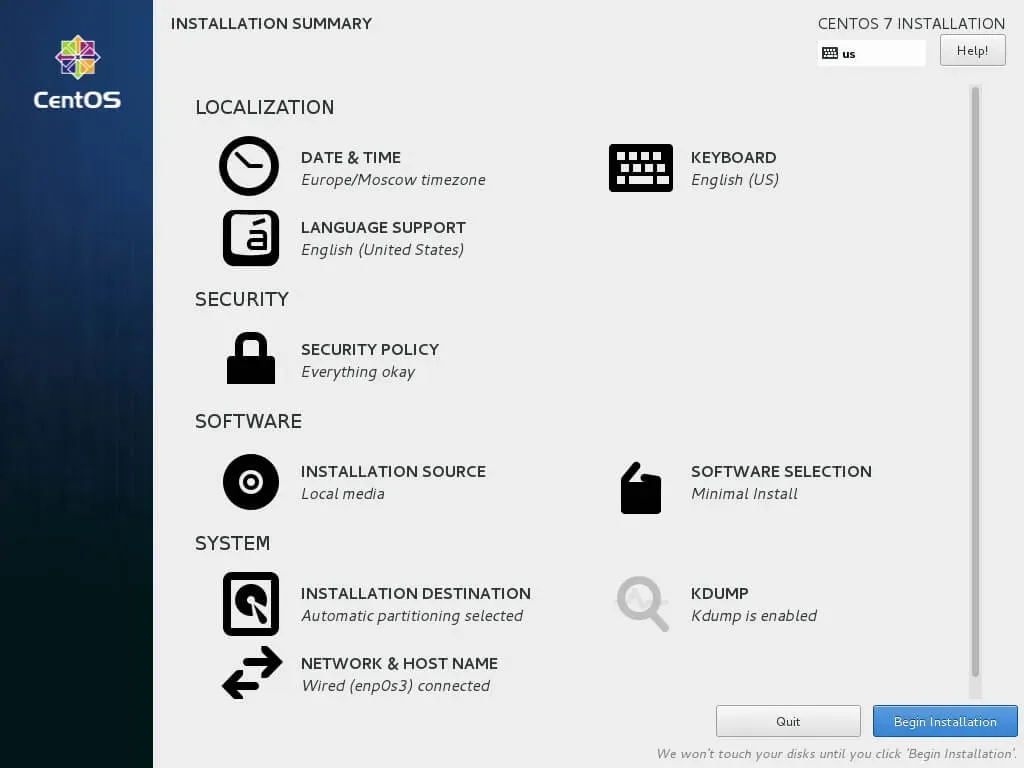
Now you can start the process of installing the system.
Click on the “Begin Installation” button.
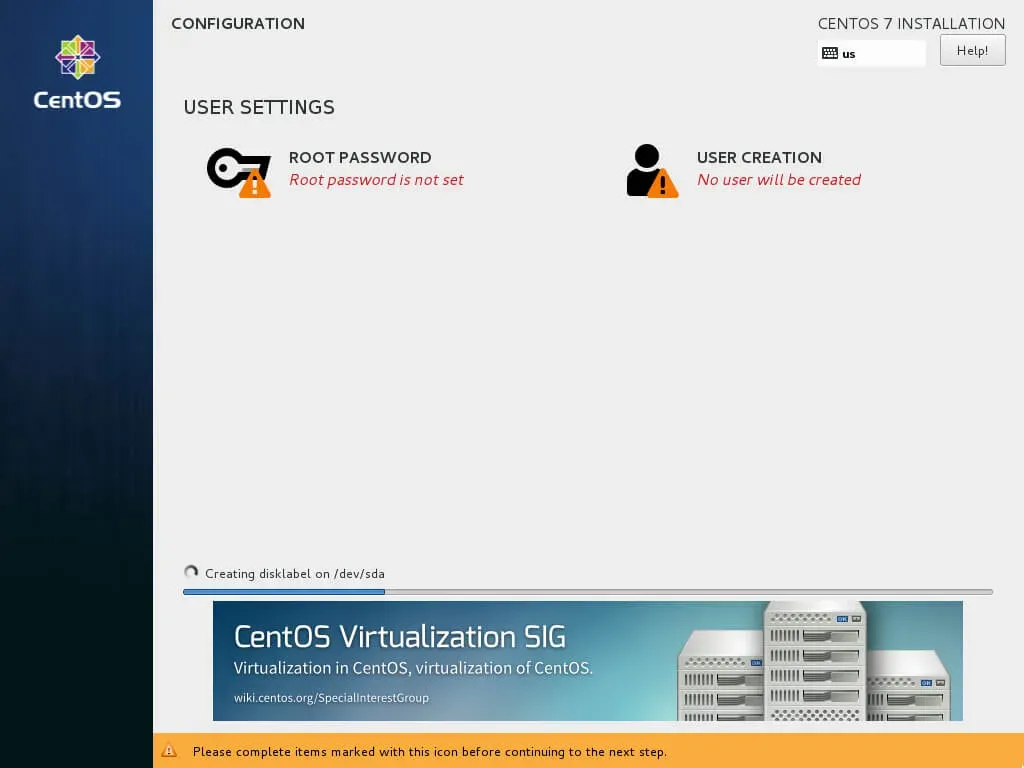
The process of installing the system has begun.
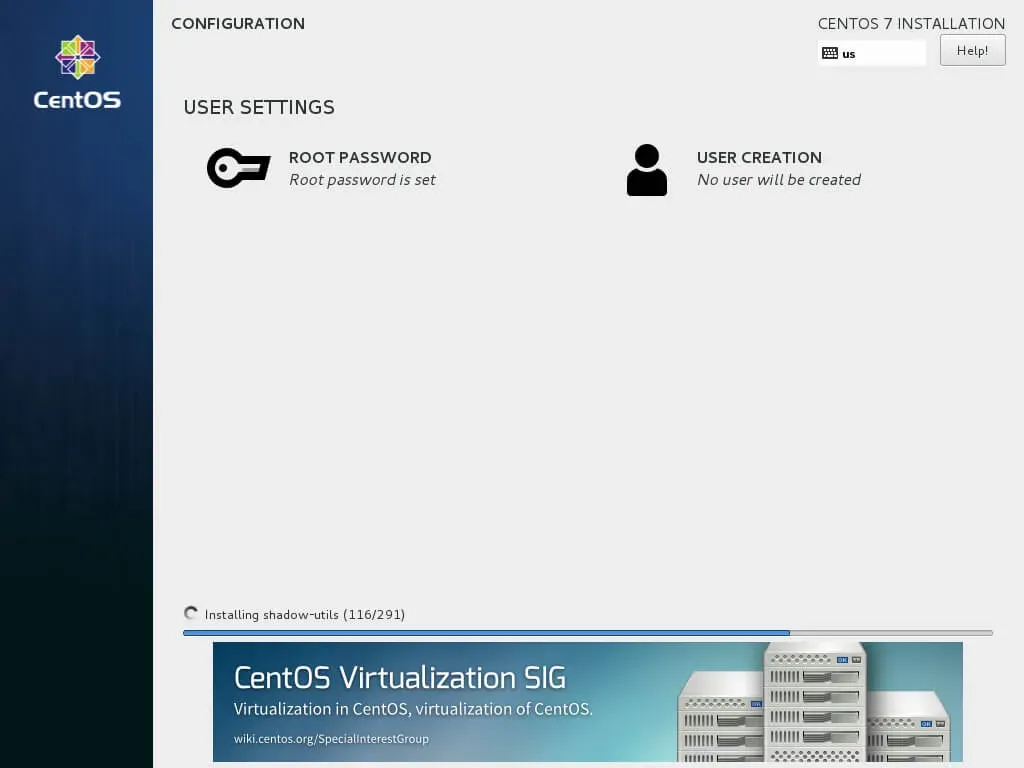
Next, you need to set a password for the “root” administrator account and create a user account.
Let’s change the password for the “root” account.
In the “User Settings” section, select “Root Password”.
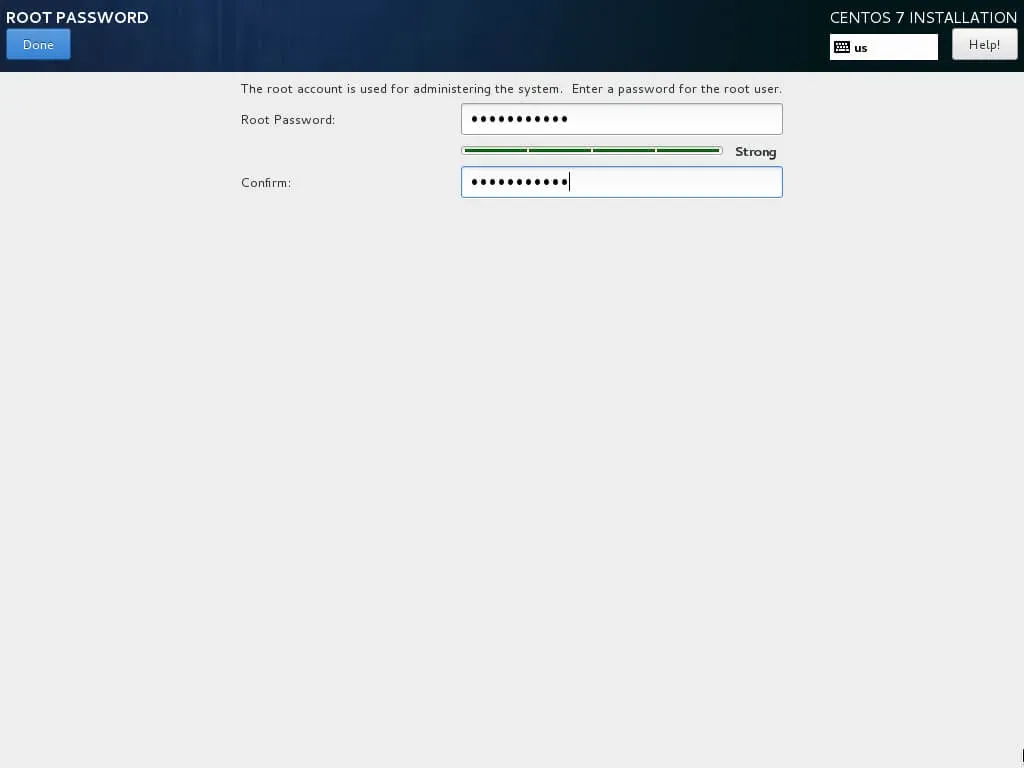
We provide a strong password for the “root” account.
Click on the “Done” button.
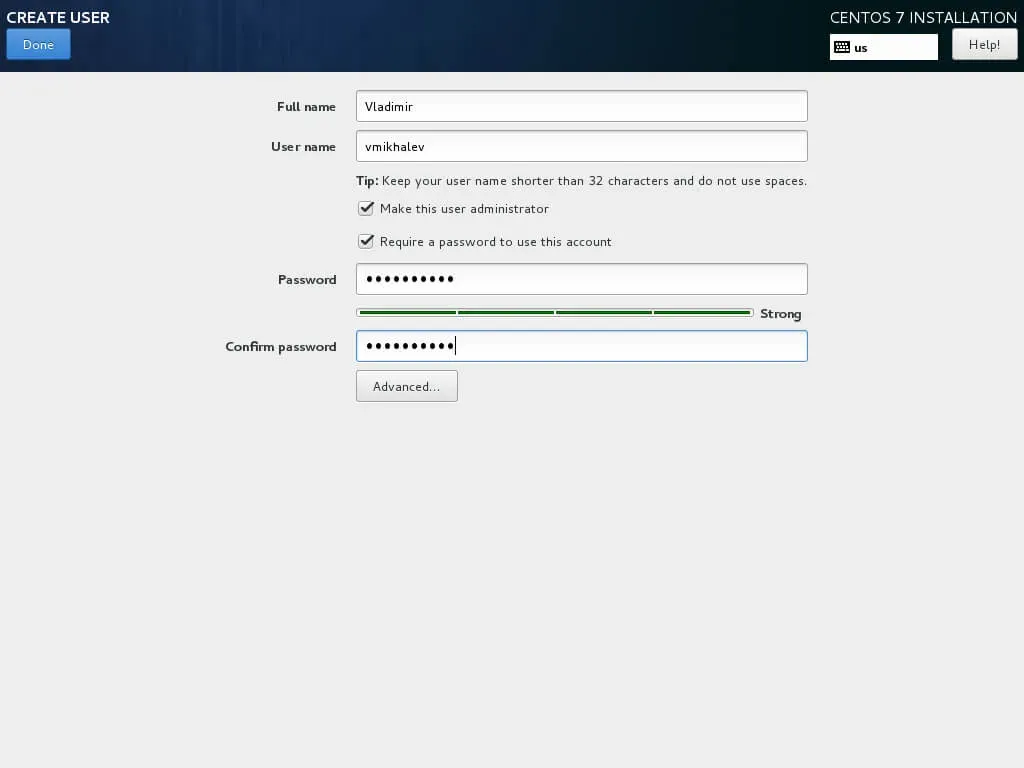
Now let’s create a new user.
In the “User Settings” section, select “User Creation”.
We indicate the name, surname, login, and strong password for the new user.
Click on the “Done” button.
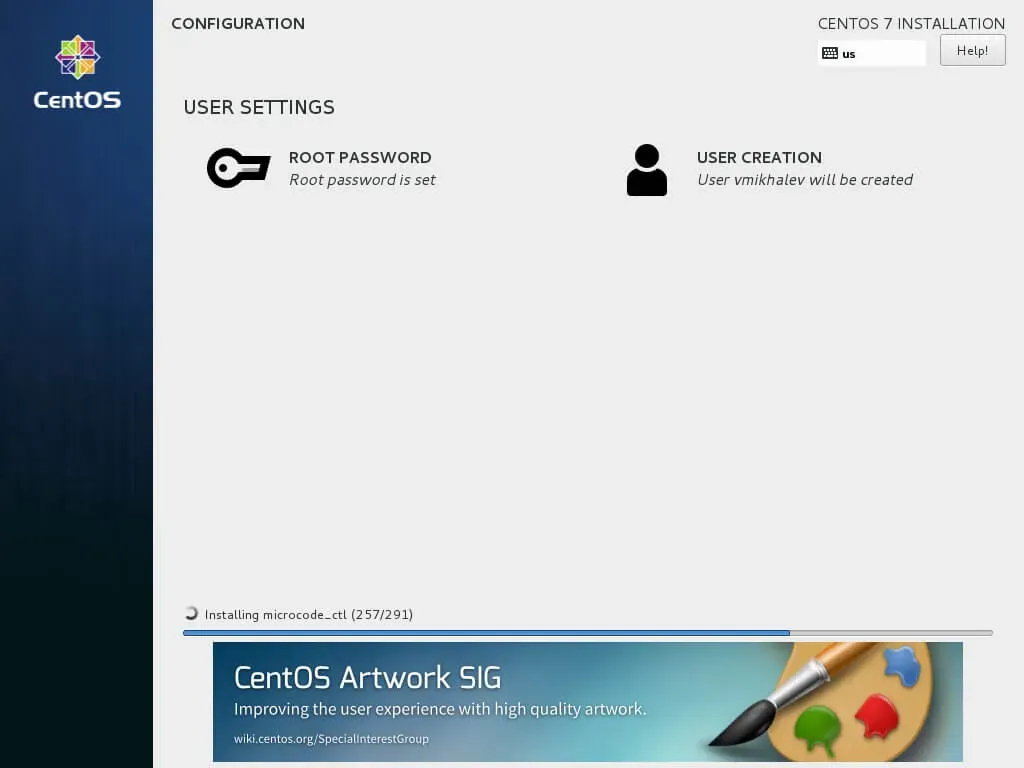
Now you need to wait for the completion of the system installation process.
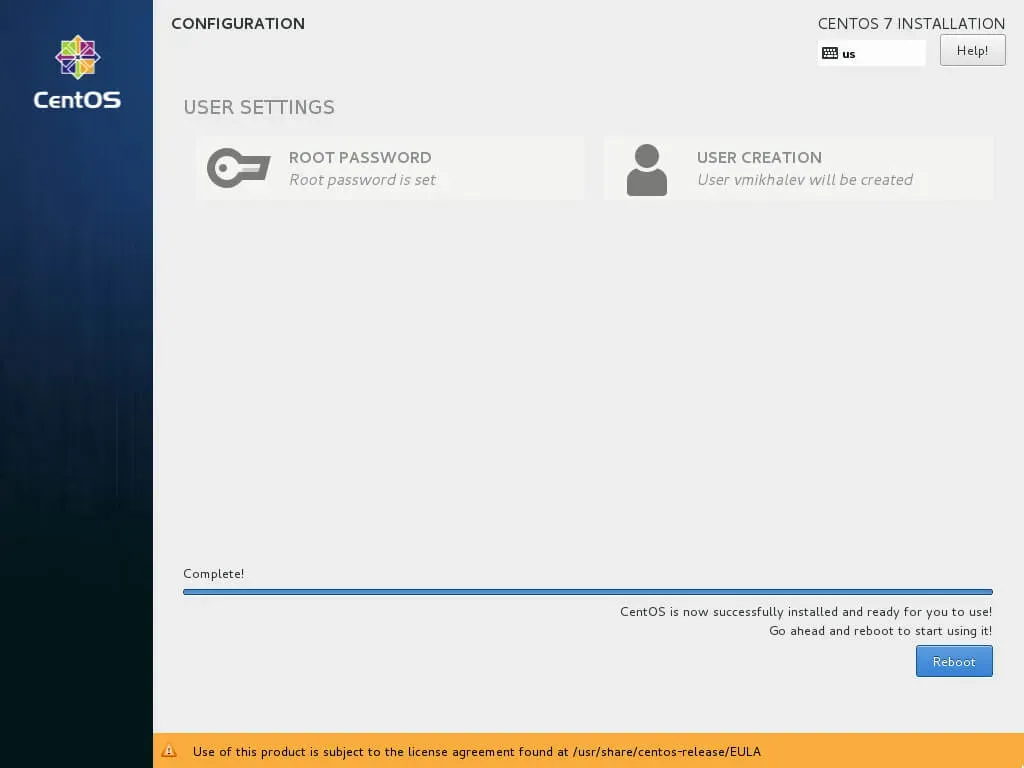
The system installation process is complete.
Click on the “Reboot” button.
Next, you need to specify the login credentials that were specified earlier during the installation of the system.