Run a Minecraft Server with Multicraft
By Vladimir Mikhalev · Docker Captain · CNCF Ambassador · IBM Champion
This article is for those looking for a detailed and clear guide on how to run a Minecraft Server with Multicraft.
IMPORTANTMulticraft must be installed on the server, and Spigot must be updated to the latest version.
For detailed instructions on installing Multicraft on Ubuntu Server, see Install Multicraft на Ubuntu Server.
NOTEFor instructions on upgrading Spigot on Ubuntu Server using Multicraft, see my guide: Upgrade Spigot on Ubuntu Server with Multicraft.
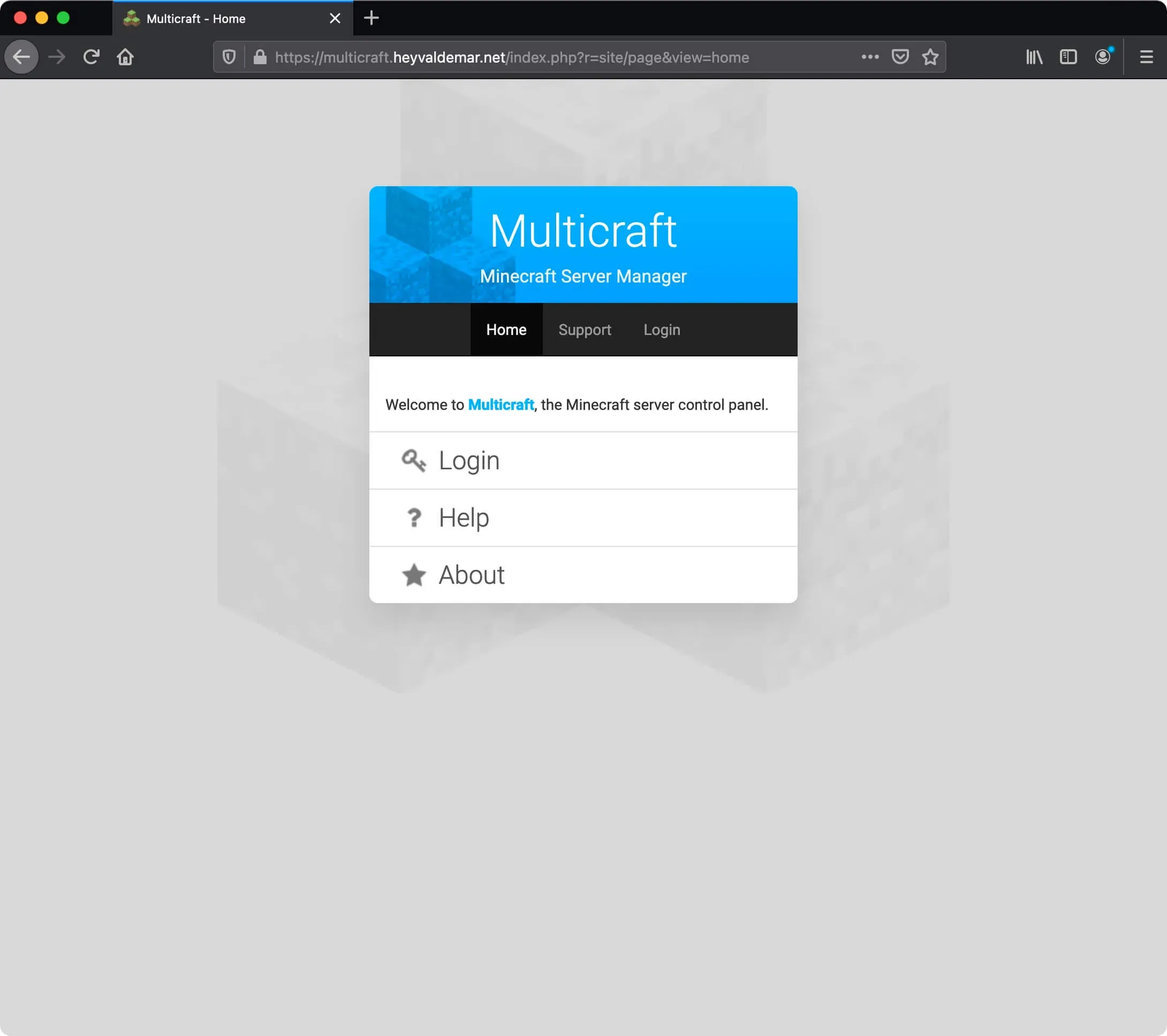
Open the Multicraft control panel and click on the “Login” button.
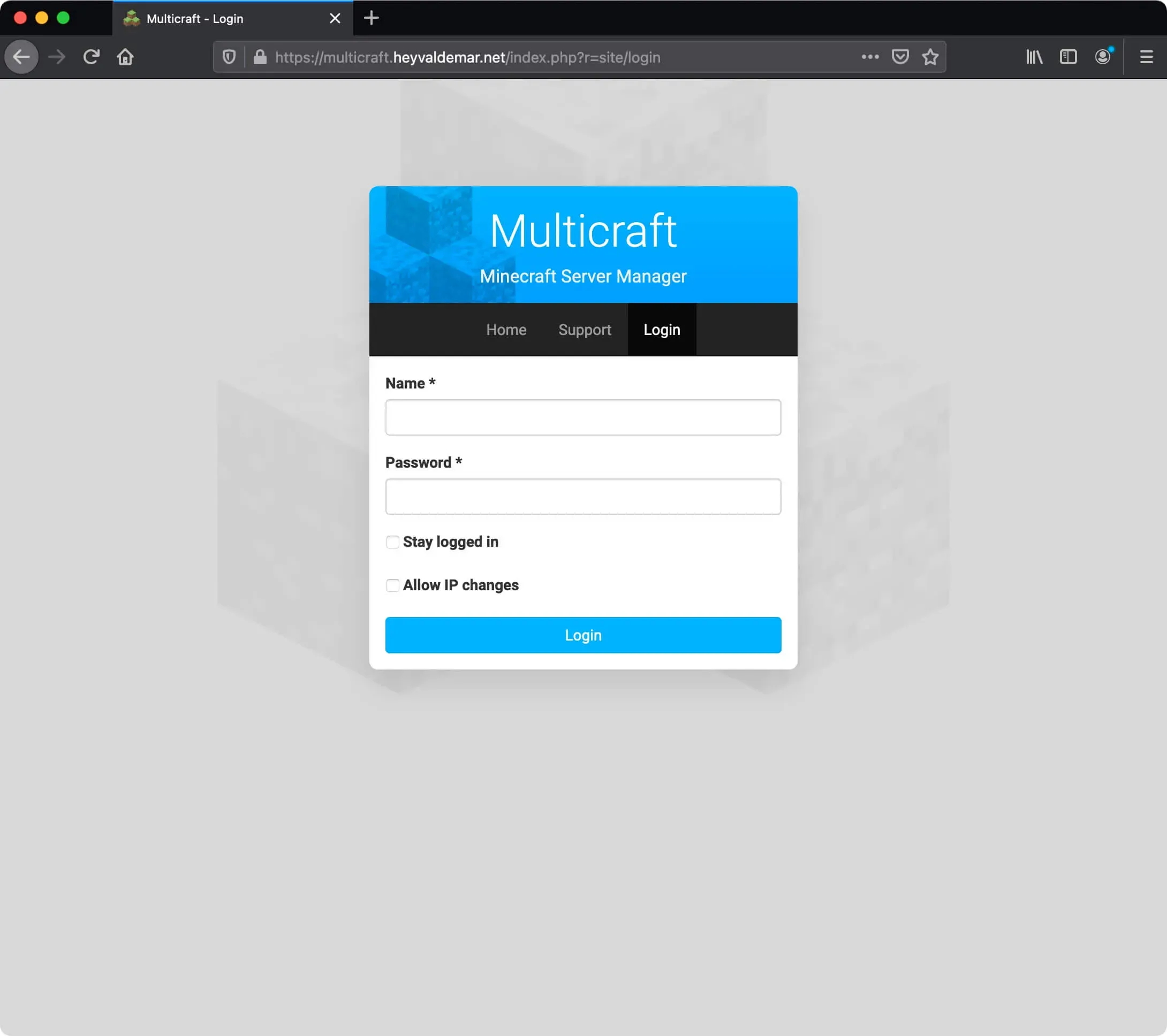
Next, you need to specify the username and password of an account with administrator rights in the Multicraft control panel.
Click on the “Login” button.
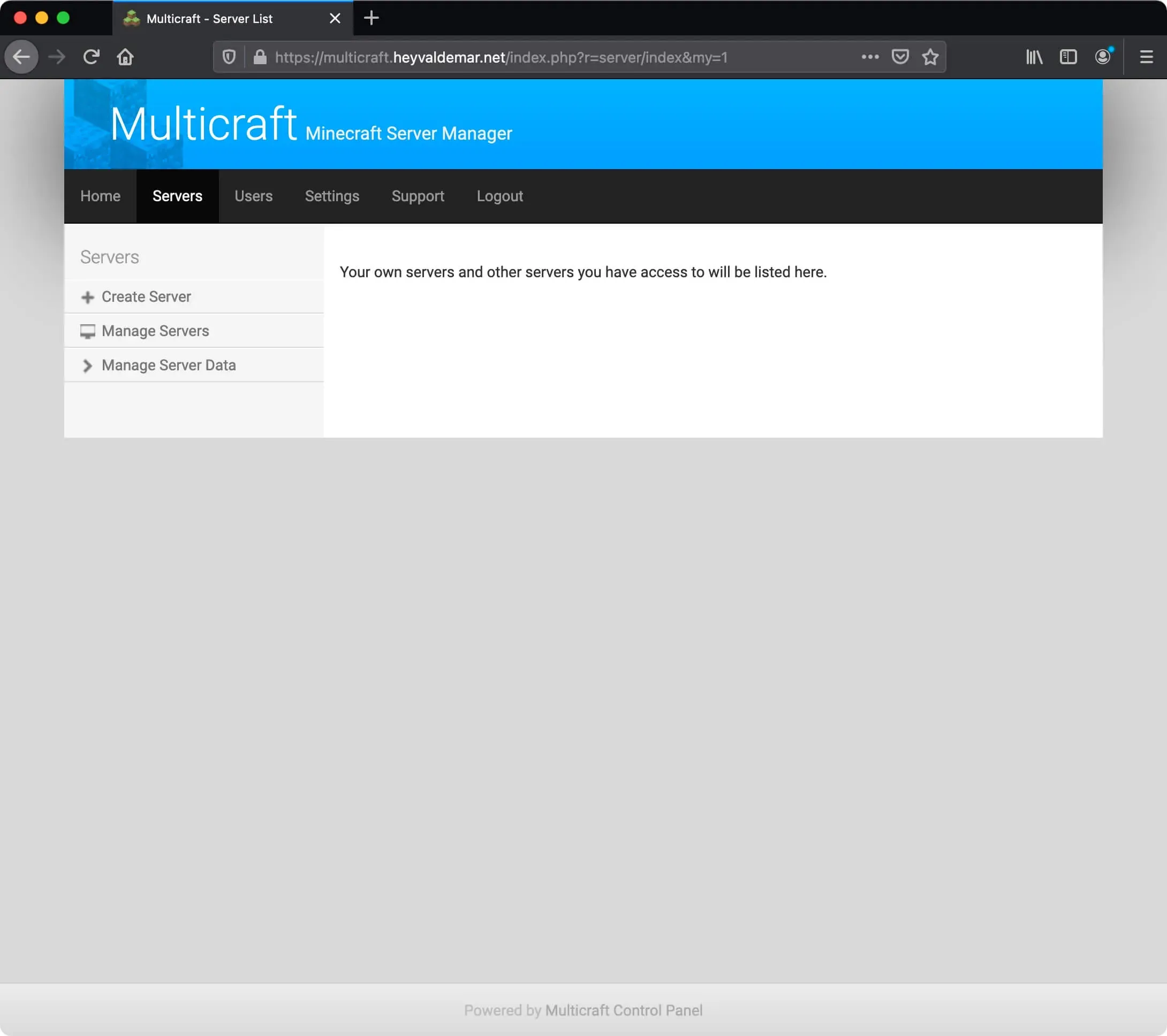
To create a new server, click on the “Create Server” button on the “Servers” tab.
In the “Name” field, specify the desired name for the new Minecraft server.
In the field “Player Slots” we indicate the maximum number of places for players on the Minecraft server.
In the “Port” field, specify the port for the Minecraft client to access the Minecraft server.
WARNINGPort 25565 is used by default to connect a Minecraft client to a Minecraft server, but you can use other ports to run multiple Minecraft servers. For example, the first Minecraft server launched with Multicraft will use port 25581; the second server, launched with Multicraft, will use port 25582, and so on.
In this case, in the Minecraft client, you will need to specify not only the IP address or name of the Minecraft server but also the port through which to connect to the server. For example
minecraft.heyvaldemar.net:25581.
NOTEIn this tutorial, the Minecraft server will be started using port 25581.
In the “Memory” field, indicate the maximum allowable size of RAM allocated for the Minecraft server.
Click on the “Create” button.
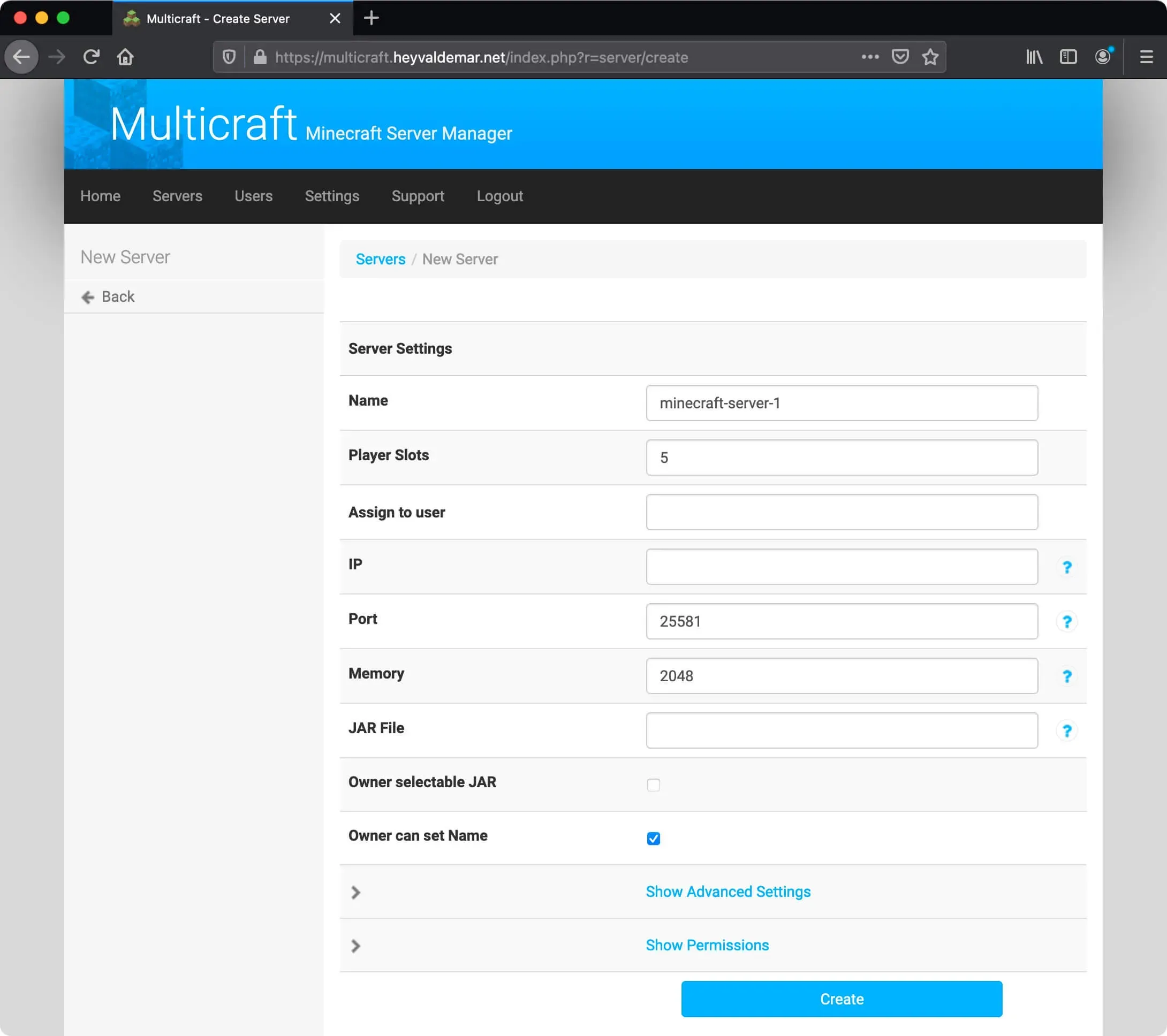
The server has been successfully created.
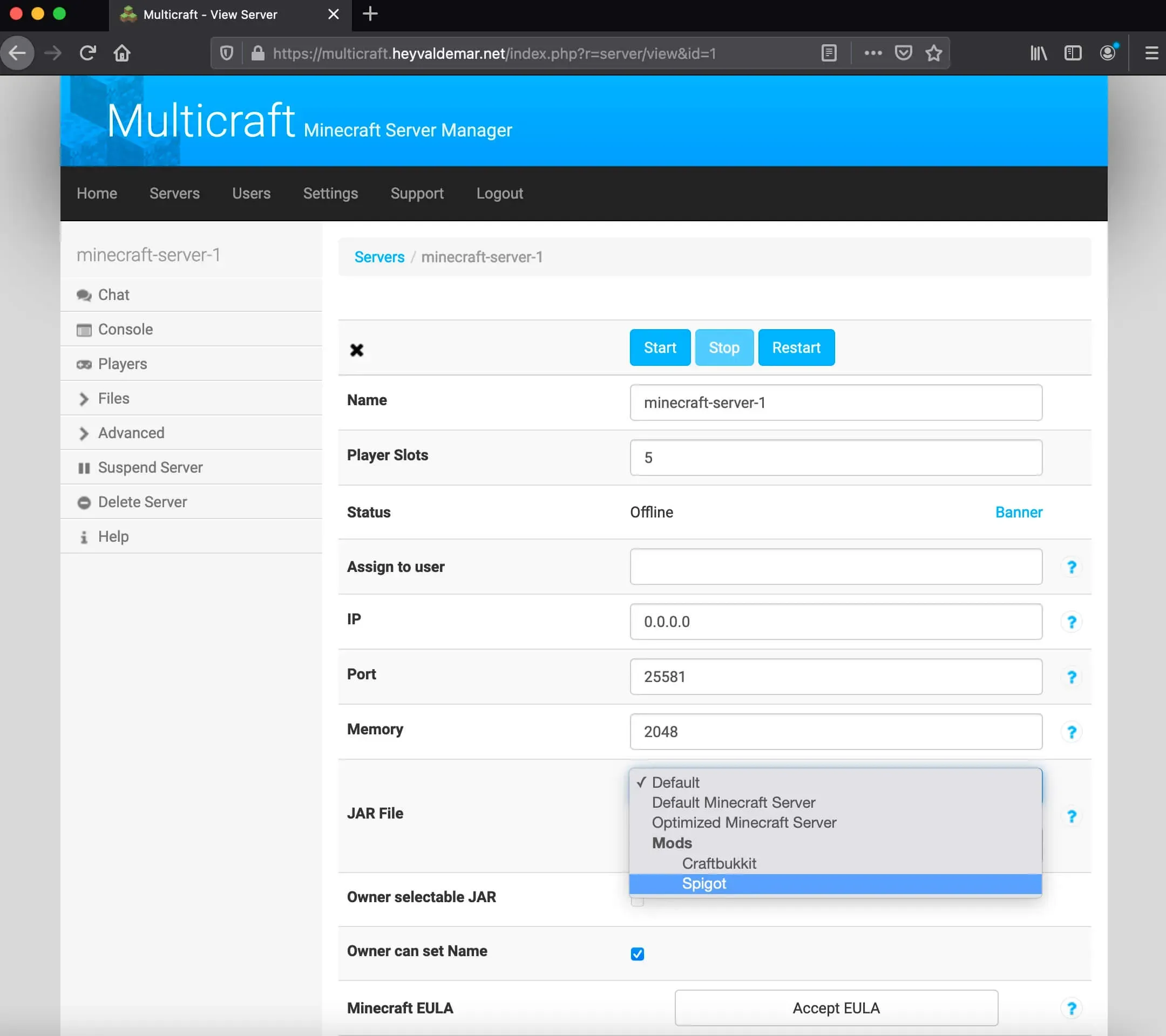
Now you need to select the JAR file that will be used when starting the Minecraft server.
NOTEThis tutorial will use Spigot, a modified Minecraft server built on top of the CraftBukkit core. Spigot is known for its stability, performance, support for a large number of plugins and is intended to replace CraftBukkit.
IMPORTANTSpigot needs to be updated in order for it to start correctly.
NOTEFor instructions on upgrading Spigot on Ubuntu Server using Multicraft, see my guide: Upgrade Spigot on Ubuntu Server with Multicraft.
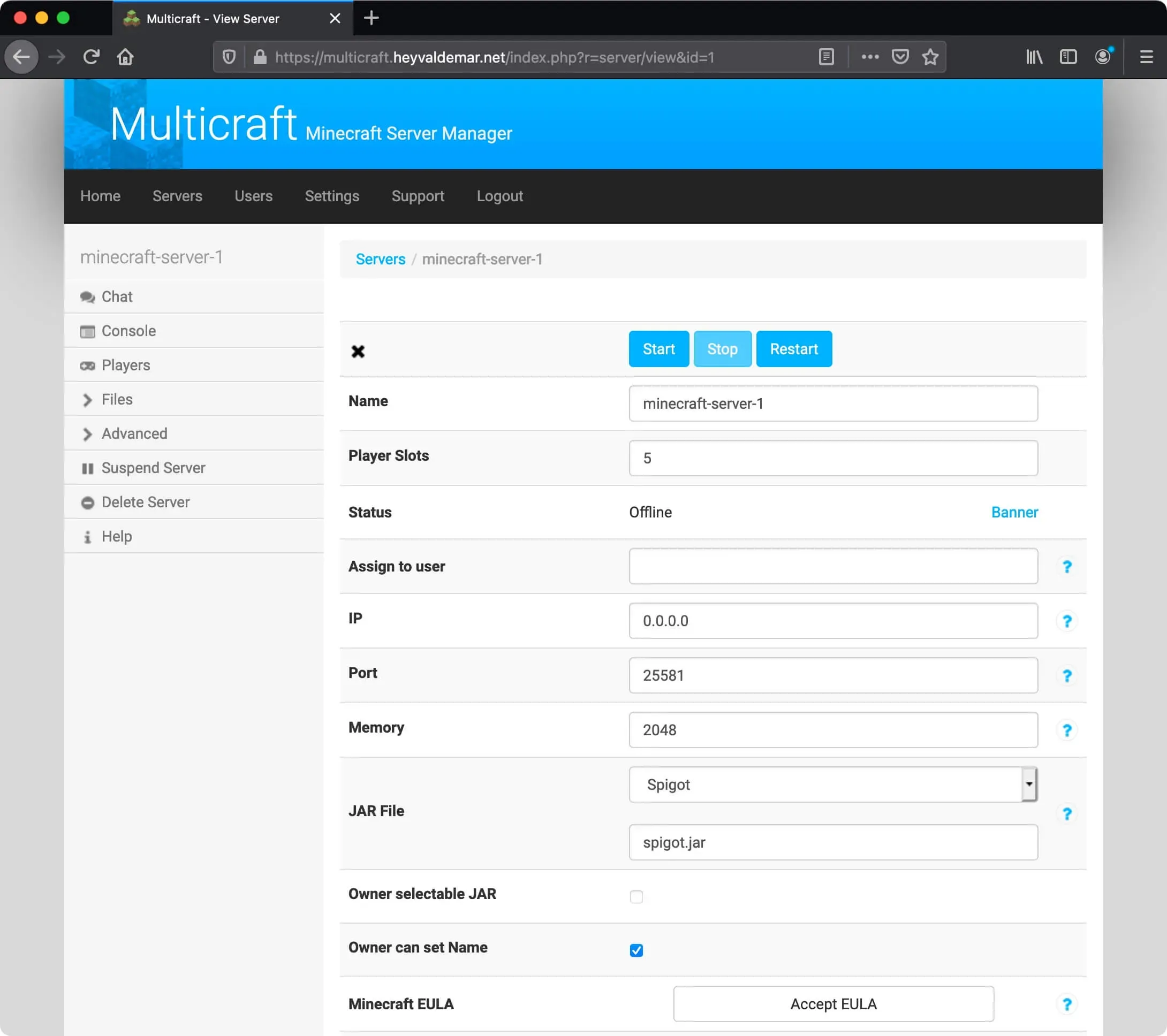
In the “JAR File” field, select “Spigot” and click on the “Save” button.
Next, click on the “Accept EULA” button if you agree with the Minecraft license agreement.
NOTEAdditional details about the Minecraft license agreement can be found on the official EULA page.
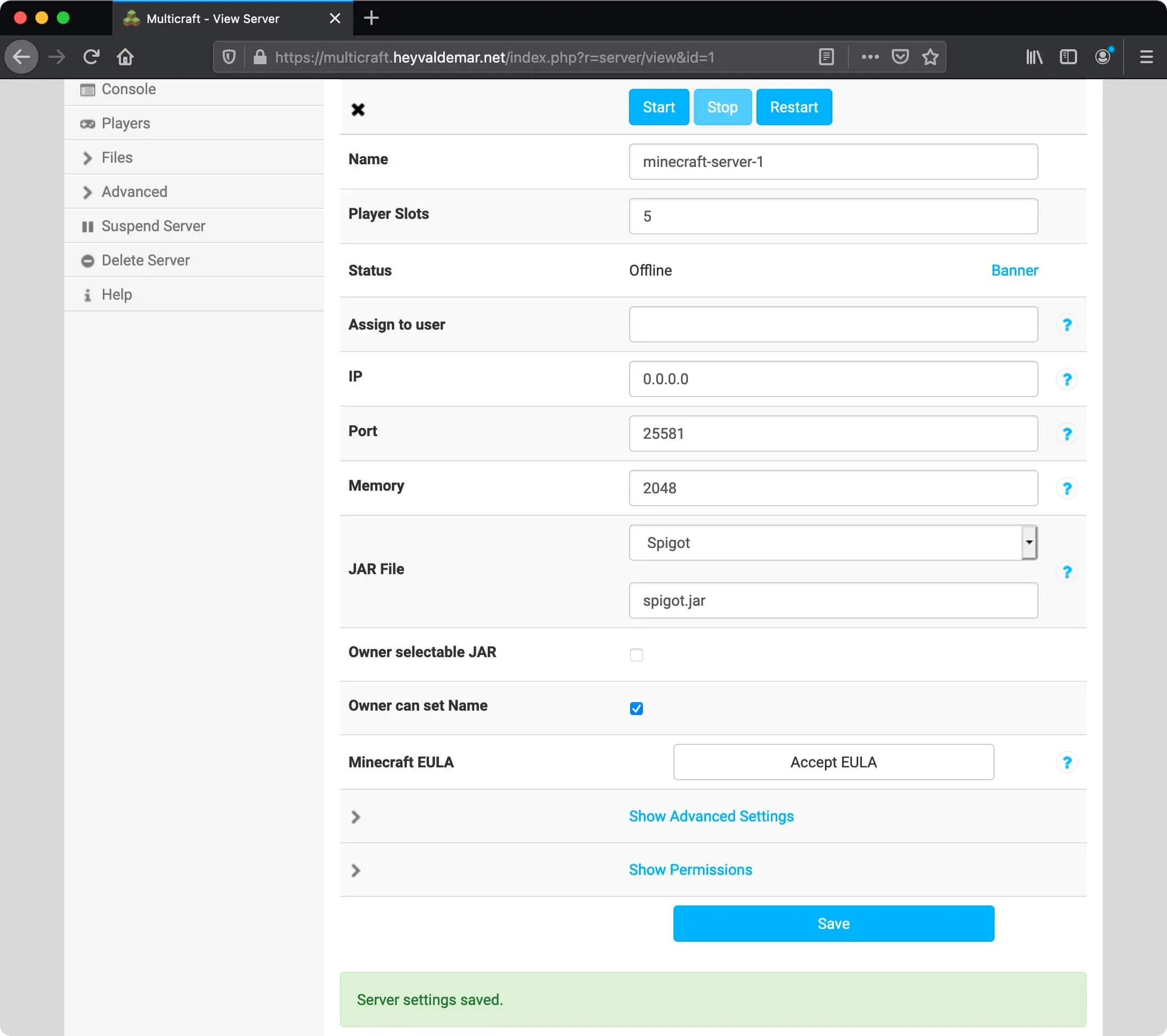
Everything is ready to start the Minecraft server.
Click on the “Start” button.
The Minecraft server will start to start.
Next, you need to make sure that the server has started successfully.
Click on the “Console” button in the left menu.
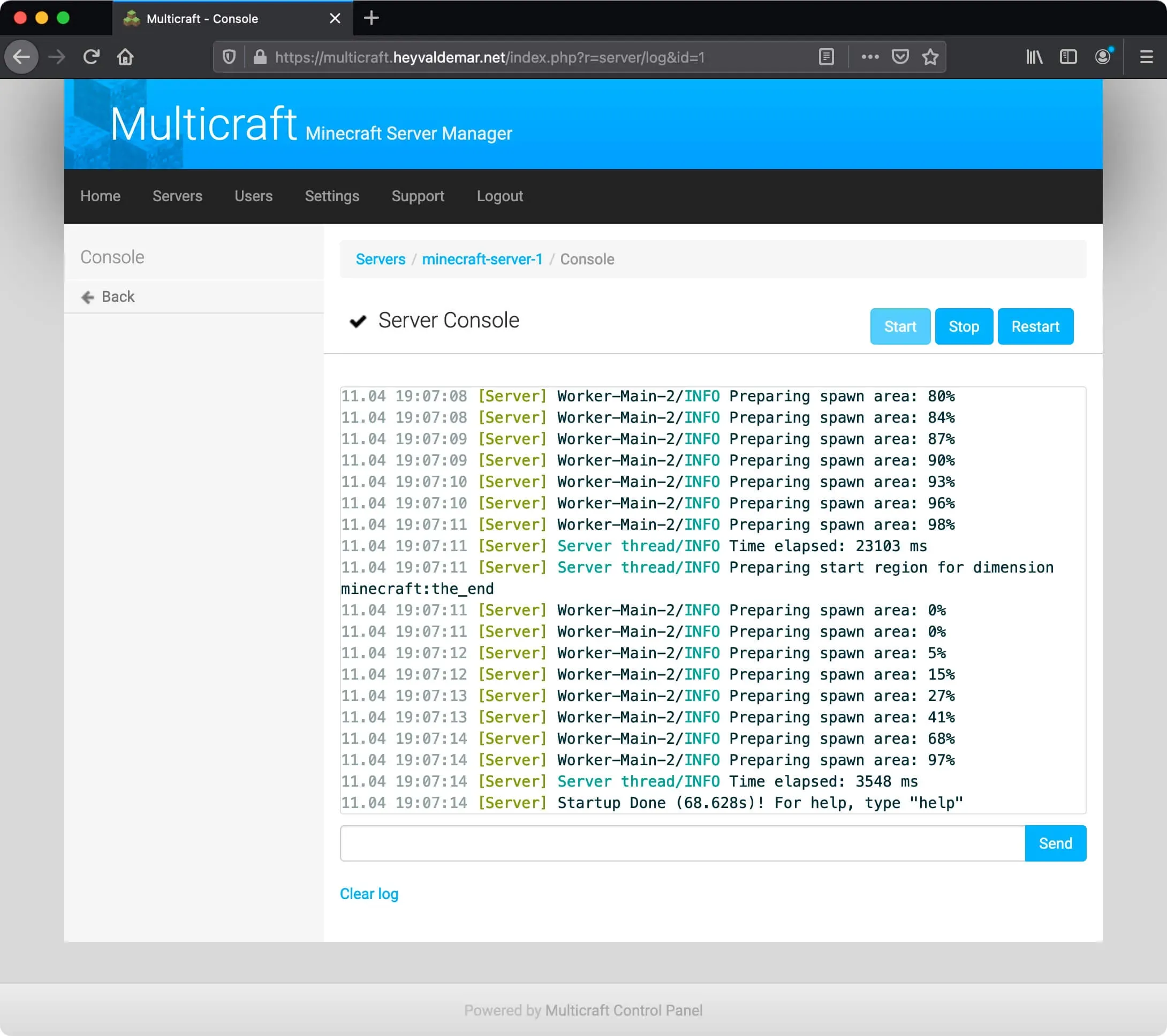
After a few minutes, you should see a “Startup Done” message, which indicates that the Minecraft server is running.
Now, in the Minecraft client, you will need to specify not only the IP address or name of the Minecraft server but also the port through which to connect to the server. For example minecraft.heyvaldemar.net:25581.