Install Bitwarden on Ubuntu Server 20.04 LTS
By Vladimir Mikhalev · Docker Captain · CNCF Ambassador · IBM Champion
This article is for those looking for a detailed and straightforward guide on installing Bitwarden on Ubuntu Server 20.04 LTS.
For step-by-step instructions on installing Bitwarden on Ubuntu Server 22.04 LTS, see Install Bitwarden on Ubuntu Server 22.04 LTS.
Bitwarden is a free open-source password manager with the ability to sync your account information across all devices.
TIPArchitecture Context
Choose self-hosted Bitwarden when your organization requires on-premises credential management with full vault data control. Bitwarden Cloud or 1Password provide managed alternatives with polished enterprise features and zero server maintenance. Self-hosting is justified when security policy mandates that credentials never leave your infrastructure or when you need custom backup and recovery procedures.
IMPORTANTDocker Engine and Docker Compose must be installed on the server.
For a step-by-step guide on installing Docker Engine on Ubuntu Server, see Install Docker Engine and Docker Compose on Ubuntu Server
IMPORTANTOpenSSH must be installed on the server, and port 22 must be open to be able to connect to the server using the SSH protocol.
To install OpenSSH on a server, you can use the command:
sudo apt install openssh-serverNOTETo connect to the server from a Windows system, you can use tools like PuTTY or MobaXterm.
NOTEThis guide walks you through connecting to a server with the iTerm2 terminal emulator on macOS.
CAUTIONYou will need to open the following TCP ports for access to the services:
- TCP port 80 - to receive a free cryptographic certificate through the Let’s Encrypt CA.
- TCP port 443 - to access the Bitwarden dashboard.
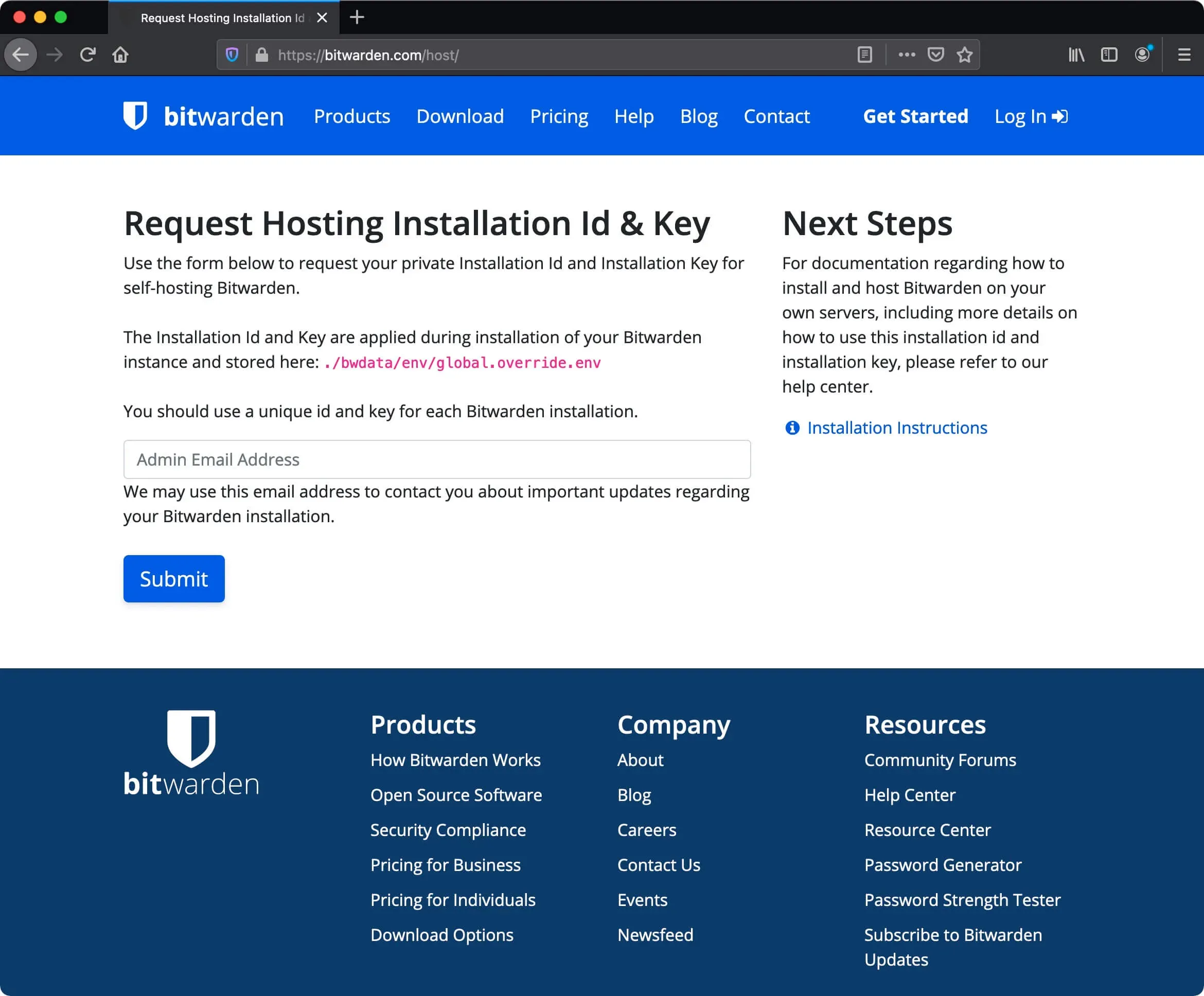
First, you need to request an installation ID and installation key to host Bitwarden on your server. You must use a unique ID and key for each Bitwarden installation.
Visit the Bitwarden hosting page, fill in your email address in the “Admin Email Address” field, and click the “Submit” button.
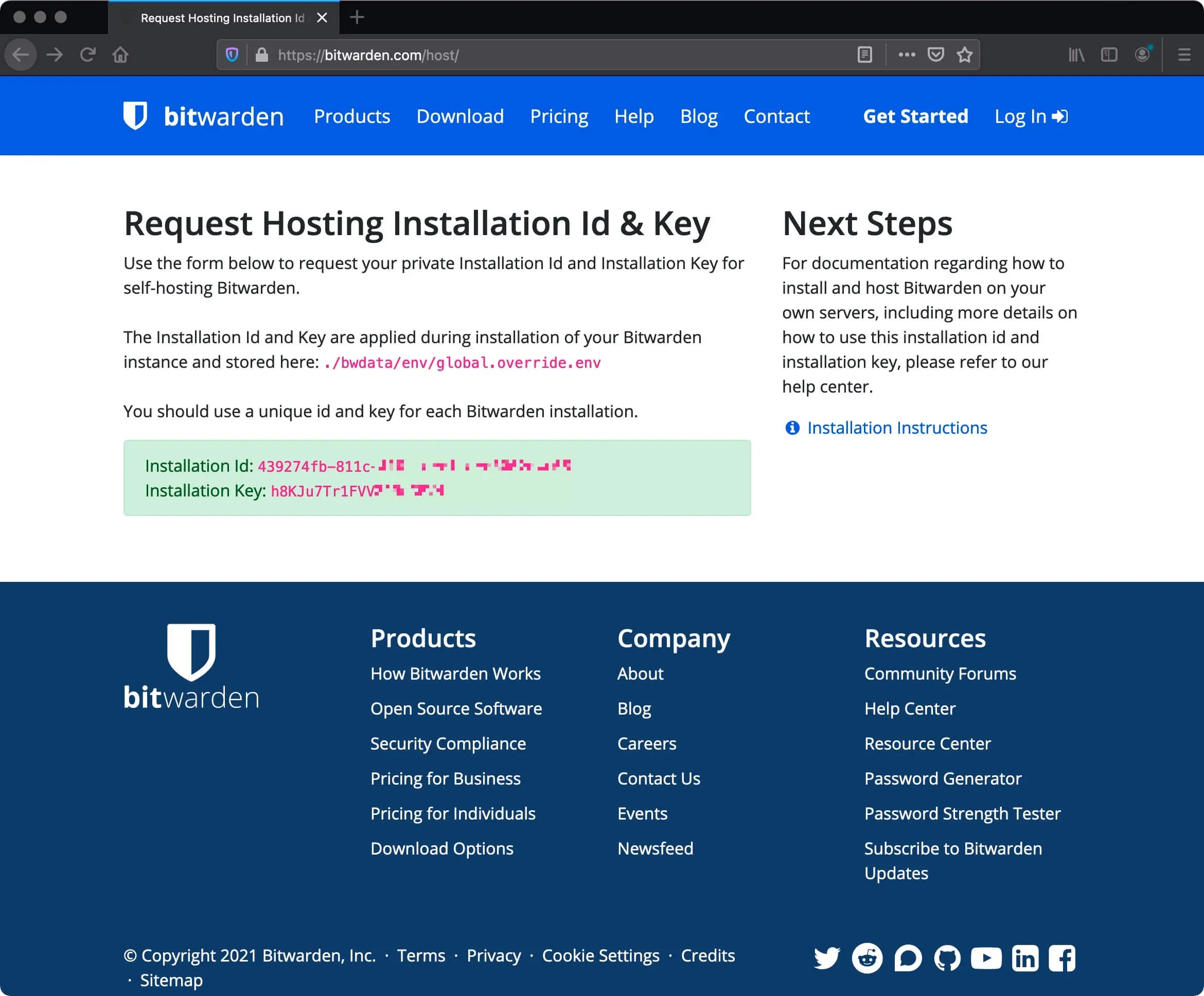
Save the resulting “Installation Id” and “Installation Key”. These values will be required during Bitwarden installation.
We connect to the server on which you plan to install Bitwarden.
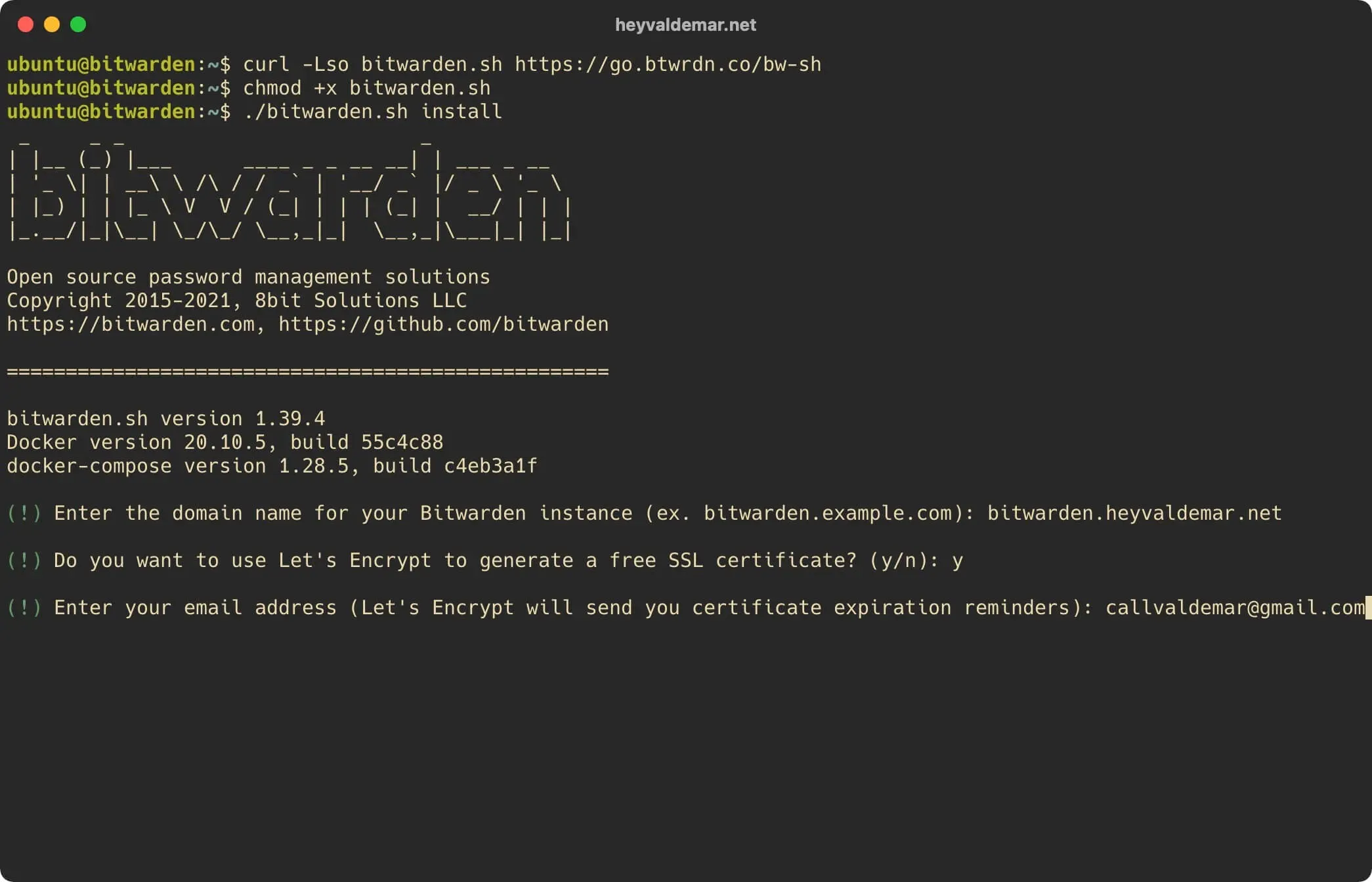
Download the Bitwarden installation script using the command:
curl -Lso bitwarden.sh https://go.btwrdn.co/bw-sh 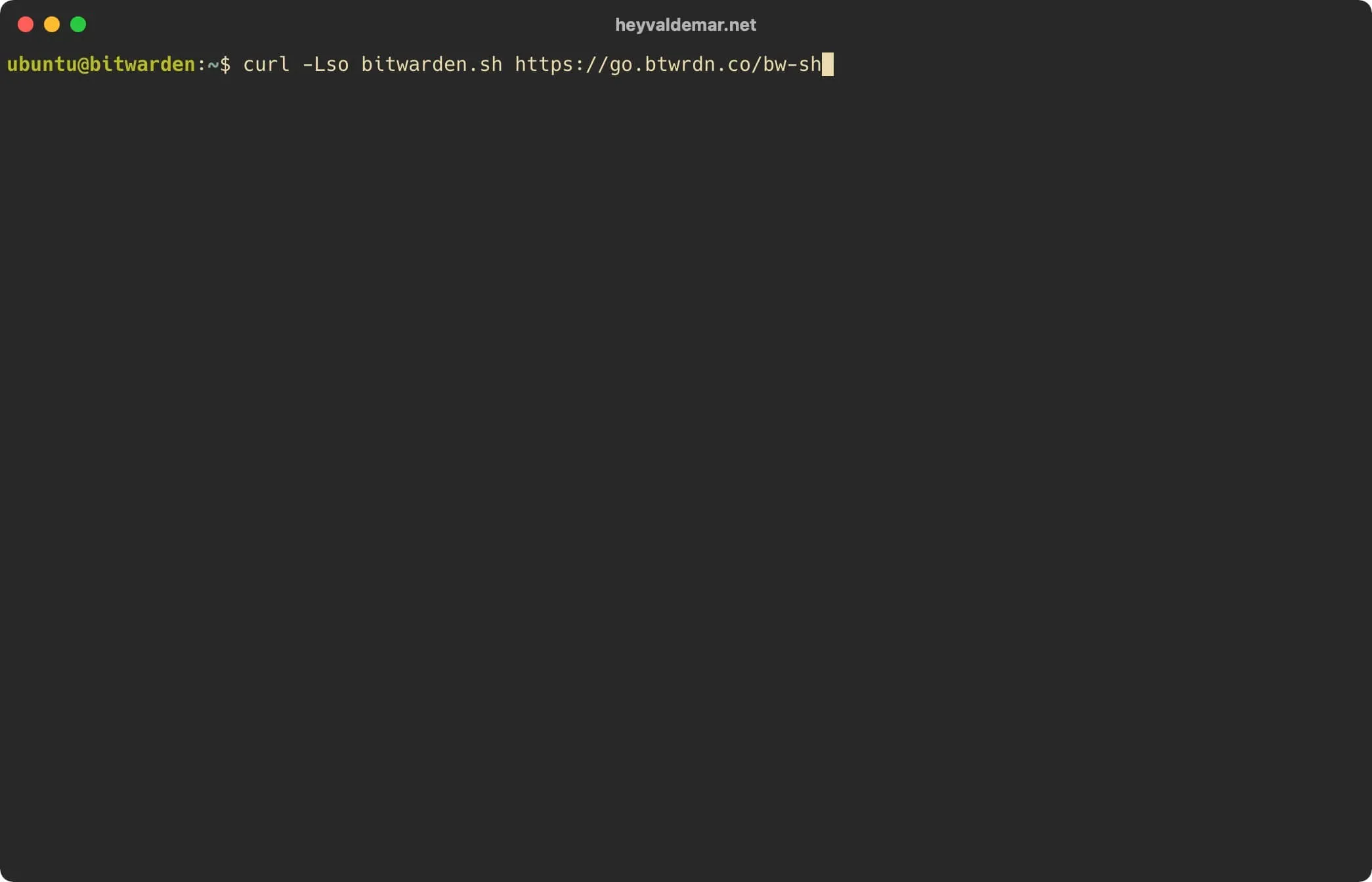
Let’s enable the execution of the file “bitwarden.sh” using the command:
chmod +x bitwarden.sh 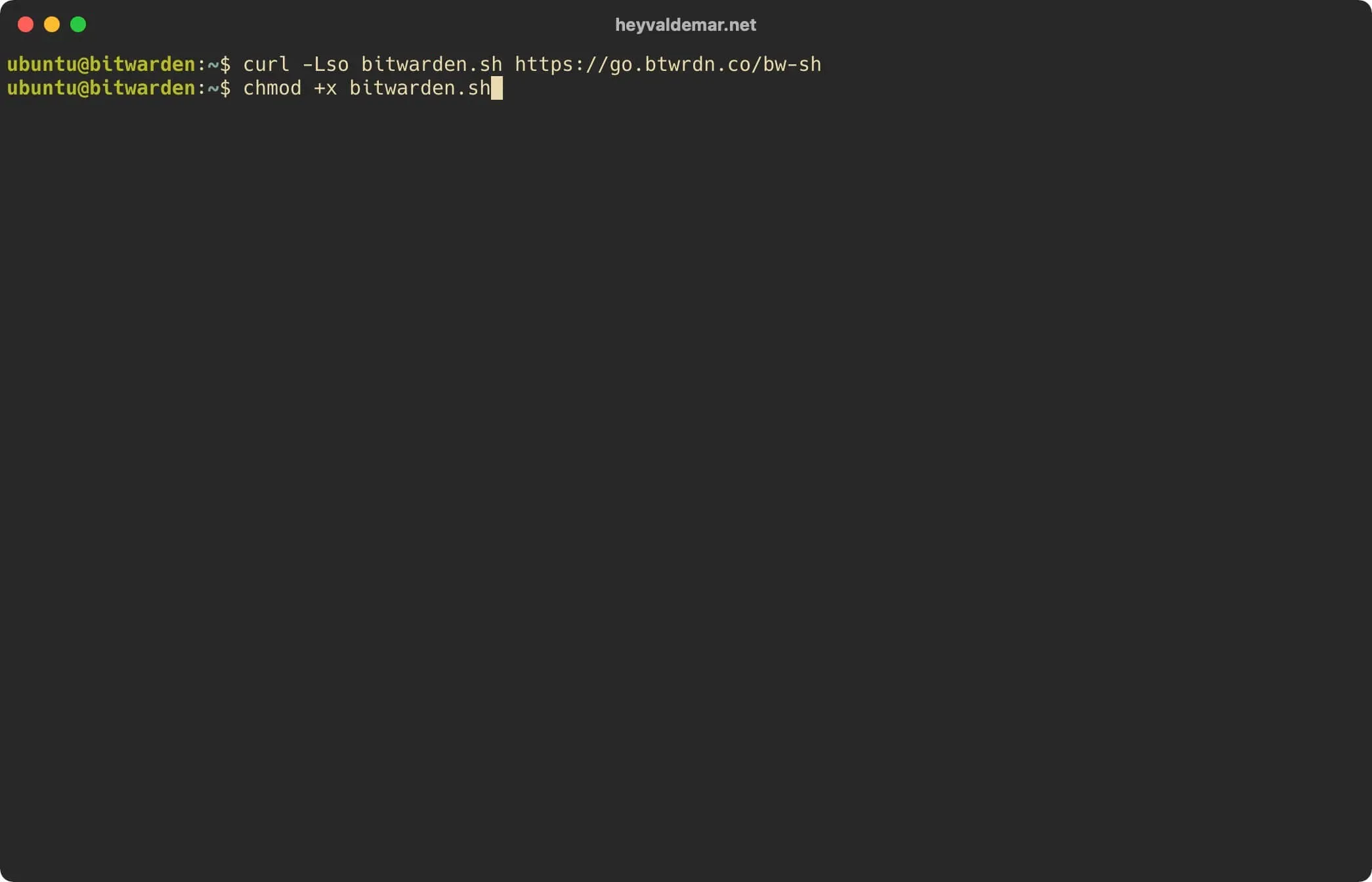
Now let’s start the Bitwarden installation using the command:
sudo ./bitwarden.sh install 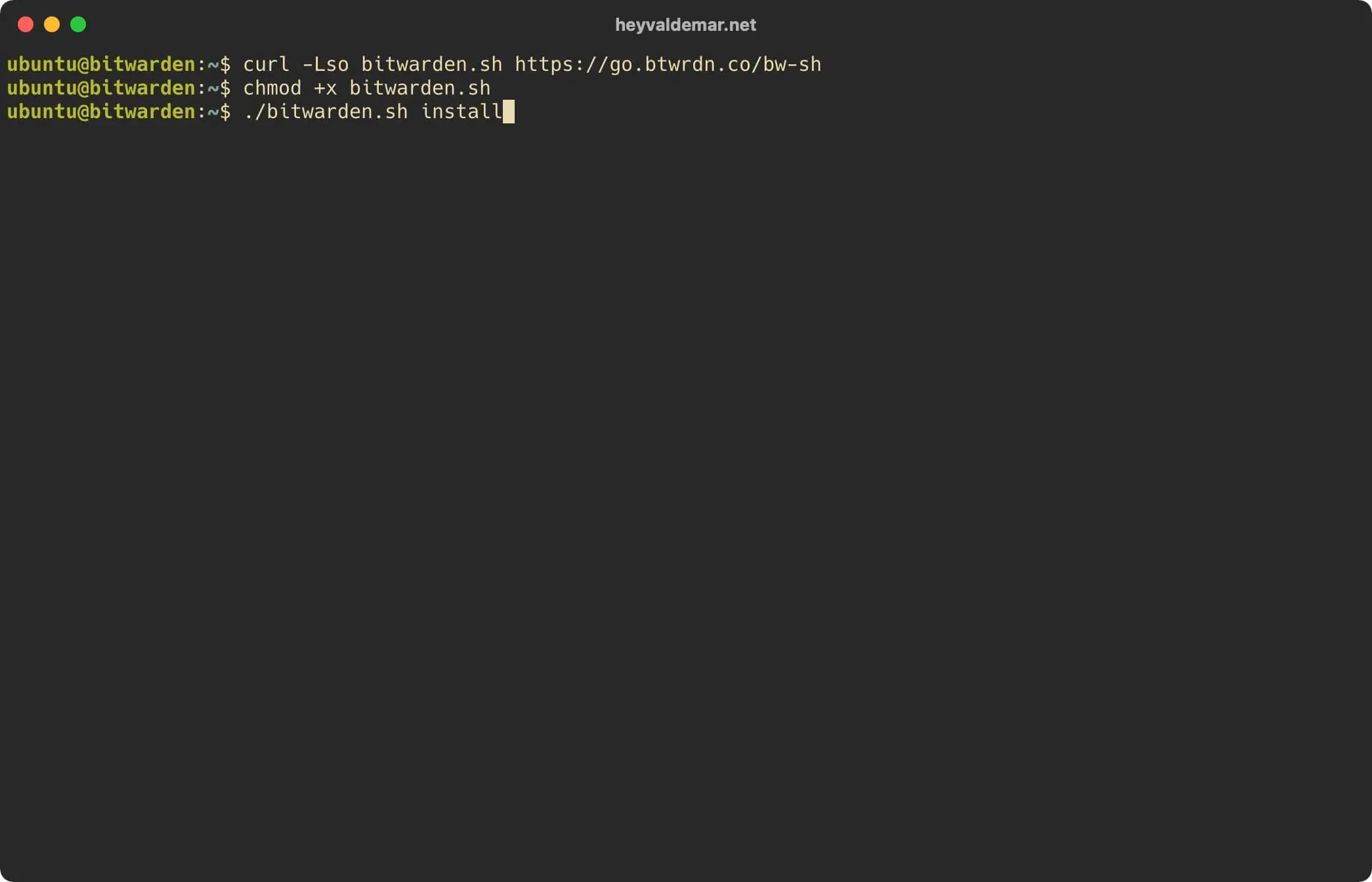
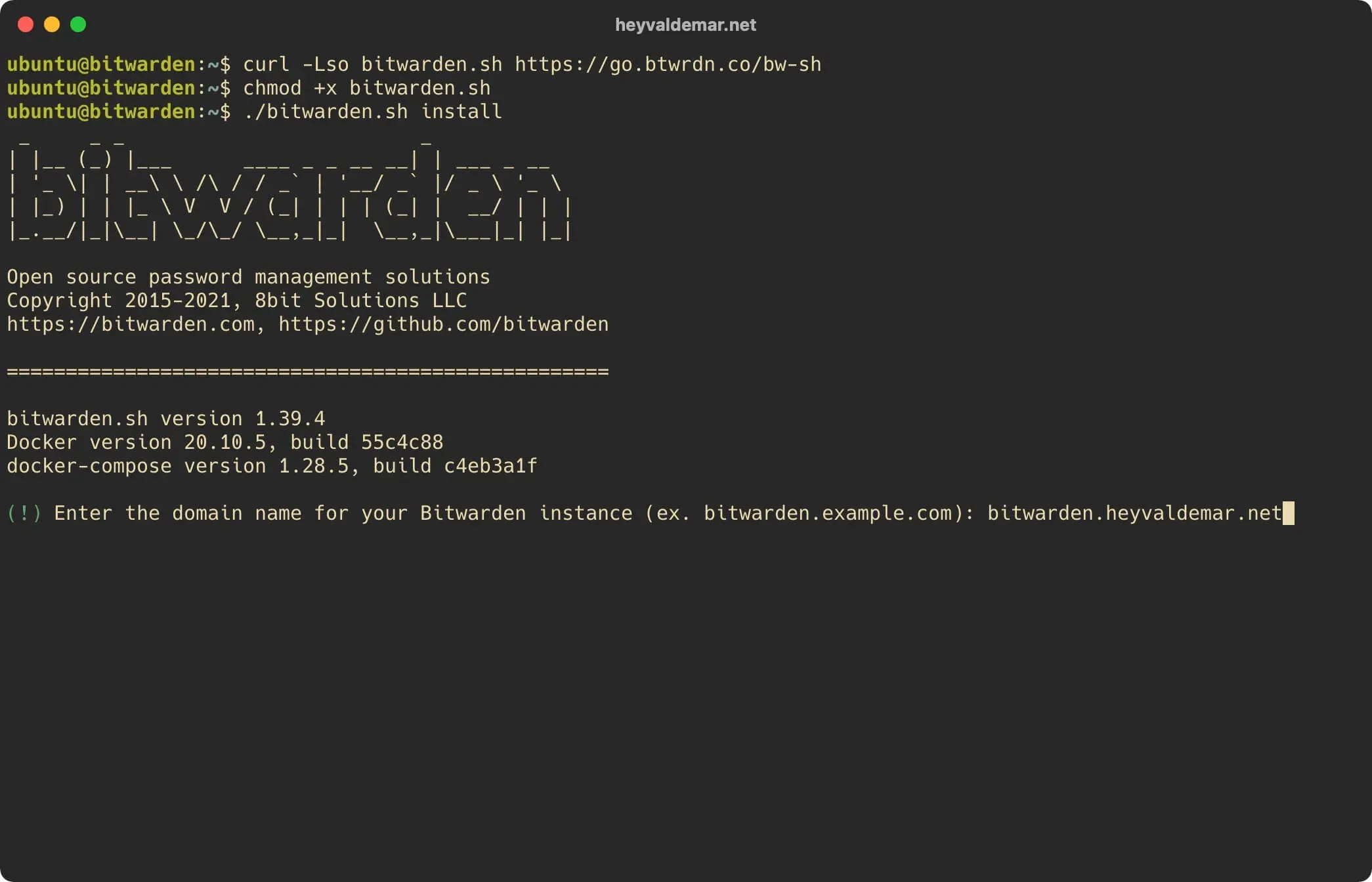
Now you need to specify the domain name that you plan to use to access the Bitwarden dashboard.
Specify the domain name to access Bitwarden and press the “Enter” button.
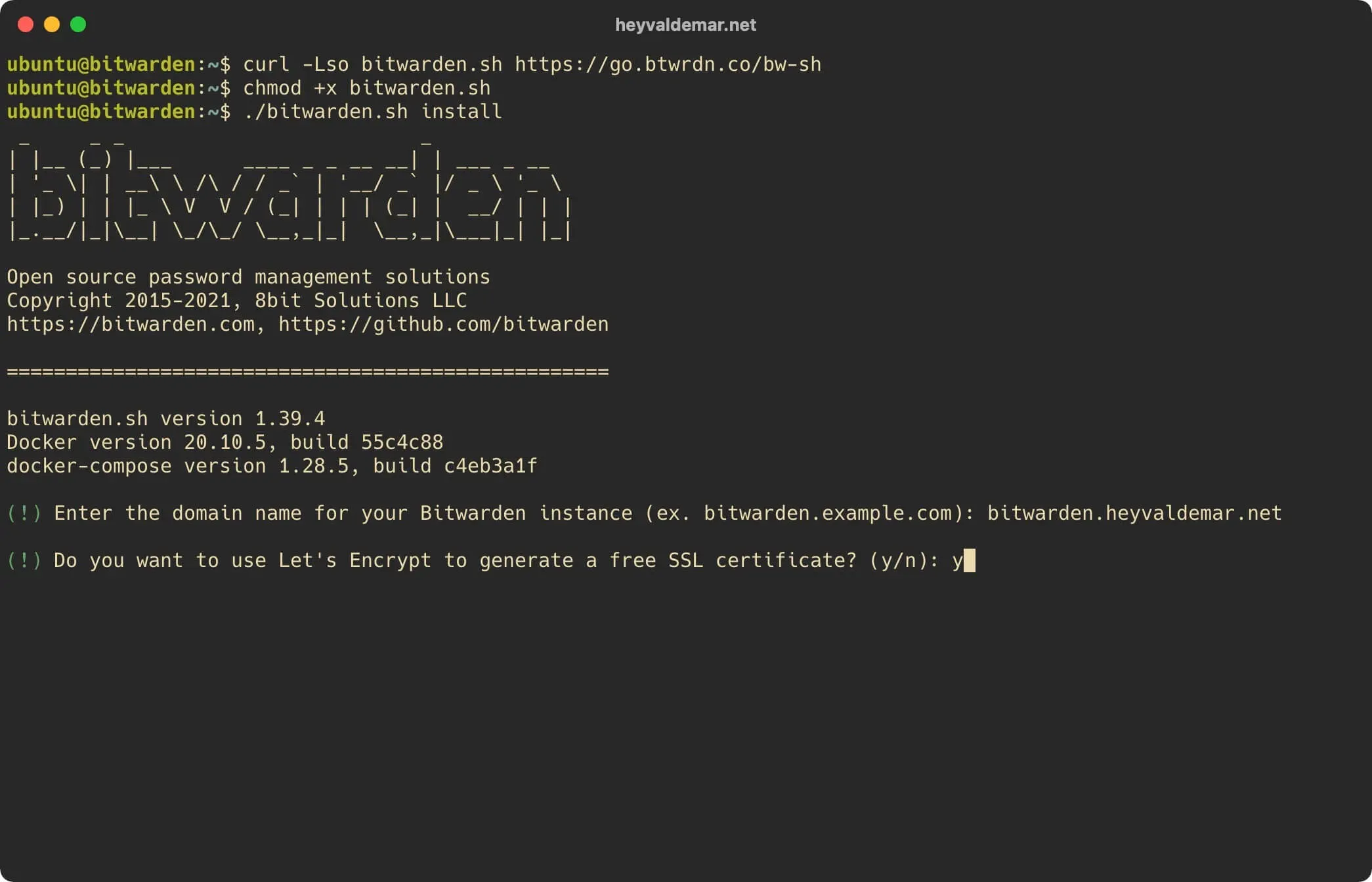
This tutorial walks you through obtaining a free cryptographic certificate through the Let’s Encrypt CA.
Press the “y” button, then “Enter”.
We indicate the email address to which Let’s Encrypt will send notifications about the expiration of the certificate and press the “Enter” button.
Specify the database name for the Bitwarden instance and press the “Enter” button.
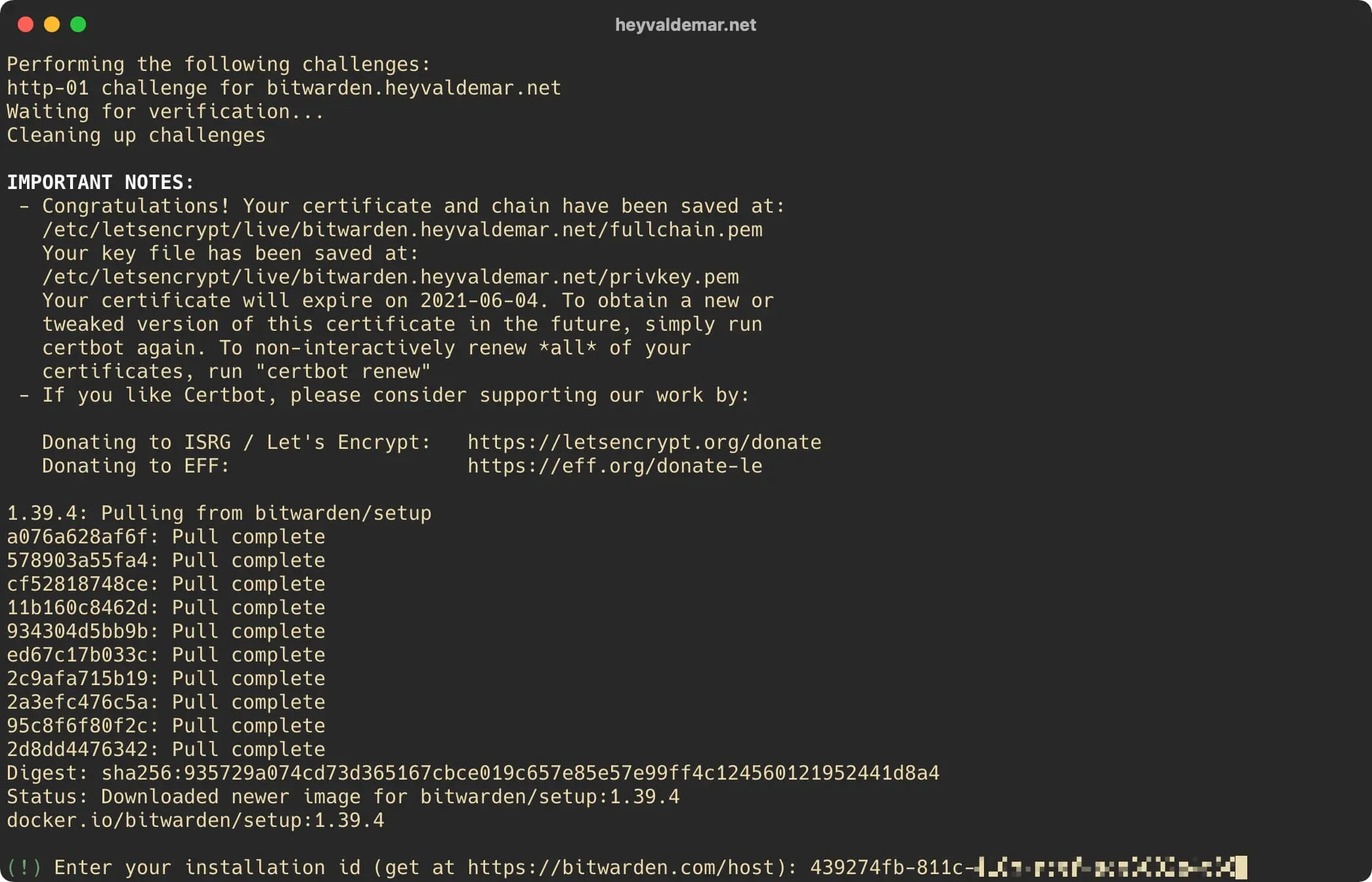
Specify the “Installation Id” obtained earlier and press the “Enter” button.
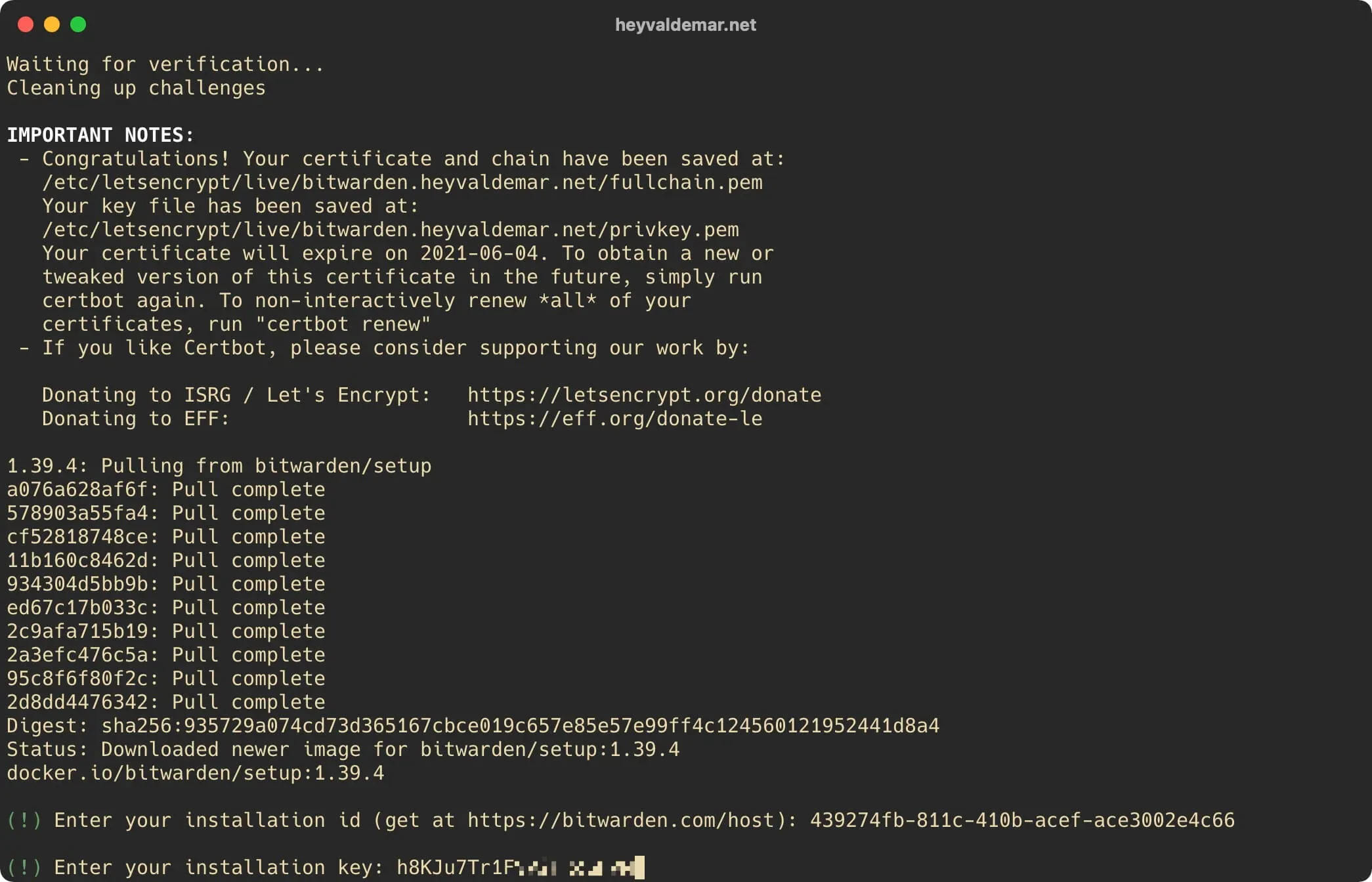
We indicate the “Installation Key” obtained earlier and press the “Enter” button.
Bitwarden installed successfully.
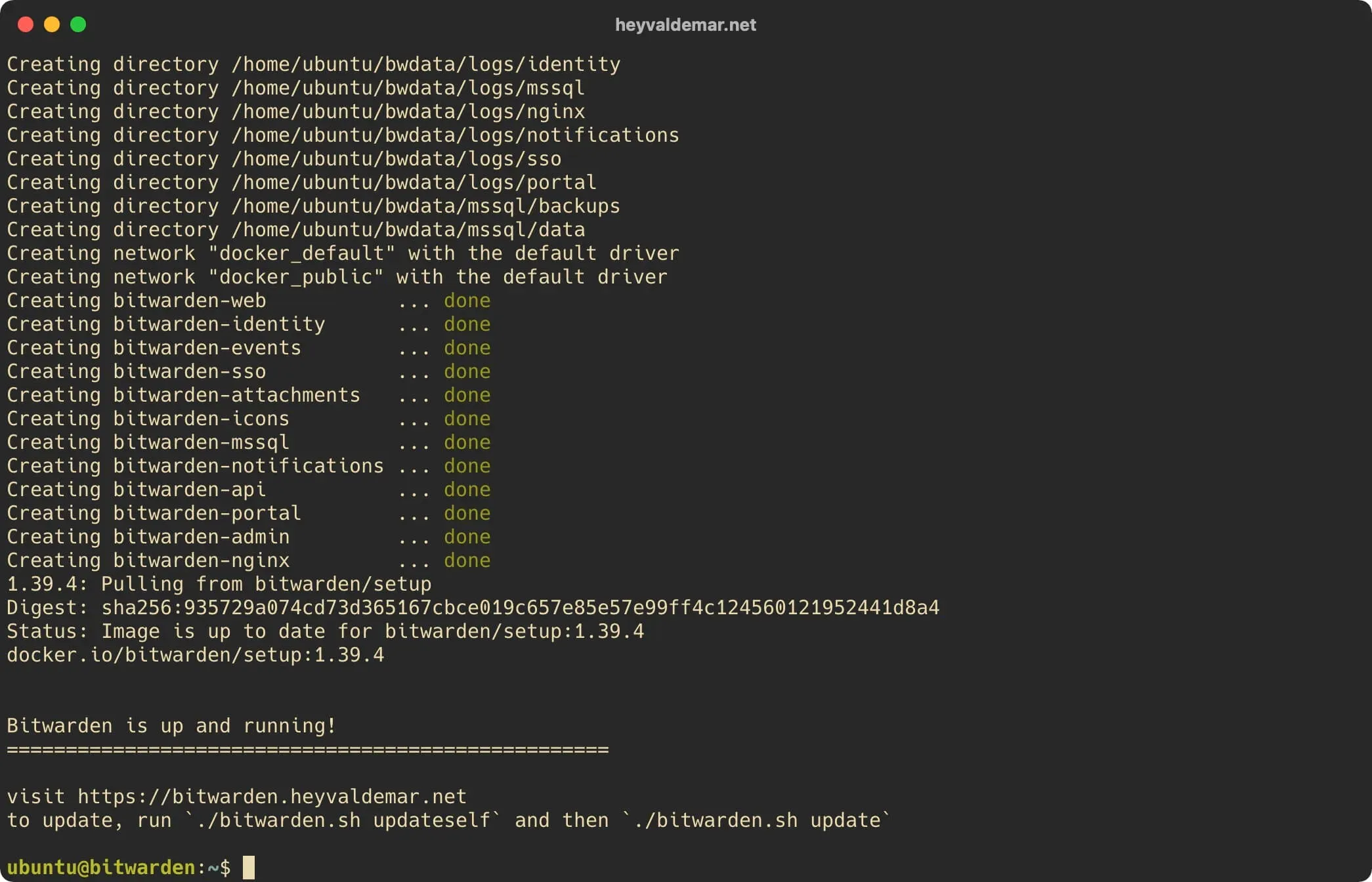
Now let’s start Bitwarden using the command:
sudo ./bitwarden.sh start 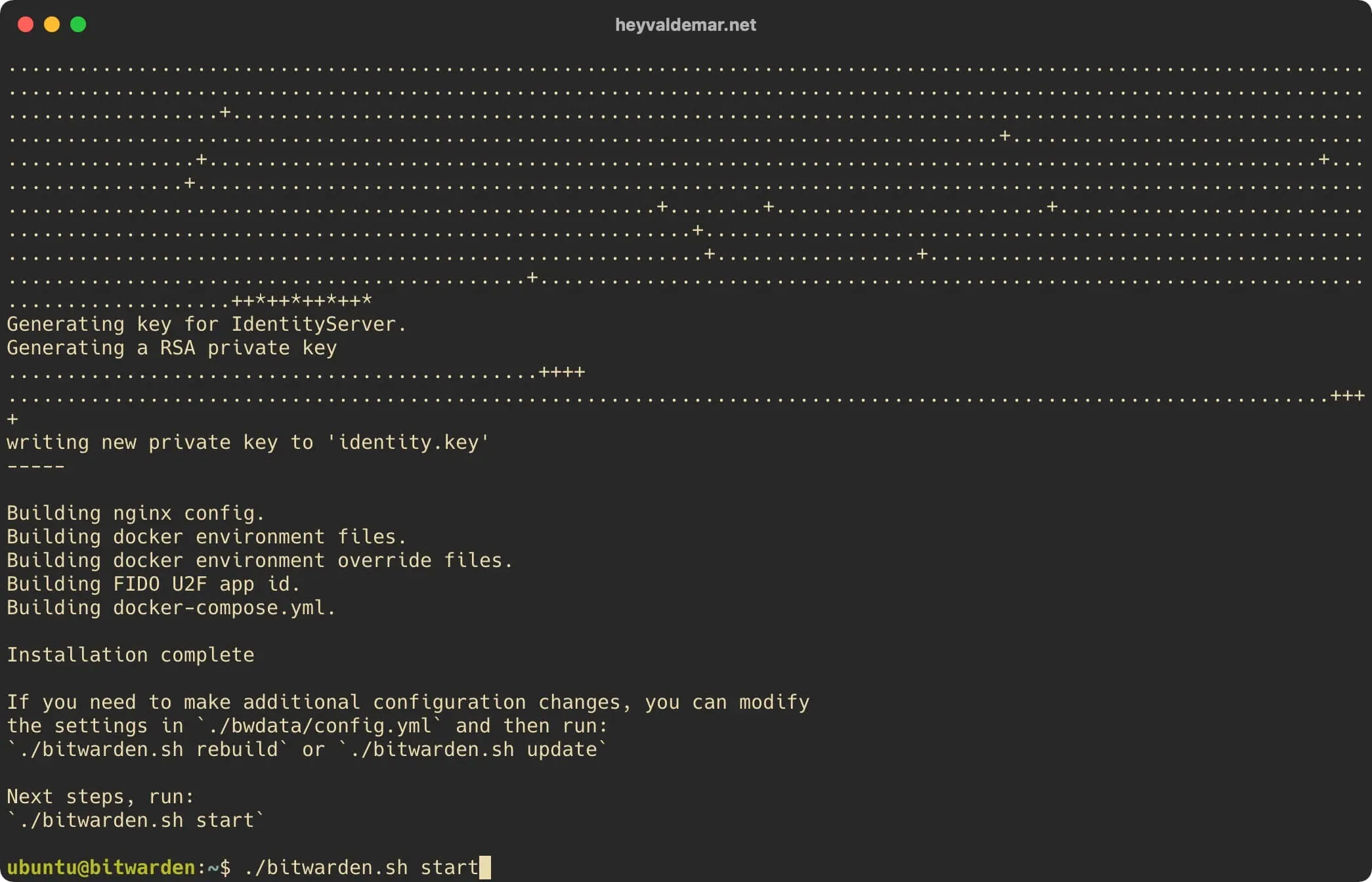
Bitwarden launched successfully.
To access the Bitwarden control panel, you need to go from the workstation to the link https://bitwarden.heyvaldemar.net, where bitwarden.heyvaldemar.net is the name of my server. Accordingly, you need to specify the name of your server with Bitwarden installed.
Next, you need to register to start using the Bitwarden dashboard.