Disable Server Manager Autostart in Windows Server 2019
By Vladimir Mikhalev · Docker Captain · CNCF Ambassador · IBM Champion
This article is for those looking for a detailed and clear guide on how to disable Server Manager autostart in Windows Server 2019.
NOTEFor instructions on disabling Server Manager autostart in Windows Server 2012 R2, see: Disable Server Manager Autostart in Windows Server 2012 R2.
We go into the system under an account with administrator rights.
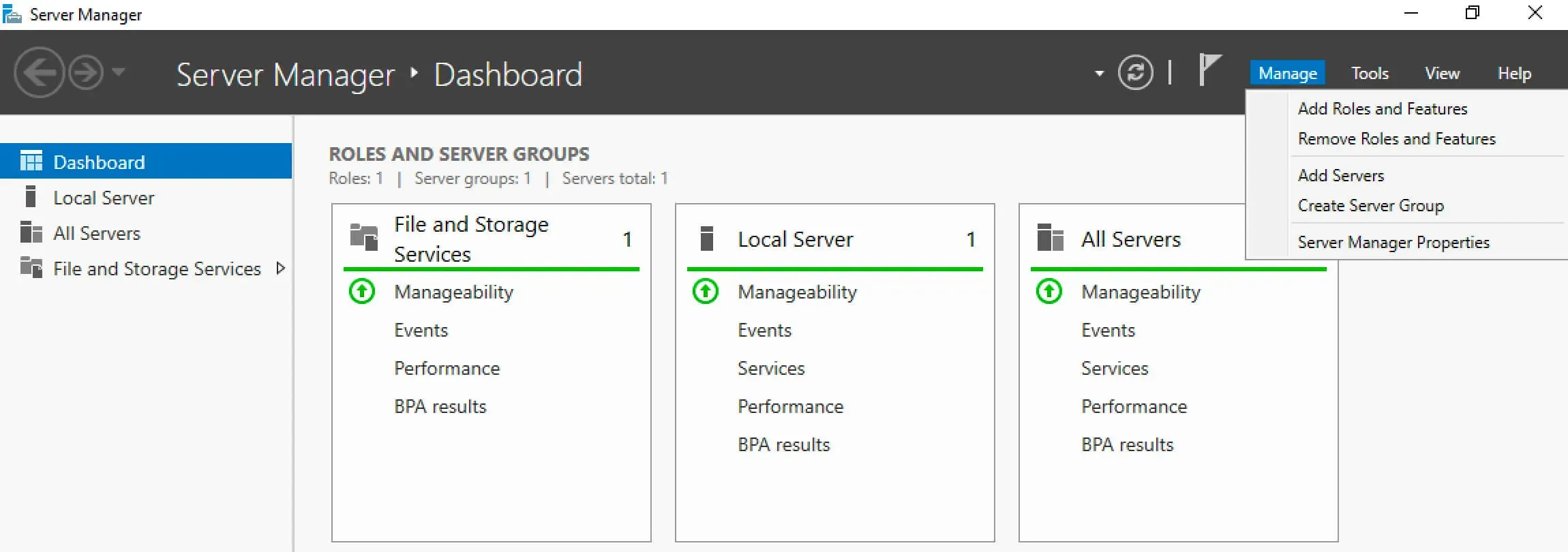
Open Server Manager, click on the “Manage” button in the upper right corner of the screen, and select “Server Manager Properties”.
Check the box “Do not start Server Manager automatically at logon” and click on the “OK” button.
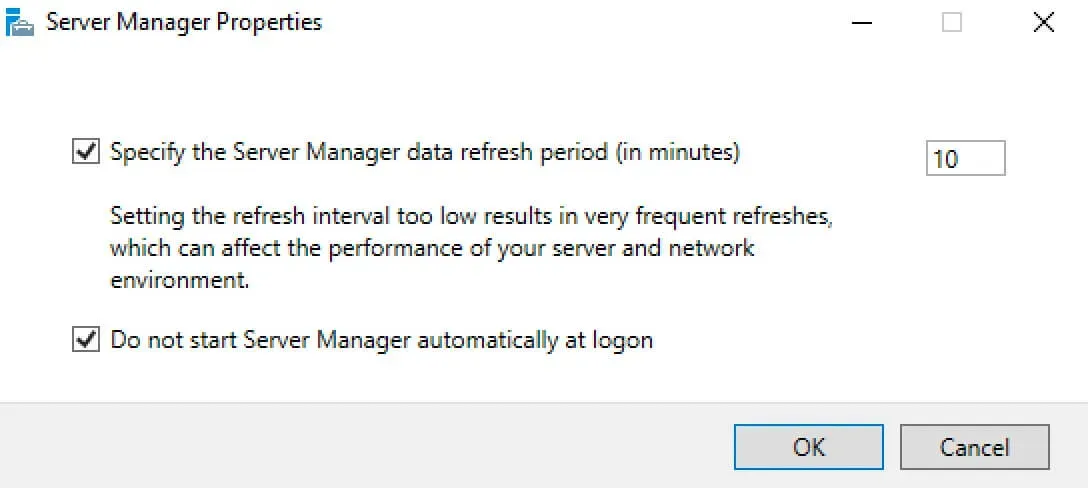
Server Manager will no longer start automatically.
You can also disable the automatic start of “Server Manager” through the task scheduler. To do this, you must disable the task that is responsible for the automatic start of “Server Manager”.
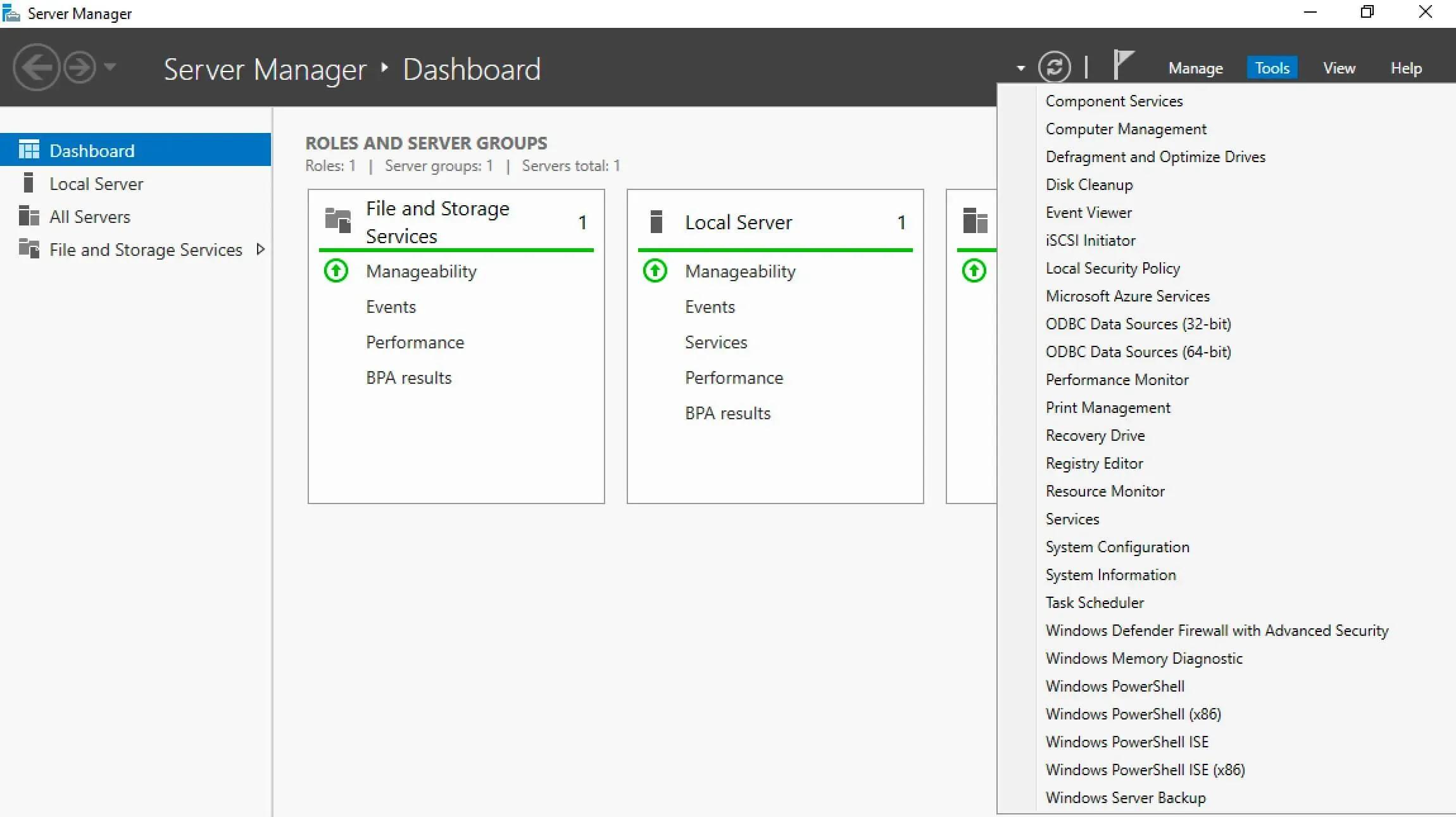
In Server Manager, click on the “Tools” button in the upper right corner of the screen and select “Task Scheduler”.
In the “Task Scheduler Library” go to the “Microsoft” section, then to “Windows”, and in the “Server Manager” subsection, select the “Server Manager” task.
In the “Actions” menu, click on the “Disable” button.
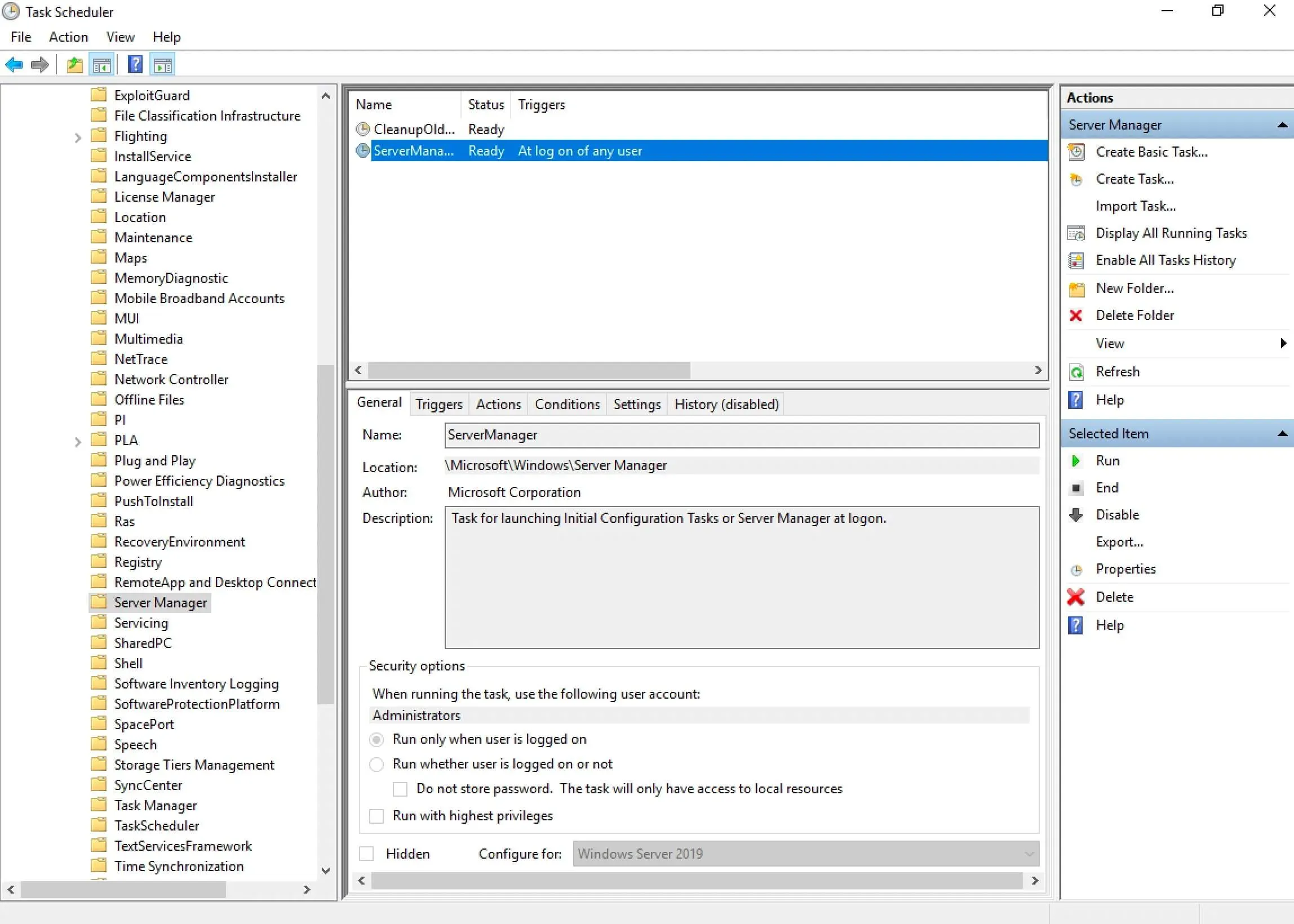
Server Manager will no longer start automatically.
In addition, you can disable the task that is responsible for automatically starting Server Manager using the command line.
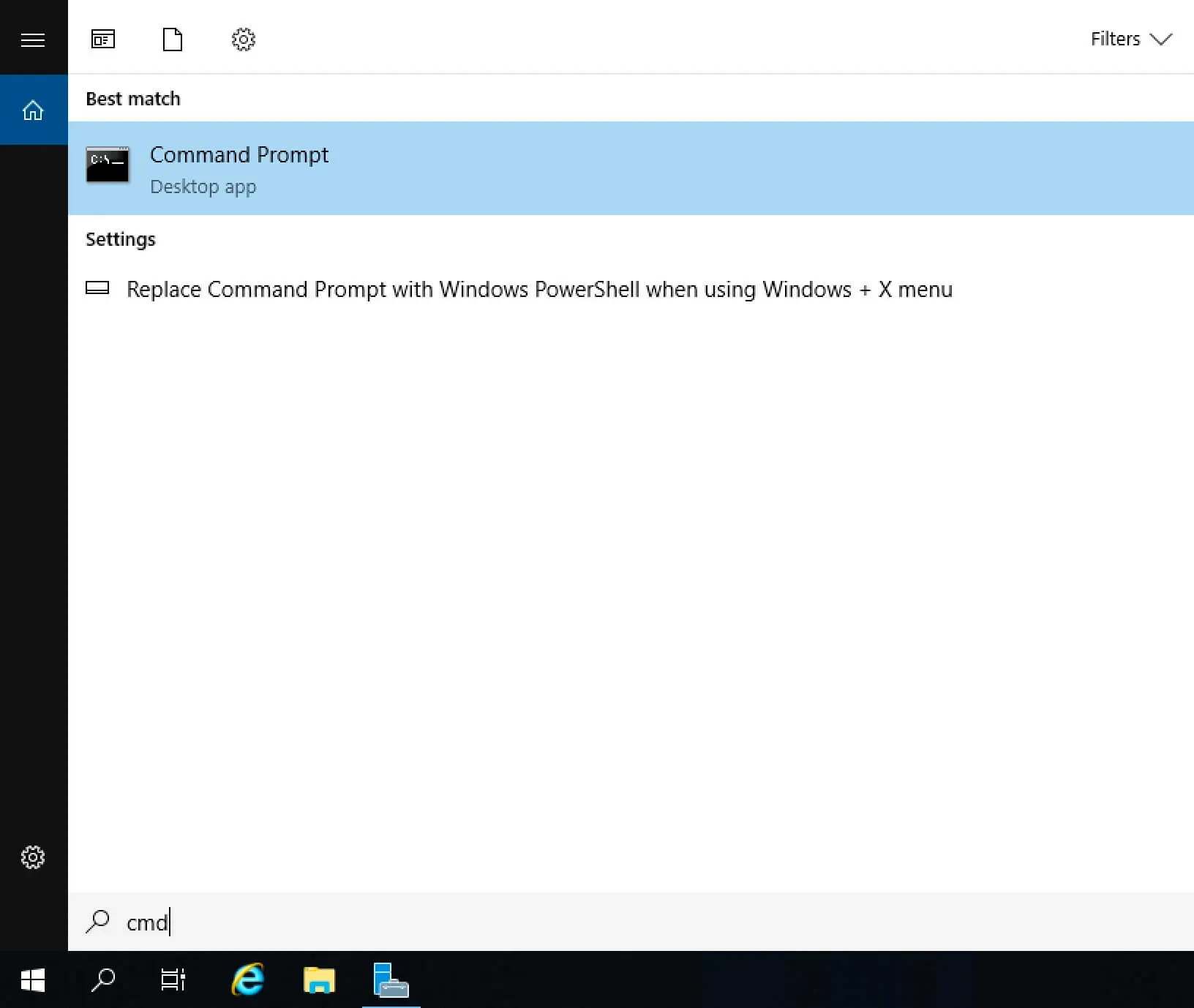
Press “Start”, specify “cmd” in the search bar, and select “Command Prompt”.
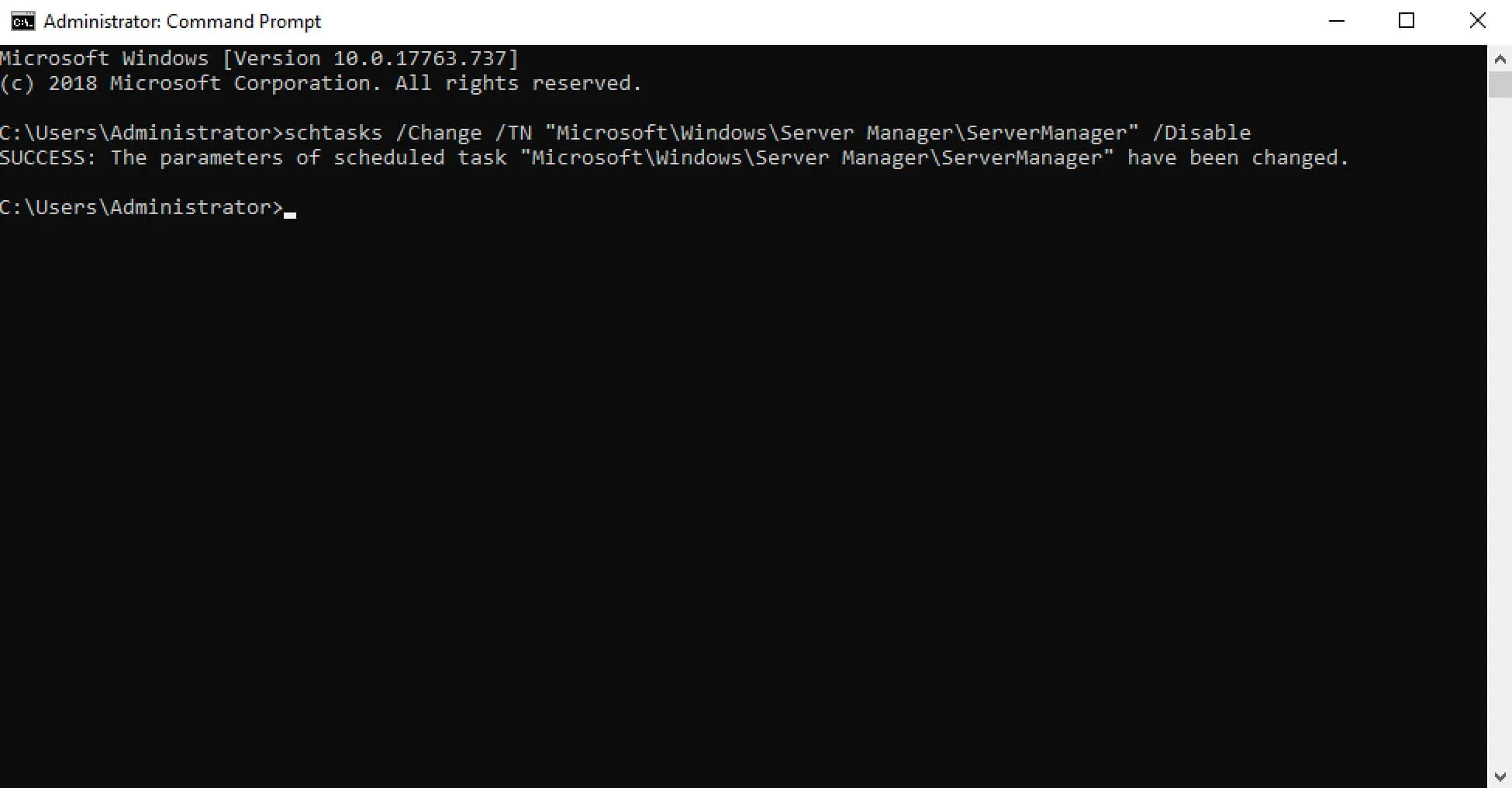
Disable Server Manager autostart using the command:
schtasks /Change /TN "Microsoft\Windows\Server Manager\ServerManager" /Disable 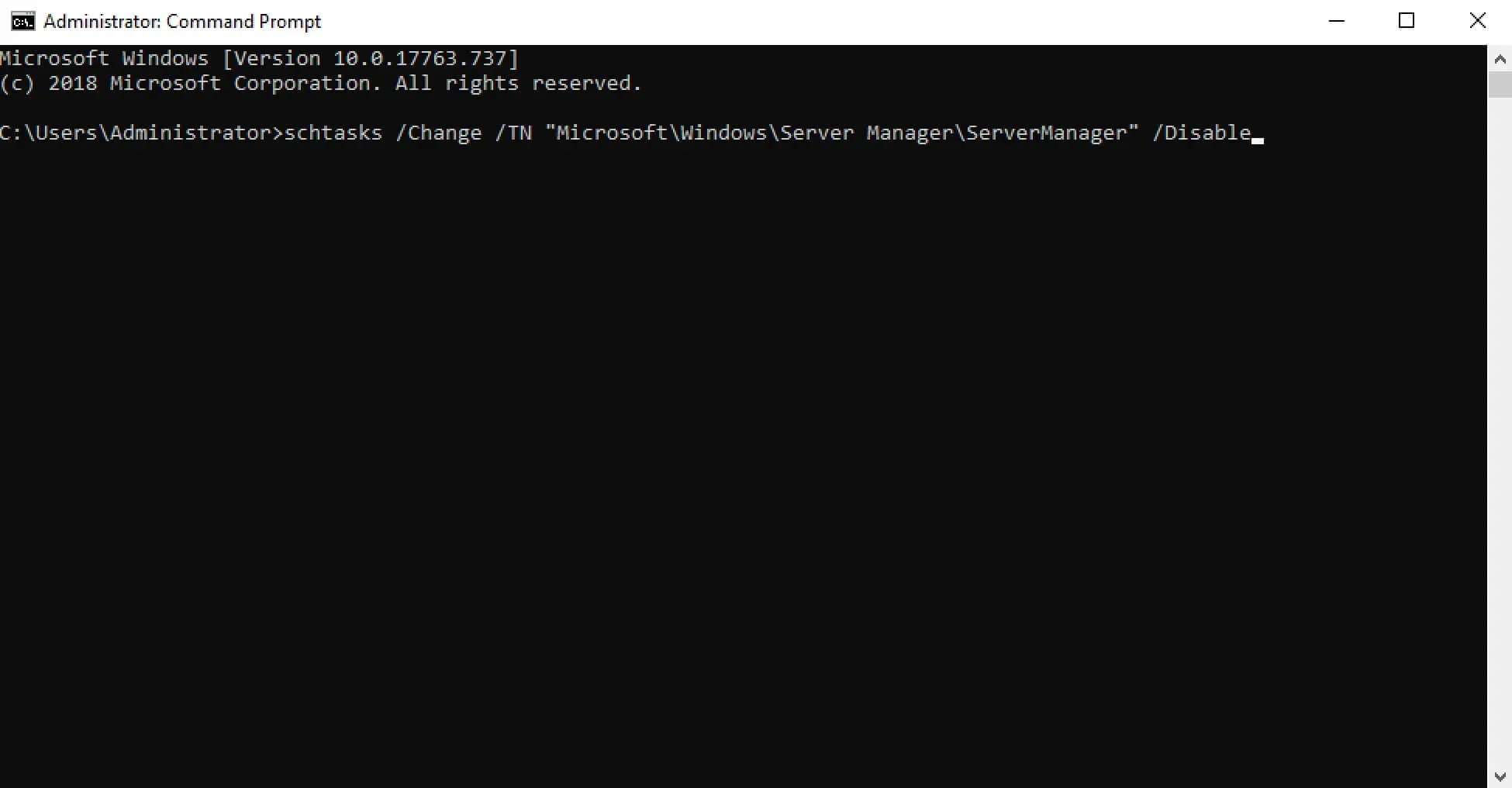
Server Manager will no longer start automatically.
You can also disable the task that is responsible for automatically starting Server Manager using Windows PowerShell.
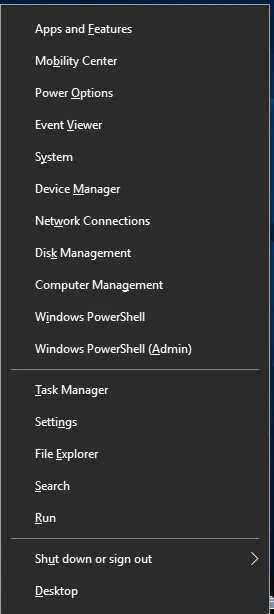
On the keyboard, press the key combination “Win” and “x” and in the menu that opens, select “Windows PowerShell (Admin)”.
Disable Server Manager autostart using the command:
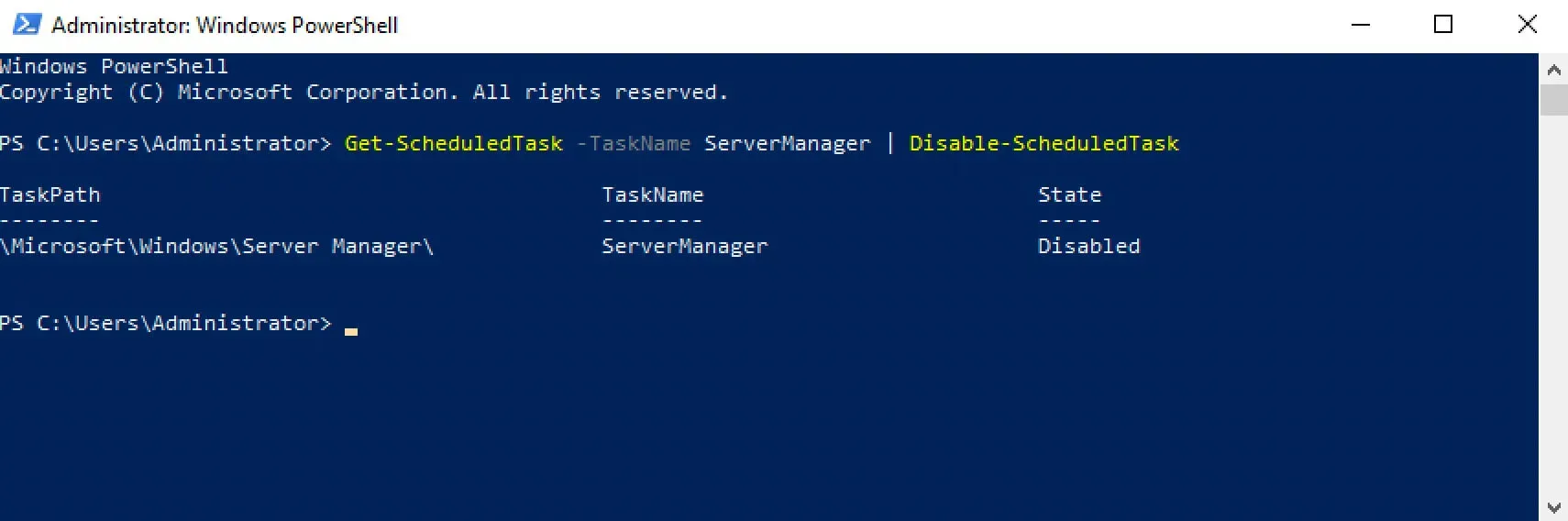
Get-ScheduledTask -TaskName ServerManager | Disable-ScheduledTask 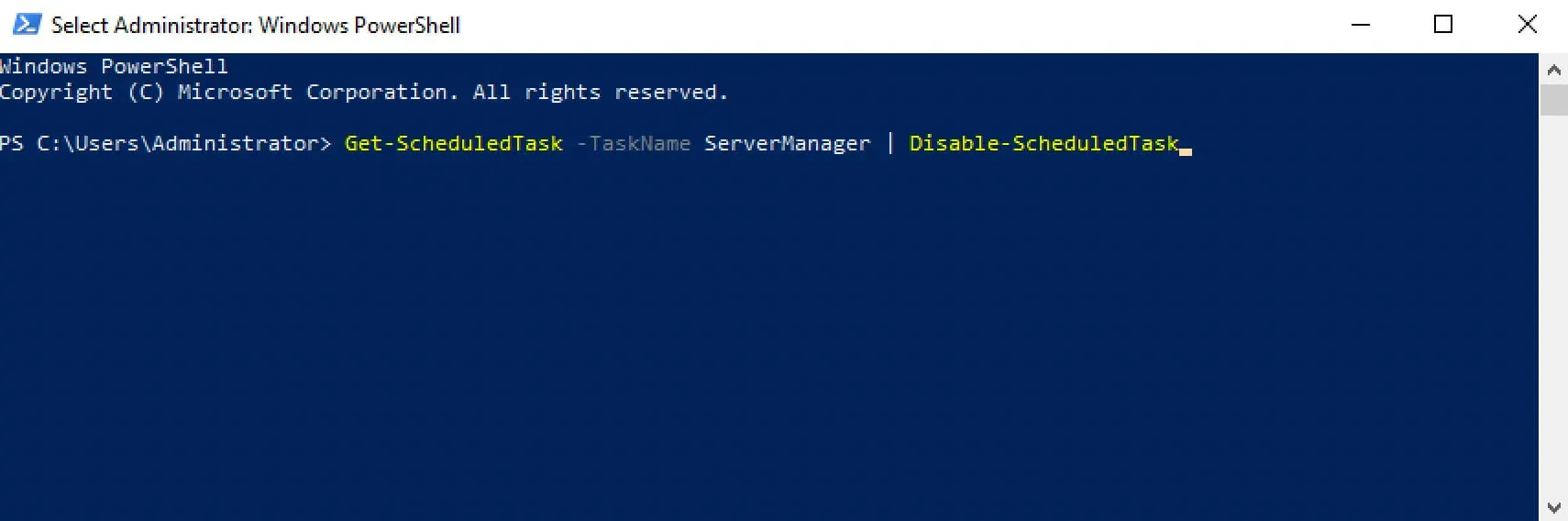
Server Manager will no longer start automatically.