559 words
3 min read

Enable the Active Directory Recycle Bin in Windows Server 2012 R2

By · Solutions Architect · Docker Captain · IBM Champion
Enable the Active Directory Recycle Bin in Windows Server 2012 R2

This article is for those looking for a detailed and clear guide on how to enable the Active Directory Recycle Bin in Windows Server 2012 R2.

The Active Directory Recycle Bin is designed to recover deleted Active Directory objects and can be of great help to an administrator if he accidentally deleted a large number of user accounts.

IMPORTANT

In this guide, we will consider the case when you already have a server with the Windows Server 2012 R2 operating system installed on it.

For details on installing Windows Server 2012 R2, read my guide: Install Windows Server 2012 R2.

NOTE

To learn how to install Active Directory Domain Services on Windows Server 2012 R2, read: Install Active Directory Domain Services on Windows Server 2012 R2.

By default, the Active Directory Recycle Bin is disabled.

To enable the Active Directory Recycle Bin, open “Server Manager”, click on “Tools” in the upper right corner of the screen and select “Active Directory Administrative Center”.
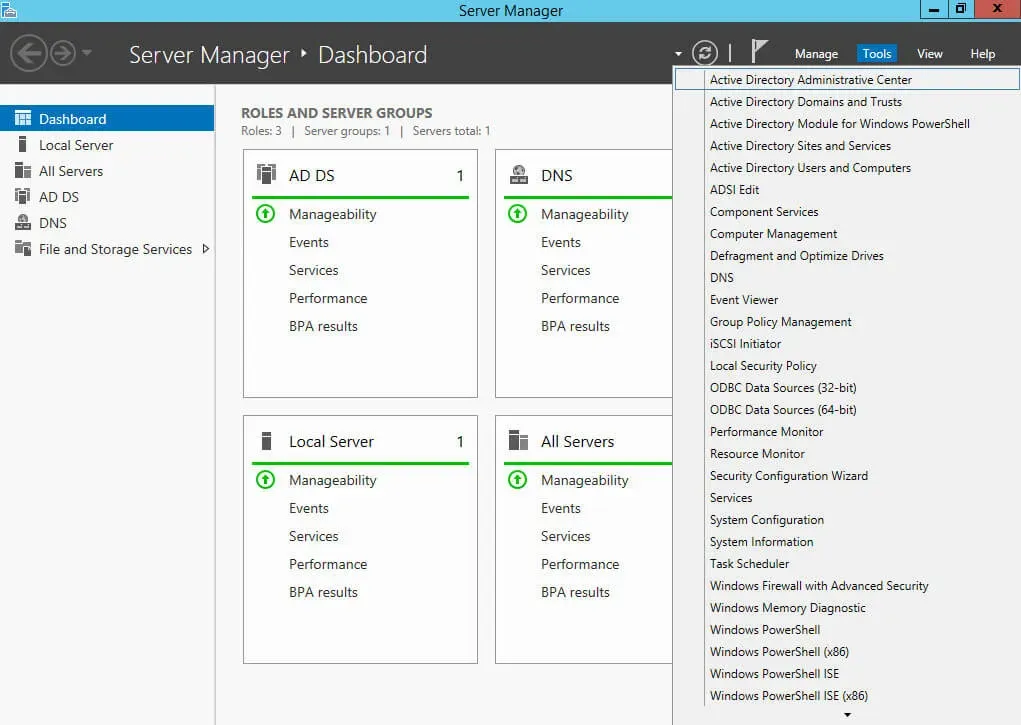
Enable the Active Directory Recycle Bin in Windows Server 2012 R2 - Step 1

In the menu on the left, select the section with your domain, then in the menu on the right, click on the “Enable Recycle Bin” button.
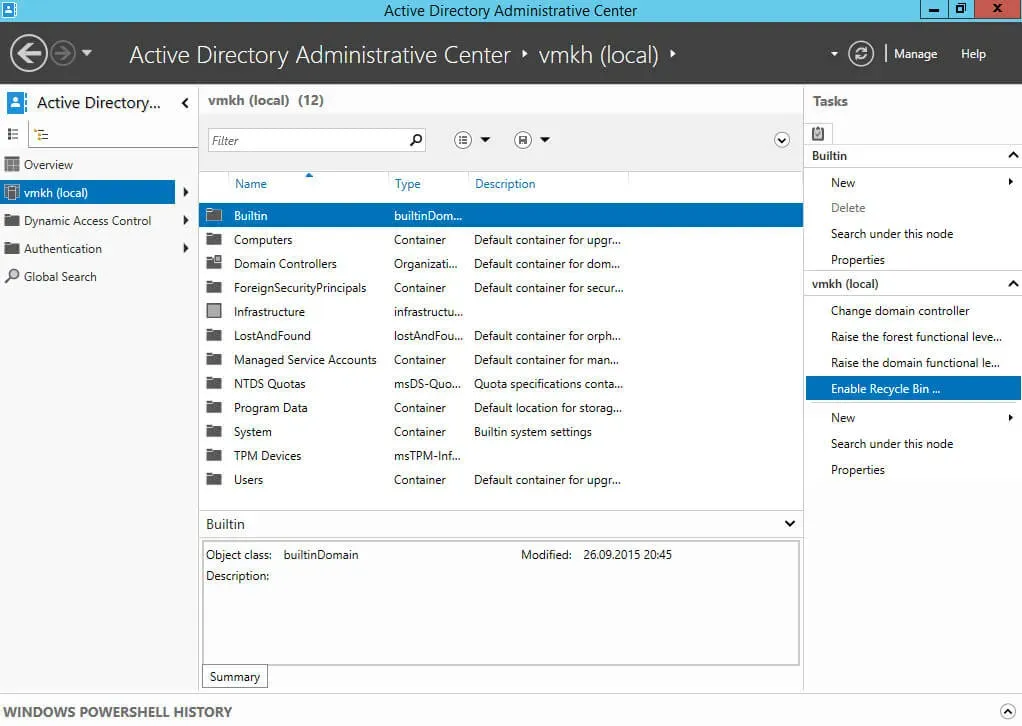
Enable the Active Directory Recycle Bin in Windows Server 2012 R2 - Step 2

Now you need to confirm enabling the Active Directory Recycle Bin.

NOTE

It will not be possible to disable the Active Directory Recycle Bin in the future.

Click on the “OK” button.
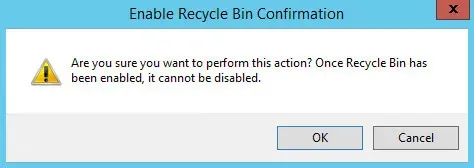
Enable the Active Directory Recycle Bin in Windows Server 2012 R2 - Step 3

The Active Directory Recycle Bin process has started.

Next, you need to update the information in the “Server Manager” and wait for a little while all the domain controllers in the Active Directory forest get the information about enabling the Active Directory Recycle Bin.

Click on the “OK” button.
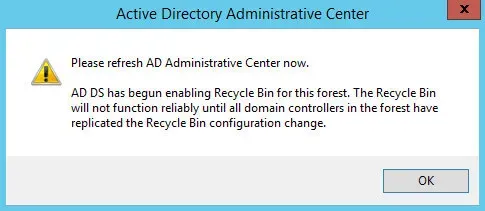
Enable the Active Directory Recycle Bin in Windows Server 2012 R2 - Step 4

In the “Server Manager” click on the arrow icon in the upper right corner of the screen and wait for the information to be updated in the section with your domain.
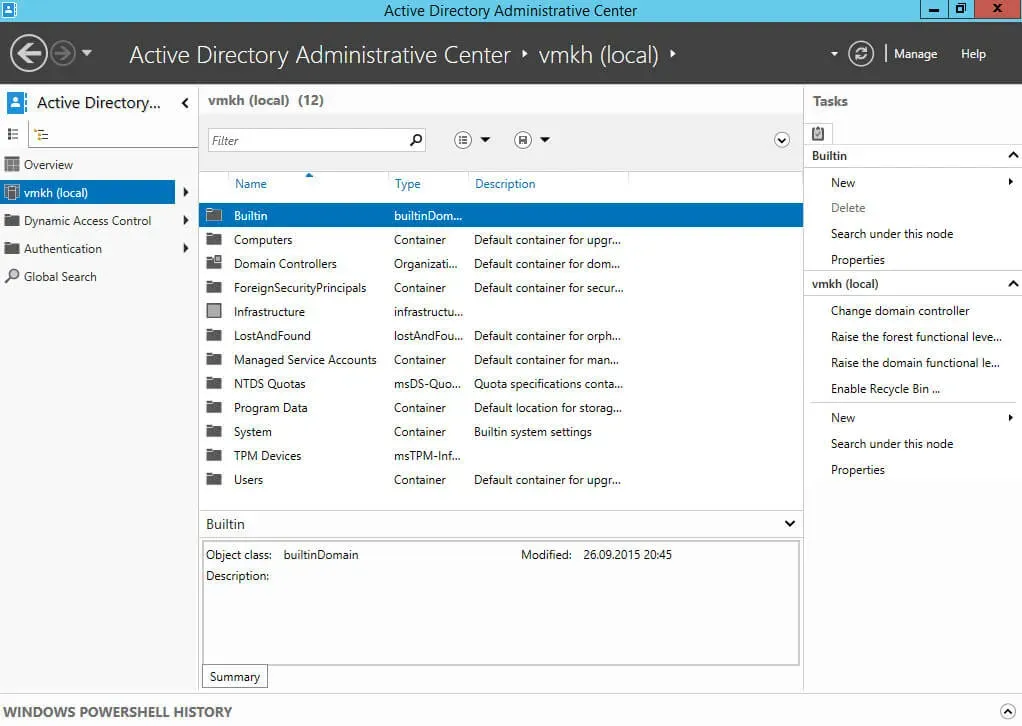
Enable the Active Directory Recycle Bin in Windows Server 2012 R2 - Step 5

After updating the information in the “Server Manager” in the section with your domain, a new container “Deleted Objects” will appear.
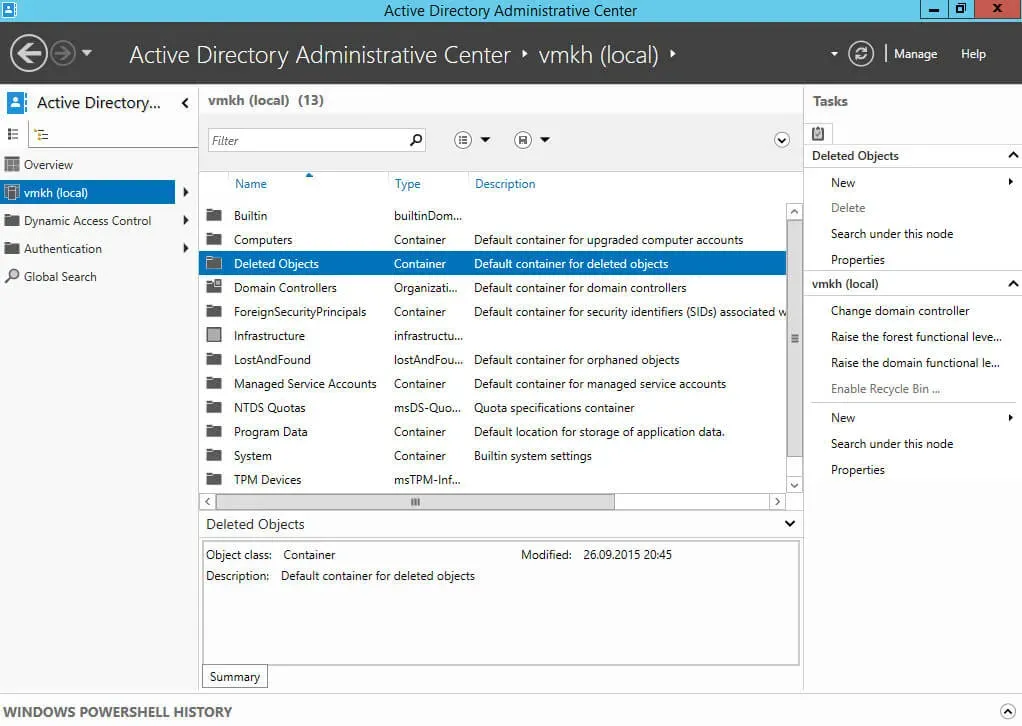
Enable the Active Directory Recycle Bin in Windows Server 2012 R2 - Step 6

Now let’s delete the user account and try to restore it from the Active Directory Recycle Bin.

Go to the “Users” container and select a user account, then click on the “Delete” button in the menu on the right.
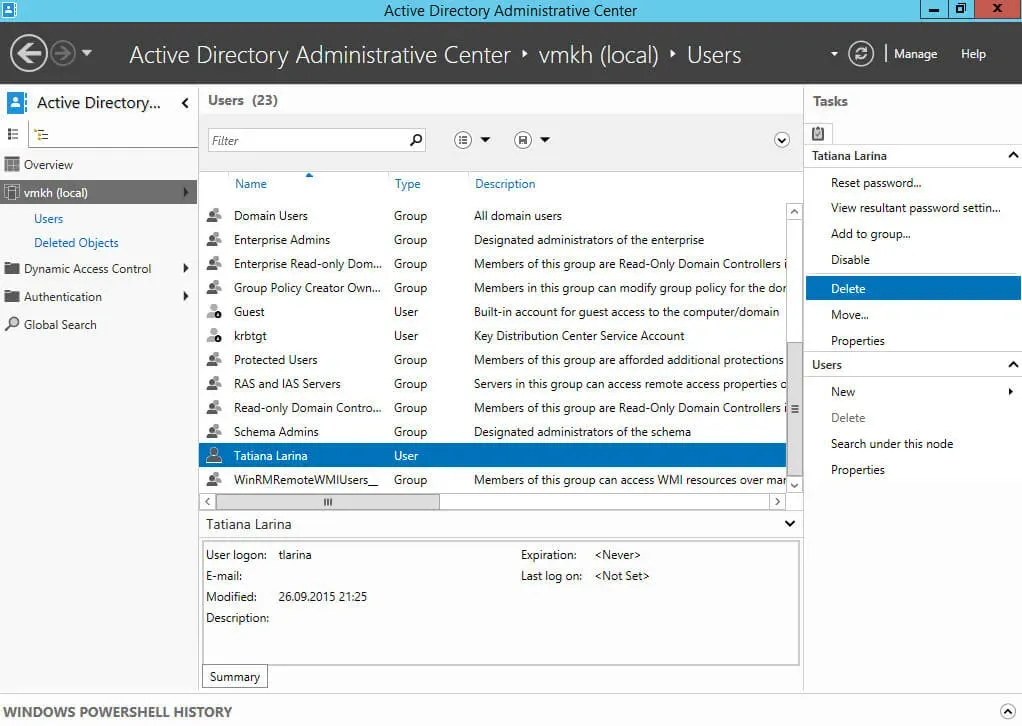
Enable the Active Directory Recycle Bin in Windows Server 2012 R2 - Step 7

Now you need to confirm the deletion of the user account.

Click on the “OK” button.
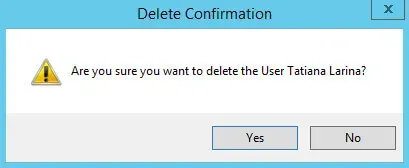
Enable the Active Directory Recycle Bin in Windows Server 2012 R2 - Step 8

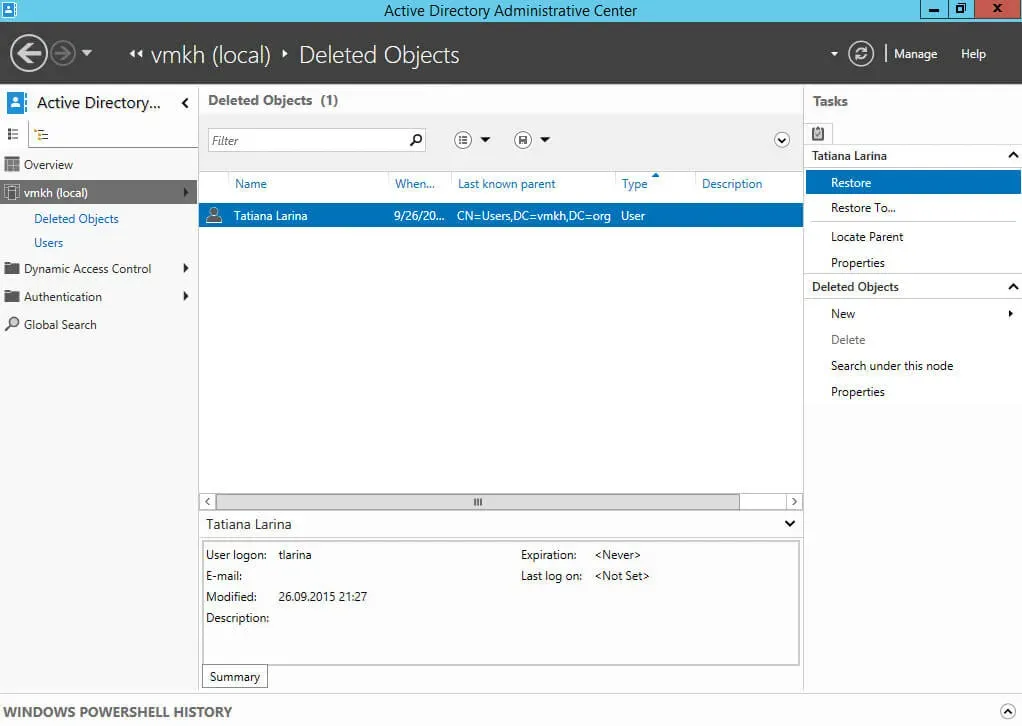
To restore a deleted user account, you need to go to the “Deleted Objects” container and select the user account that you want to restore, then click on the “Restore” button in the menu on the right.

NOTE

Objects can only be restored during their lifetime, which by default is 180 days.
Enable the Active Directory Recycle Bin in Windows Server 2012 R2 - Step 9

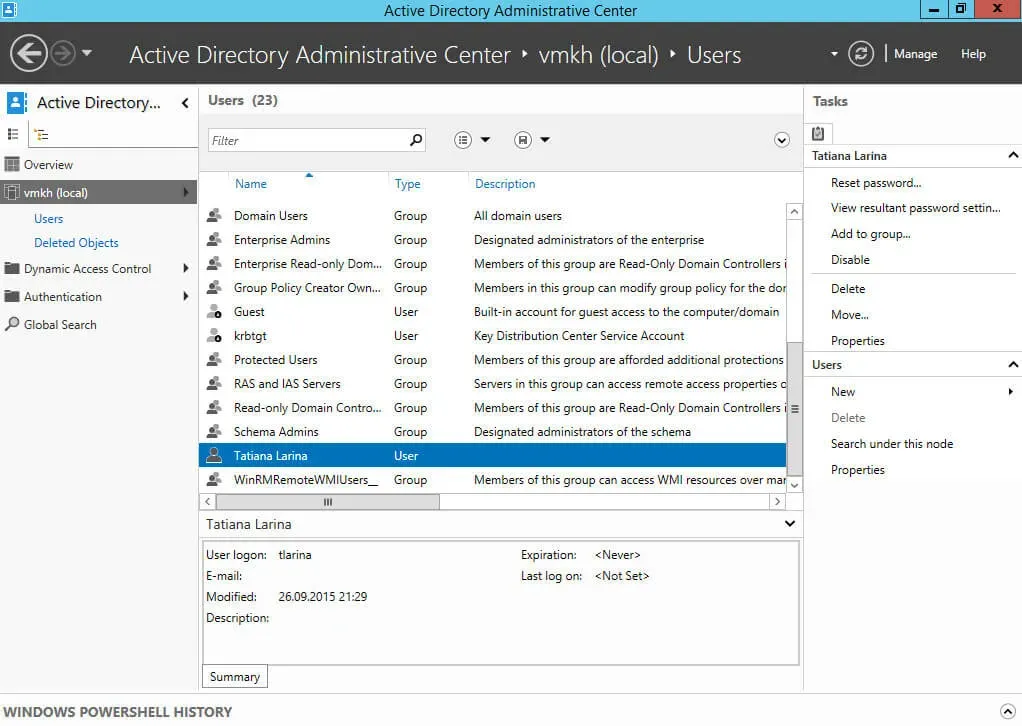
The user account was successfully restored and reappeared in the Users container.
Enable the Active Directory Recycle Bin in Windows Server 2012 R2 - Step 10


Vladimir Mikhalev

Docker Captain  ·  IBM Champion  ·  AWS Community Builder

The Verdict — production-tested analysis on YouTube.

Related Posts

Same category
  1. 1
    Recovering a Corrupt Exchange Database with Stellar Repair — Real-World Lab Test
    SysAdmin & IT Pro · We deliberately broke an Exchange 2019 server to see if Stellar Repair for Exchange could recover a dirty-shutdown EDB file. Step-by-step recovery process, lab setup, and lessons learned.
  2. 2
    Distinctions Between Terminal, Command Line, Shell, and Prompt
    SysAdmin & IT Pro · Learn the differences between terminal, command line, shell, and prompt in Linux. A beginner-friendly guide to essential CLI concepts and tools.
  3. 3
    Install Ubuntu Server 22.04 LTS
    SysAdmin & IT Pro · Step-by-step guide to install Ubuntu Server 22.04 LTS. Covers language, disk setup, OpenSSH, user creation, and system configuration for beginners.
  4. 4
    Install OTRS on Ubuntu Server
    SysAdmin & IT Pro · Comprehensive guide to installing OTRS Community Edition on Ubuntu Server. Learn to configure PostgreSQL, Apache, SSL with Let's Encrypt, and launch OTRS securely.

Random Posts

Random
  1. 1
    Configure Exchange Server 2010
    SysAdmin & IT Pro · Complete guide to configuring Exchange Server 2010. Learn mailbox setup, certificates, DNS, email policies, and secure mail delivery—step by step.
  2. 2
    The AI Era — From Technology to Global Domination
    AI & MLOps · Exploring a future where AI controls all aspects of life, redefining global governance and social interactions.
  3. 3
    Recovering a Corrupt Exchange Database with Stellar Repair — Real-World Lab Test
    SysAdmin & IT Pro · We deliberately broke an Exchange 2019 server to see if Stellar Repair for Exchange could recover a dirty-shutdown EDB file. Step-by-step recovery process, lab setup, and lessons learned.
  4. 4
    Install Outline and Keycloak Using Docker Compose
    Self-Hosting · Deploy Outline with Keycloak SSO, Traefik, and MinIO on Ubuntu using Docker Compose. A complete, secure wiki setup with SSL, access control, and cloud storage.
Enable the Active Directory Recycle Bin in Windows Server 2012 R2
https://heyvaldemar.com/enable-the-active-directory-recycle-bin-in-windows-server-2012-r2/
Author
Vladimir Mikhalev
Published
2015-09-26
License
CC BY-NC-SA 4.0