Create an Offline Address Book in Exchange Server 2013
By Vladimir Mikhalev · Docker Captain · CNCF Ambassador · IBM Champion
This article is for those looking for a detailed and clear guide on how to create an offline address book in Exchange Server 2013.
The offline address book is designed so that Microsoft Outlook users can view the address book even when they are not connected to the Exchange server. In addition, offline address books can help reduce the load on Exchange servers.
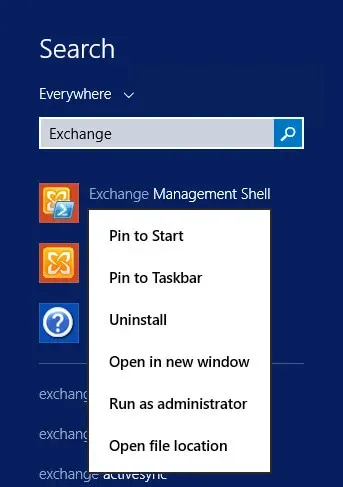
Click “Start”, point to “Exchange” in the search bar, then right-click on “Exchange Management Shell” and select “Run as administrator”.
Let’s see the existing address books using the command:
Get-OfflineAddressBook 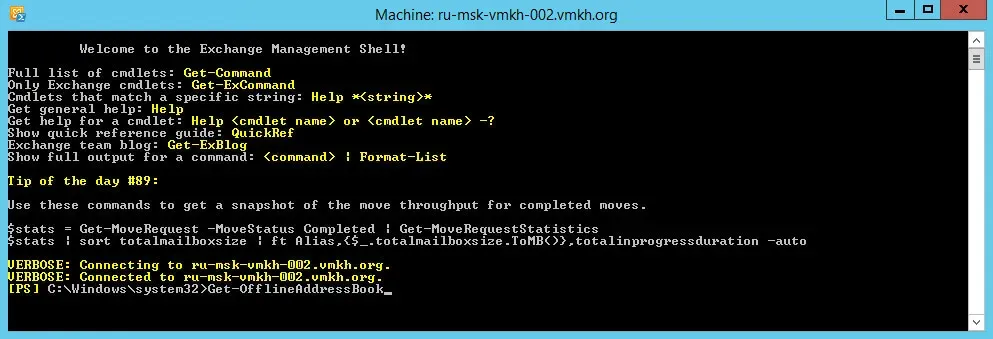
NOTEInstalling the Mailbox server role creates a default offline address book named “Default Offline Address Book”.
Let’s create a new offline address book using the command:
New-OfflineAddressBook -Name "VMKH Offline Address Book" -AddressLists "\Default Global Address List" -VirtualDirectories "us-boston-vmkh-002\OAB (Default Web Site)" 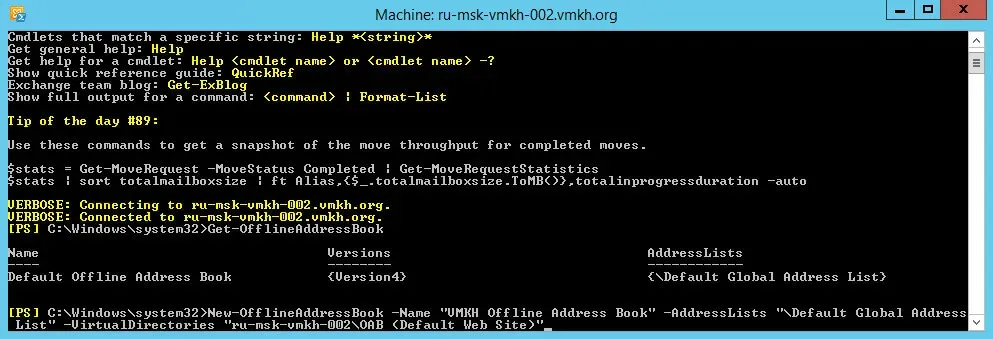
To view existing address books and their main parameters, you can run the command:
Get-OfflineAddressBook | fl Name,Server, PublicFolderDistributionEnabled,WebDistributionEnabled,VirtualDirectories 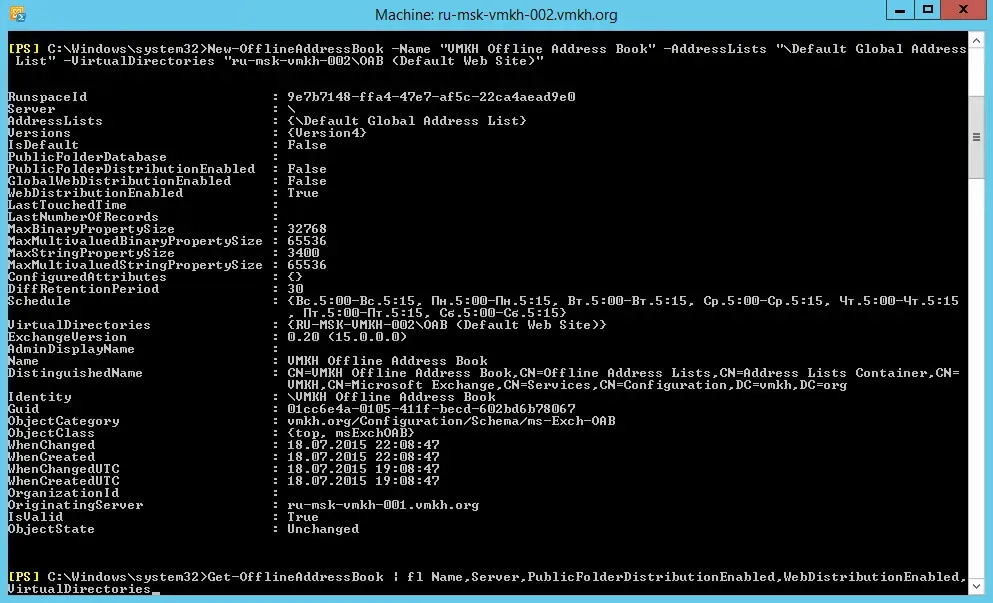
The new offline address book was created successfully, and you can then set it as the default offline address book. Thus, it will be associated with all created mailbox databases.
Set-OfflineAddressBook -Identity "VMKH Offline Address Book" -IsDefault $true 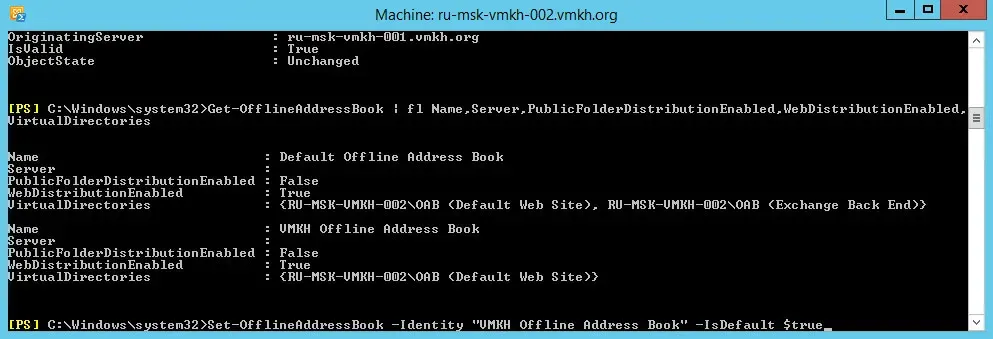
Now we go to the server with Exchange Server 2013 installed and go to the Exchange Admin Center, which is located at the link https://us-boston-vmkh-002/ecp, where us-boston-vmkh-002 is the name of my Exchange server.
Specify the username and password to enter the “Exchange Administration Center” and click the “Sign in” button.
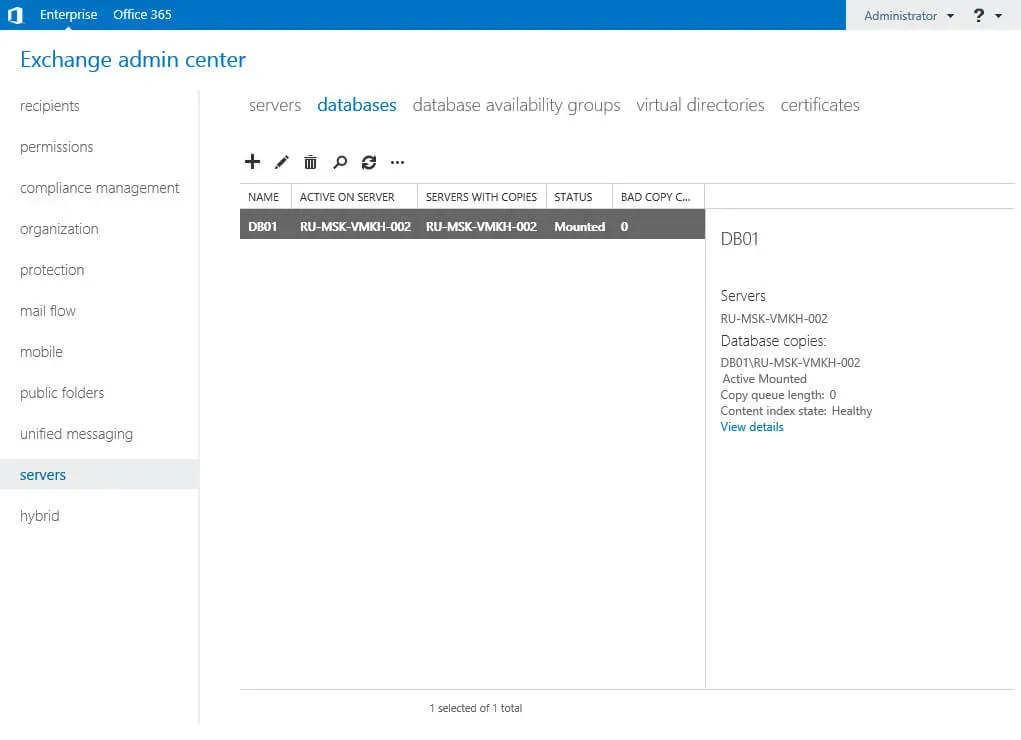
Go to the “Servers” section, select the “Databases” subsection, then select the database and double-click on it with the left mouse button.
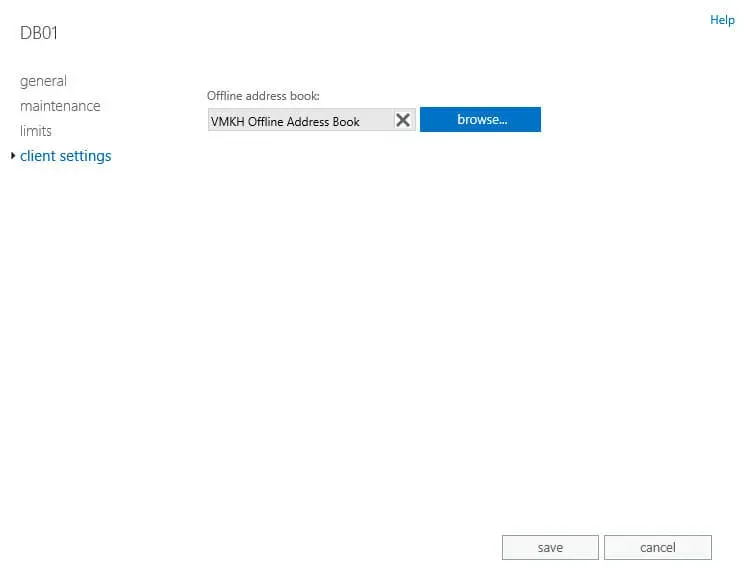
In the Client Settings section, you must specify the new Exchange OAB.
Click on the “Browse” button.
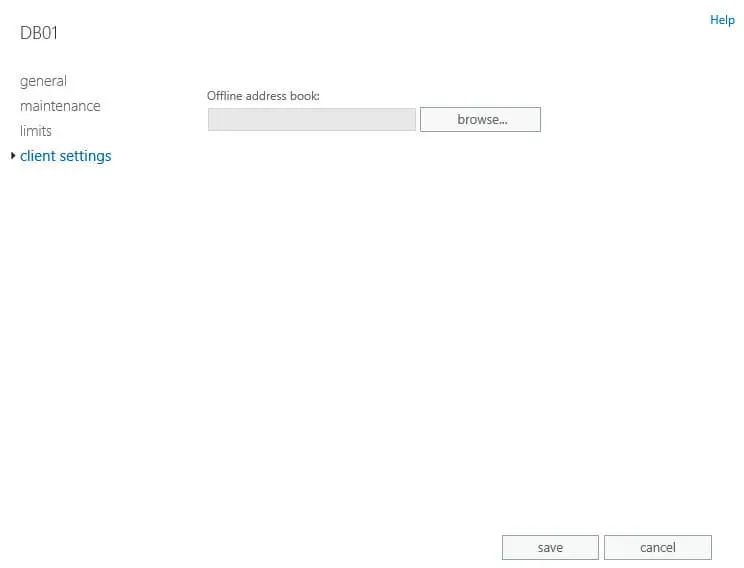
Select the new Exchange OAB and click on the “OK” button.
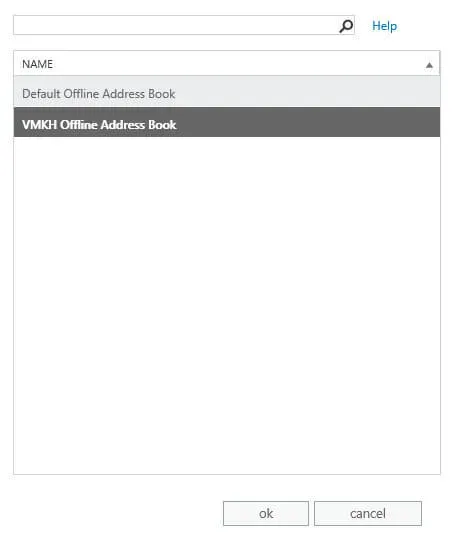
The new Exchange OAB is listed.
NOTEIf you have multiple Exchange databases, you need to specify a new OAB for each database.
Click on the “Save” button.