Install Active Directory Domain Services on Windows Server 2008 R2
By Vladimir Mikhalev · Docker Captain · CNCF Ambassador · IBM Champion
This article is for those looking for a detailed and straightforward guide on installing Active Directory Domain Services on Windows Server 2008 R2.
IMPORTANTIn this guide, we will consider the case when you already have a server with Windows Server 2008 R2 installed on it.
For details on installing Windows Server 2008 R2, read my guide: Install Windows Server 2008 R2.
NOTETo learn how to install Active Directory Domain Services on Windows Server 2019, read: Install Active Directory Domain Services on Windows Server 2019.
CAUTIONBefore installing the Active Directory Domain Services role, make sure to assign the server a proper name according to your organization’s standards. Then, configure a static IP address, subnet mask, gateway, and DNS server address.
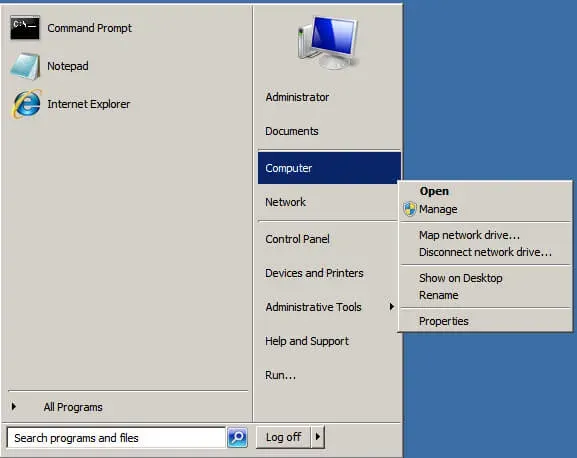
We go into the system under an account with administrator rights and go to the “Start” menu, right-click on “Computer” and select “Properties”.
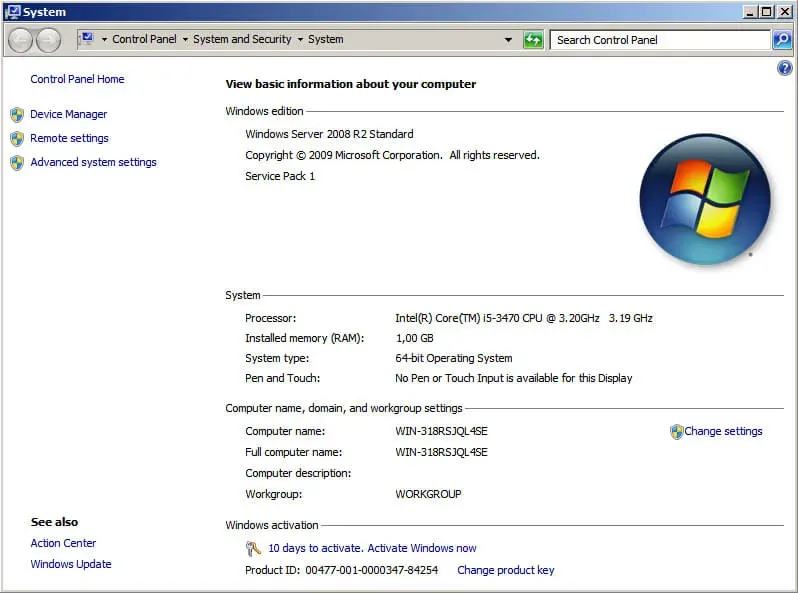
Next, in the “System” window in the “Computer name, domain, and workgroup settings” section, click on the “Change settings” button.
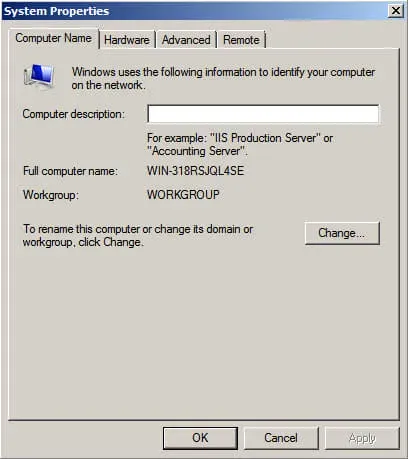
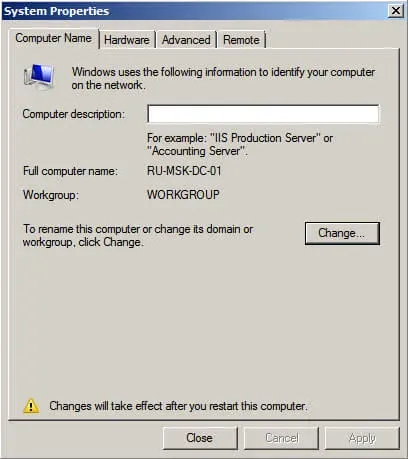
In the “System Properties” window on the “Computer Name” tab, click on the “Change” button.
I highly recommend that you think ahead about the name of the servers in your organization.
Next, specify the new server name in the “Computer Name” field and click on the “OK” button.
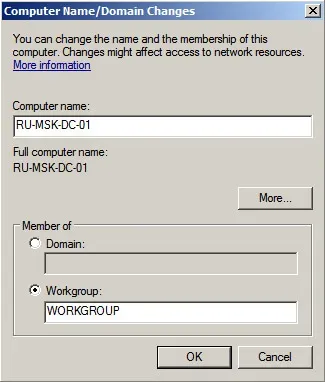
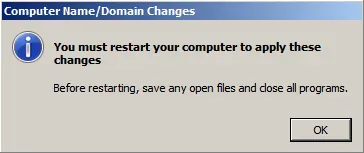
The system will warn you that you need to restart the server to apply the new settings.
Click the “OK” button.
In the “System Properties” window, click on the “Close” button.
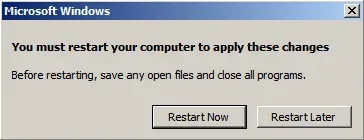
Now the system will offer to restart the server for the new settings to take effect.
Click on the “Restart Now” button.
Next, the server will start to reboot.

Now you need to register a static IP address in the network connection settings.
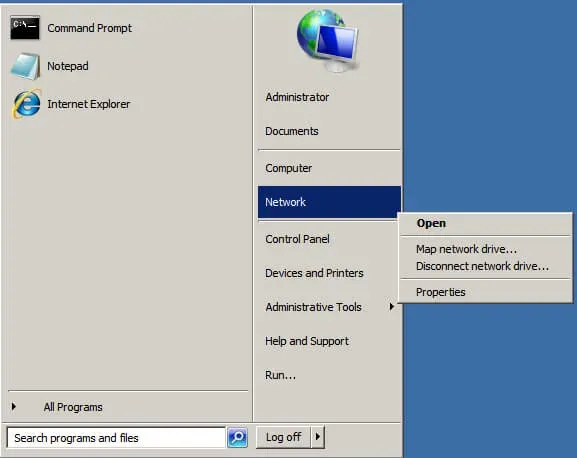
We log into the system under an account with administrator rights and go to the “Start” menu, right-click on “Network” and select “Properties”.
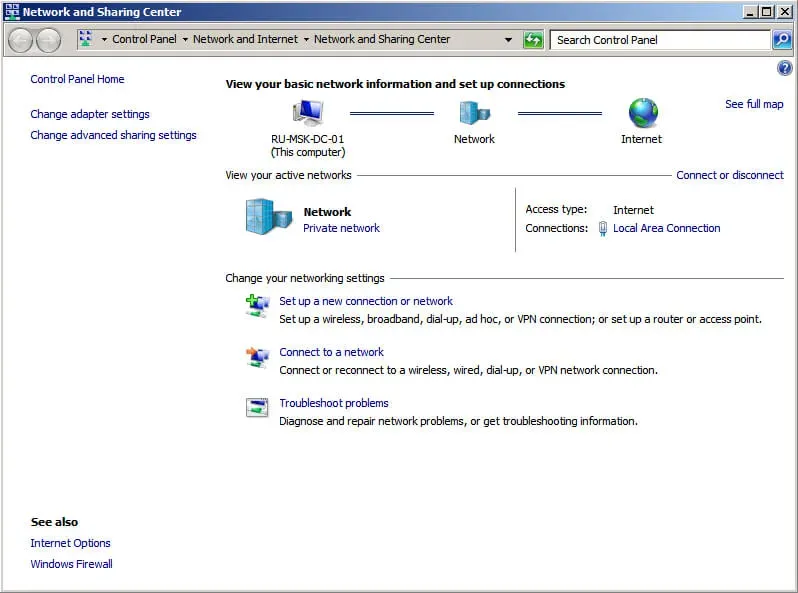
Next, in the “Network and Sharing Center” window, click on the “Change adapter settings” button.
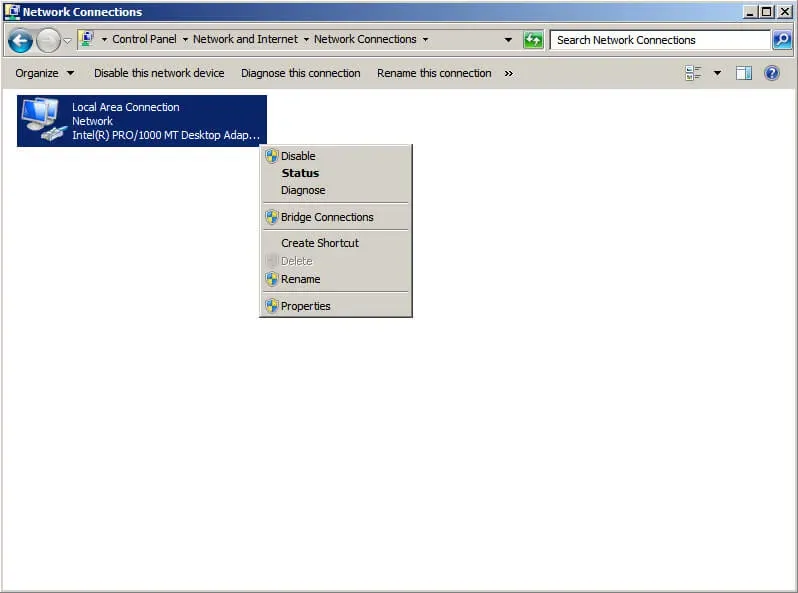
Now right-click on the “Ethernet” network connection and select “Properties”.
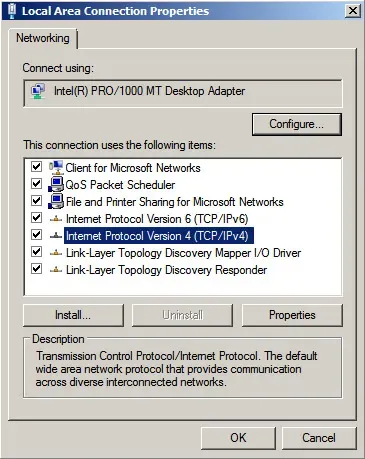
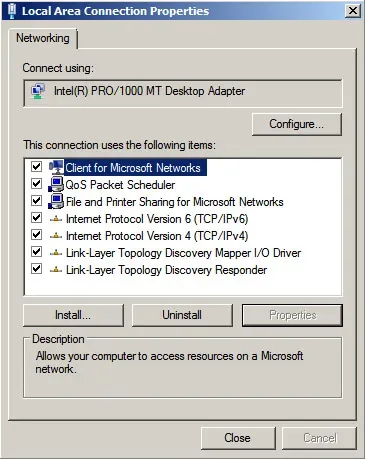
Select “Internet Protocol Version 4 (TCP / IPv4)” and click on the “Properties” button.
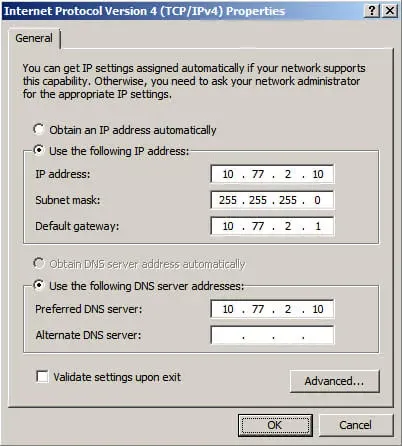
Next, select the item “Use the following IP address” and specify a free IP address, subnet mask, and gateway.
NOTEYou must understand in advance how your network works and know which IP addresses are available.
In the “Preferred DNS server” field, specify the IP address of this server, since your server will have the “DNS Server” role, which is installed together with the “Active Directory Domain Services” role.
Click on the “OK” button.
In the “Local Area Connection Properties” window, click the “Close” button.
You are now ready to install the Active Directory Domain Services role.
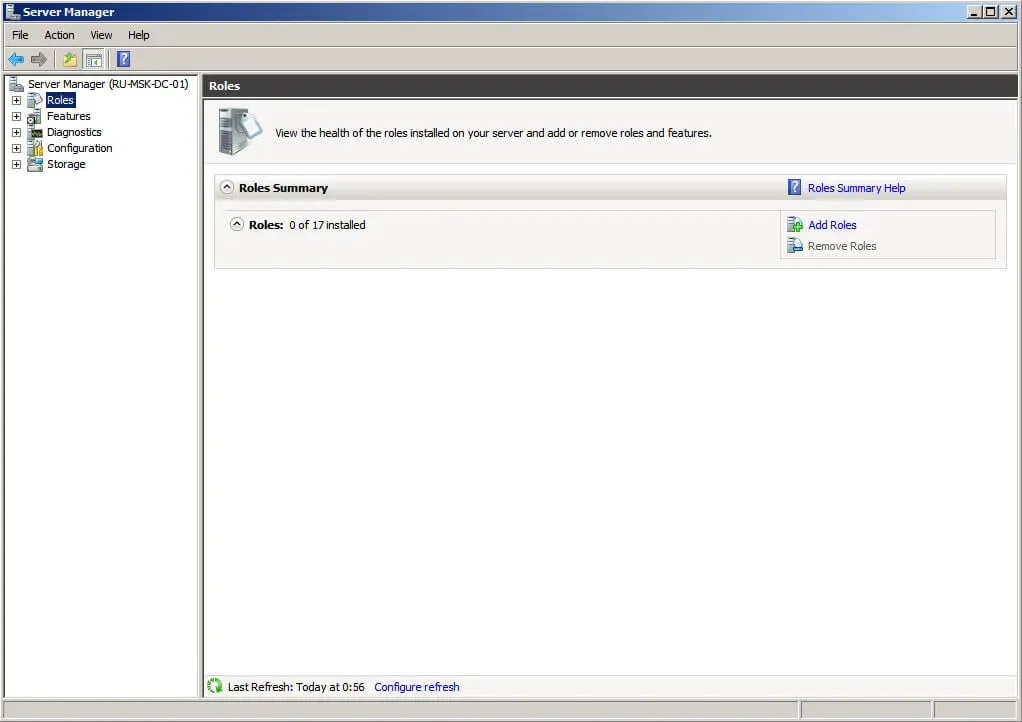
Open “Server Manager” and select “Add Roles” in the “Roles” item.
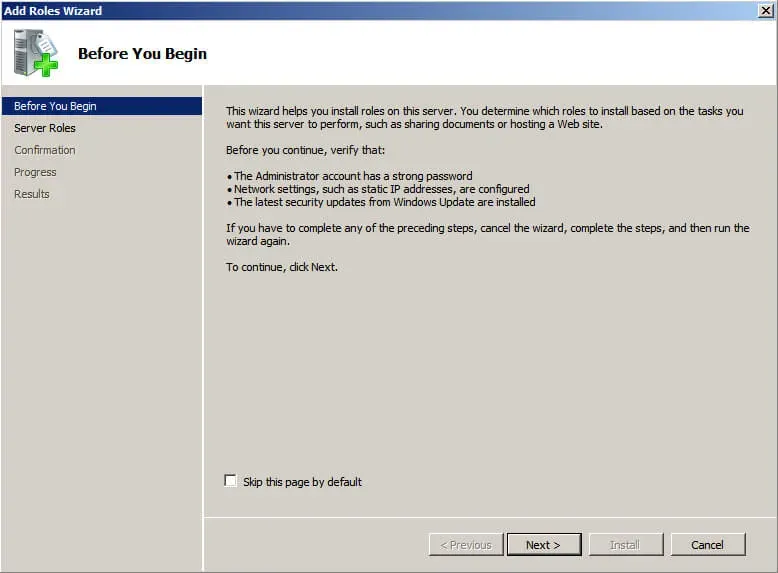
Click on the “Next” button.
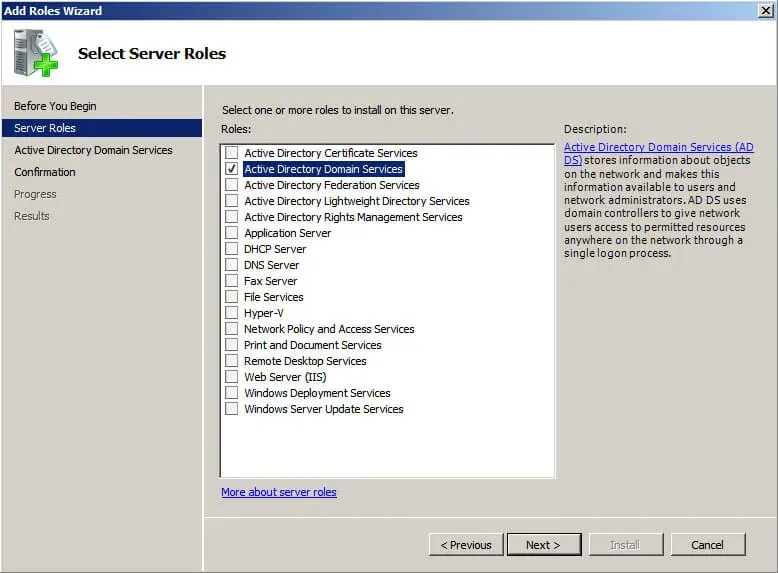
Select the “Active Directory Domain Services” role.
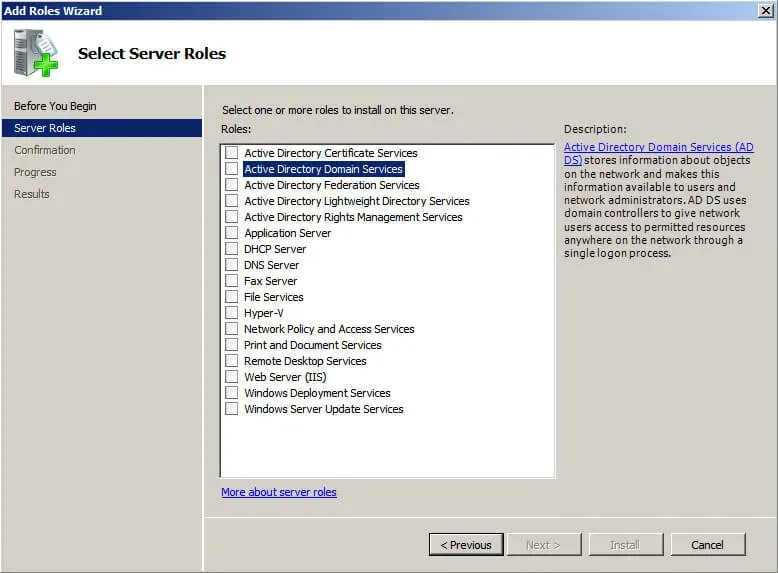
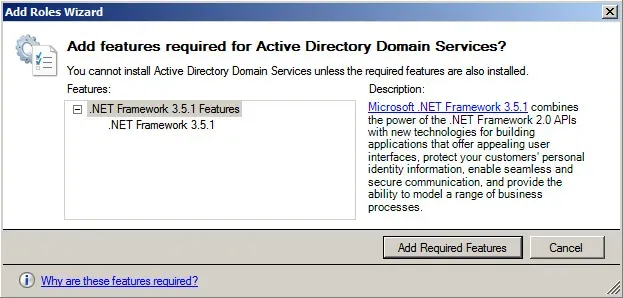
In the next step, the Role Installation Wizard will warn you that several components need to be installed to install the Active Directory Domain Services role.
Click on the “Add Required Features” button.
It is not necessary to select the DNS Server role at this point. It will be installed later.
Click on the “Next” button.
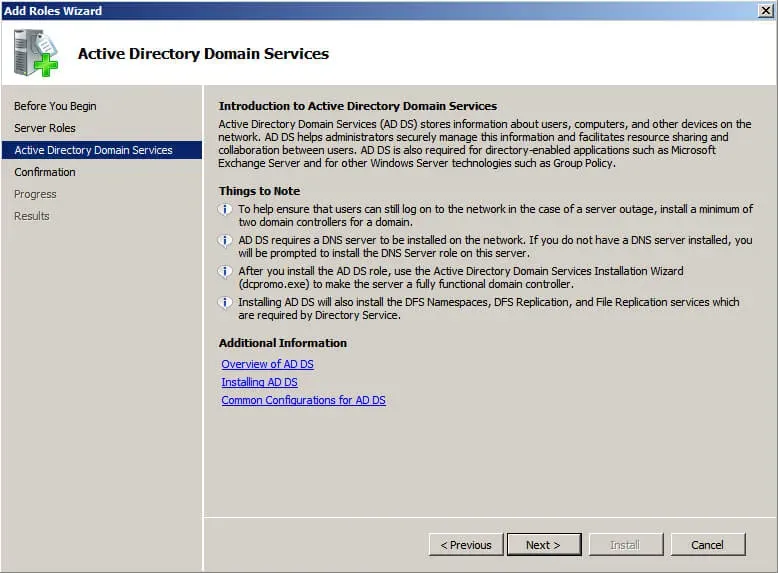
Next, the “Role Installation Wizard” invites you to familiarize yourself with additional information regarding the “Active Directory Domain Services” role.
Click on the “Next” button.
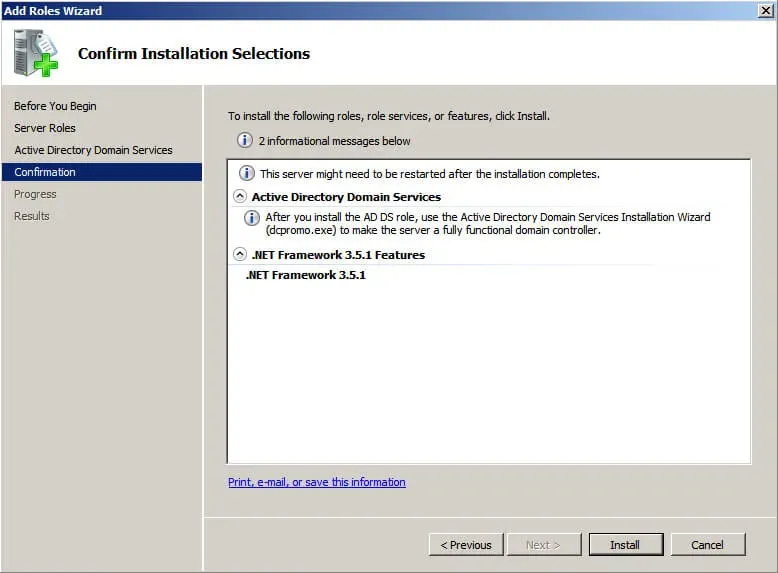
To start the installation of the selected role, click on the “Install” button.
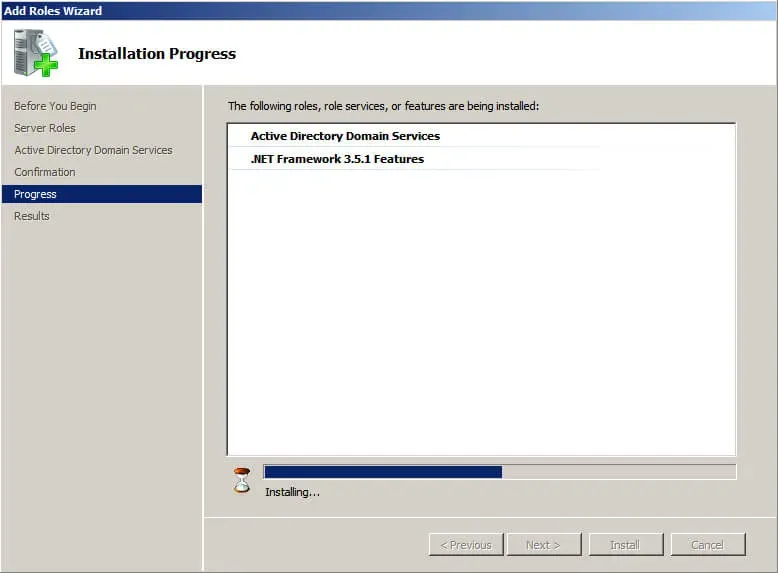
The installation of the selected role and the components required for it has begun.
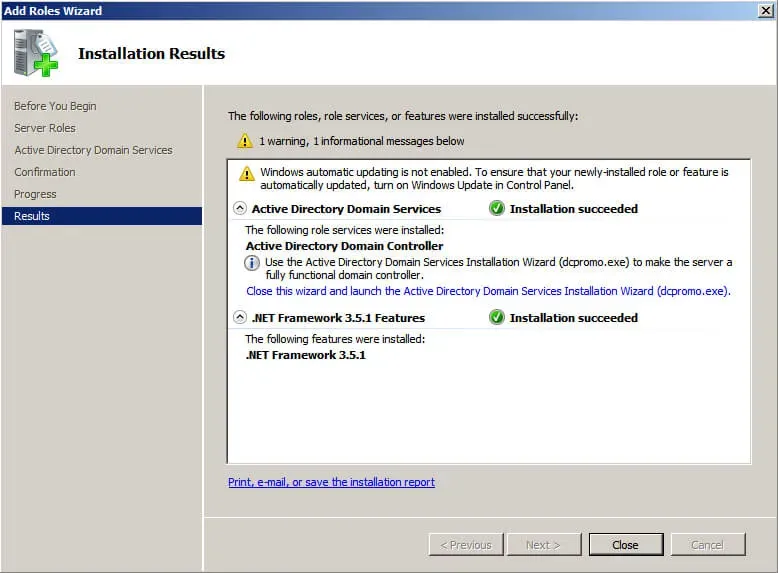
Installation of the Active Directory Domain Services role is now complete.
Now click on the button “Close this wizard and launch the Active Directory Domain Services Installation Wizard (dcpromo.exe)” to promote the role of your server to the domain controller level.
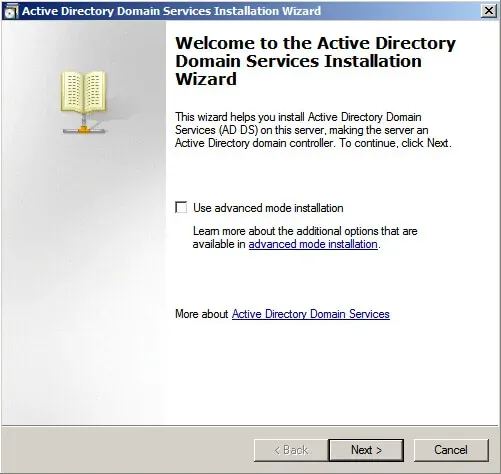
I highly recommend that you think ahead about which domain name you will use when adding a new forest.
Click on the “Next” button.
Further, it is proposed to read additional information regarding the functionality of Windows Server 2008 R2.
Click on the “Next” button.
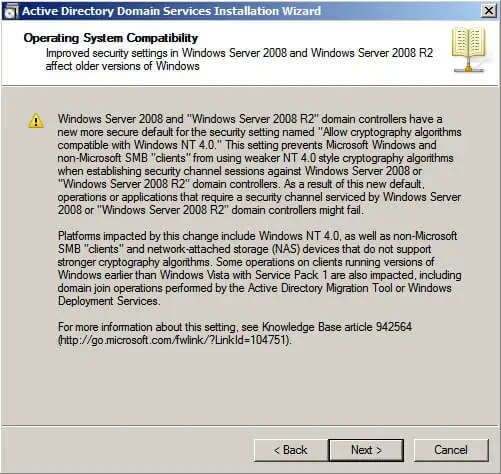
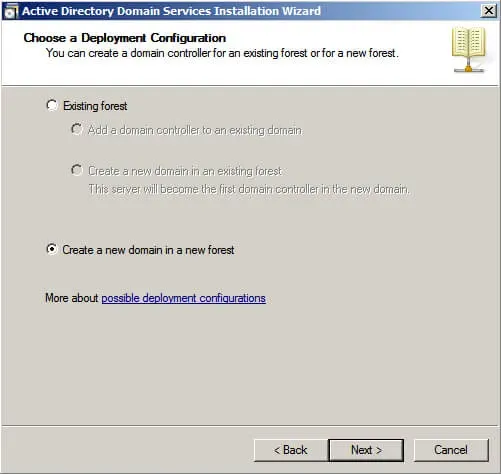
This tutorial is about adding a new forest, so in the “Active Directory Domain Services Installation Wizard” window, select “Create a new domain in a new forest”.
Click on the “Next” button.
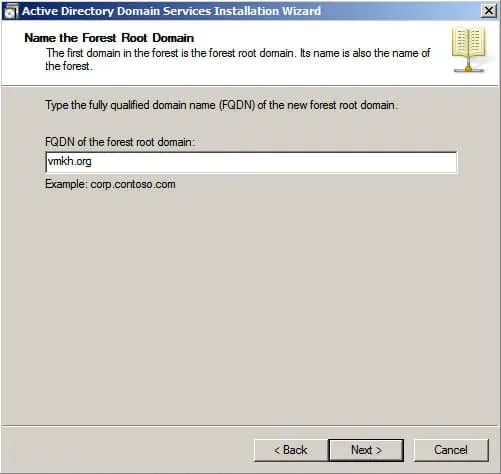
In the “FQDN of the new forest root domain” field, specify the desired name for the root domain.
Click on the “Next” button.
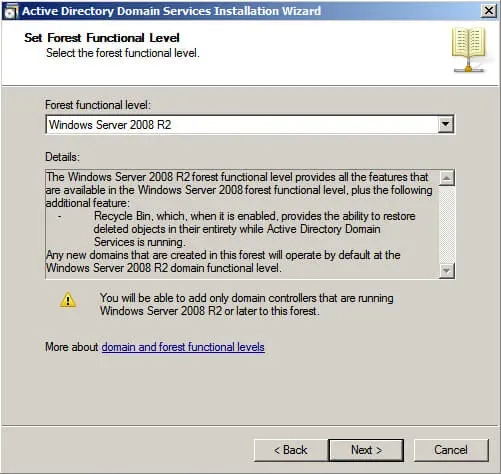
The next step is to select the functional level of the new forest and root domain.
If you are adding a new forest and plan to continue using servers based on the Windows Server 2008 R2 operating system, then you must select “Windows Server 2008 R2”.
Click on the “Next” button.
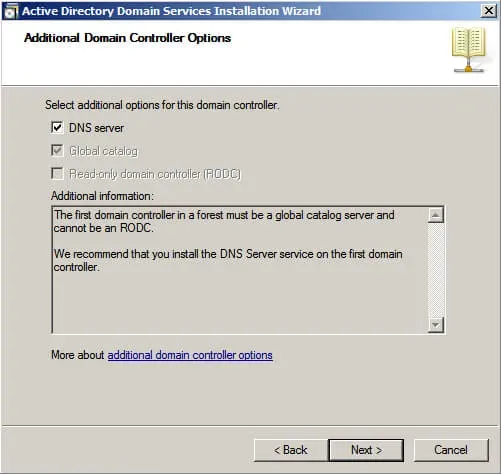
For the domain controller to work correctly, the “DNS server” role must be installed.
Select “DNS server” and click on the “Next” button.
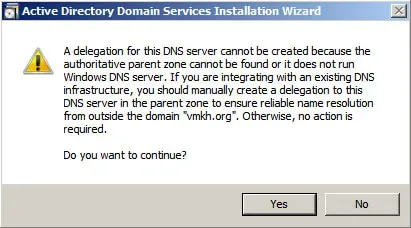
At this point, the AD DS Configuration Wizard will warn you that a delegation for this DNS server cannot be created.
Click on the “Yes” button.
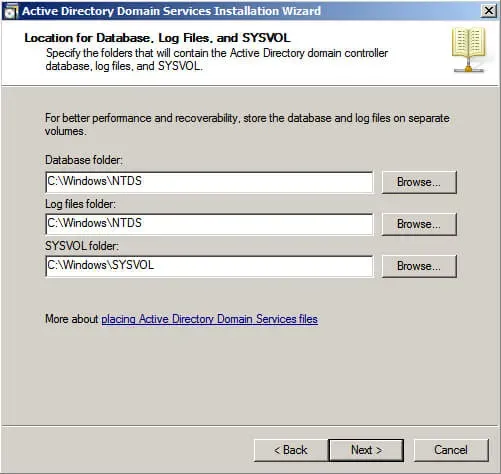
You can now change the paths for the AD DS database directories, log files and the SYSVOL folder. I recommend leaving these default values.
Click on the “Next” button.
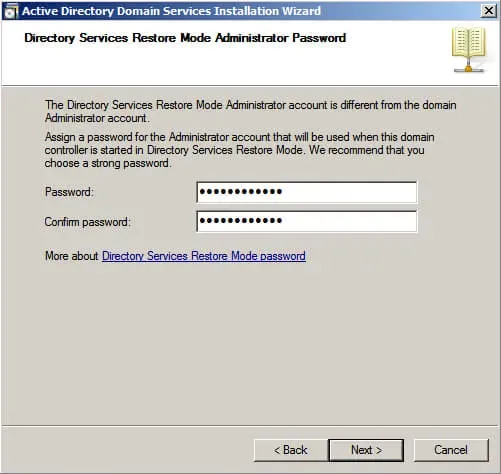
Specify the password for DSRM (Directory Service Restore Mode) and click on the “Next” button.
The next step displays a summary of the server configuration.
Click on the “Next” button.
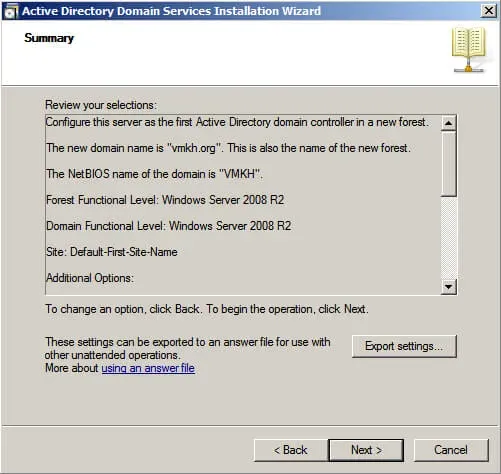
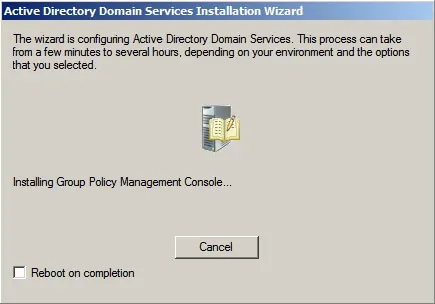
The process of promoting the server to the domain controller has begun.
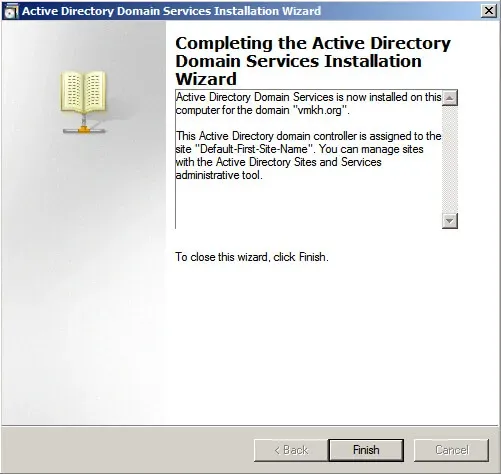
The process of promoting the server to the domain controller is complete.
Click on the “Finish” button.
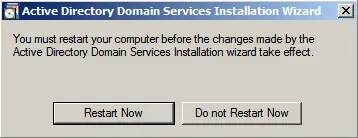
Now the system will offer to restart the server for the new settings to take effect.
Click on the “Restart Now” button.
Next, the server will start to reboot.
Server promotion to a domain controller is complete.
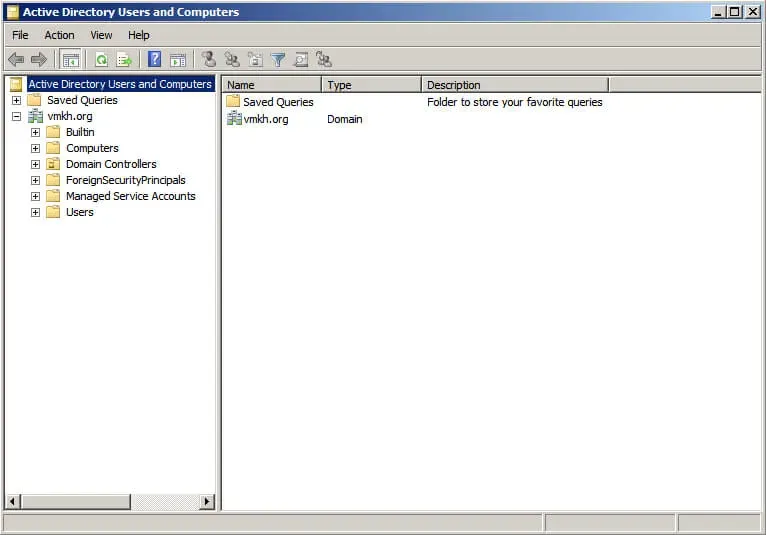
You can use the Active Directory Users and Computers snap-in to manage users, groups, and other Active Directory objects.
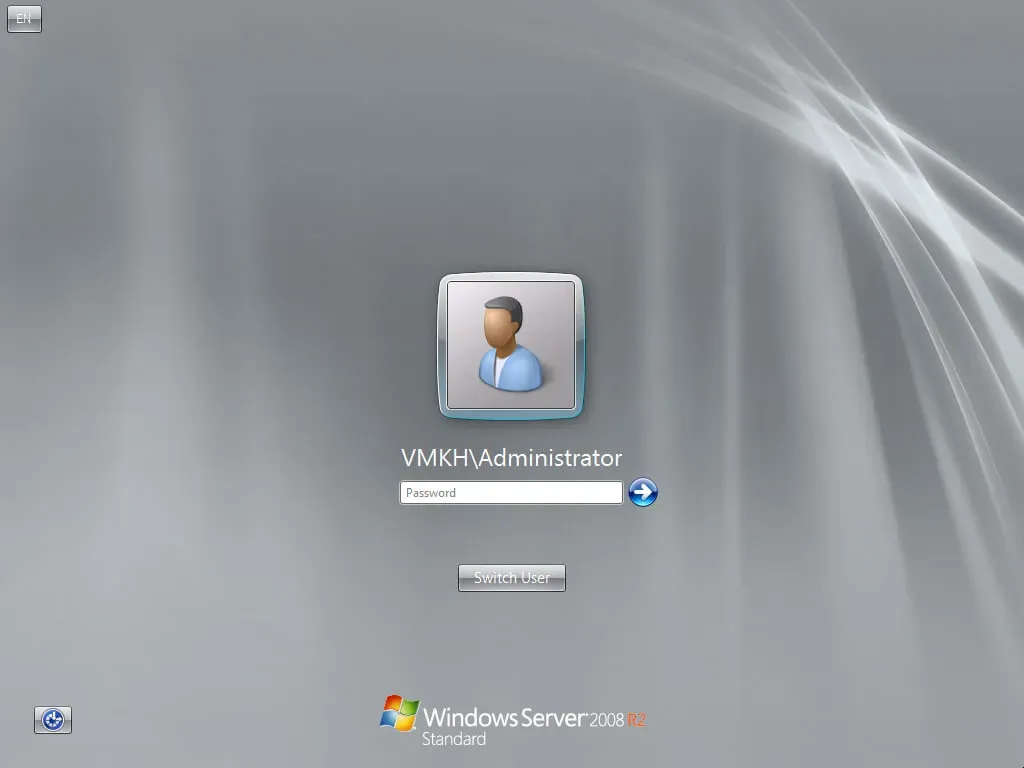
We go into the system under an account with domain administrator rights.
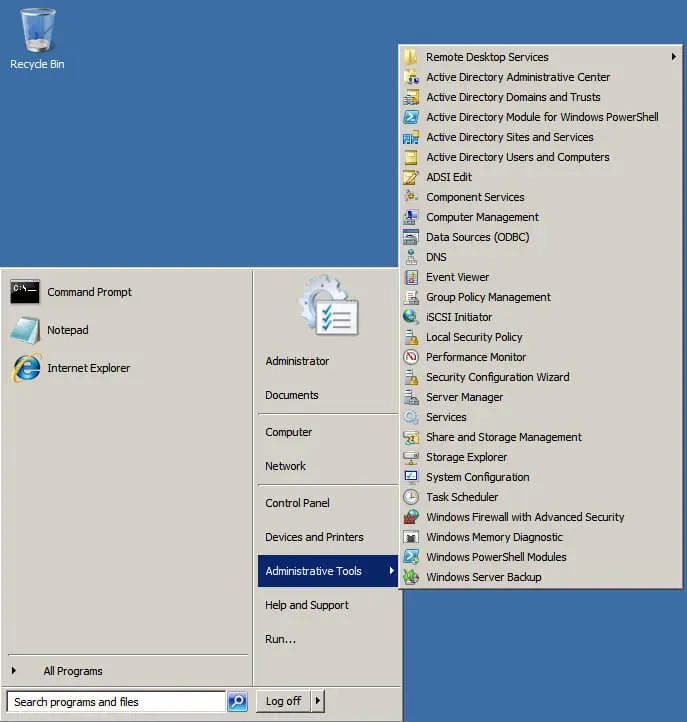
Go to the “Start” menu and select the “Administrative Tools” item, then select “Active Directory Users and Computers”.
The Active Directory Users and Computers snap-in opens.