Install Exchange Server 2010
By Vladimir Mikhalev · Docker Captain · CNCF Ambassador · IBM Champion
This article is for those looking for a detailed and straightforward guide on installing Exchange Server 2010.
NOTEFor details on installing Exchange Server 2013, read my guide: Install Exchange Server 2013.
WARNINGThis guide walks you through install Exchange Server 2010 without implementing fault tolerance. This will install all the core Exchange Server roles on one server. The Unified Messaging and Edge Transport roles will not be used.
IMPORTANTWe will consider the case when you already have two servers with the Windows Server 2008 R2 operating system installed on them.
For details on installing Windows Server 2008 R2, read my guide: Install Windows Server 2008 R2.
IMPORTANTIn addition, one of the servers must have the Active Directory Domain Services role installed, and the second server must be domain joined.
To learn how to install Active Directory Domain Services on Windows Server 2008 R2, read: Install Active Directory Domain Services on Windows Server 2008 R2.
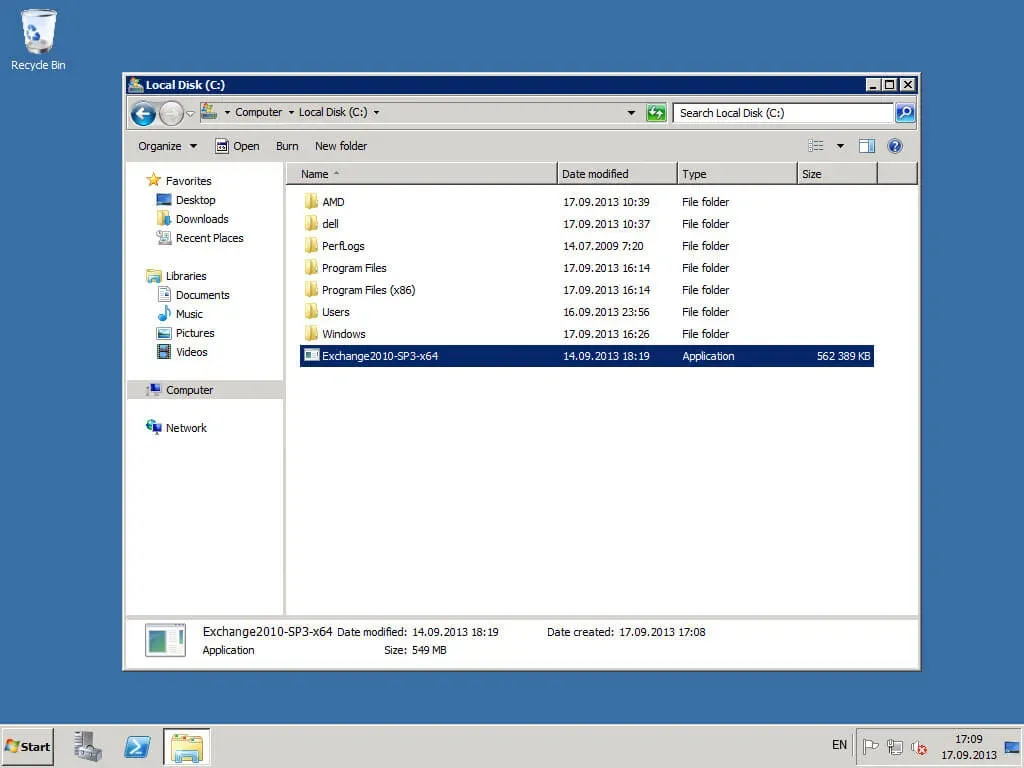
Copy the Exchange Server 2010 distribution to a domain controller.
Launch “Exchange2010-SP3-x64”.
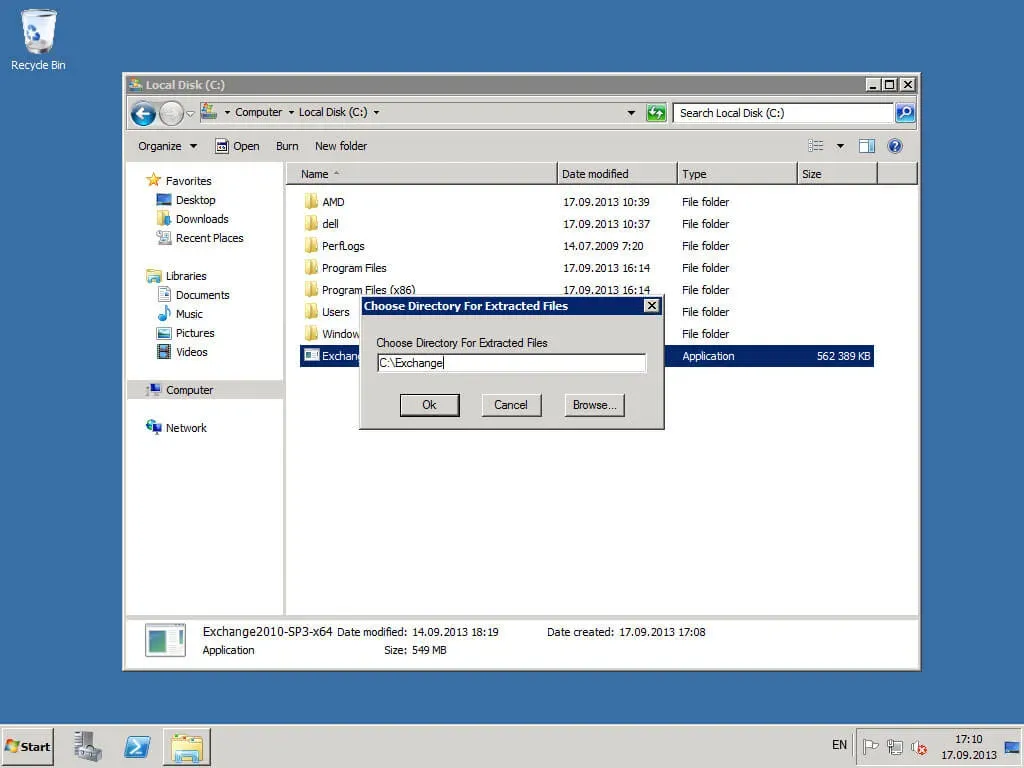
We indicate in which folder you want to unpack the Exchange Server 2010 installation files.
Click the “OK” button.
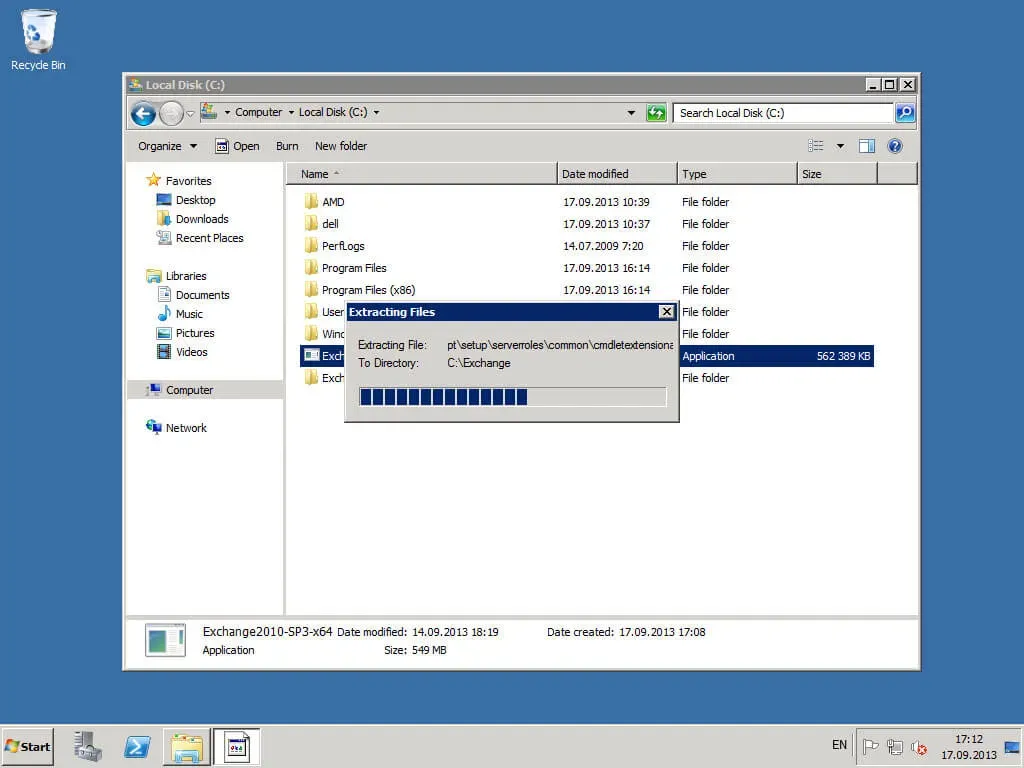
The process of unpacking Exchange Server 2010 to the specified folder has begun.
The unpacking of Exchange Server 2010 is now complete.
Click the “OK” button.
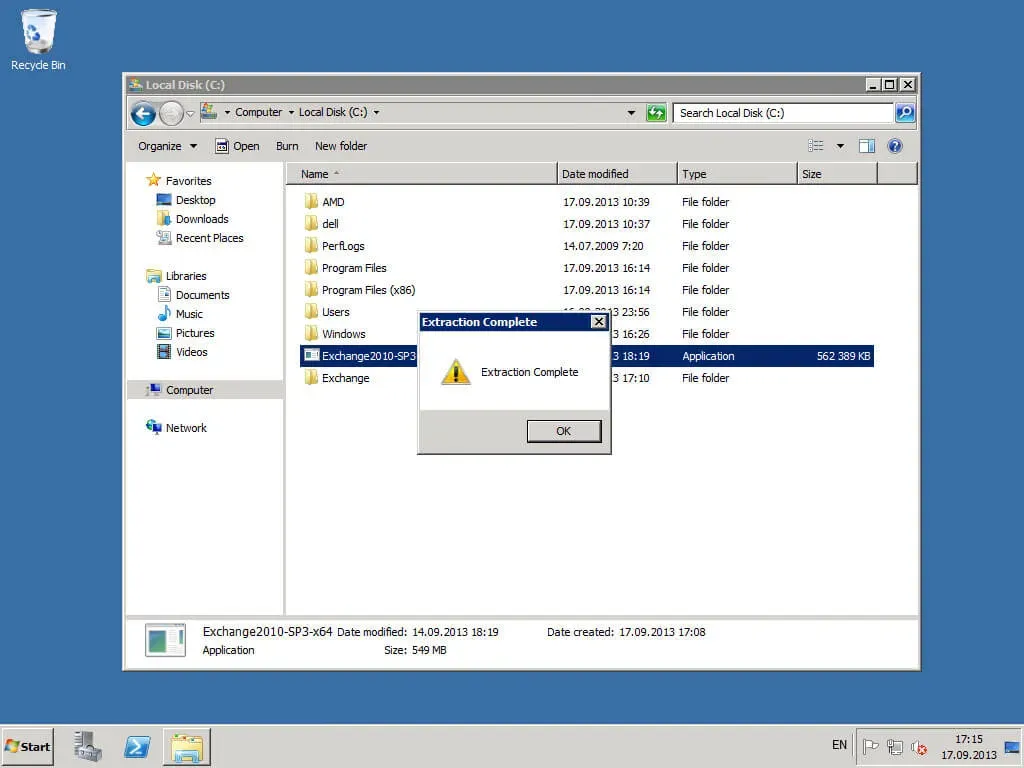
Now you need to prepare your Active Directory schema.
NOTEThe commands below must be run on a domain controller with the “Schema Master” role and must have the appropriate rights in the domain.
Click “Start”, select “All Programs”, then “Accessories”, then right-click on “Command Prompt” and select “Run as administrator”.
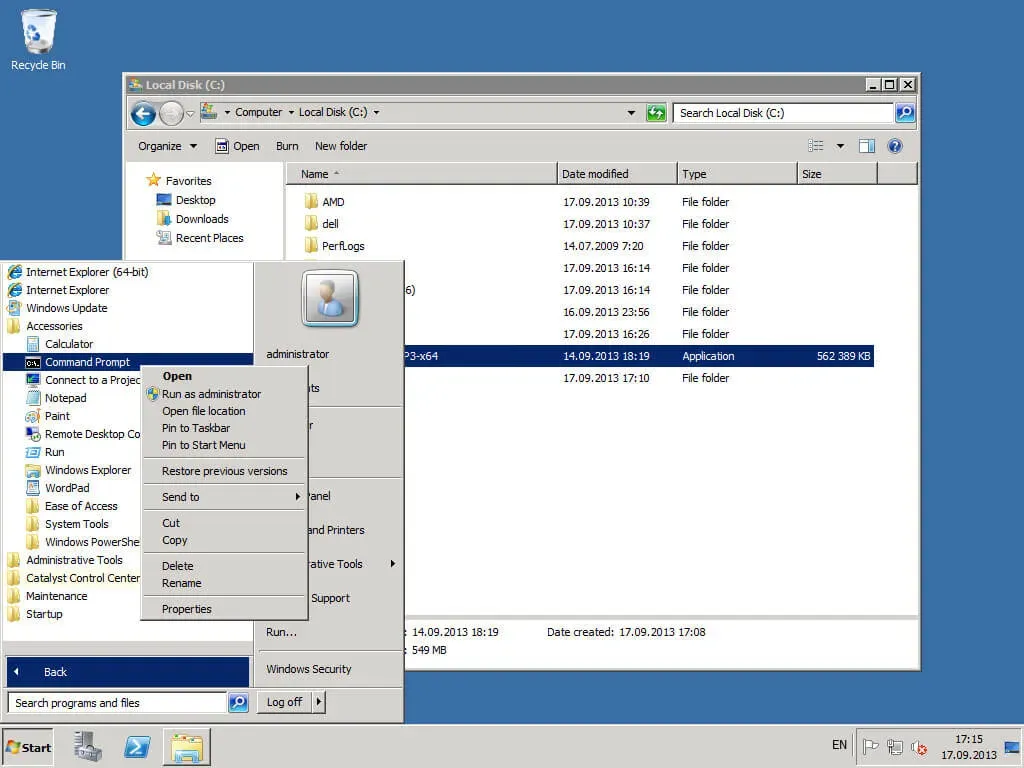
Go to the “C:\Exchange” folder using the command:
cd C:\Exchange 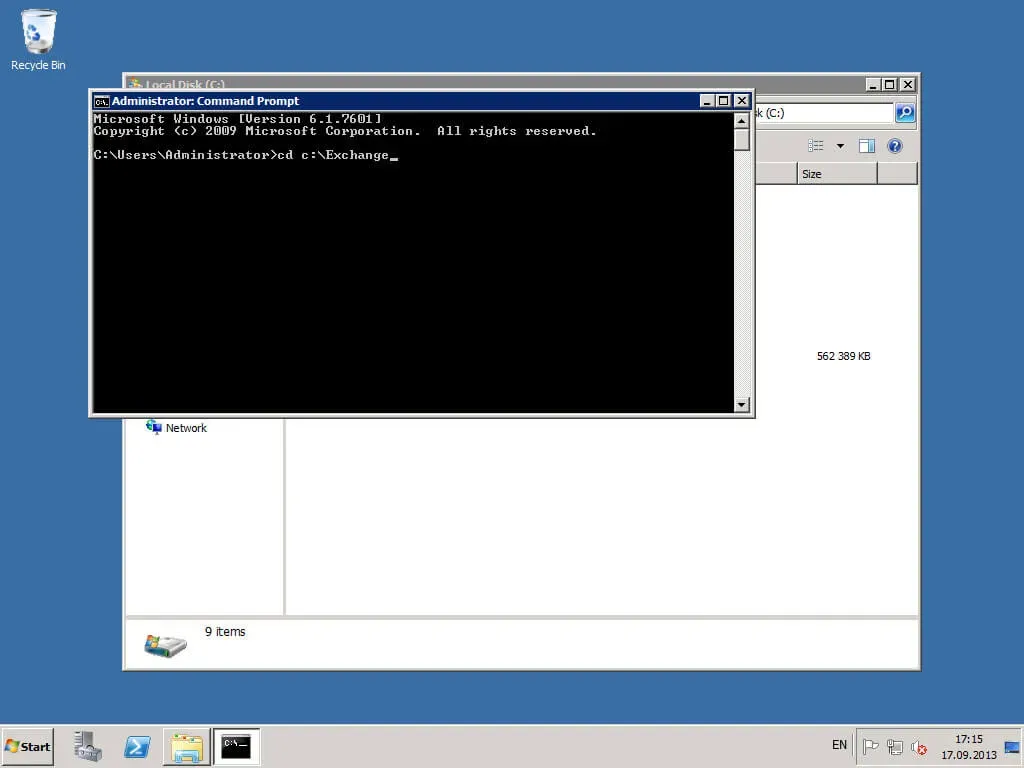
Let’s prepare the Active Directory schema to work with Exchange Server using the command:
Setup.com /PrepareSchema 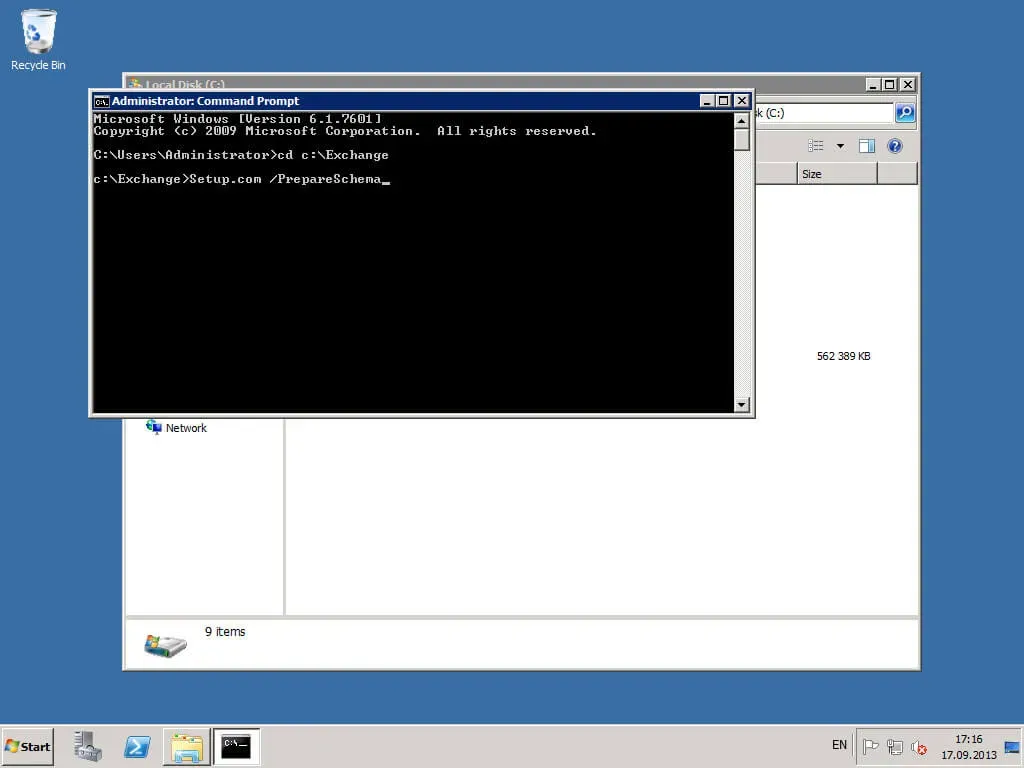
The process of preparing the Active Directory schema has begun.
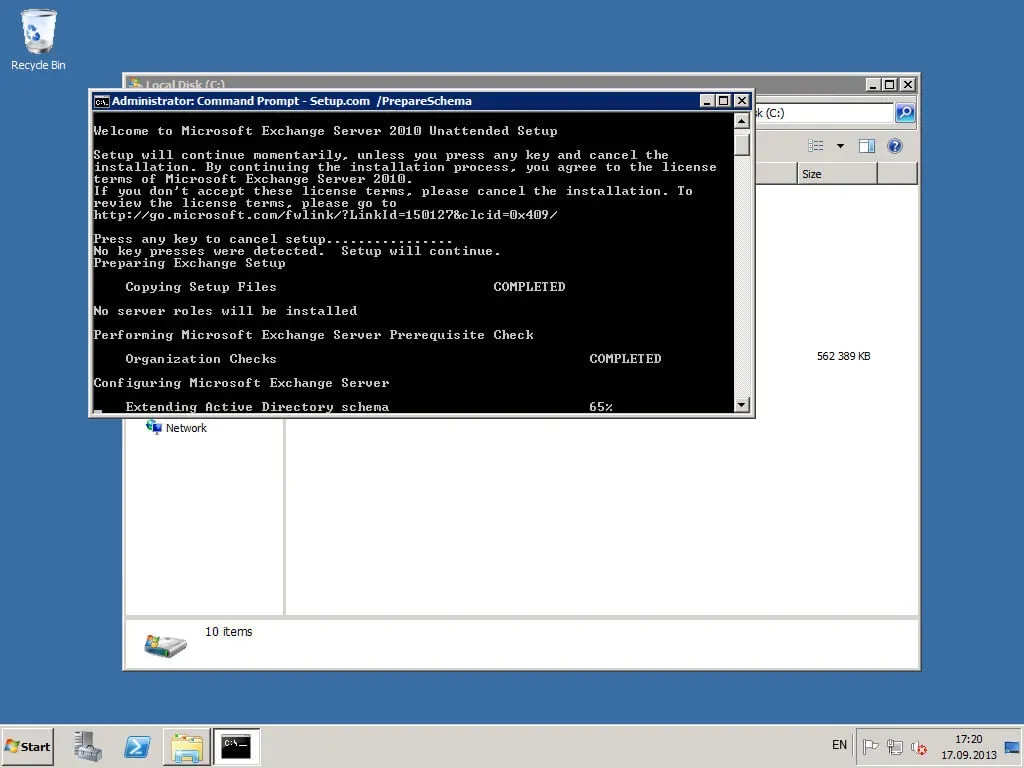
The Active Directory schema preparation process is complete.
Now you need to prepare containers, objects, and other Active Directory components and create the Exchange organization.
NOTEAfter “OrganizationName” you must indicate the name of your organization in English.
Let’s prepare containers, objects, and other Active Directory components, as well as create an Exchange organization, using the command:
Setup.com /PrepareAd /OrganizationName: "VMKH"NOTEThis manual uses the organization’s name “VMKH”.
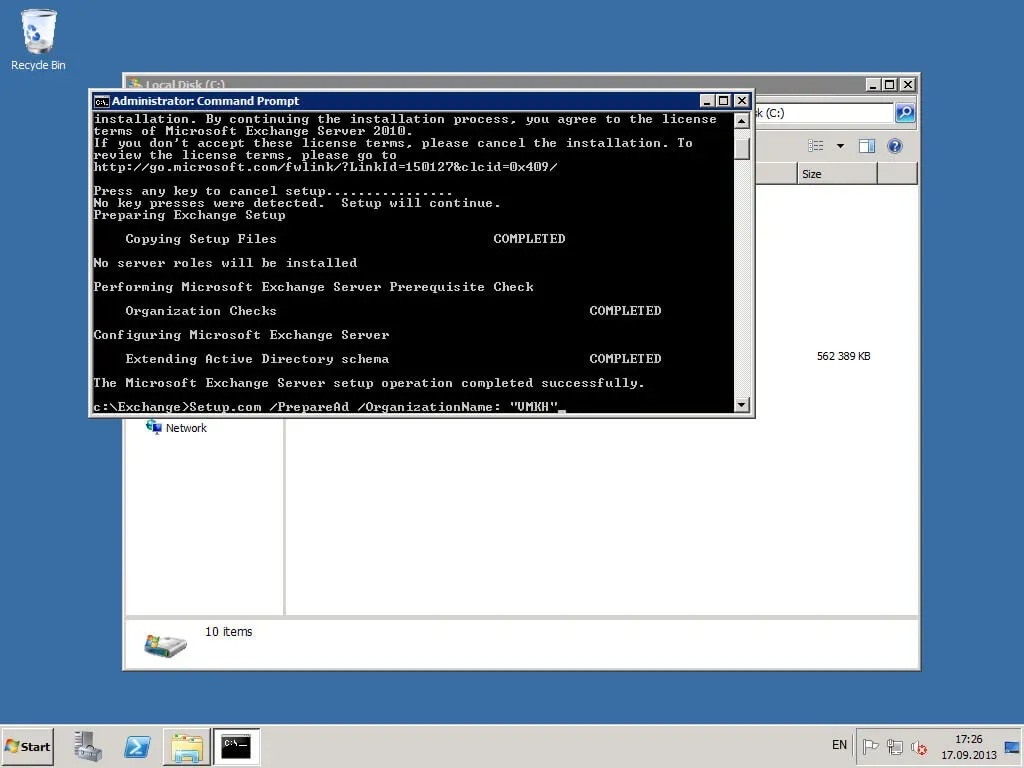
The process of preparing Active Directory and creating the Exchange organization has begun.
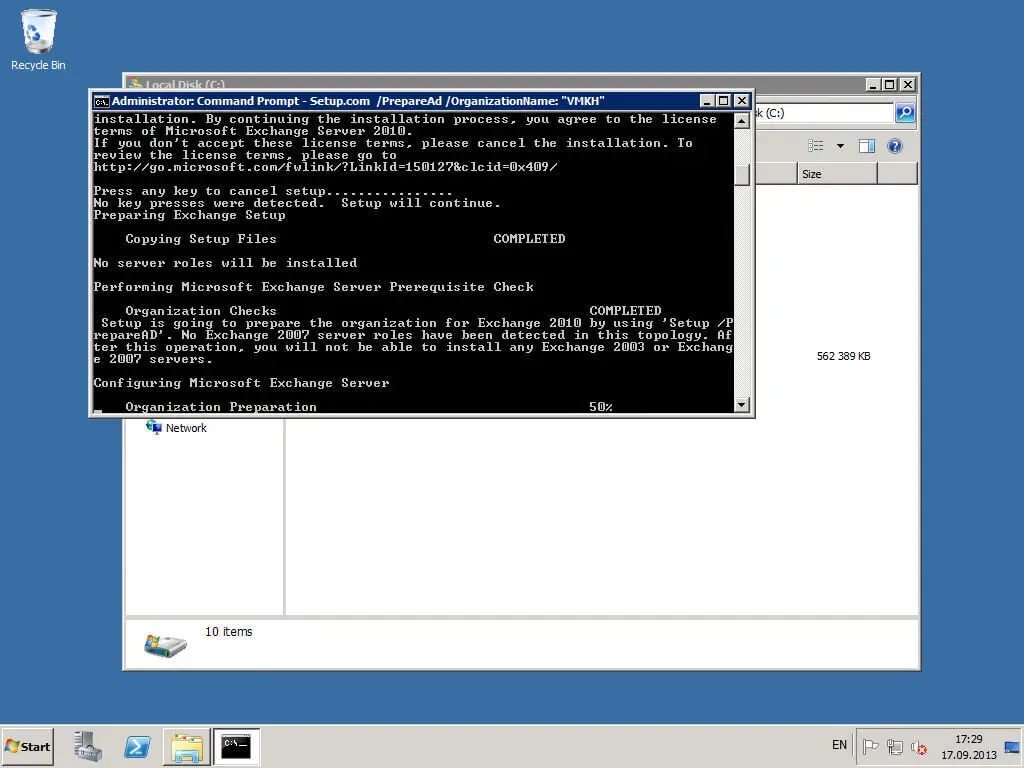
The process of preparing Active Directory and creating the Exchange organization is now complete.
NOTEThe domain controller will no longer be used in this tutorial. All other steps will be performed on the second server on which you plan to install Exchange Server 2010.
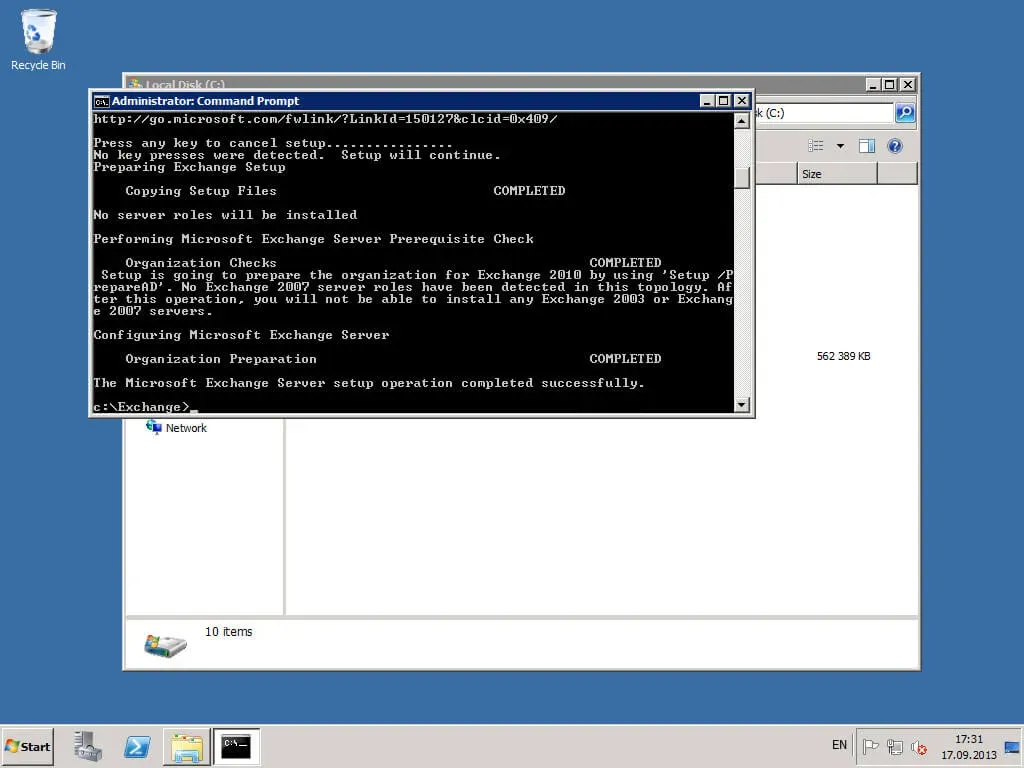
On the future Exchange server, go to the system under an account that consists of the following groups: Enterprise Admins, Schema Admins, and Domain Admins.
Let’s copy the distribution kit of Exchange Server 2010 to the future Exchange server.
We launch “Exchange2010-SP3-x64”.
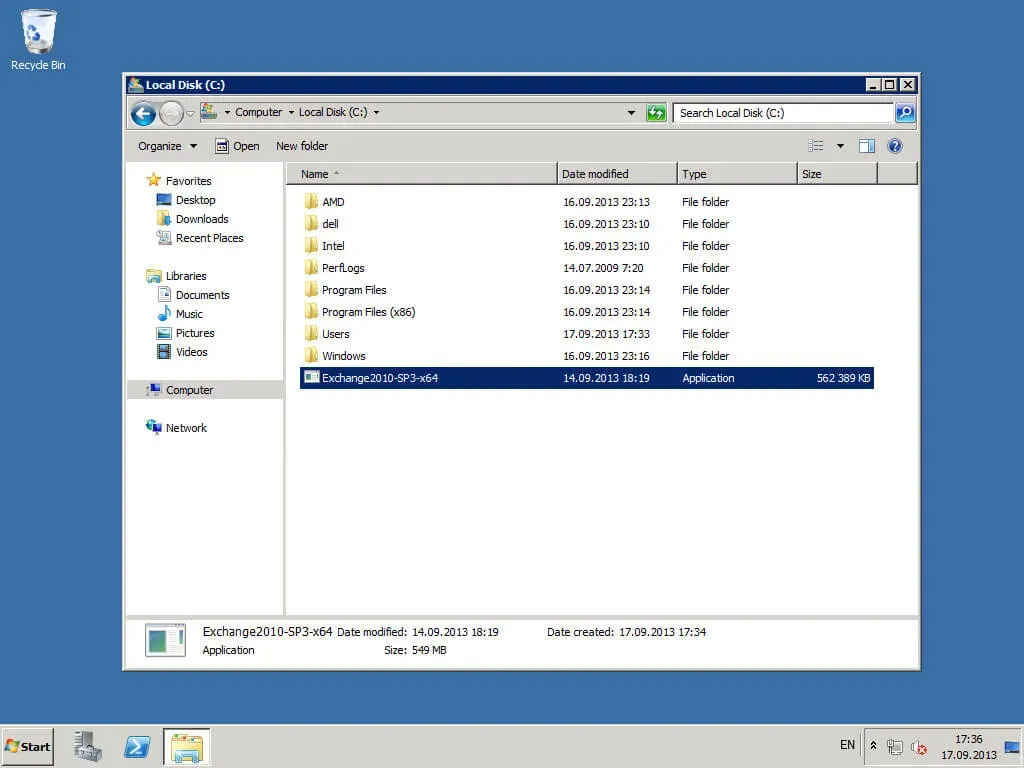
We indicate in which folder you want to unpack the Exchange Server 2010 installation files.
Click the “OK” button.
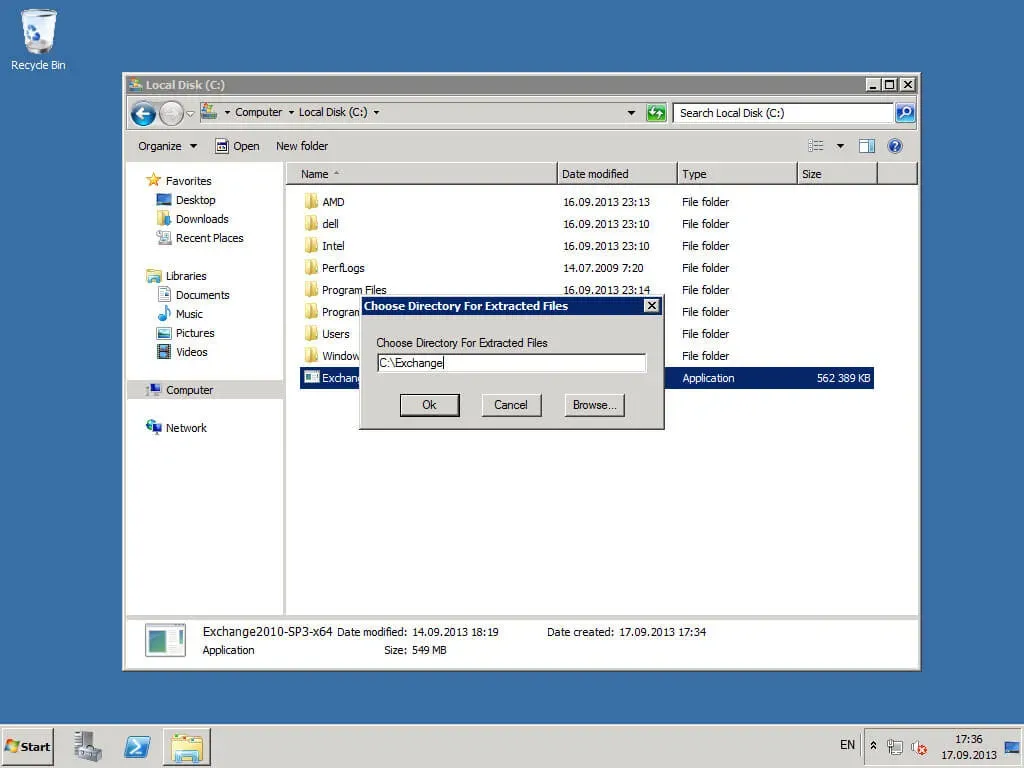
The process of unpacking Exchange Server 2010 to the specified folder has begun.
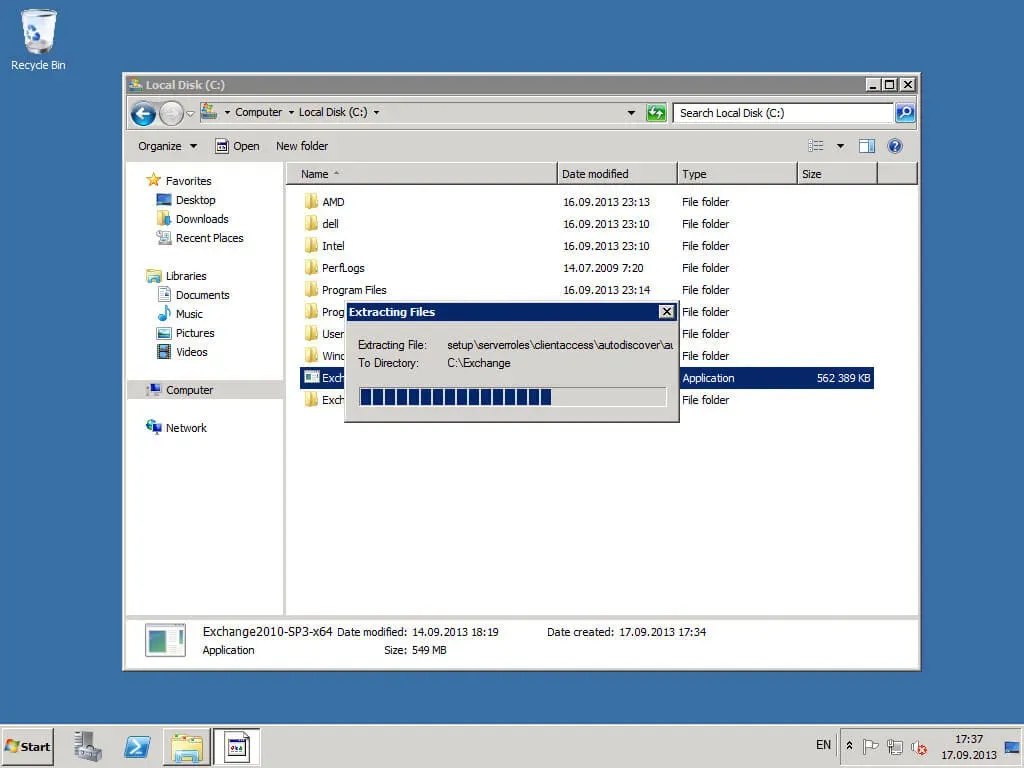
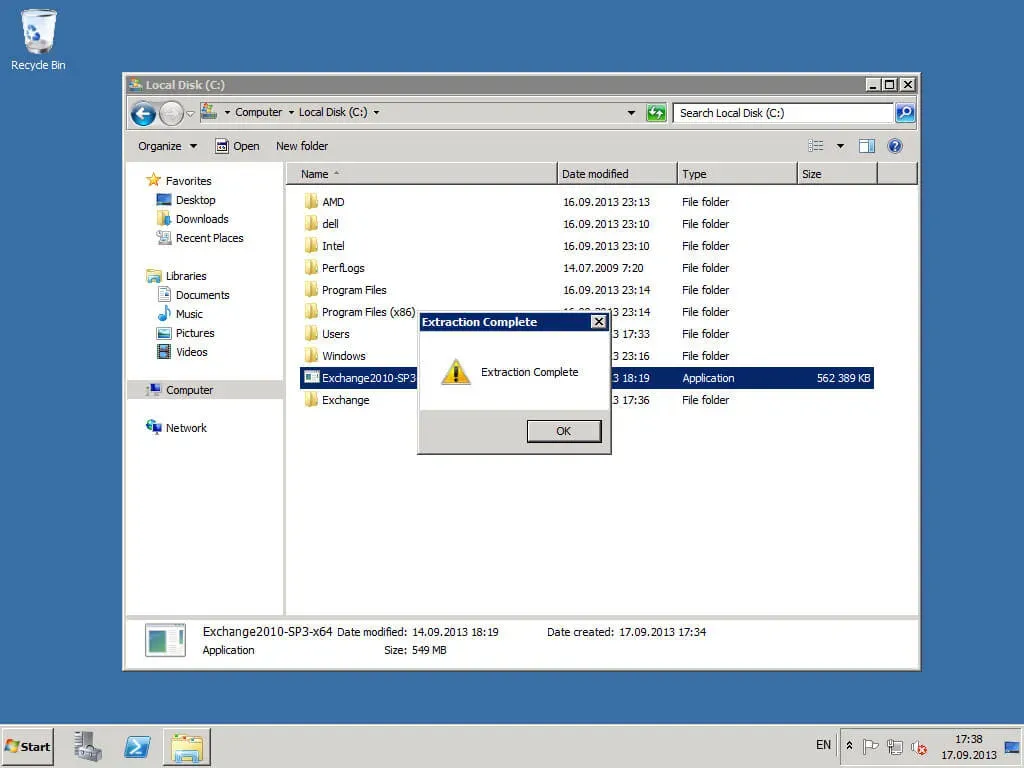
The unpacking of Exchange Server 2010 is now complete.
Click the “OK” button.
Now you need to install additional components that are required for the Exchange server to work.
On the “Taskbar” select “Windows PowerShell” and click “Run as administrator”.
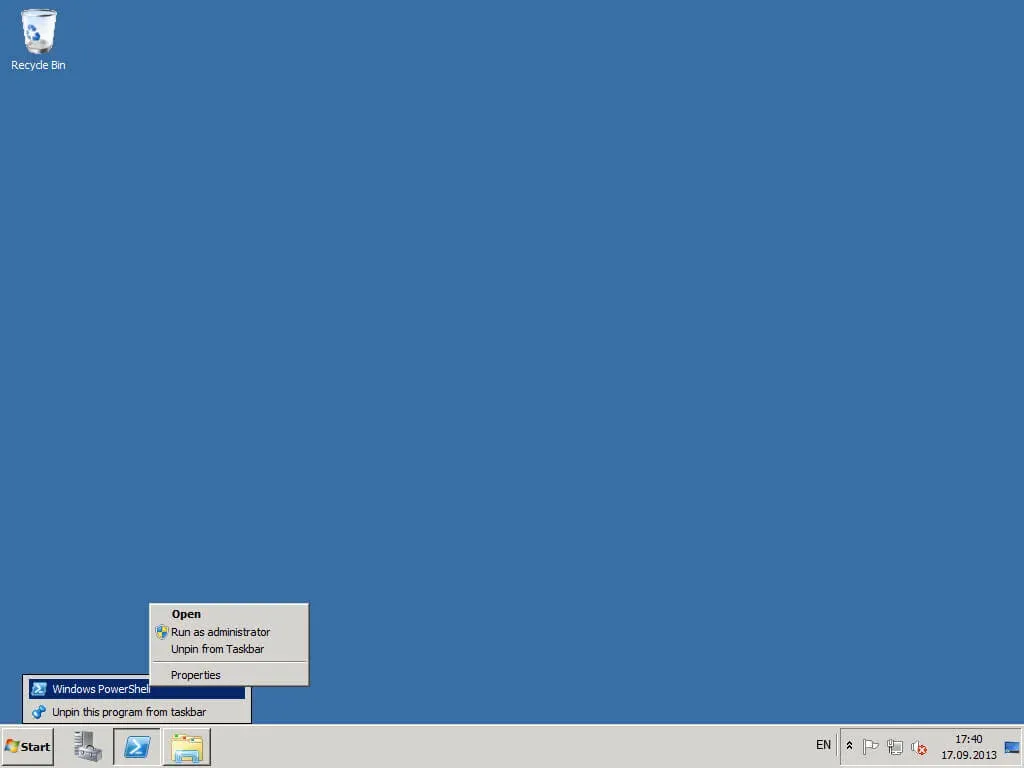
Import the “ServerManager” module using the command:
Import-Module ServerManager 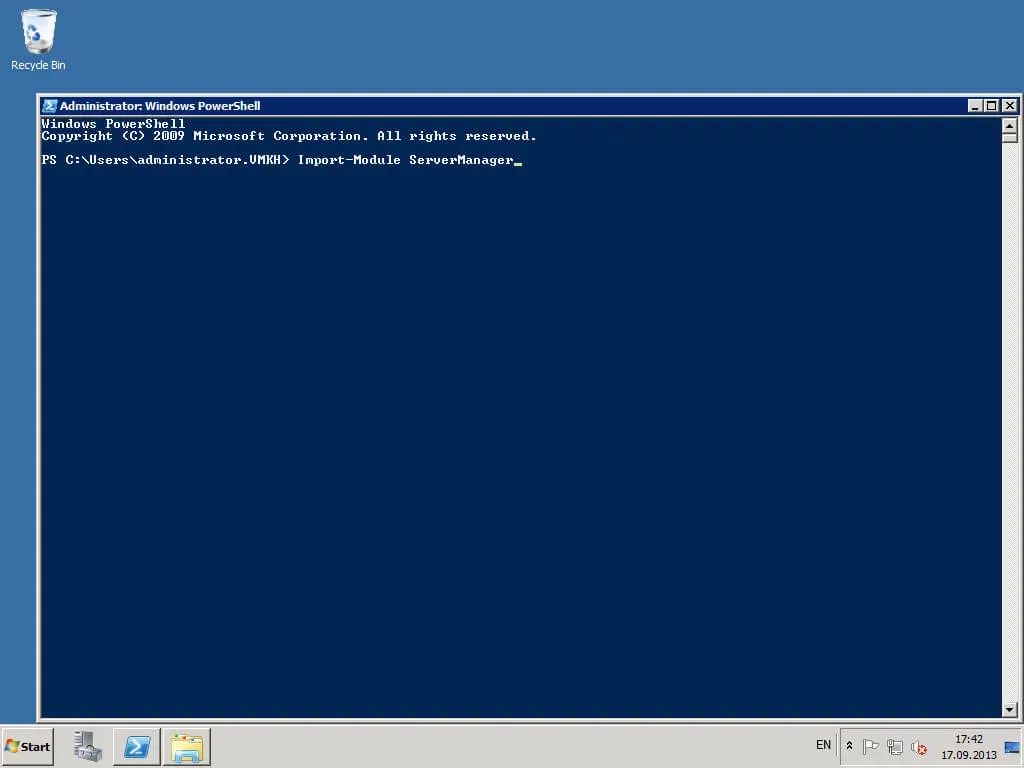
Install the additional components required for the Exchange server to work using the command:
Add-WindowsFeature NET-Framework,RSAT-ADDS,Web-Server,Web-Basic-Auth,Web-Windows-Auth,Web-Metabase,Web-Net-Ext,Web-Lgcy-Mgmt-Console,WAS-Process-Model,RSAT-Web-Server,Web-ISAPI-Ext,Web-Digest-Auth,Web-Dyn-Compression,NET-HTTP-Activation,Web-Asp-Net,Web-Client-Auth,Web-Dir-Browsing,Web-Http-Errors,Web-Http-Logging,Web-Http-Redirect,Web-Http-Tracing,Web-ISAPI-Filter,Web-Request-Monitor,Web-Static-Content,Web-WMI,RPC-Over-HTTP-Proxy -Restart 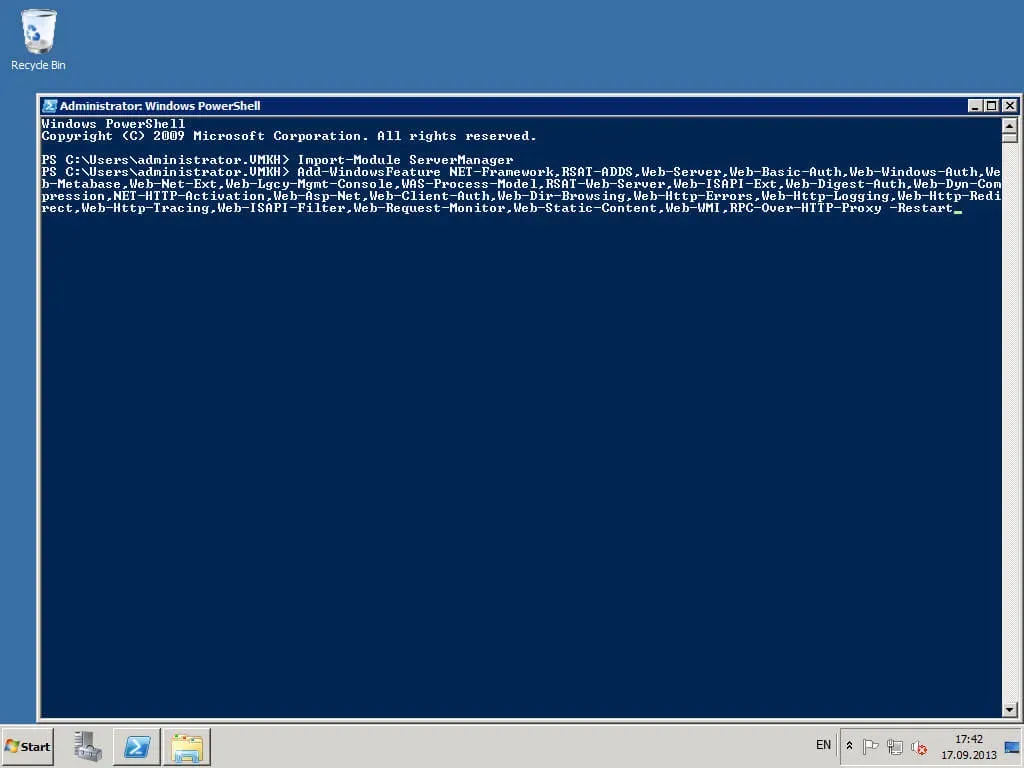
The process of installing the necessary components has begun.
After completing the installation of the components, the server will automatically reboot.
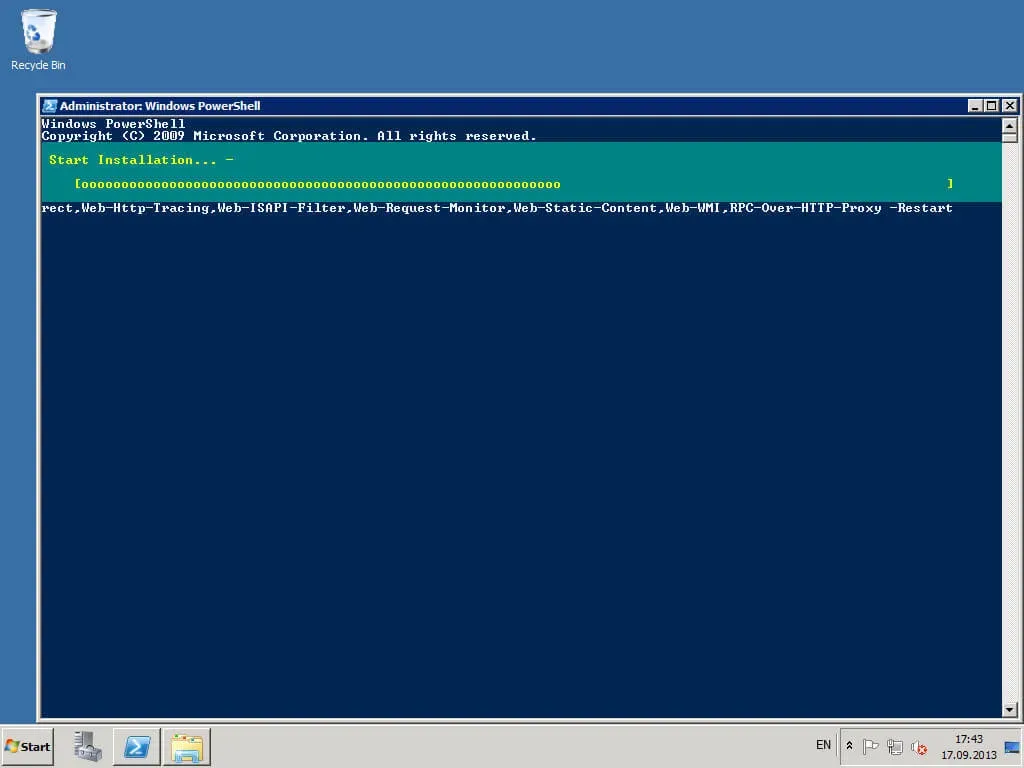
The installation of the prerequisites is complete.
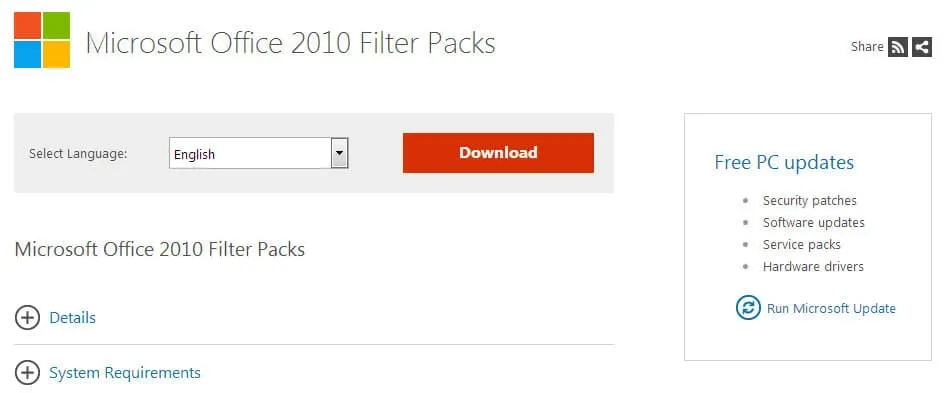
Now you need to install Microsoft Office 2010 Filter Pack.
We go to the site and click the “Download” button.
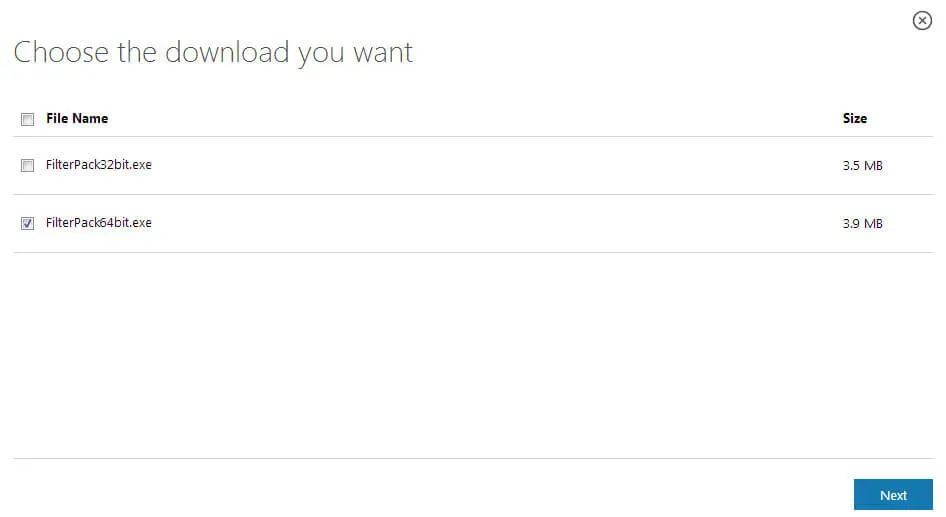
Next, select “FilterPack64bit.exe” and click the “Next” button.
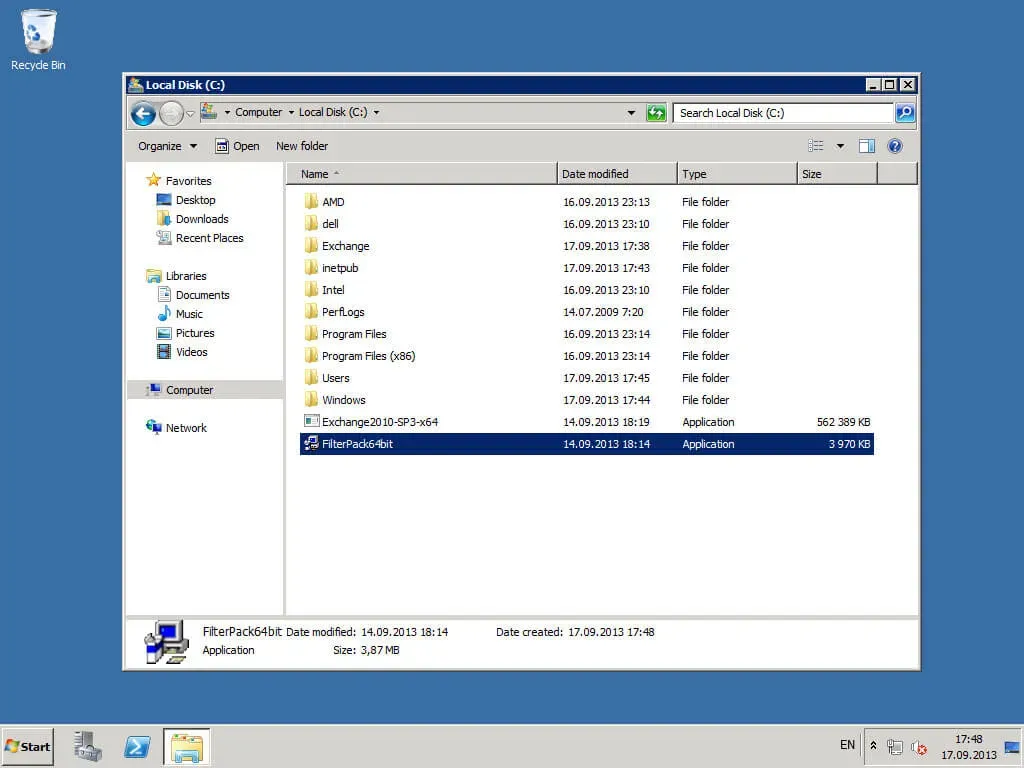
We copy the Microsoft Office 2010 Filter Pack distribution kit to the future Exchange Server.
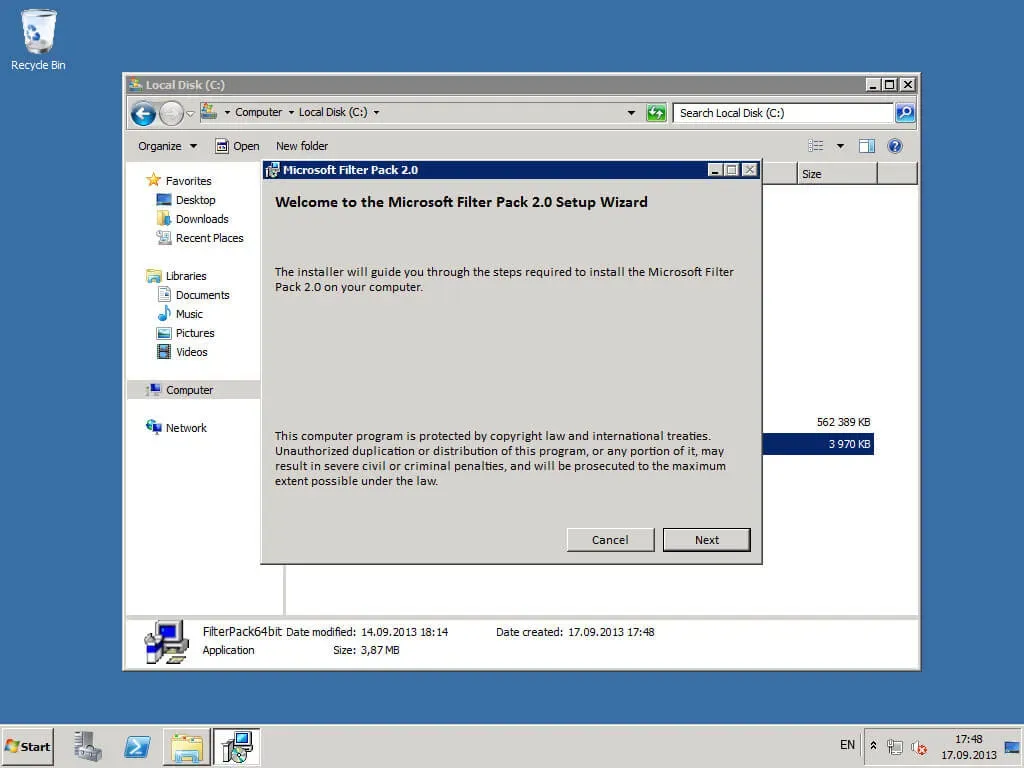
Run “FilterPack64bit.exe”.
Next, the “Microsoft Office 2010 Filter Pack Installation Wizard” will open.
Click the “Next” button.
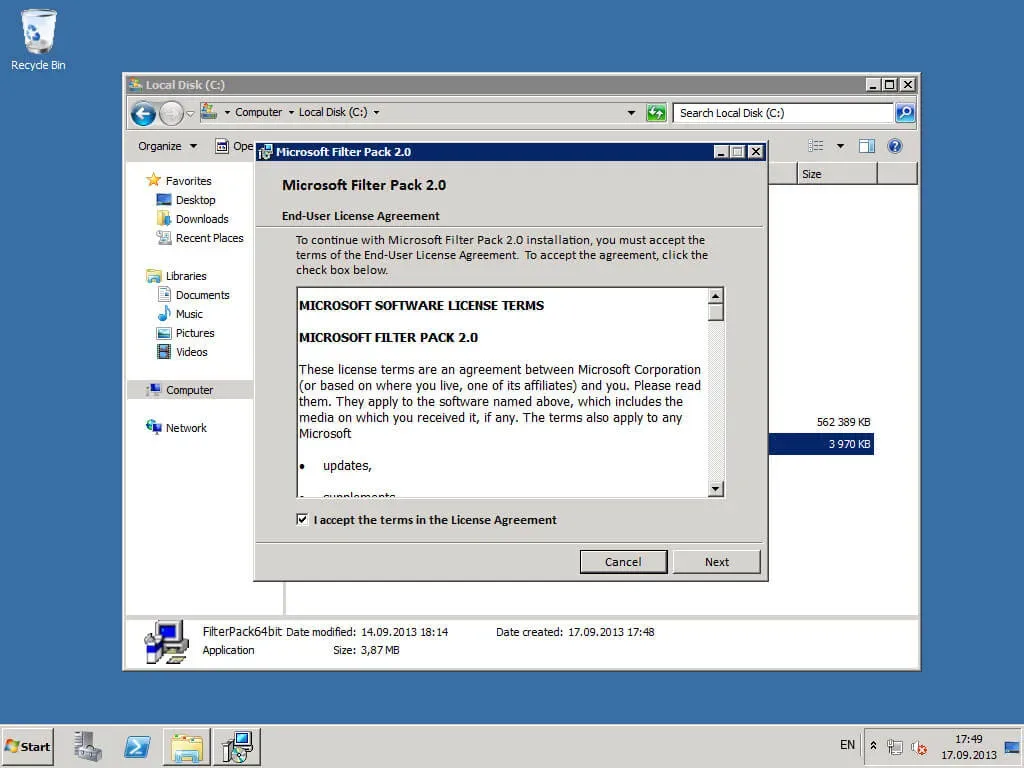
Now you need to accept the license terms.
Click the “Next” button.
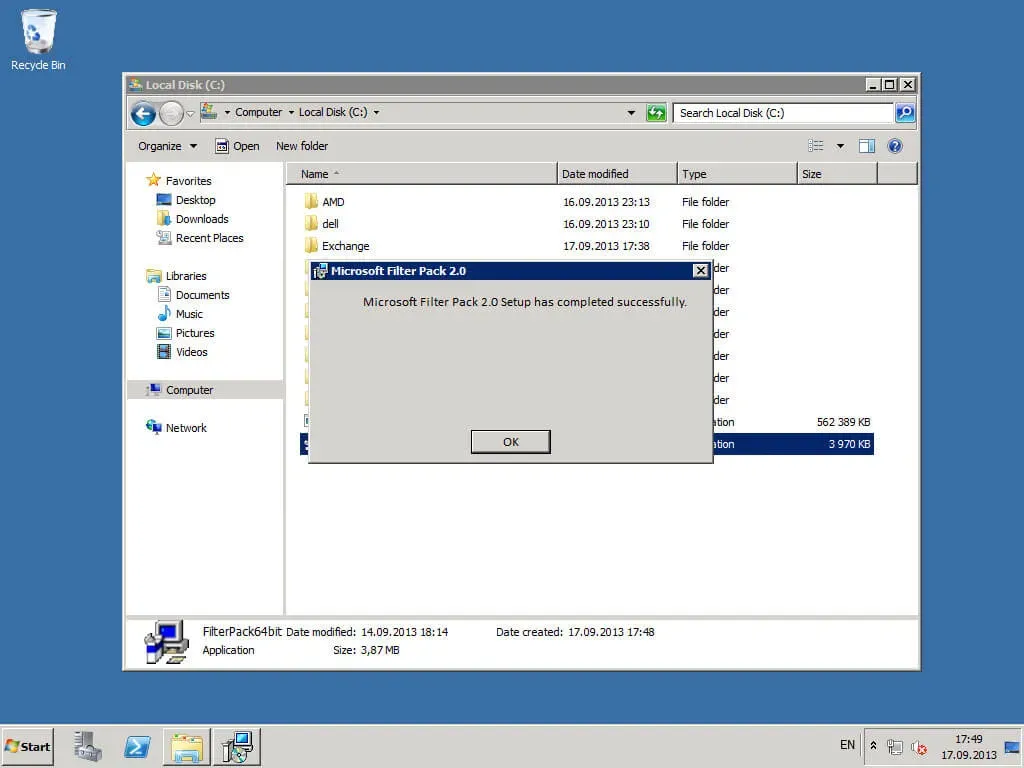
Installation of Microsoft Office 2010 Filter Pack is complete.
Click the “OK” button.
You can now begin Install Exchange Server 2010.
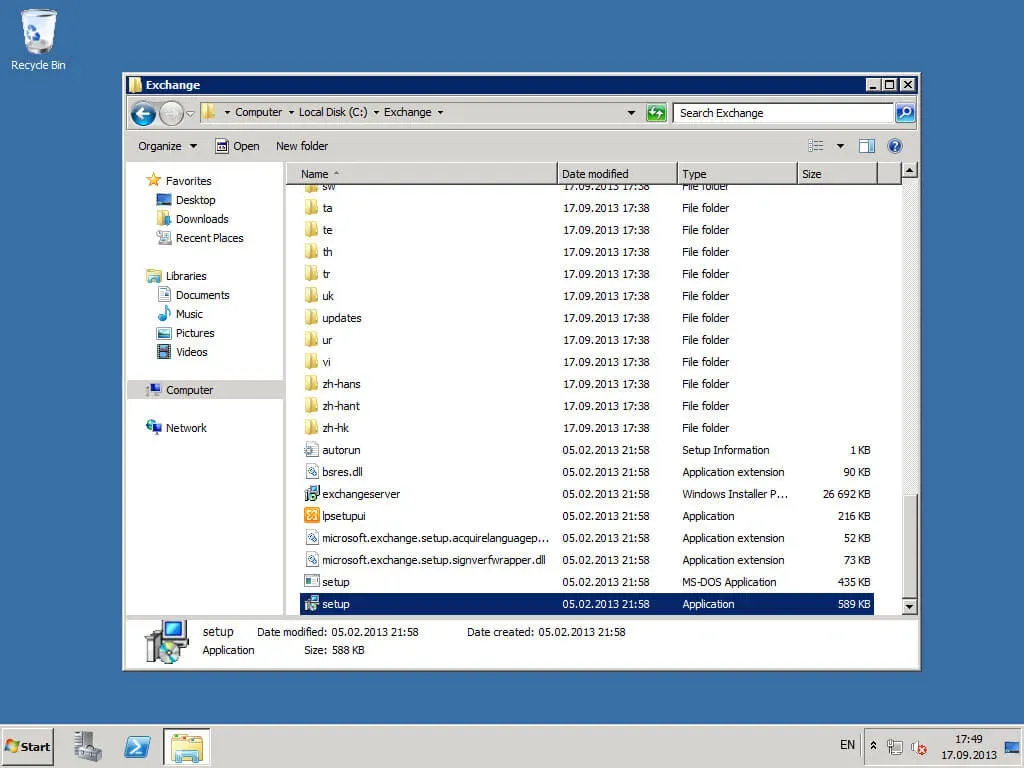
Go to the “C:\Exchange” folder and run “setup.exe”.
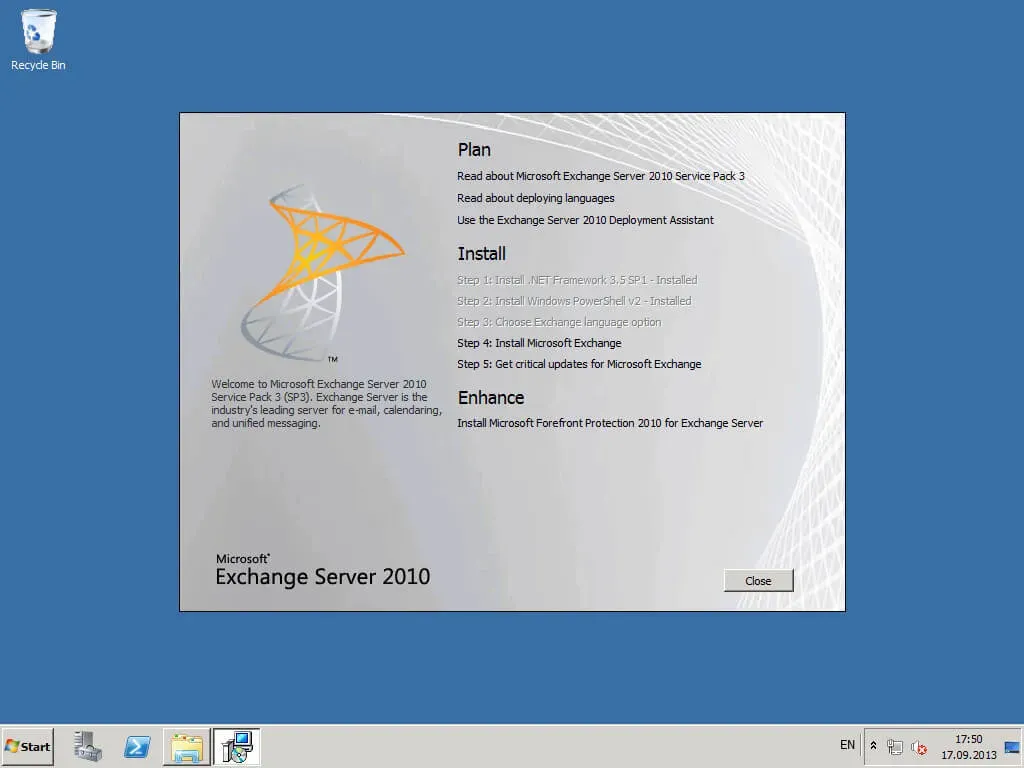
In the “Install” section, select “Step 4: Install Microsoft Exchange”.
Next, the “Exchange Server Setup Wizard” invites you to read information about Exchange Server 2010.
Click the “Next” button.
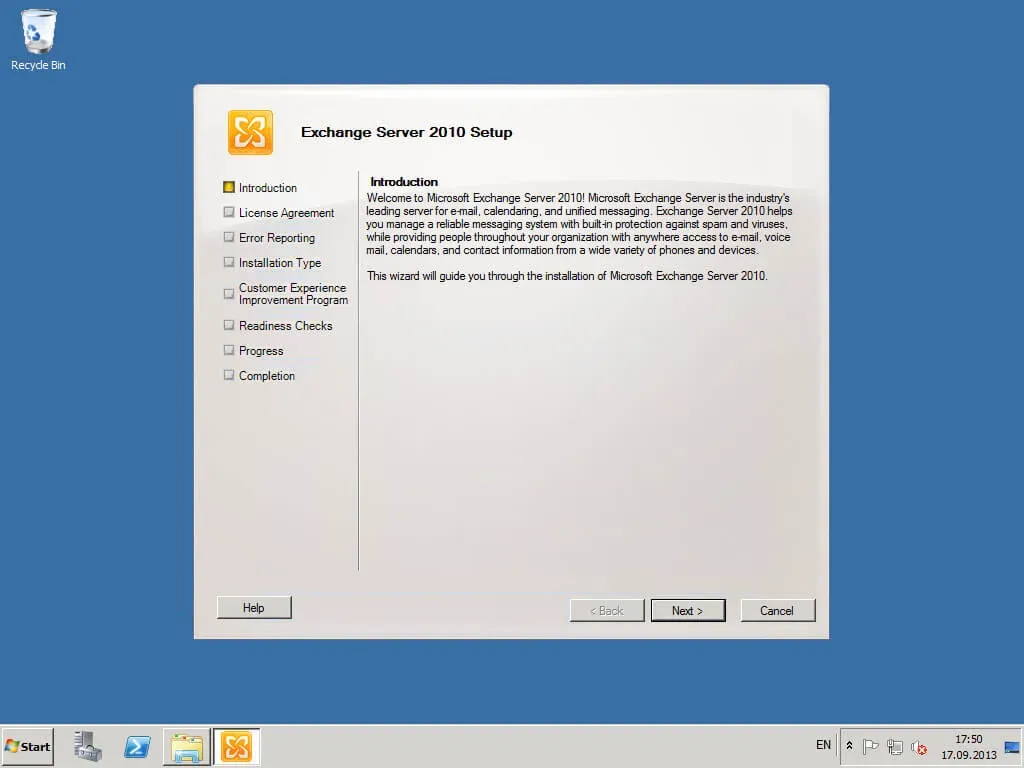
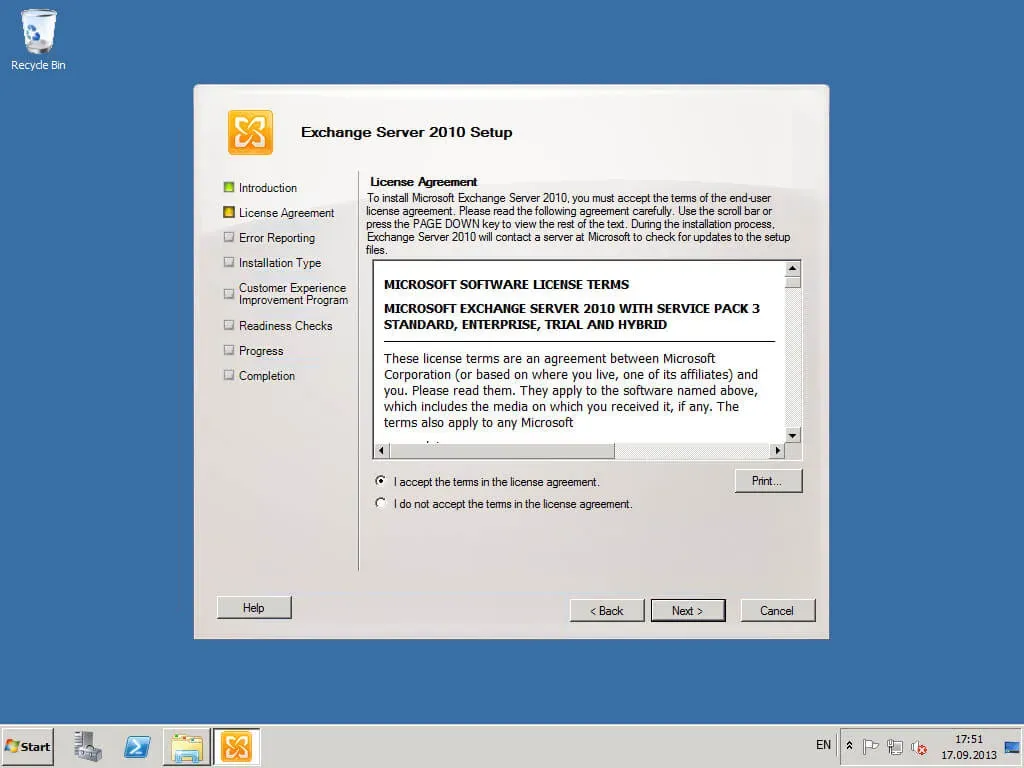
Now you need to accept the license terms.
Click the “Next” button.
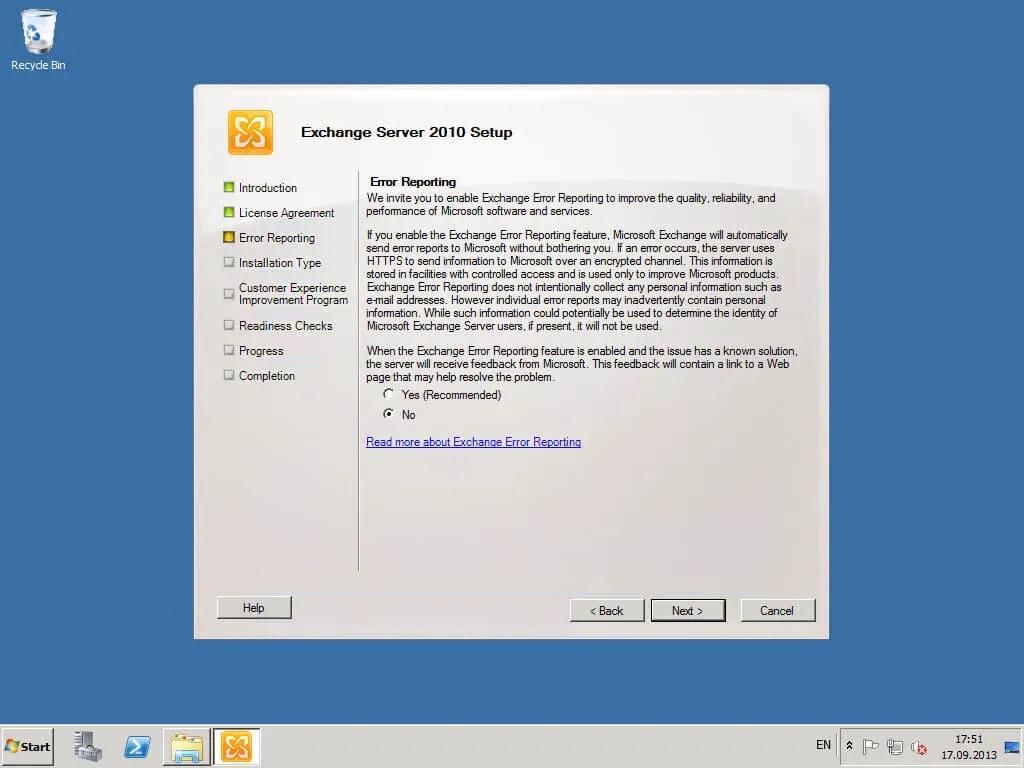
At this step, you can configure sending errors related to the operation of the Exchange Server to Microsoft.
Select “No” and click the “Next” button.
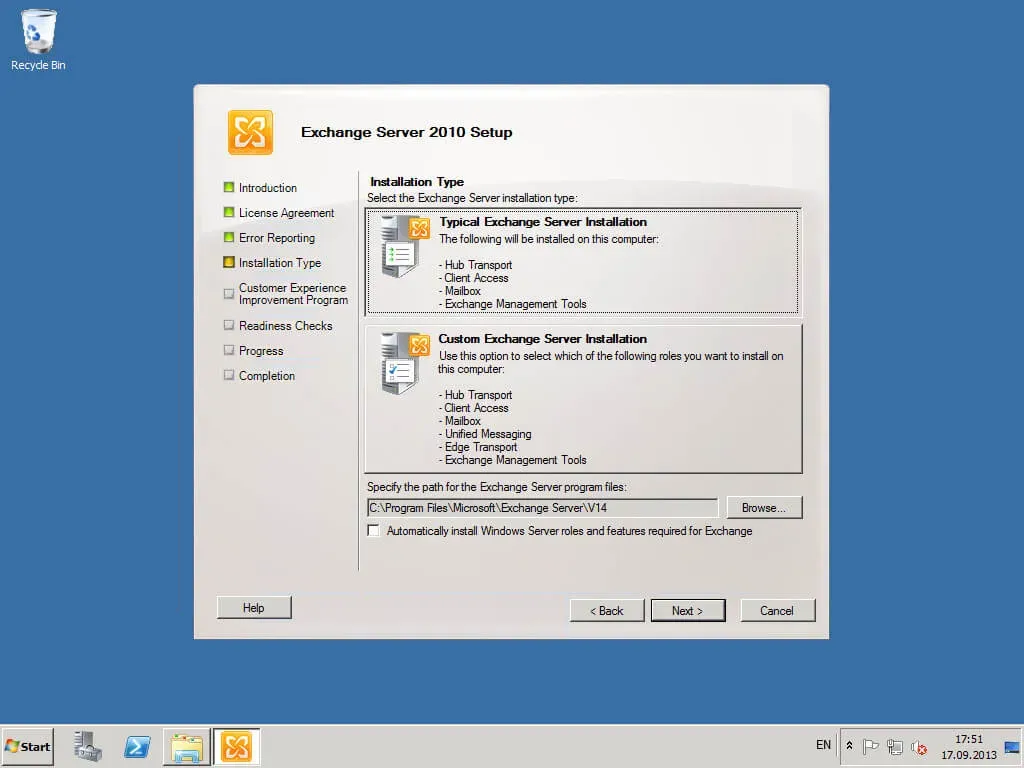
Now you need to choose which roles will be installed on your server.
WARNINGThis guide covers Install Exchange Server 2010 without implementing fault tolerance. This will install all the core Exchange Server roles on one server. The Unified Messaging and Edge Transport roles will not be used.
Select “Typical Exchange Server Installation” and click the “Next” button.
At this point, the “Exchange Server Setup Wizard” asks if you have computers with Outlook 2003 installed.
NOTEIf you select “No”, you will not be able to use the “Public Folders” functionality.
Click the “Next” button.
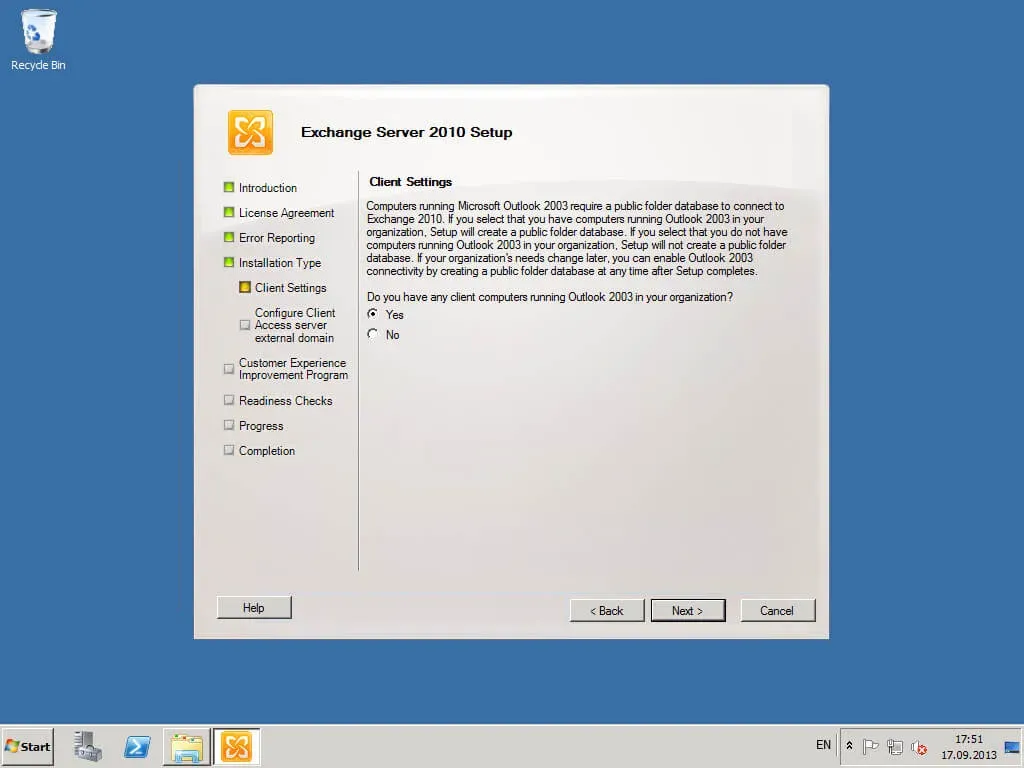
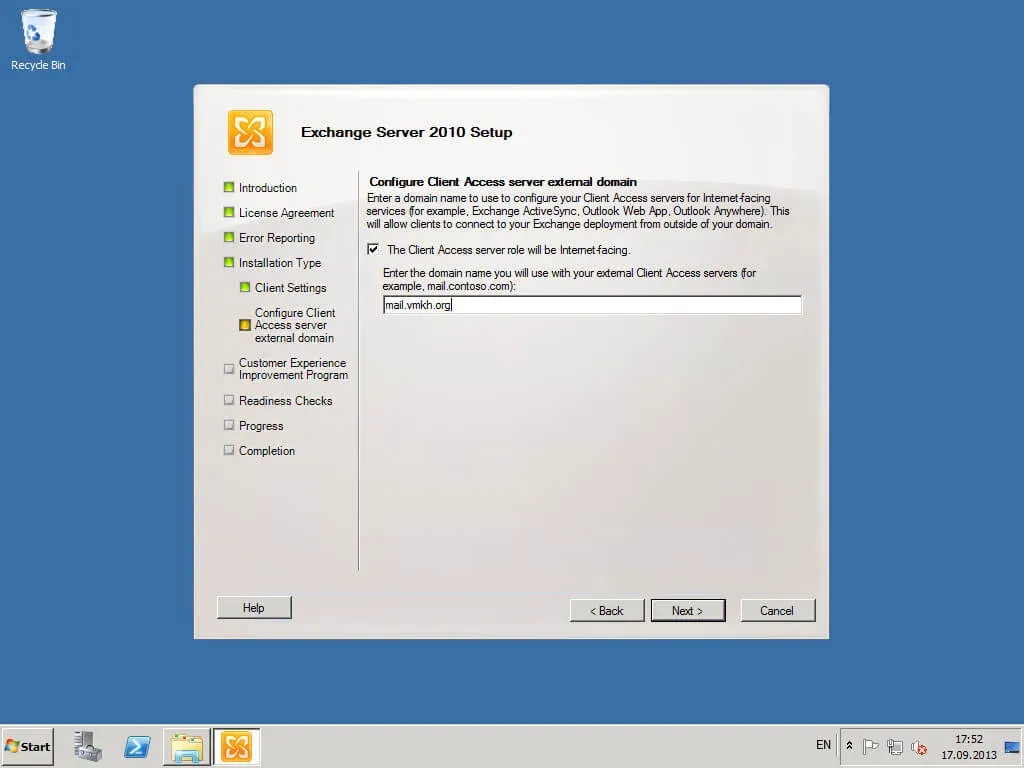
Next, you need to specify a name by which your users will be able to access your mail server from the Internet.
Click the “Next” button.
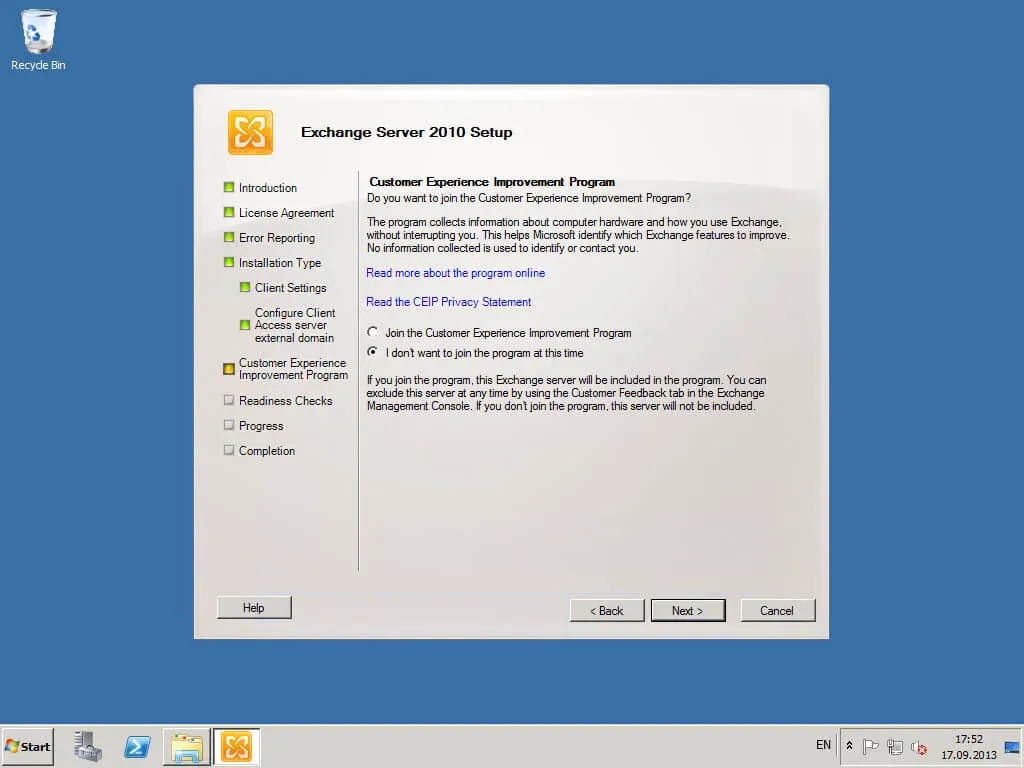
At this point, you can join the Exchange Server Quality Improvement Program. This will send reports on your server’s activity to Microsoft.
Select “I don’t want to join the program at this time” and click the “Next” button.
The installation readiness verification process has begun.
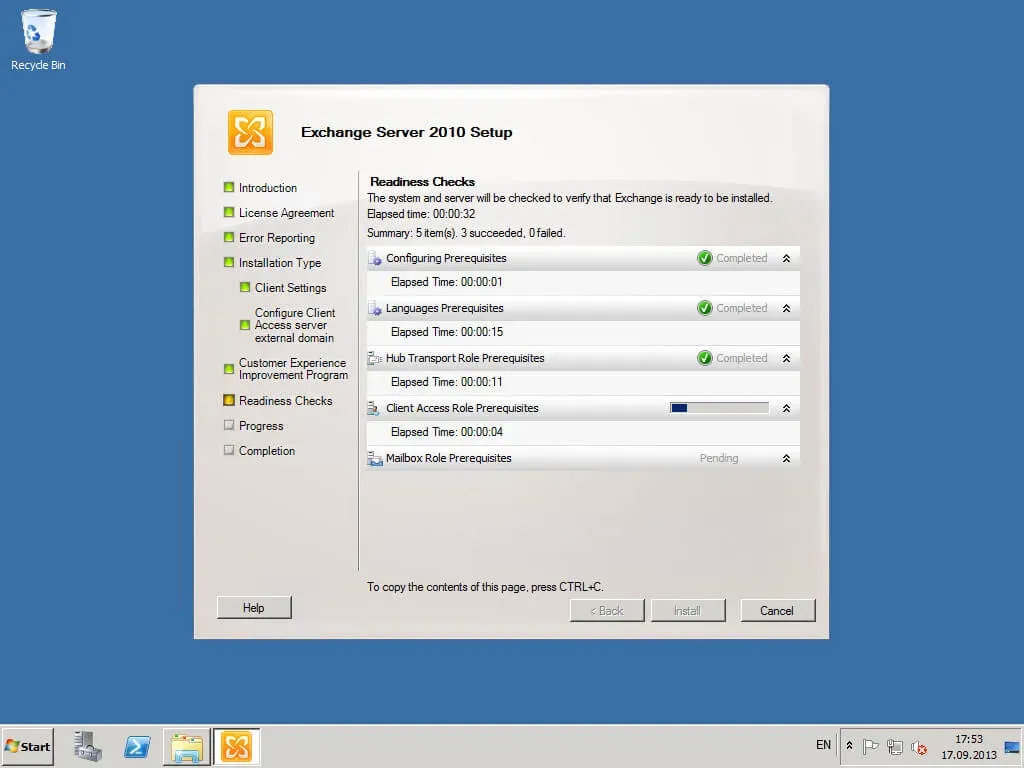
The readiness to install check process completed successfully. You can start the Exchange Server 2010 installation process.
Press the “Install” button.
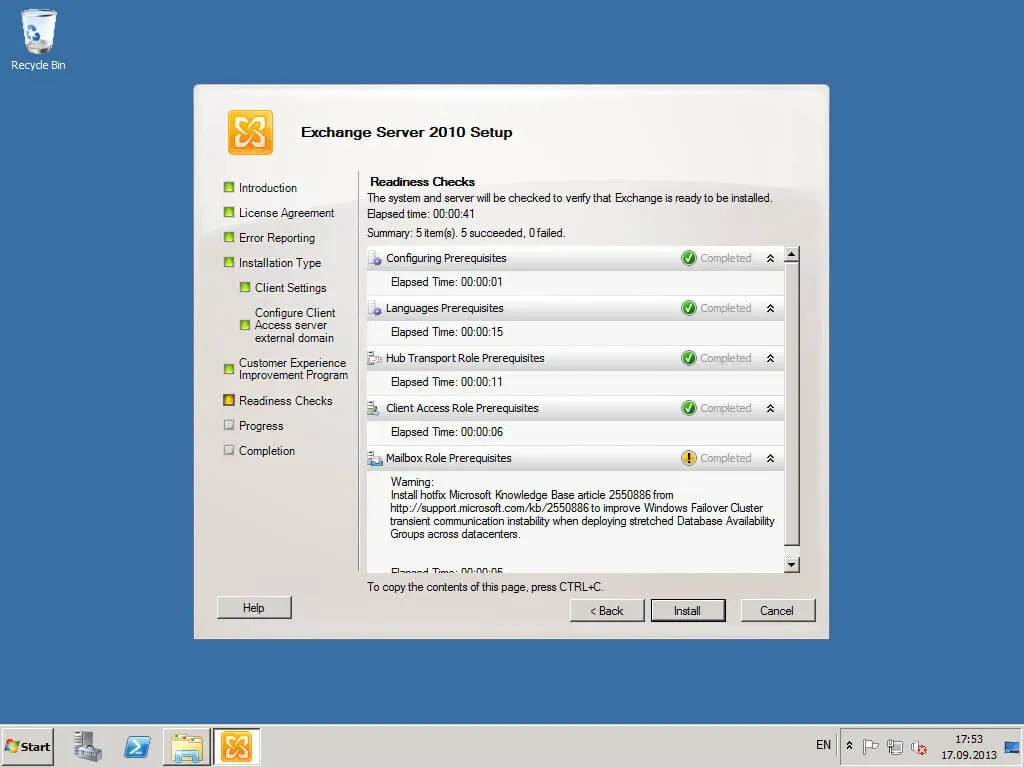
The installation process for Exchange Server 2010 has begun.
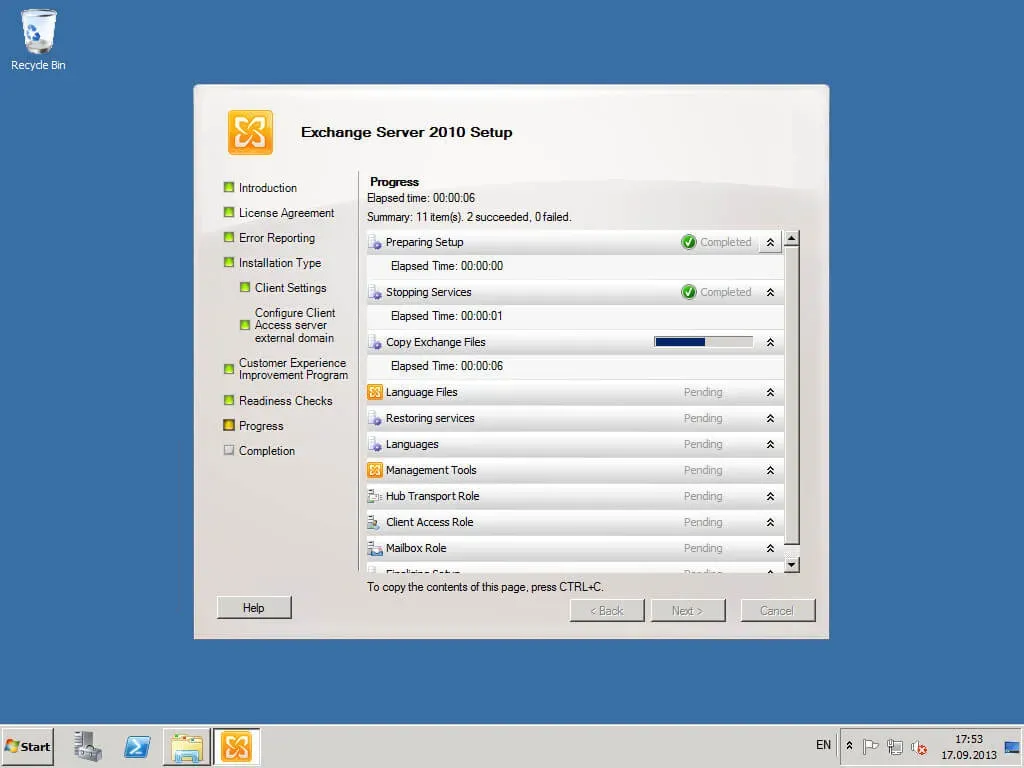
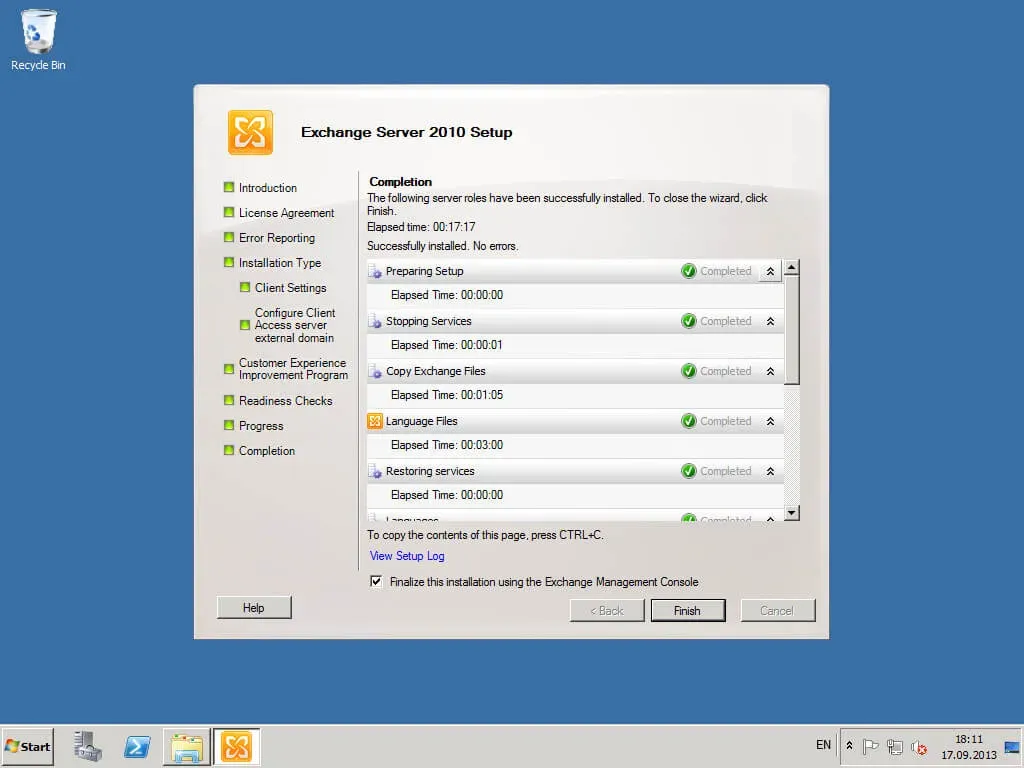
Install Exchange Server 2010 is complete.
Click the “Finish” button.
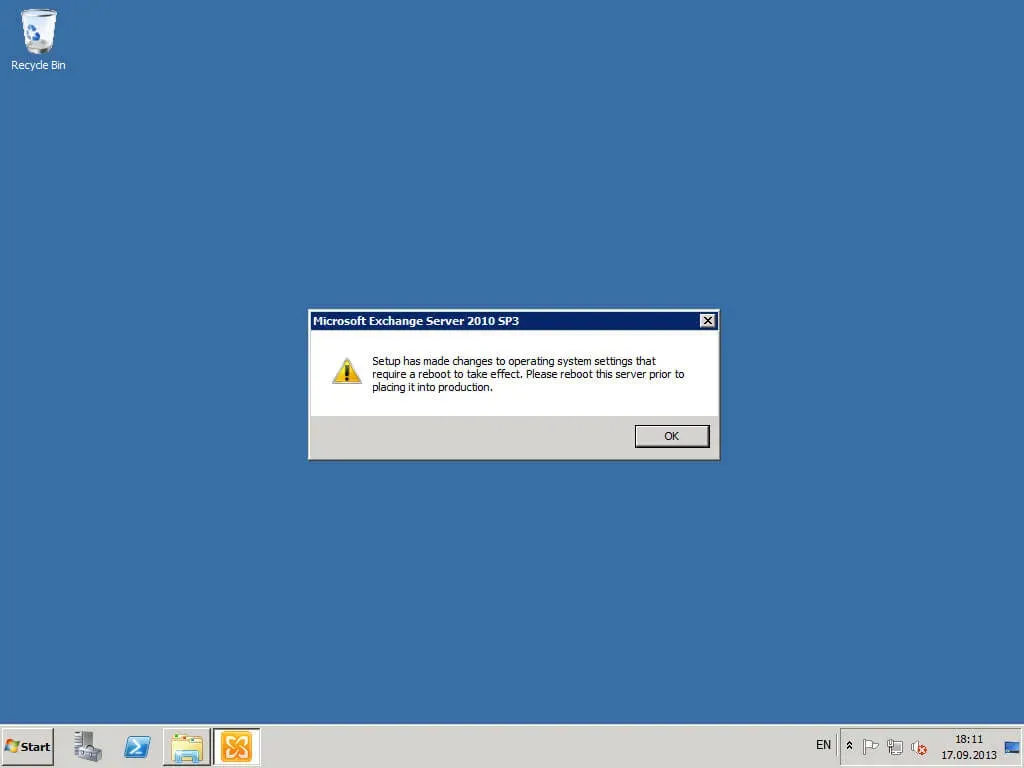
Next, the “Exchange Server Setup Wizard” will warn you that changes have been made to the system and that you need to restart the server in order for them to take effect.
Click the “OK” button.
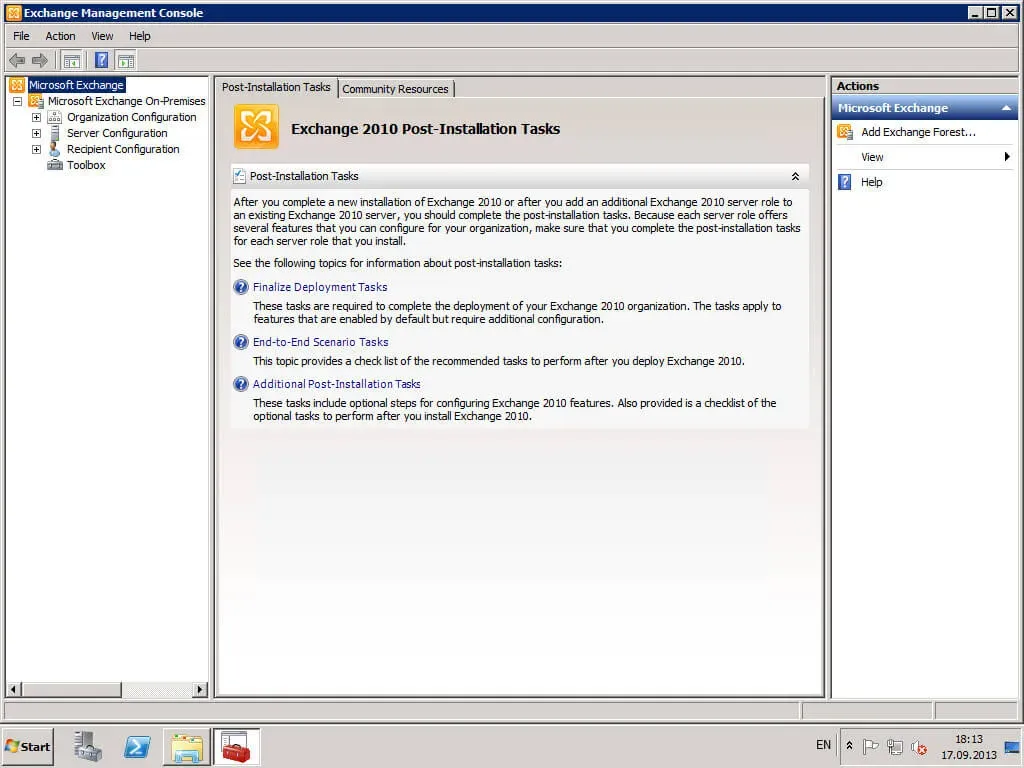
The Exchange Management Console is used to manage Exchange Server 2010.
You can now check the status of the Exchange Server services.
Launch the Exchange Management Shell and check the status of the Exchange Server services using the command:
Test-ServiceHealth 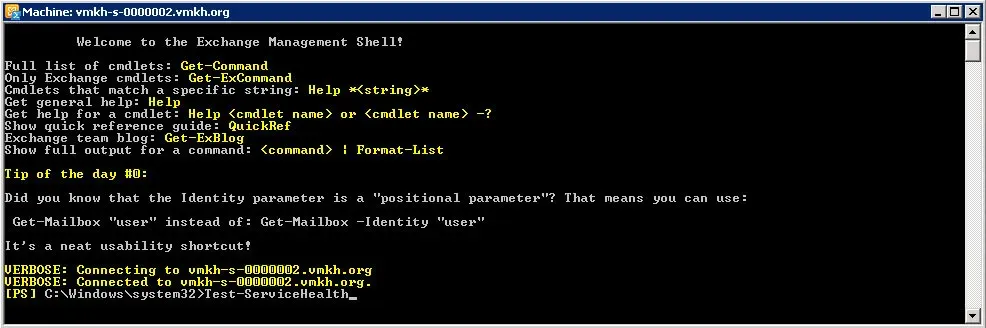
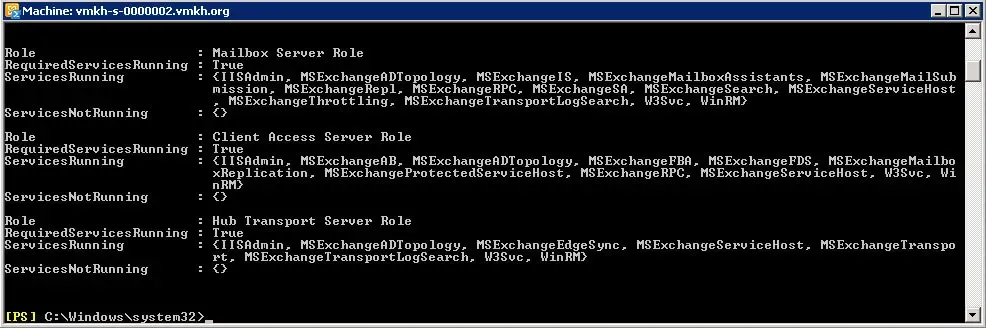
Service check completed successfully.
A value of “True” in “RequireServiceRunning” indicates that the services are running.