Install Exchange Server 2016 on Windows Server 2012 R2
By Vladimir Mikhalev · Docker Captain · CNCF Ambassador · IBM Champion
This article is for those looking for a detailed and straightforward guide on installing Exchange Server 2016 on Windows Server 2012 R2.
NOTEFor step-by-step instructions on installing Exchange Server 2019 on Windows Server 2019, refer to my guide: Install Exchange Server 2019 on Windows Server 2019.
WARNINGThis guide walks you through installing Exchange Server 2016 without implementing failover.
NOTEThe hardware requirements for Exchange 2016 are outlined in the official Microsoft documentation.
IMPORTANTWe will consider the case when you already have two servers with the Windows Server 2012 R2 operating system installed on them. In addition, the Active Directory Domain Services role must be installed on one of the servers.
For details on installing Windows Server 2012 R2, read my guide: Install Windows Server 2012 R2.
IMPORTANTIn addition, one of the servers must have the Active Directory Domain Services role installed, and the second server must be domain joined.
You can learn how to install Active Directory Domain Services on Windows Server 2012 R2 by reading Install Active Directory Domain Services on Windows Server 2012 R2.
NOTEAfter installing Exchange Server 2016, follow my guide to complete the configuration: Configure Exchange Server 2016.
The current version of Exchange Server 2016 can be downloaded from the Microsoft updates page. After downloading, mount the ISO image to a virtual drive.
IMPORTANTThis guide covers the installation of Exchange Server 2016 Cumulative Update 2 (Exchange 2016 CU2, released: June 2016). You need to download the current Cumulative Update at the time of reading the article. Each CU is a complete Exchange installation that includes updates and changes from all previous CUs. You don’t need to install previous CUs or Exchange 2016 RTM.
On Windows Server 2012 R2, you must install all available updates before installing Exchange Server 2016.
On the future Exchange server, go to the system under an account that consists of the following groups: Enterprise Admins, Schema Admins, and Domain Admins.
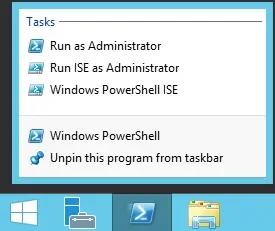
On the “Taskbar”, right-click on “Windows PowerShell” and select “Run as Administrator”.
Let’s install the remote administration tools for the subsequent preparation of Active Directory for the installation of Exchange Server 2016 using the command:
Install-WindowsFeature RSAT-ADDS 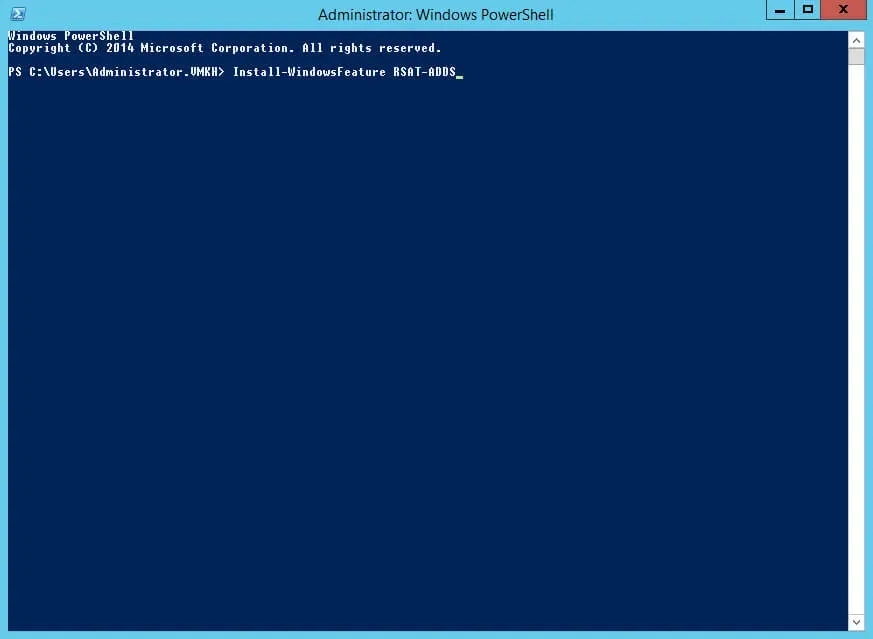
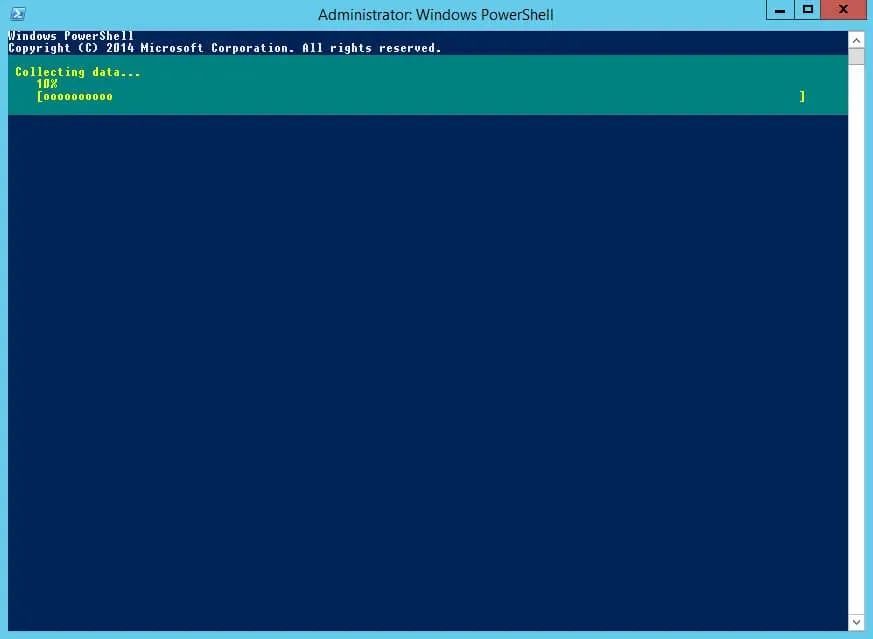
The process of installing the remote administration tools has begun.
Installation of Remote Administration Tools completed successfully.
Now you need to install additional components required for the Exchange server using the command:
Install-WindowsFeature AS-HTTP-Activation, Server-Media-Foundation, NET-Framework-45-Features, RPC-over-HTTP-proxy, RSAT-Clustering, RSAT-Clustering-CmdInterface, RSAT-Clustering-Mgmt, RSAT-Clustering-PowerShell, WAS-Process-Model, Web-Asp-Net45, Web-Basic-Auth, Web-Client-Auth, Web-Digest-Auth, Web-Dir-Browsing, Web-Dyn-Compression, Web-Http-Errors, Web-Http-Logging, Web-Http-Redirect, Web-Http-Tracing, Web-ISAPI-Ext, Web-ISAPI-Filter, Web-Lgcy-Mgmt-Console, Web-Metabase, Web-Mgmt-Console, Web-Mgmt-Service, Web-Net-Ext45, Web-Request-Monitor, Web-Server, Web-Stat-Compression, Web-Static-Content, Web-Windows-Auth, Web-WMI, Windows-Identity-Foundation 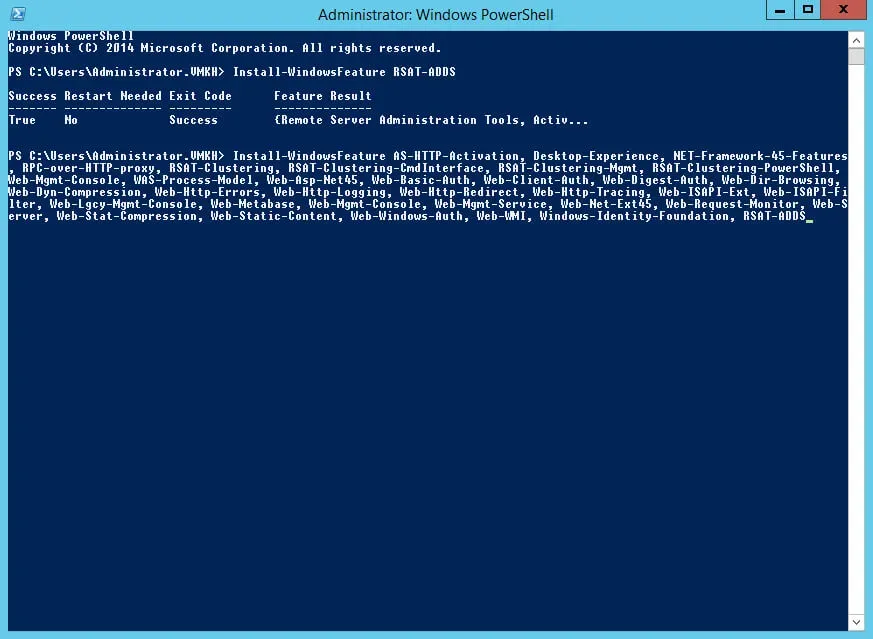
The process of installing additional components required for the Exchange Server has begun.
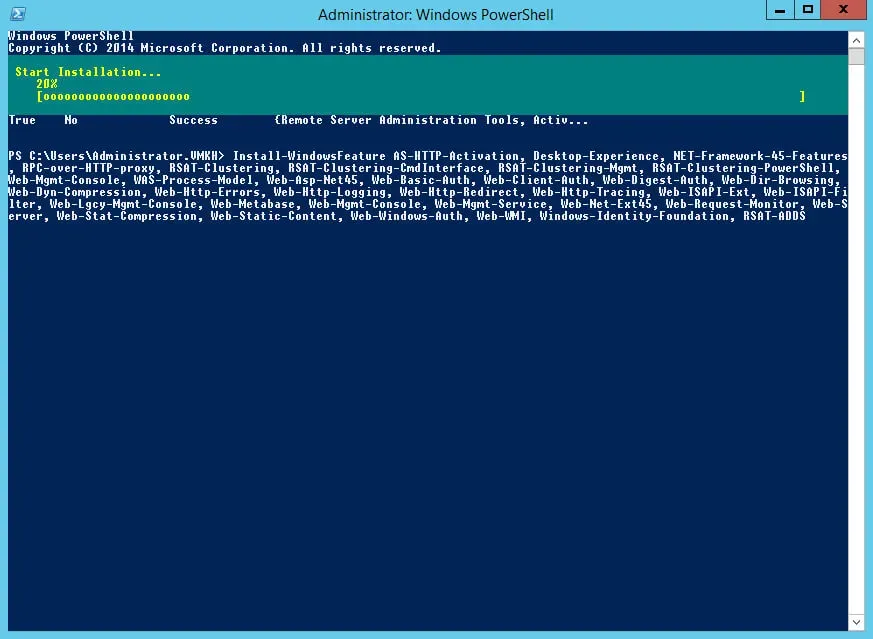
The installation of the additional components required for the Exchange Server has been completed successfully.
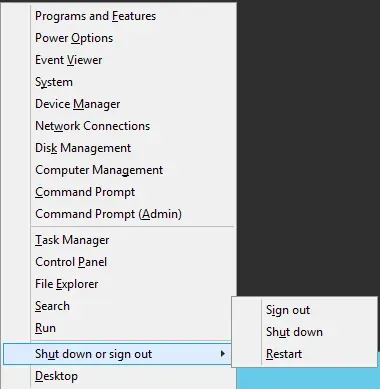
Now you need to reboot the server.
On the keyboard, press the key combination “Win” and “x”, in the menu that opens, select “Shut down or sign out”, then “Restart”.
The server will start to reboot.
On the future Exchange server, go to the system under an account that consists of the following groups: Enterprise Admins, Schema Admins, and Domain Admins.
Before preparing Active Directory and installing Exchange Server 2019, you need to install additional software on the future Exchange server:
- Unified Communications Managed API 4.0
- Visual C++ Redistributable Package for Visual Studio 2012
- Visual C++ Redistributable Package for Visual Studio 2013
Let’s install Unified Communications Managed API 4.0
Head over to the Microsoft download page and click the “Download” button to begin.
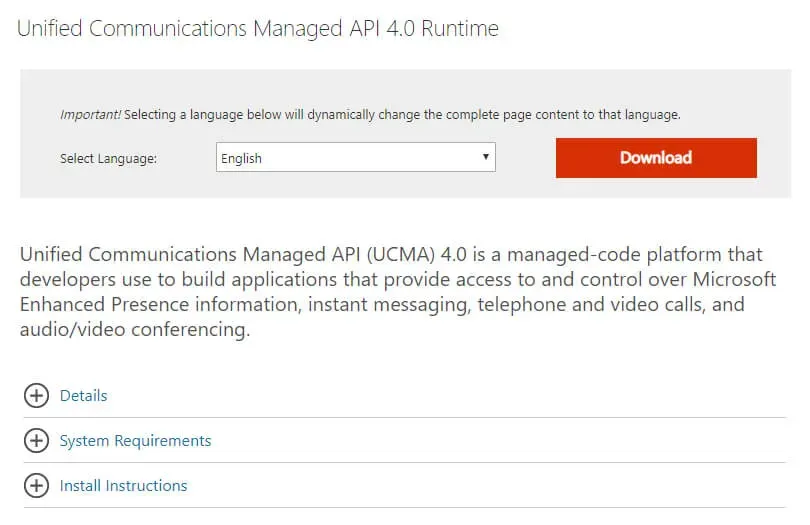
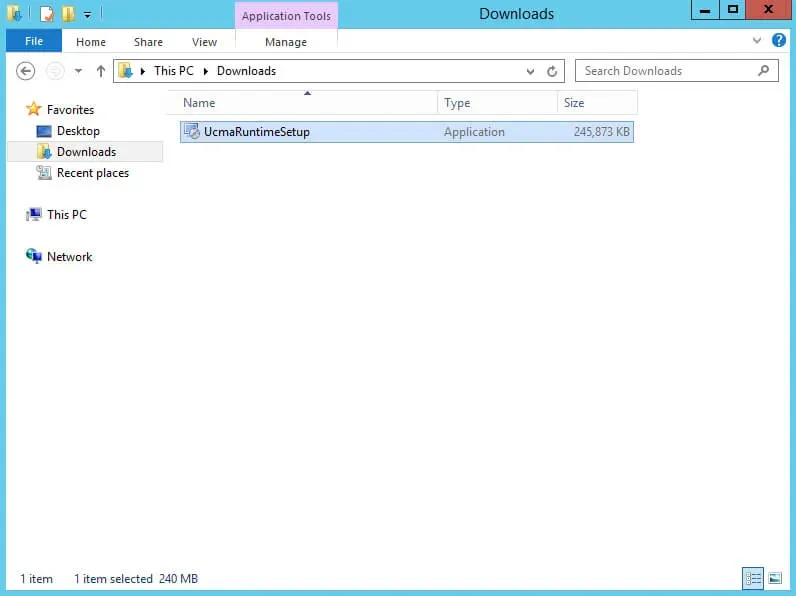
Run the downloaded Unified Communications Managed API 4.0 installer file.
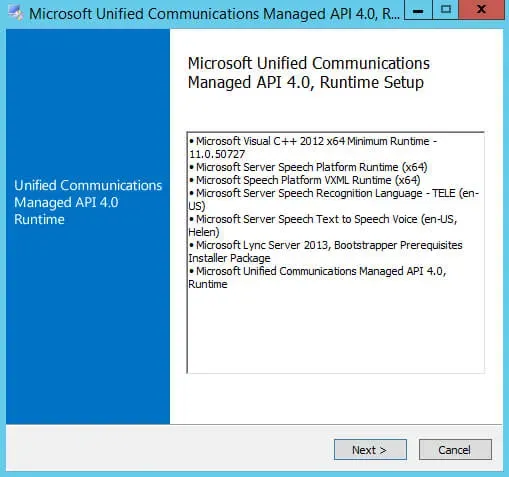
The “Unified Communications Managed API 4.0 Installation Wizard” will open.
Click on the “Next” button.
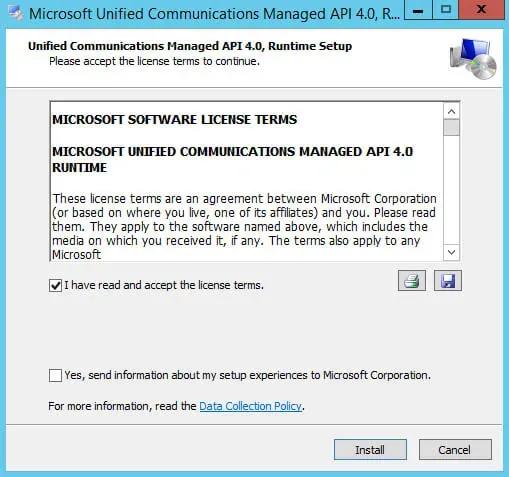
Next, you must accept the license terms, if you agree with them, and click on the “Next” button.
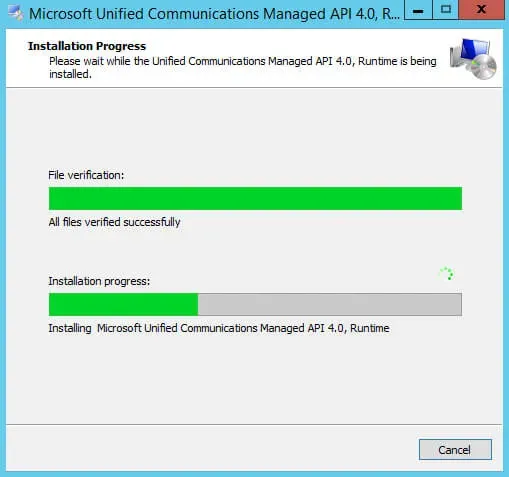
The installation process for “Unified Communications Managed API 4.0” has begun.
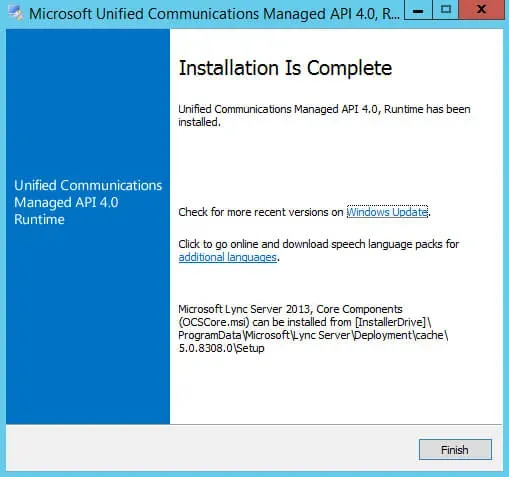
Installation of “Unified Communications Managed API 4.0” is complete.
Click on the “Finish” button.
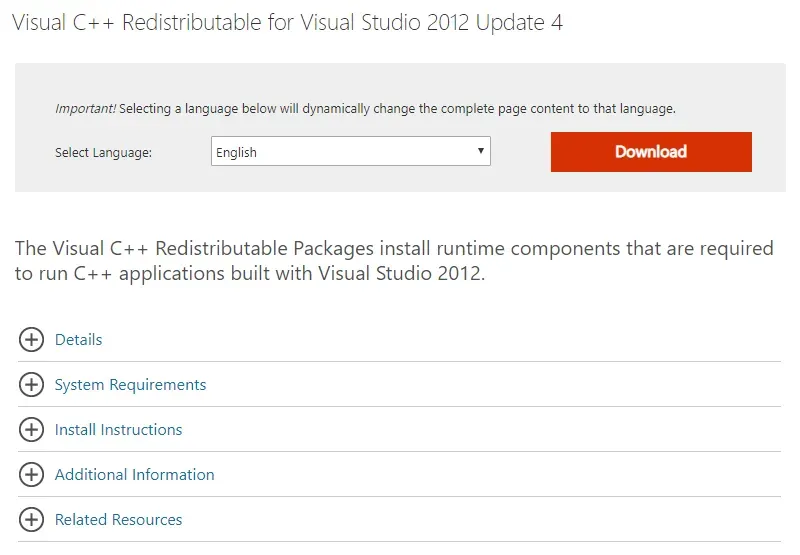
Let’s install Visual C++ Redistributable Package for Visual Studio 2012.
Visit the Microsoft download page and click the “Download” button to start the download.
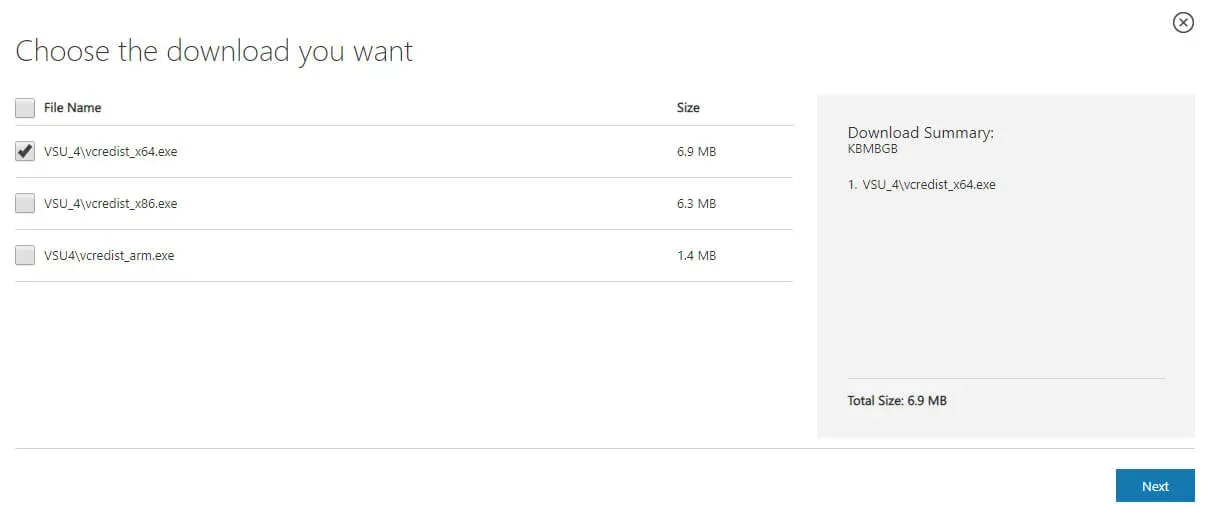
Select “VSU_4\vcredist_x64.exe” and click on the “Next” button.
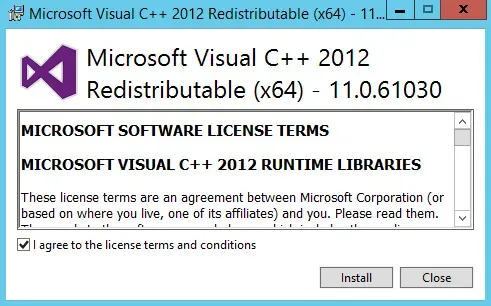
Run the downloaded Visual C ++ Redistributable Package for Visual Studio 2012 installer file.
Next, you must accept the license terms, if you agree with them, and click on the “Install” button.
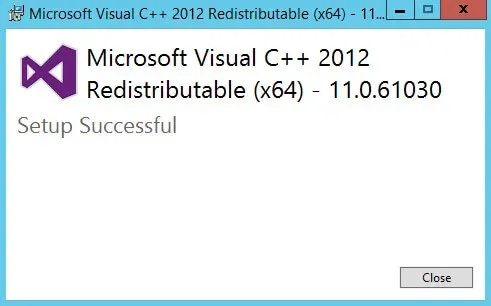
Installation of Visual C ++ Redistributable Package for Visual Studio 2012 completed successfully.
Click on the “Close” button.
Let’s install Visual C++ Redistributable Package for Visual Studio 2013.
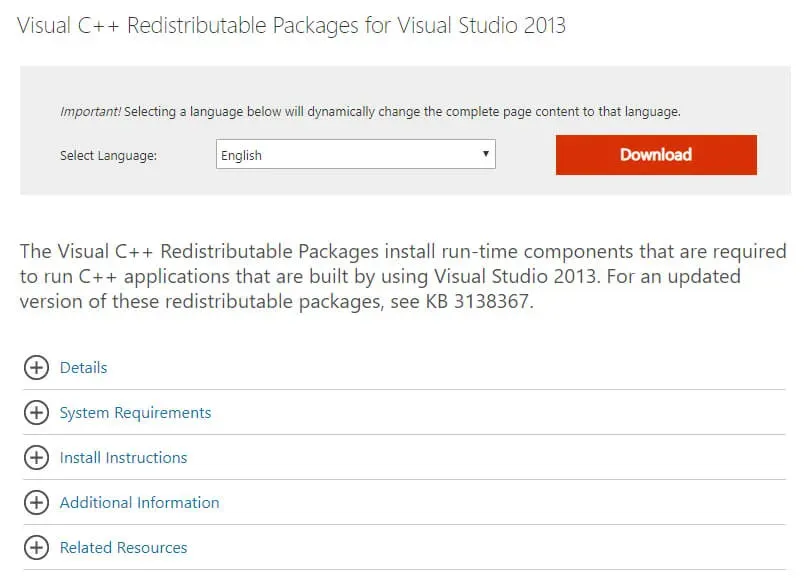
Go to the Microsoft download page and click the “Download” button to initiate the download.
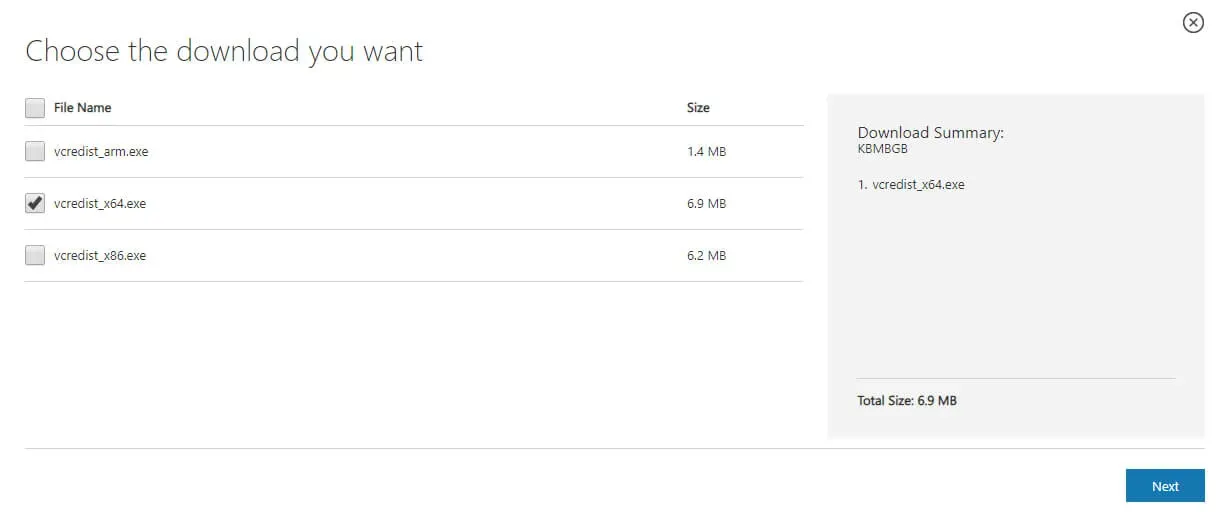
Select “vcredist_x64.exe” and click on the “Next” button.
Run the downloaded Visual C ++ Redistributable Package for Visual Studio 2013 installer file.
Next, you must accept the license terms, if you agree with them, and click on the “Install” button.
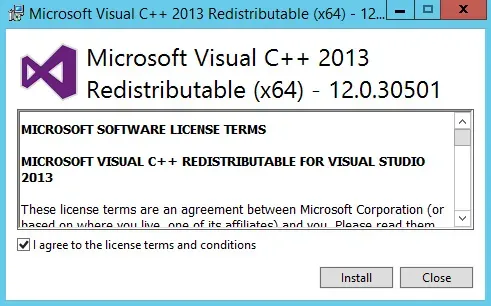
Installation of Visual C++ Redistributable Package for Visual Studio 2013 completed successfully.
Click on the “Close” button.
Now you need to prepare Active Directory to work with Exchange Server.
Click “Start”, point to “cmd” in the search bar, then right-click on “Command Prompt” and select “Run as administrator”.
Go to drive “D” (virtual drive) where the Exchange Server 2016 installation files are located using the command:
cd D:\ 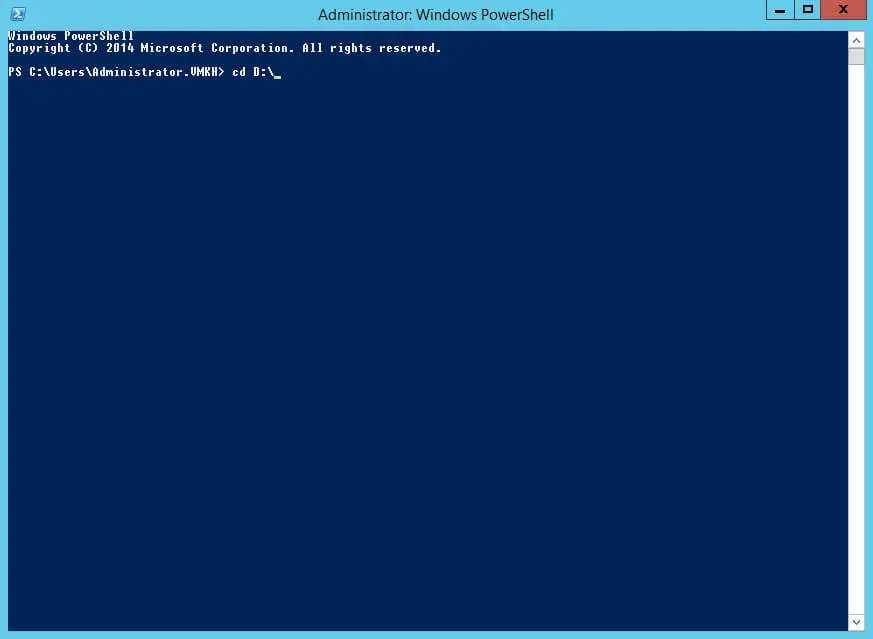
Let’s prepare the Active Directory schema to work with Exchange Server using the command:
E:\Setup.exe /IAcceptExchangeServerLicenseTerms_DiagnosticDataON /PrepareSchema 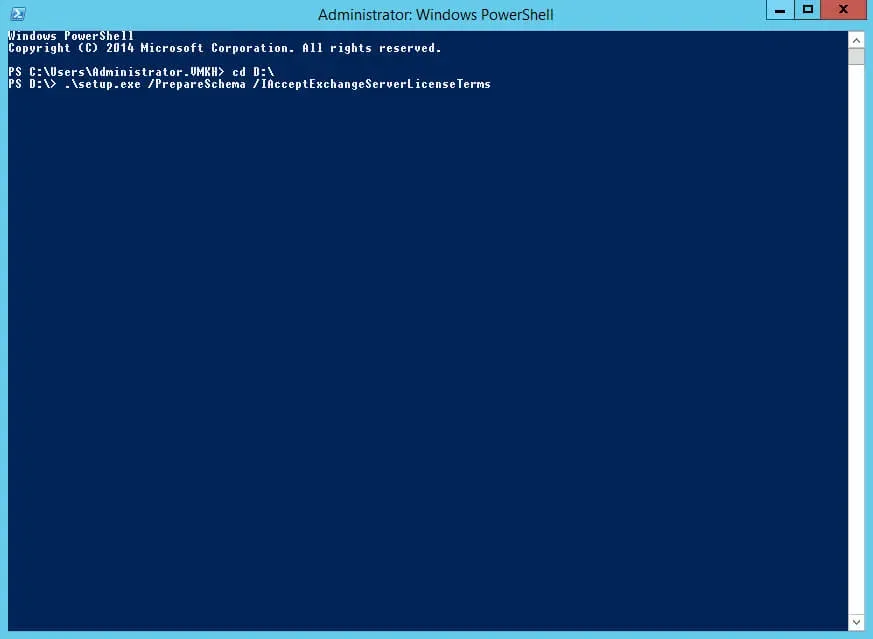
The process of preparing the Active Directory schema has begun.
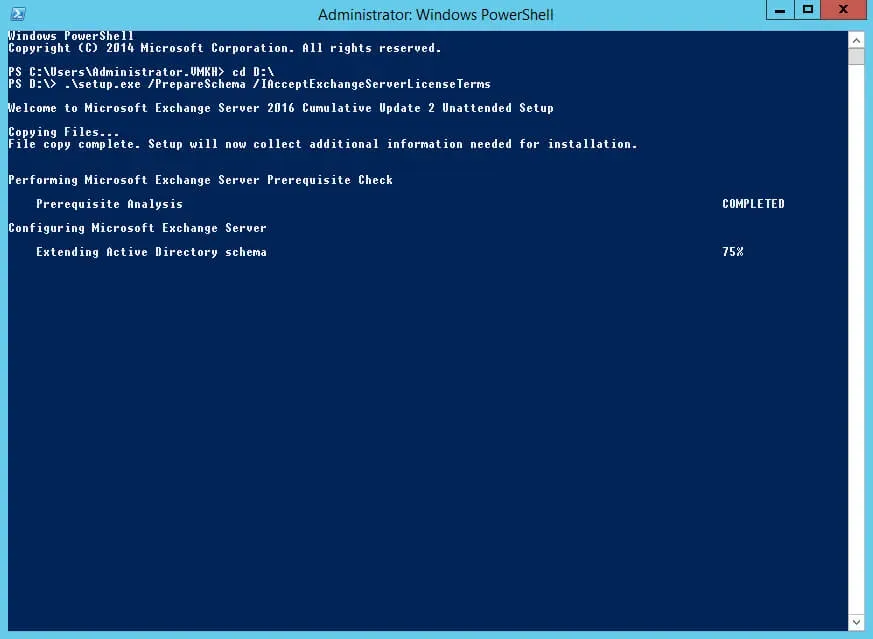
The Active Directory schema preparation process completed successfully.
Now you need to prepare containers, objects, and other Active Directory components and create the Exchange organization.
NOTEAfter “OrganizationName” you must indicate the name of your organization in English.
Let’s prepare containers, objects, and other Active Directory components, as well as create an Exchange organization, using the command:
E:\Setup.exe /IAcceptExchangeServerLicenseTerms_DiagnosticDataON /PrepareAD /OrganizationName:"VMKH"NOTEThis manual uses the organization’s name “VMKH”.
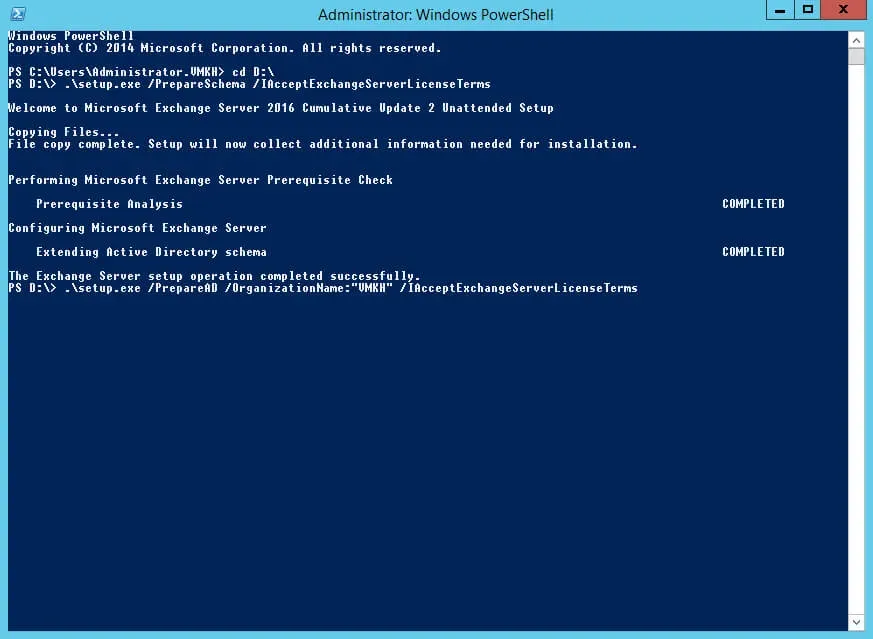
The process of preparing containers, objects, and other Active Directory components has begun.
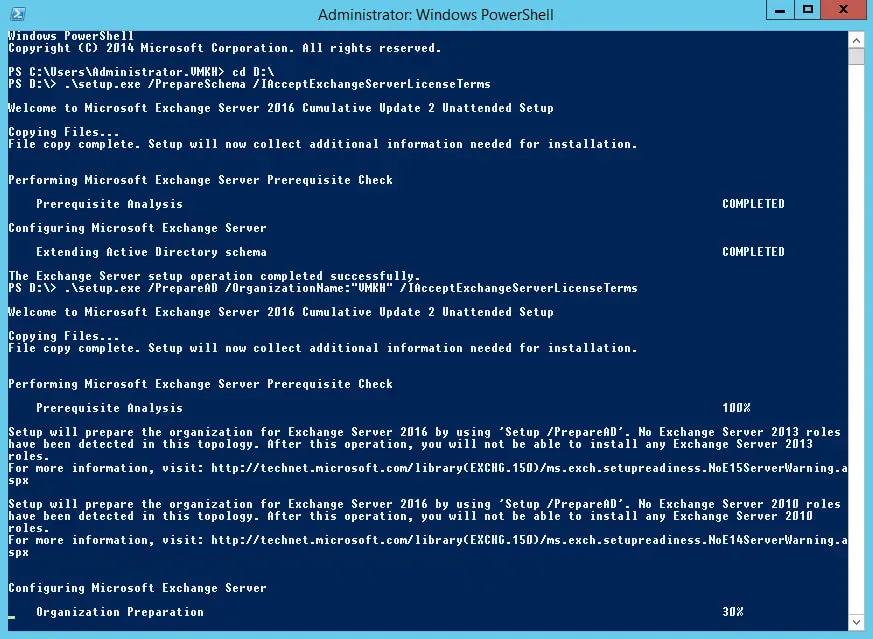
The preparation process for containers, objects, and other Active Directory components has been completed successfully.
Now you need to prepare the domain for the Exchange Server installation.
Prepare a domain for installing Exchange Server using the command:
E:\Setup.exe /IAcceptExchangeServerLicenseTerms_DiagnosticDataON /PrepareDomain:vmkh.orgNOTEThis tutorial uses the “vmkh.org” domain.
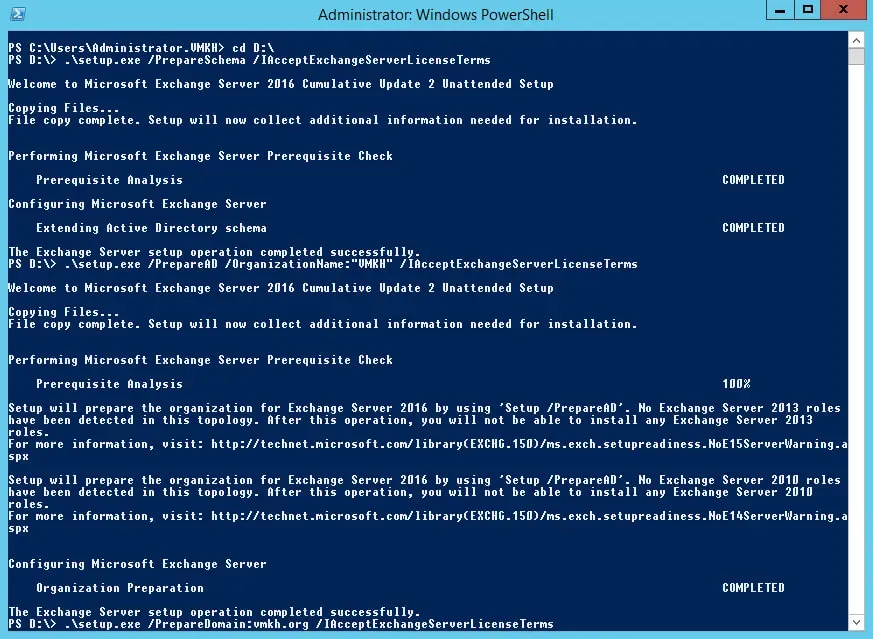
The domain preparation process has completed successfully.
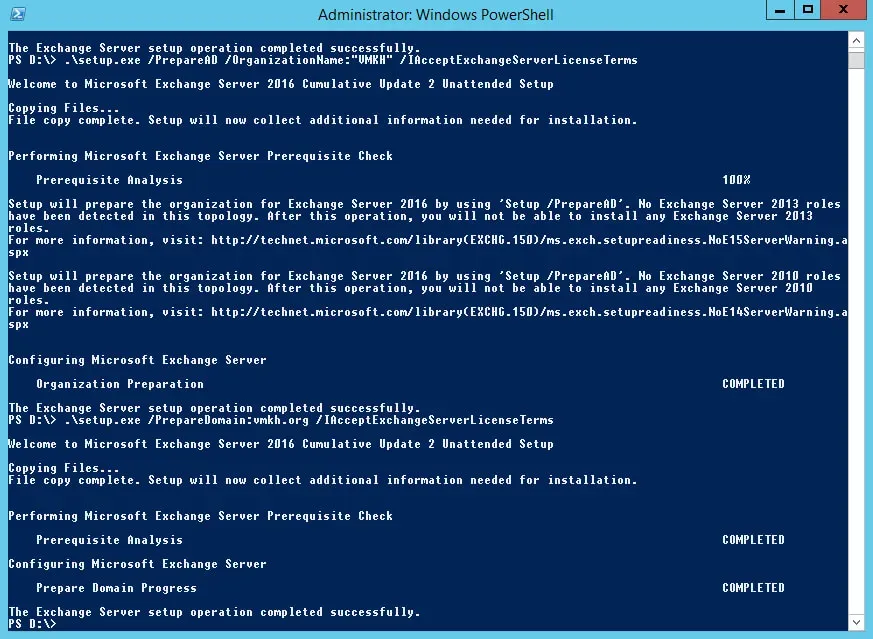
Now you can start installing Exchange Server 2016.
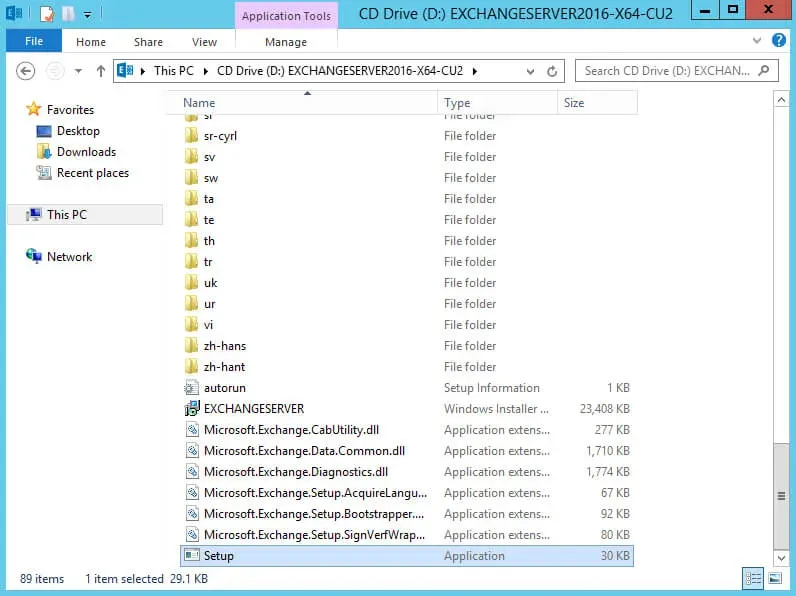
Go to drive “D” (virtual drive) where the Exchange Server 2016 installation files are located and run “Setup.exe”.
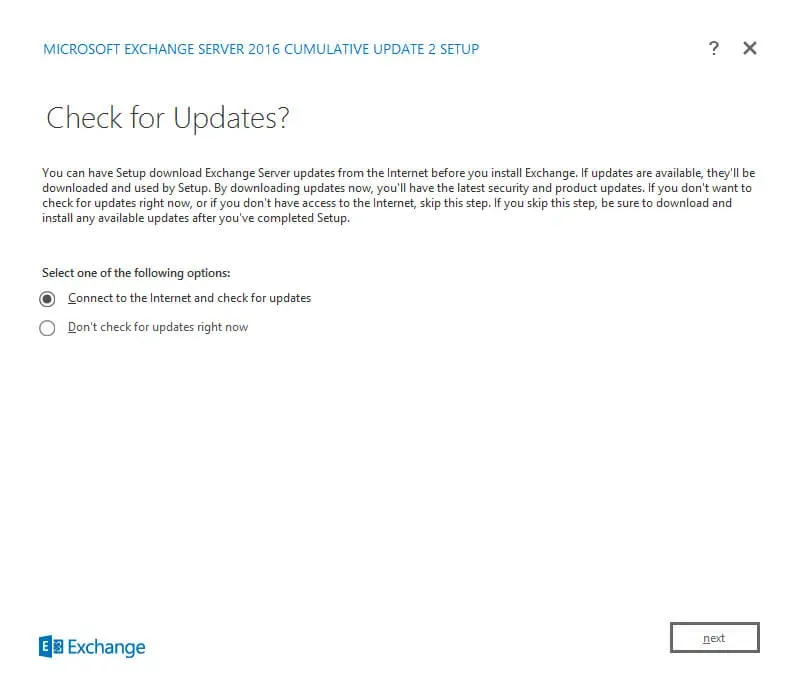
At this point, you can check for updates to Exchange Server 2016.
Select “Connect to the Internet and check for updates” and click on the “Next” button.
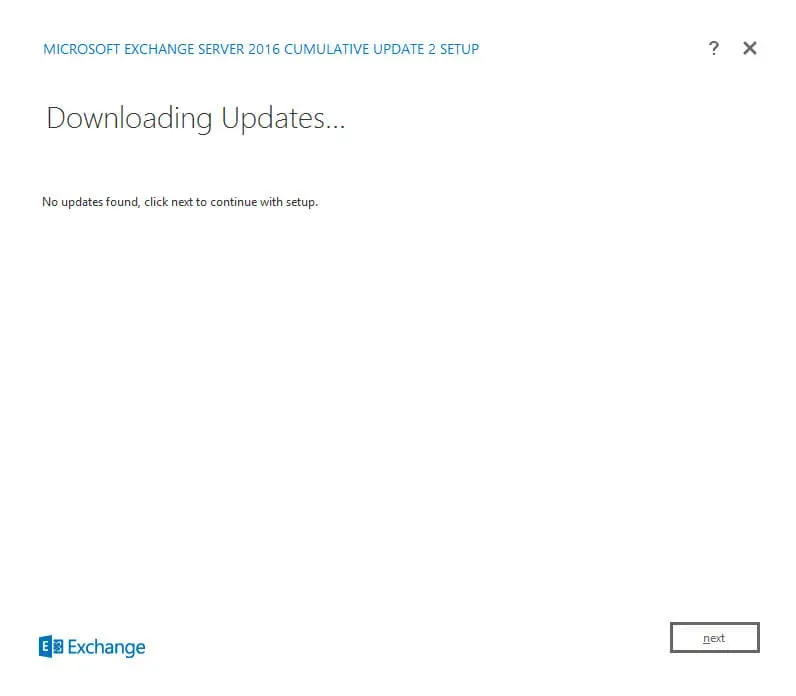
There are currently no updates for Exchange Server 2016.
Click on the “Next” button.
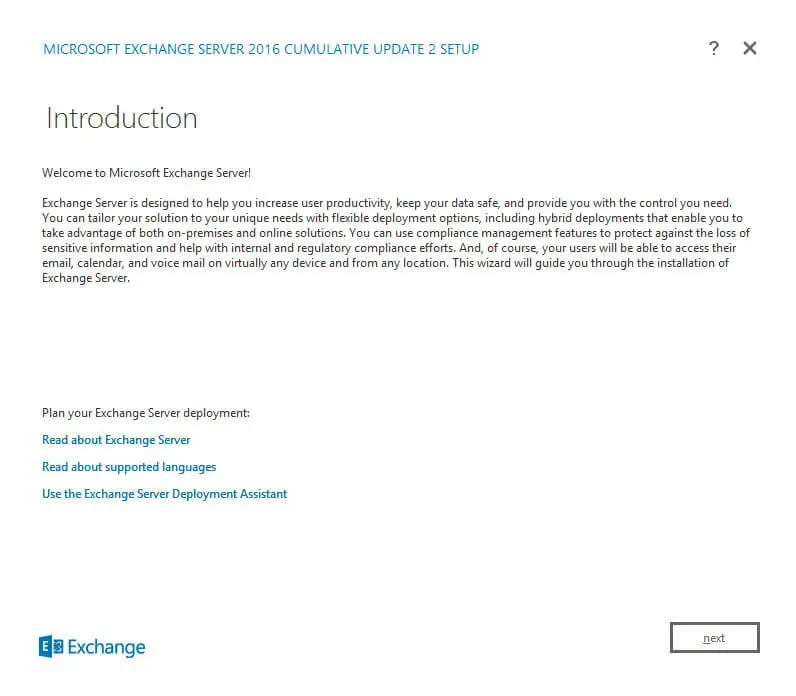
Next, the “Exchange Server Setup Wizard” invites you to read the information regarding Exchange Server 2016.
Click on the “Next” button.
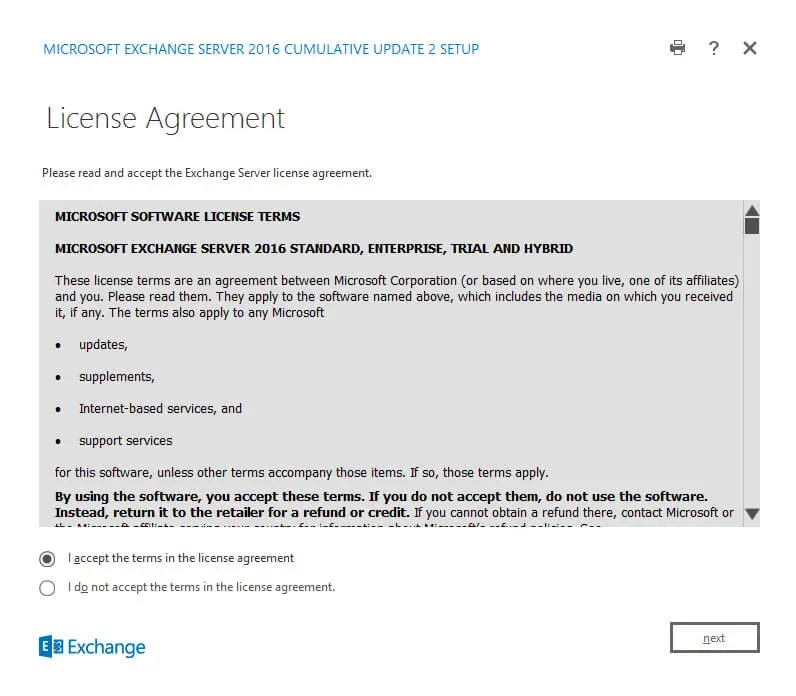
Next, you must accept the license terms, if you agree with them, and click on the “Next” button.
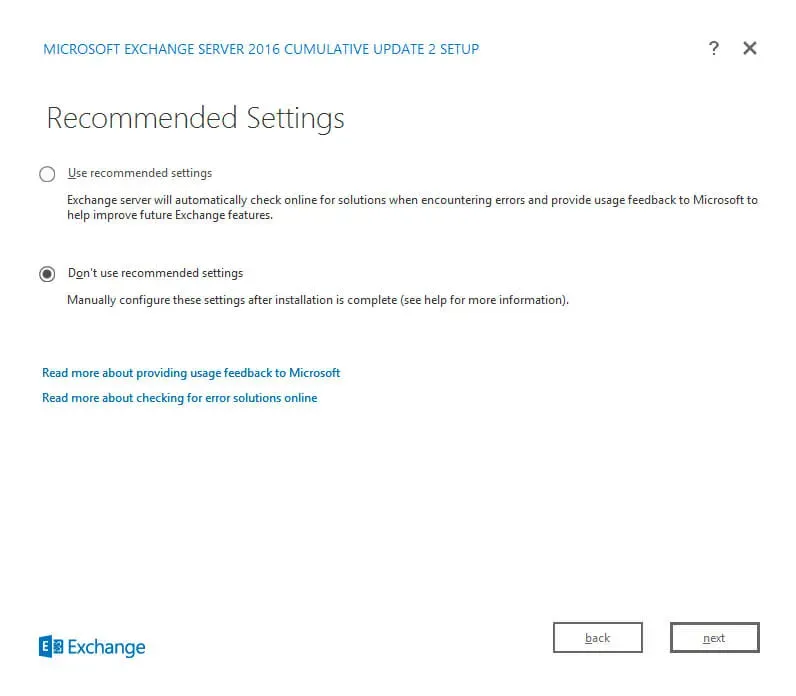
We select “Don’t use recommended settings” so that the Exchange server does not automatically send error reports and other information on the use of the Exchange server to Microsoft.
Click “Next”.
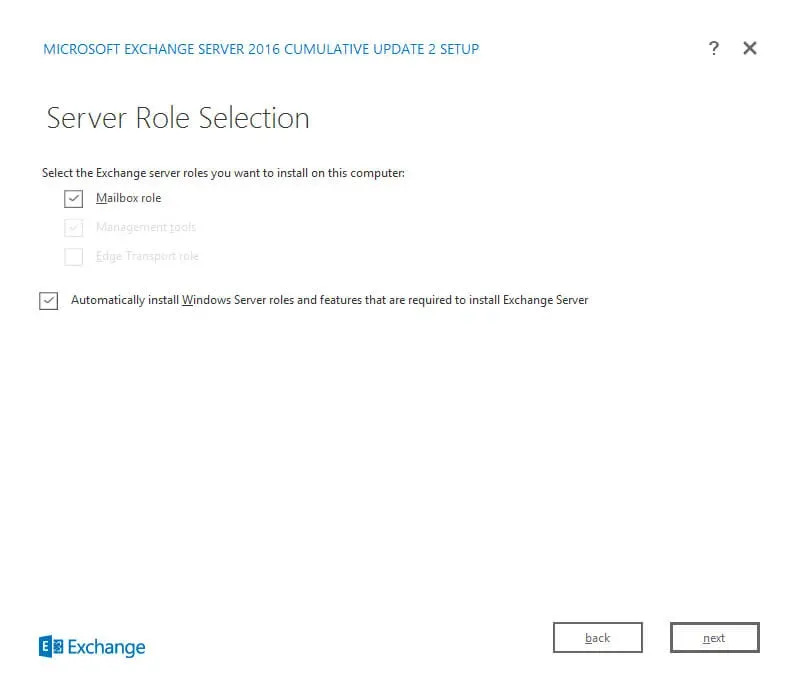
Now you need to choose which roles will be installed on your server.
Select “Mailbox role”, then select “Automatically install Windows Server roles and features that are required to install Exchange Server” and click on the “Next” button.
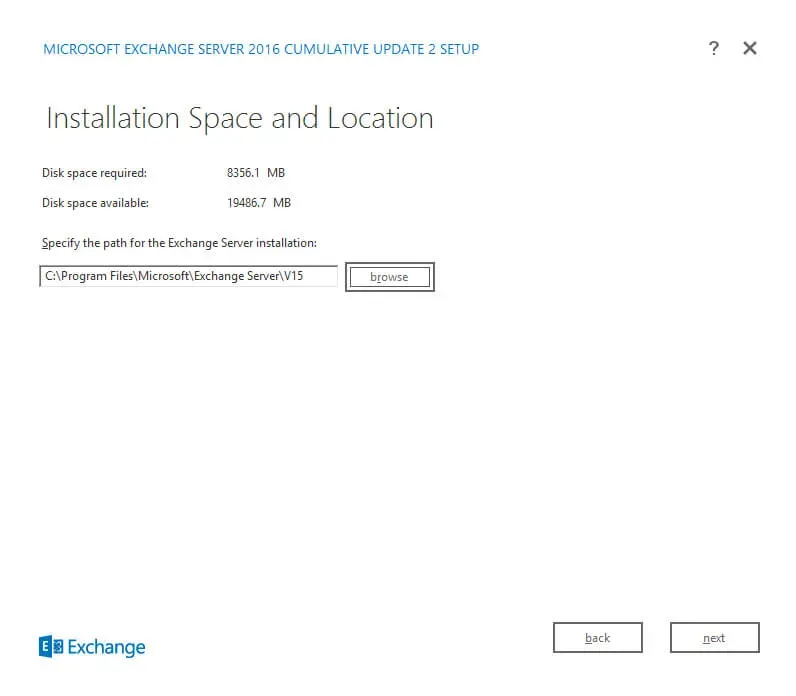
Next, you can select the directory where you want to install Exchange Server 2016.
Leave the settings unchanged and click on the “Next” button.
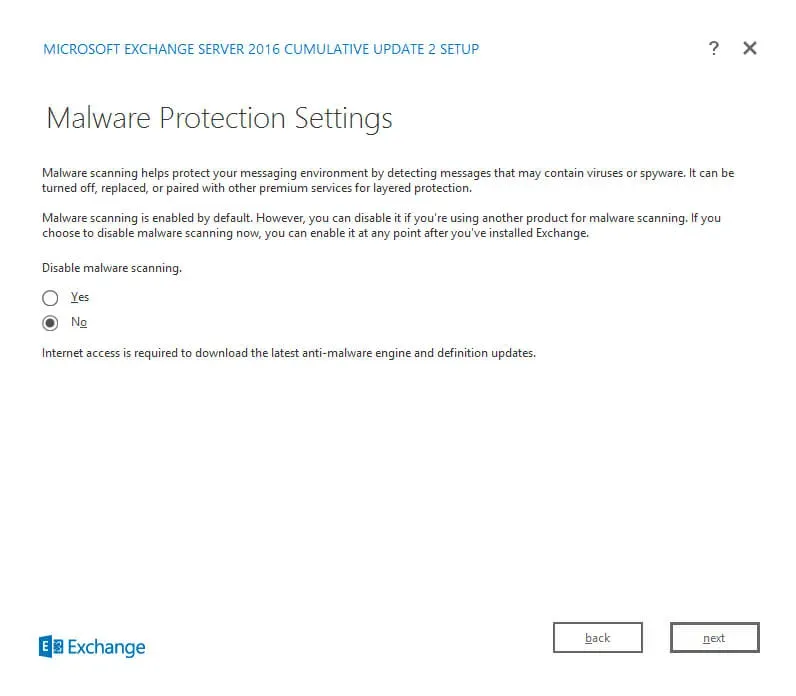
You can now configure your anti-malware settings.
In the “Disable malware scanning” item, select “No” and click on the “Next” button.
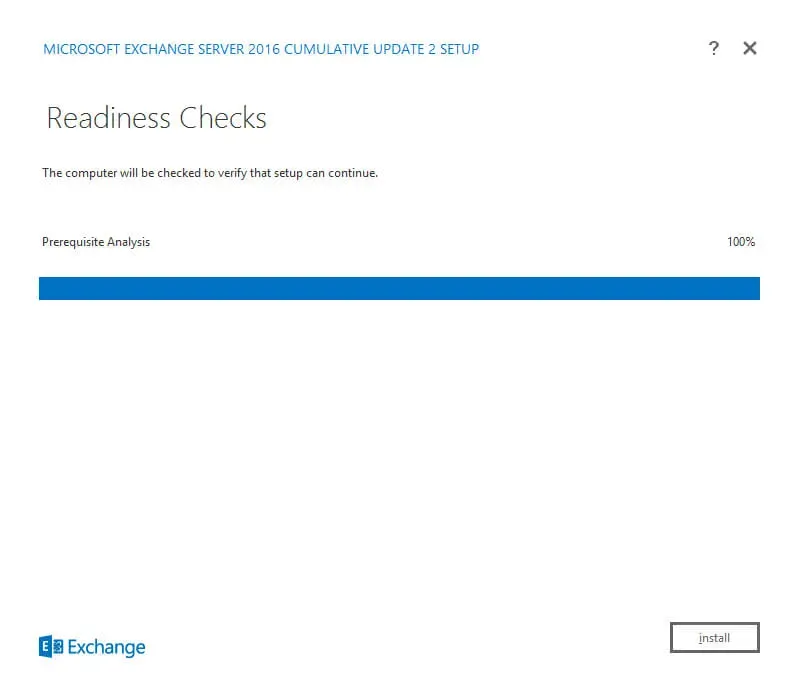
Next, the process of checking readiness for installation will begin, after it is completed, you can start the installation process of Exchange Server 2016.
Click on the “Install” button.
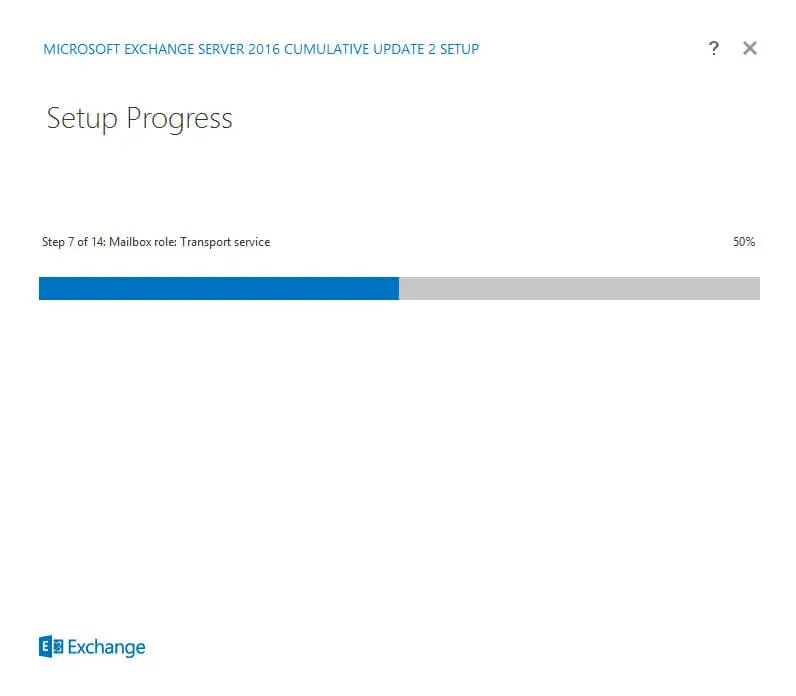
The installation process for Exchange Server 2016 has begun.
Exchange Server 2016 installation completed successfully.
Select “Launch Exchange Administration Center after finishing Exchange setup” and click on the “Finish” button.
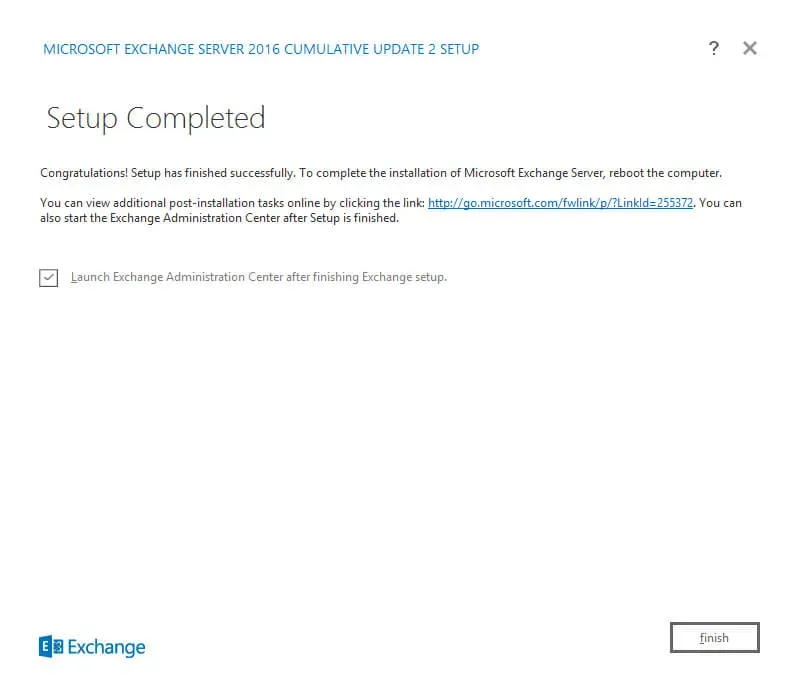
NOTEThe Exchange Administration Center is used to administer the Exchange server, available at
https://us-boston-ex-01/ecp, whereus-boston-ex-01is the name of my Exchange server. Accordingly, you need to specify the name or IP address of your server with Exchange Server 2016 installed.
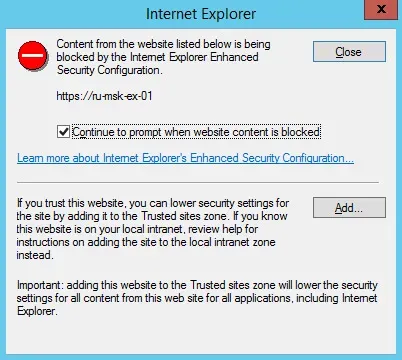
To display the Exchange Administration Center Control Panel correctly, you must add the Exchange Server address to Trusted Sites in Internet Explorer.
Click on the “Add” button.
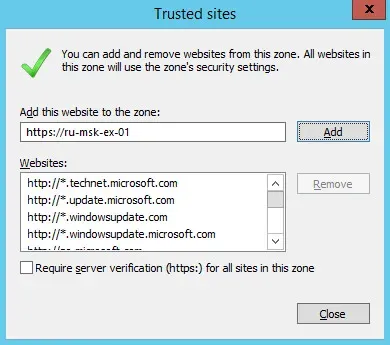
In the “Add this website to the zone” field, specify the address of the Exchange server and click on the “Add” button.
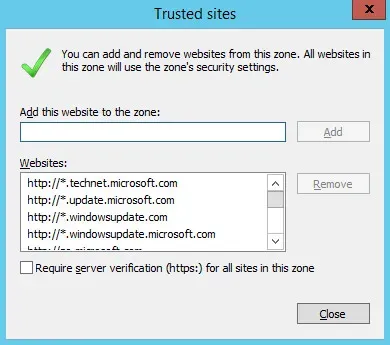
The Exchange server address has been added to the list of trusted sites.
Click on the “Close” button.
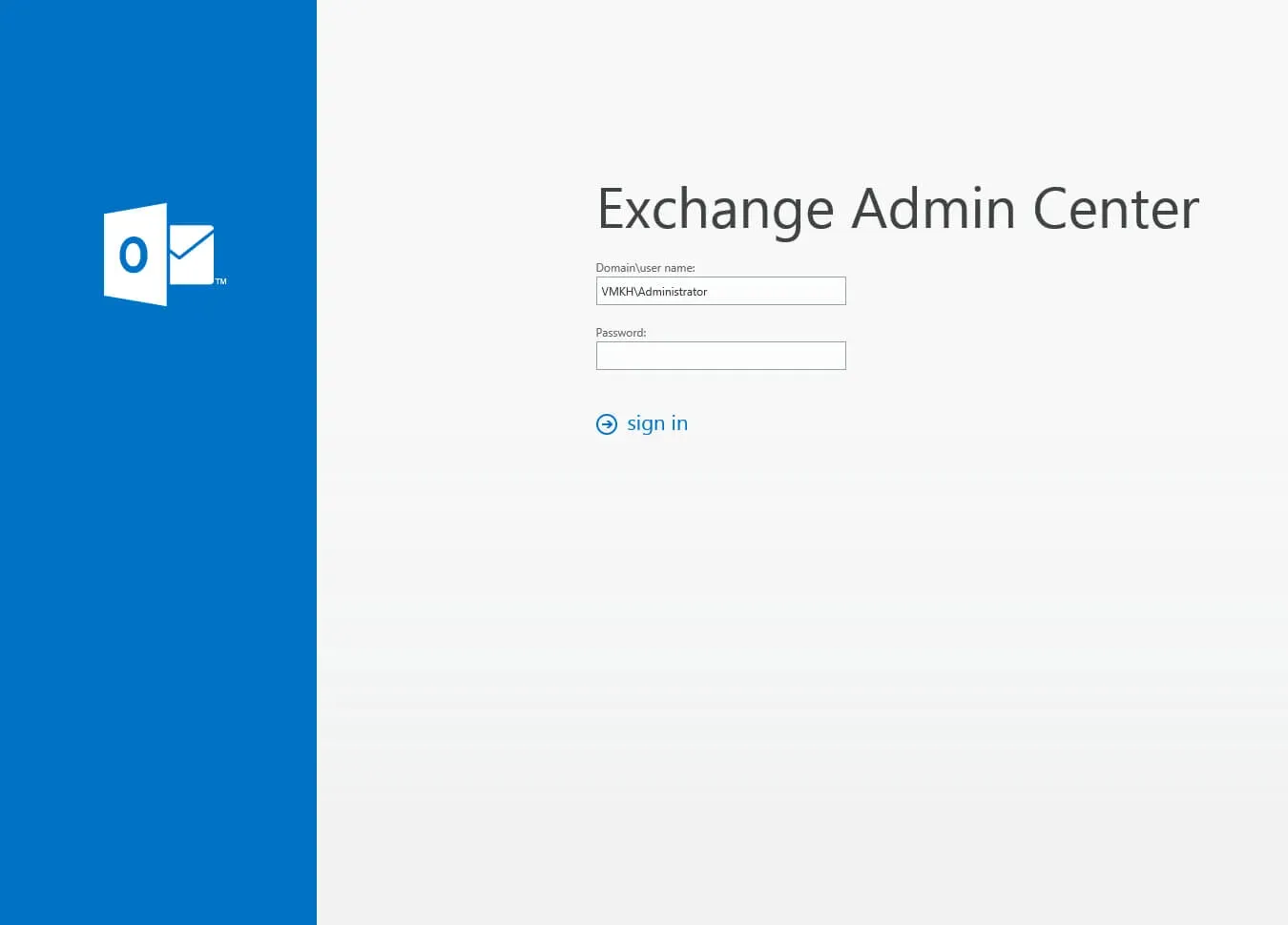
Next, you need to specify the username and password of an account with Exchange administrator rights and click on the “Sign in” button.
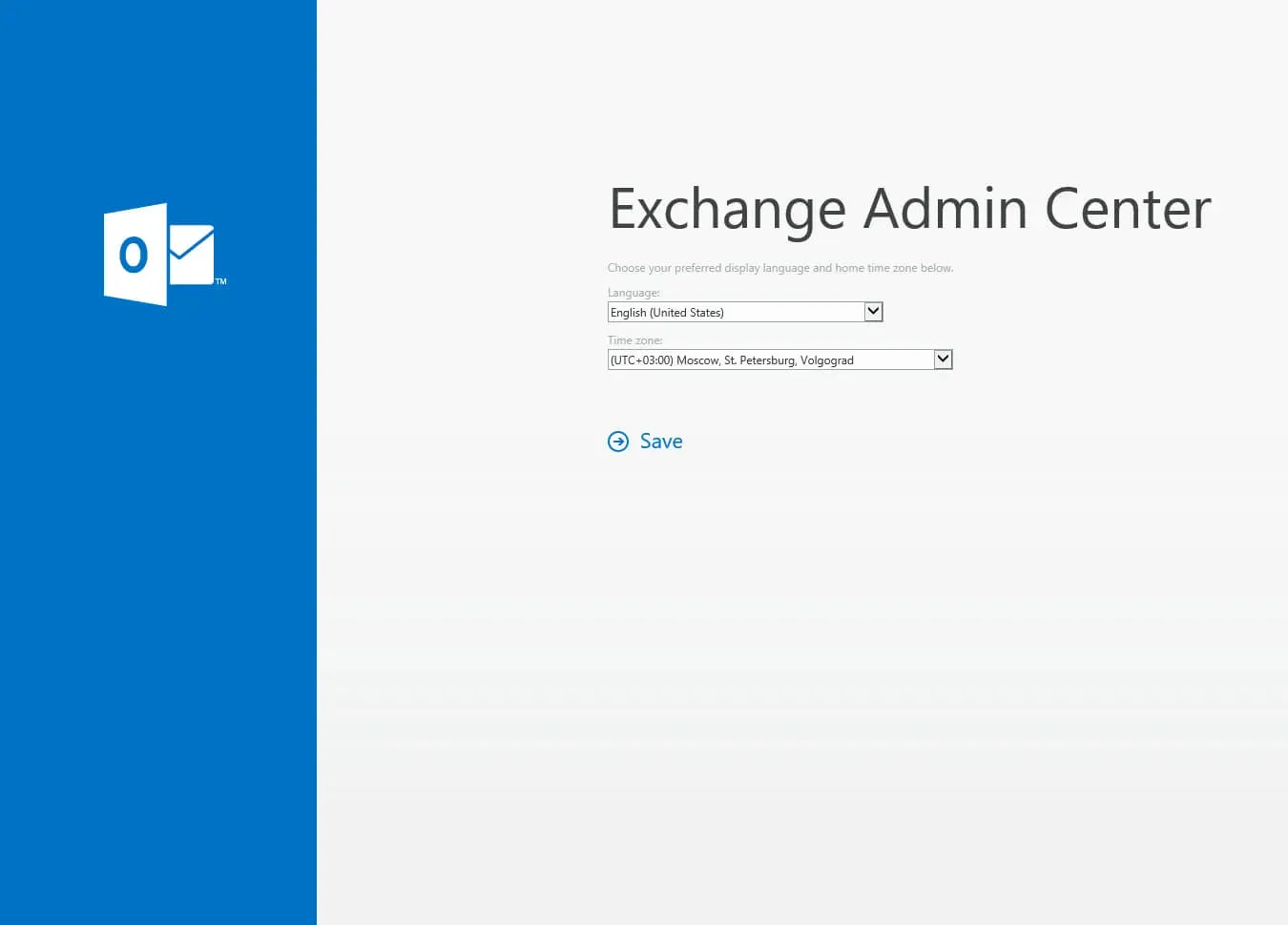
Now you need to select the language in which further information will be displayed, as well as the time zone.
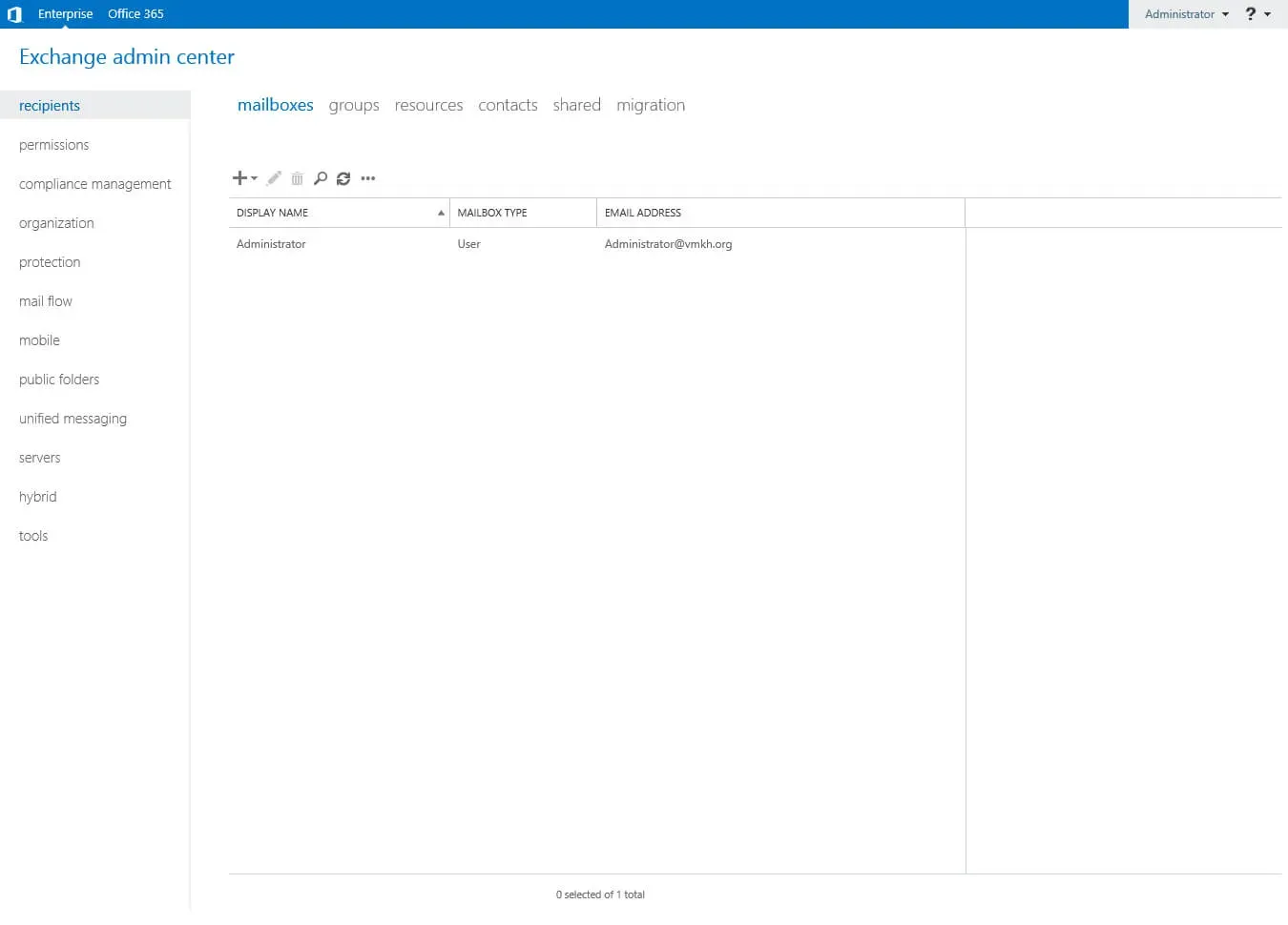
Welcome to the Exchange Admin Center Control Panel.
You can now check the status of the Exchange Server services.
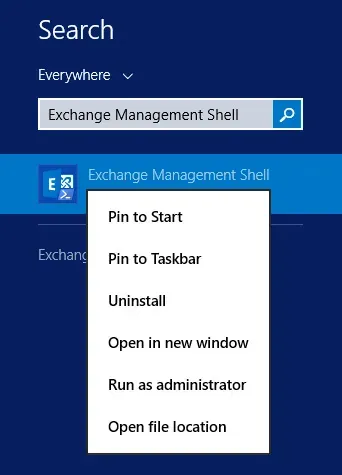
Click “Start”, point to “Exchange Management Shell” in the search bar, then right-click on “Exchange Management Shell” and select “Run as administrator”.
Let’s check the status of the Exchange Server services using the command:
Test-ServiceHealth 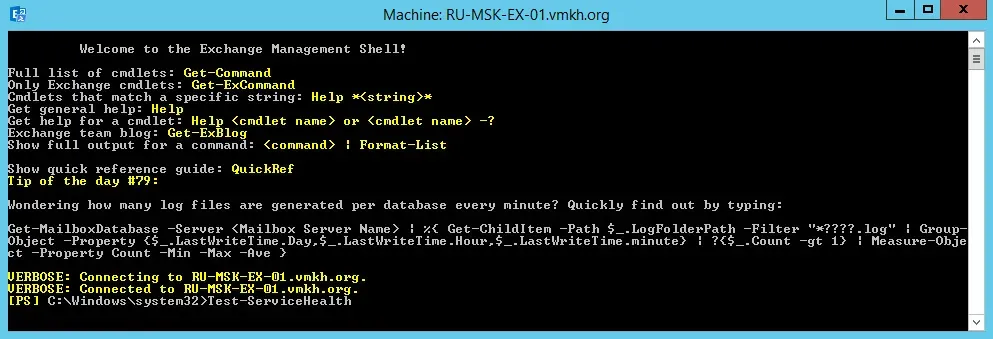
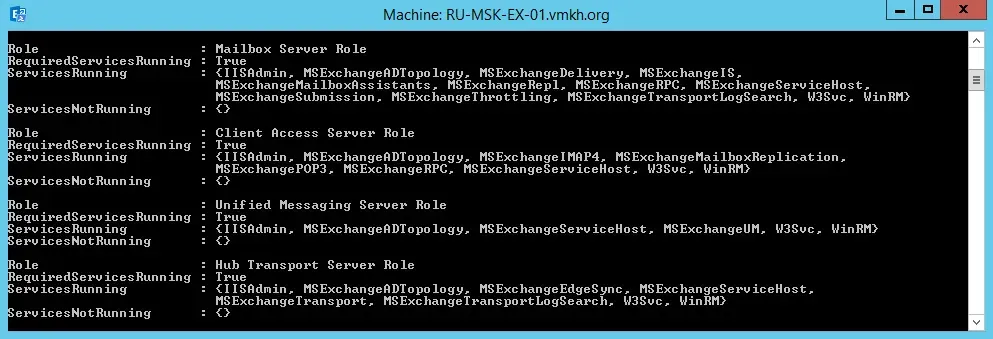
Service check completed successfully.
A “True” value in “RequireServiceRunning” indicates that the services are running.