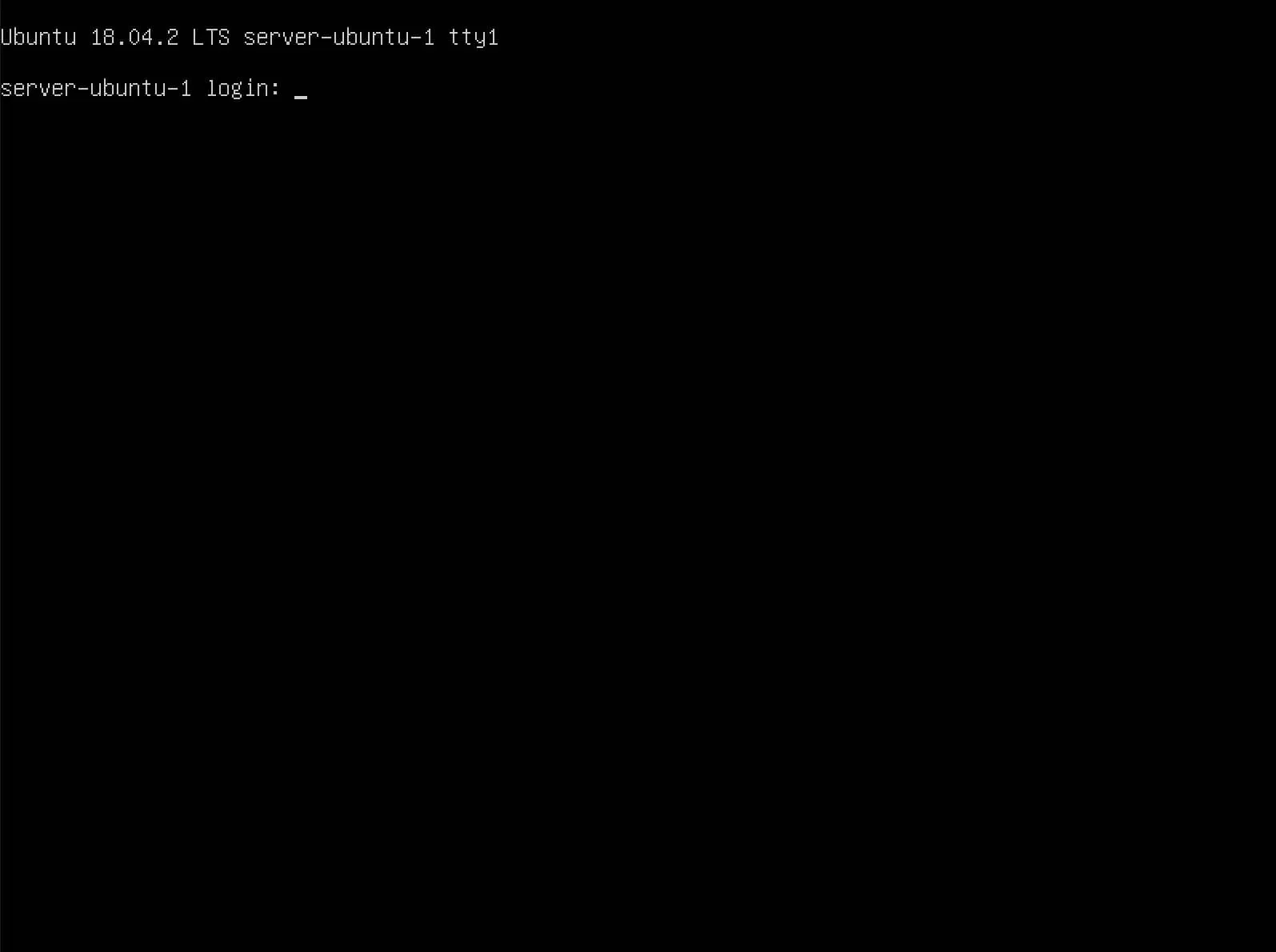
Install Ubuntu Server 18.04 LTS
By Vladimir Mikhalev · Docker Captain · CNCF Ambassador · IBM Champion
This article is for those looking for a detailed and straightforward guide on installing Ubuntu Server 18.04 LTS.
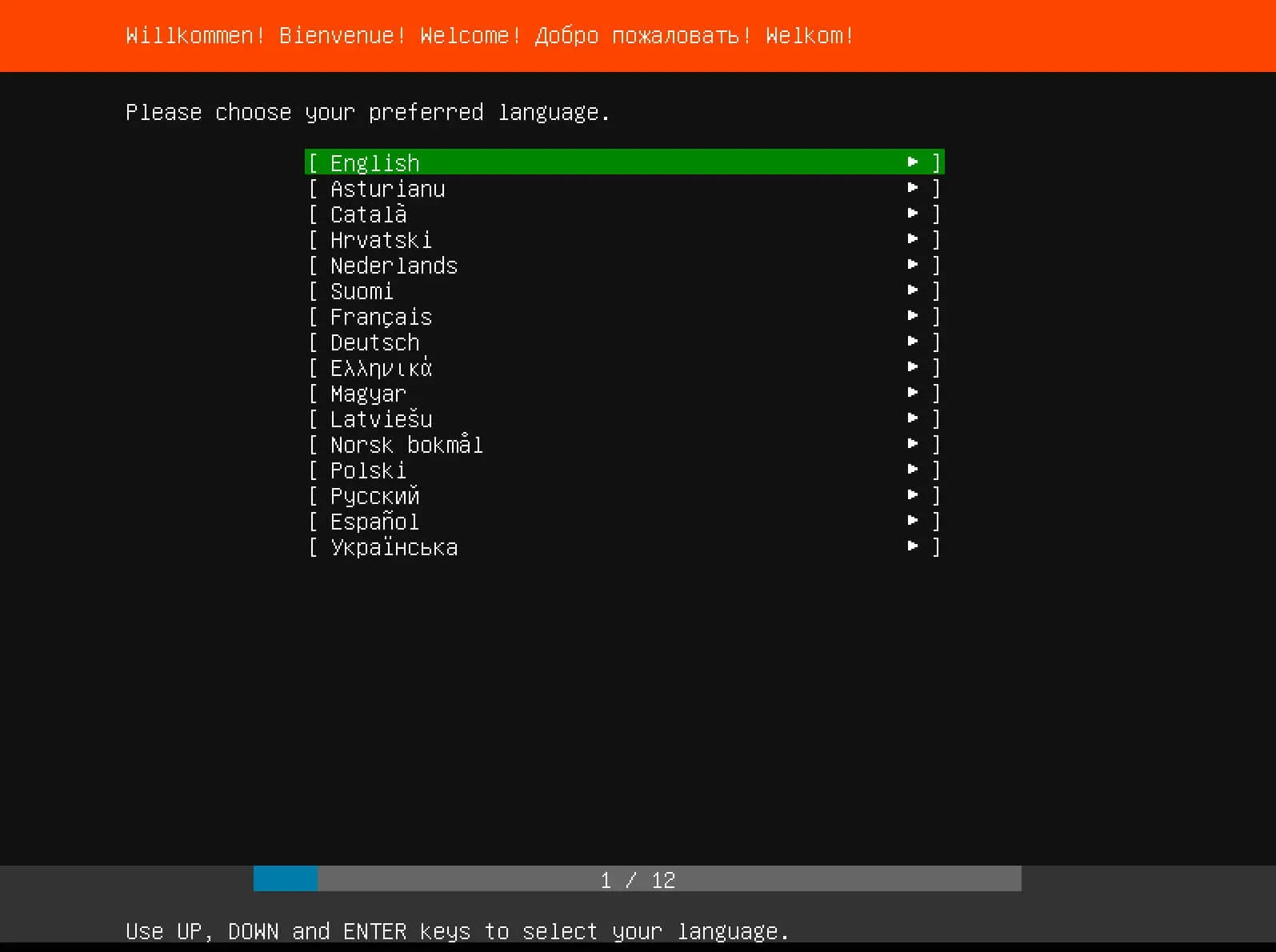
After successfully booting from the Ubuntu Server 18.04 installation USB stick or DVD, the first step is to choose which language the welcome menu will be displayed in.
Select “English” and press the “Enter” button.
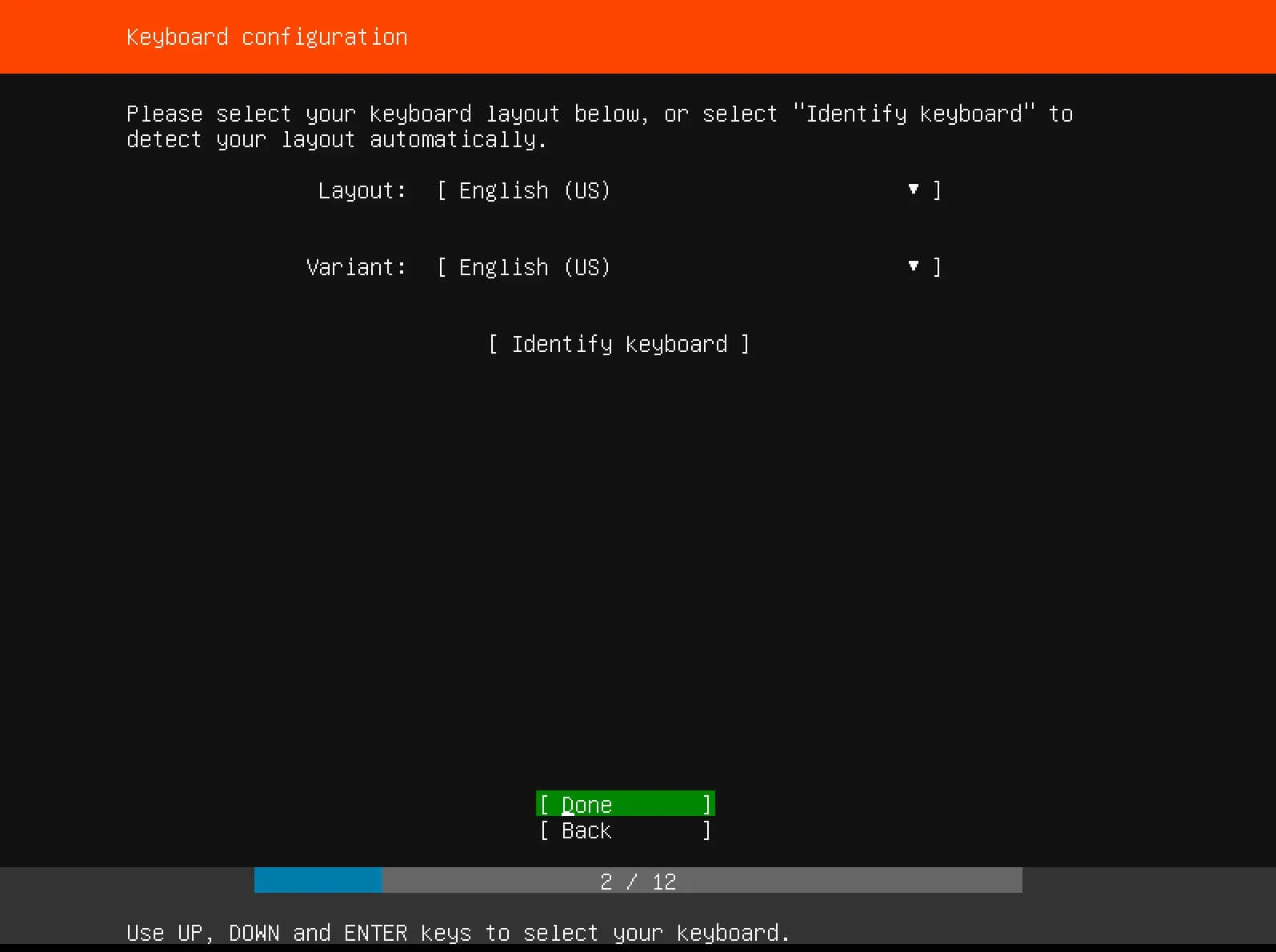
Next, you can choose a keyboard layout.
Select the keyboard layout you need and click on the “Done” button.
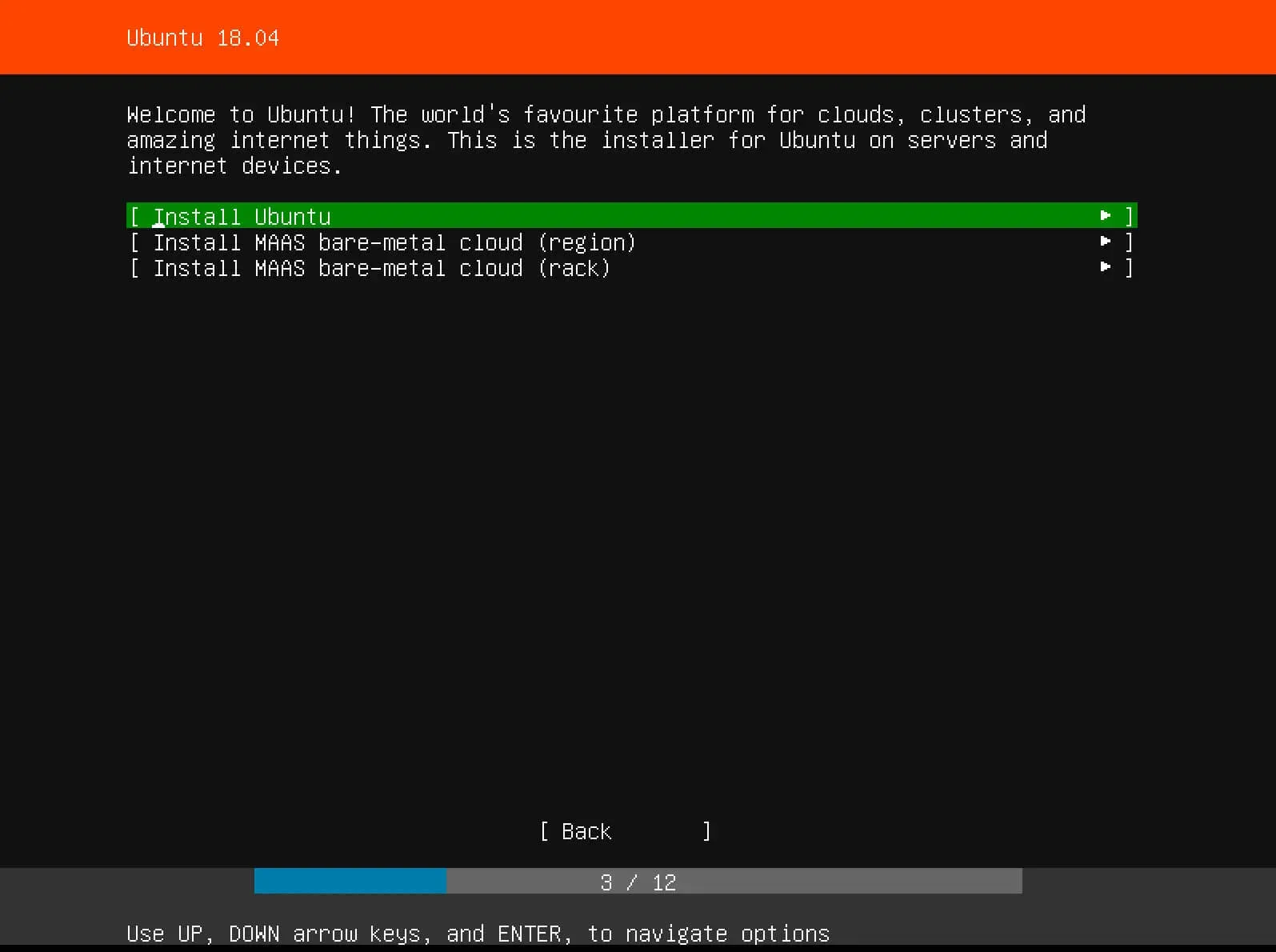
Next, you need to select the option to install Ubuntu Server.
NOTEThis tutorial does not cover the installation of MAAS (Metal as a Service). If you plan to use MAAS, I recommend that you read the documentation for more information.
Select “Install Ubuntu” and press the “Enter” button.
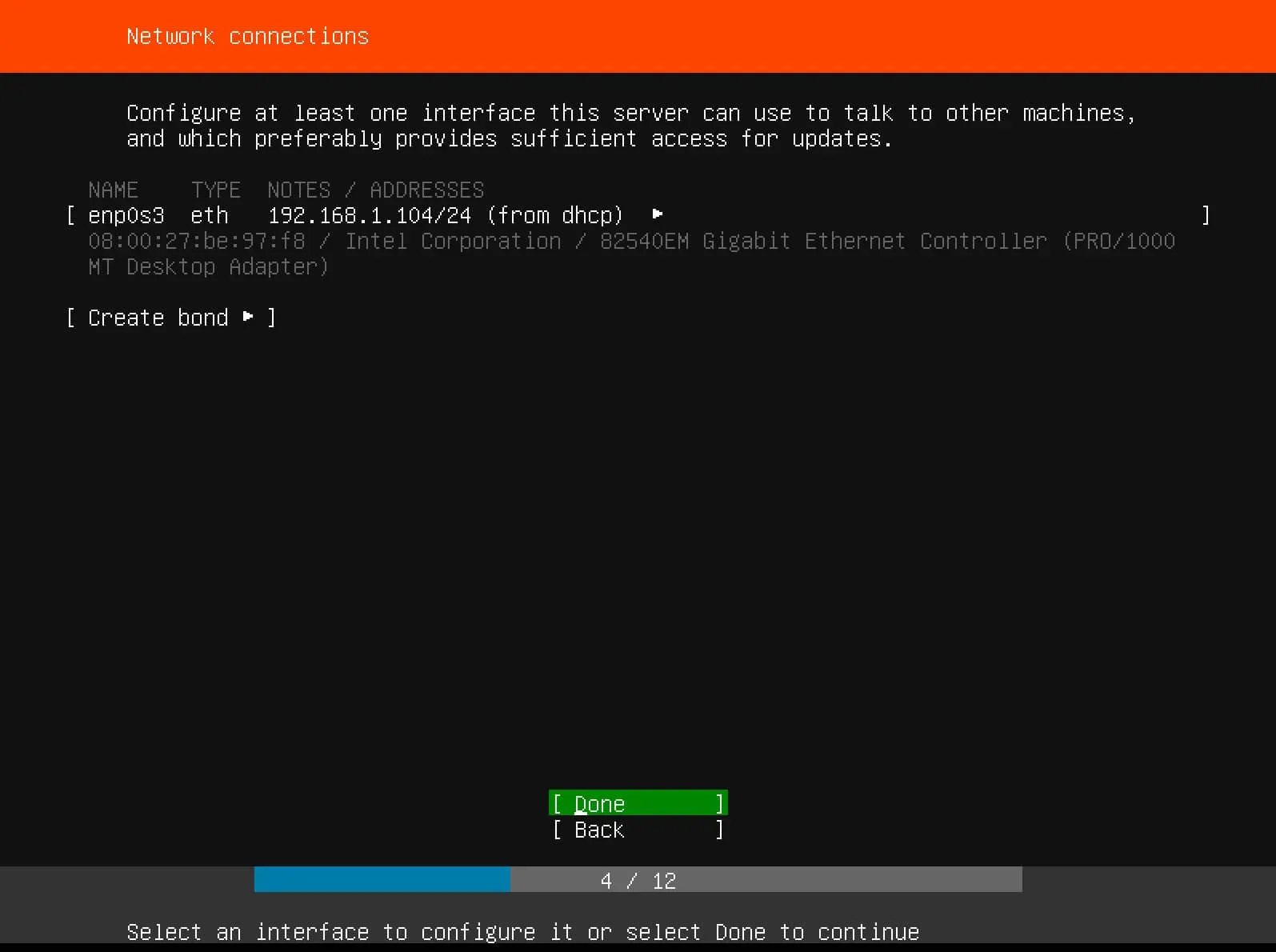
In the next step, the installer will try to automatically obtain the settings for the network connection using DHCP.
You can set the IP address manually or configure the network connection after installation.
Click on the “Done” button.
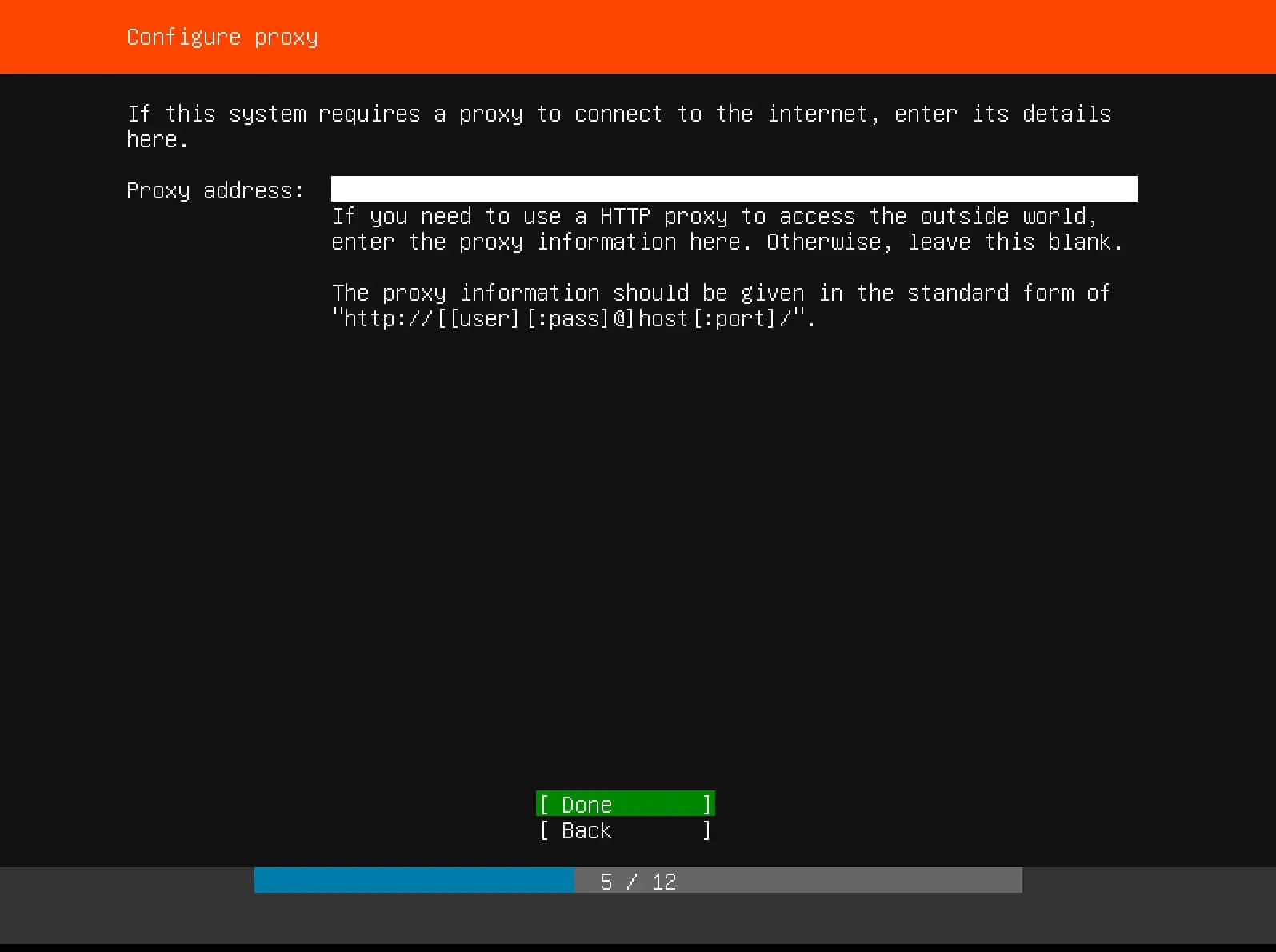
Next, the system prompts you to specify information about the proxy server.
This guide does not use a proxy server.
Click on the “Done” button.
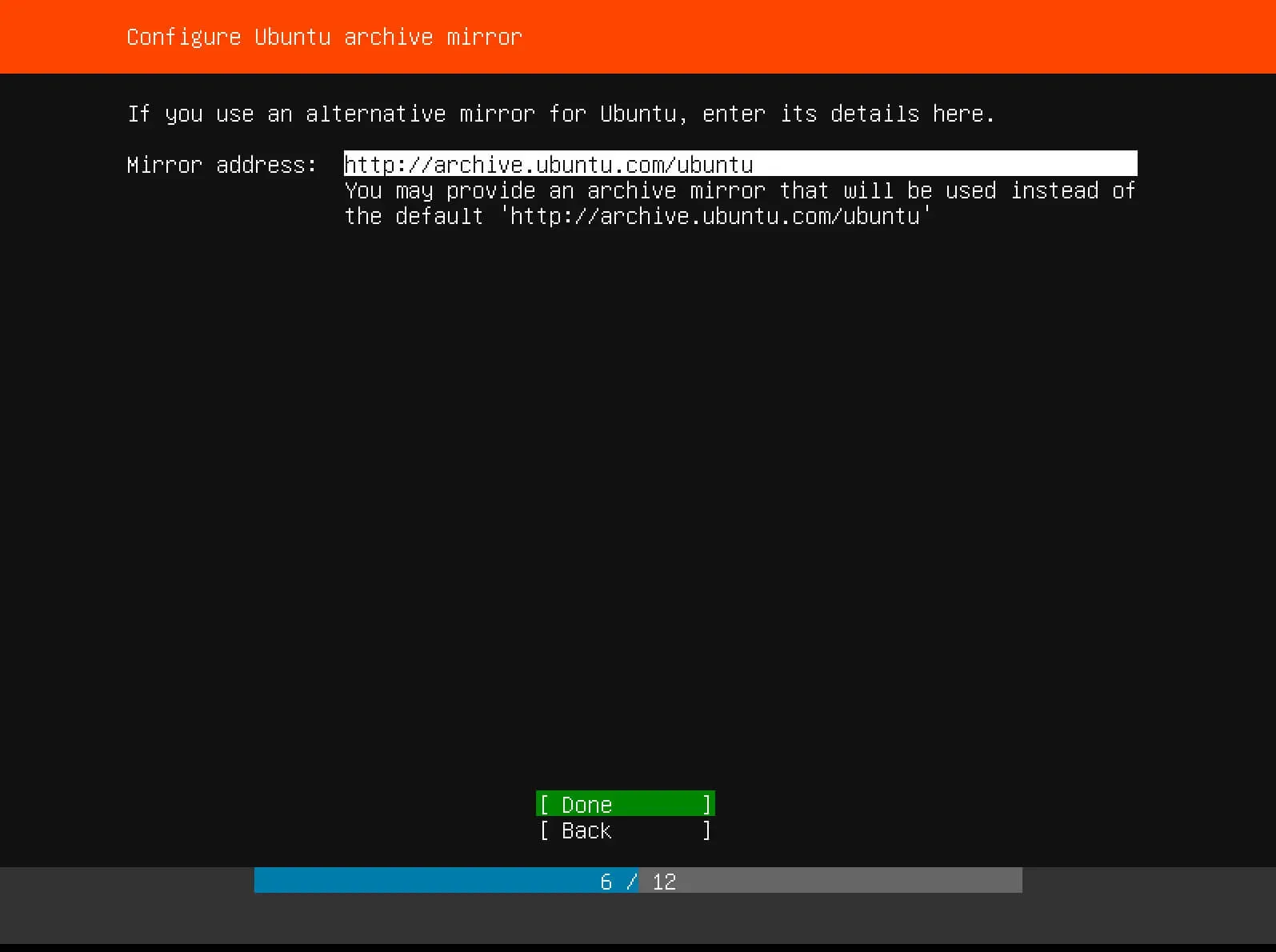
Next, you can specify an alternative mirror address for downloading packages.
Leave the “Mirror address” field unchanged and click on the “Done” button.
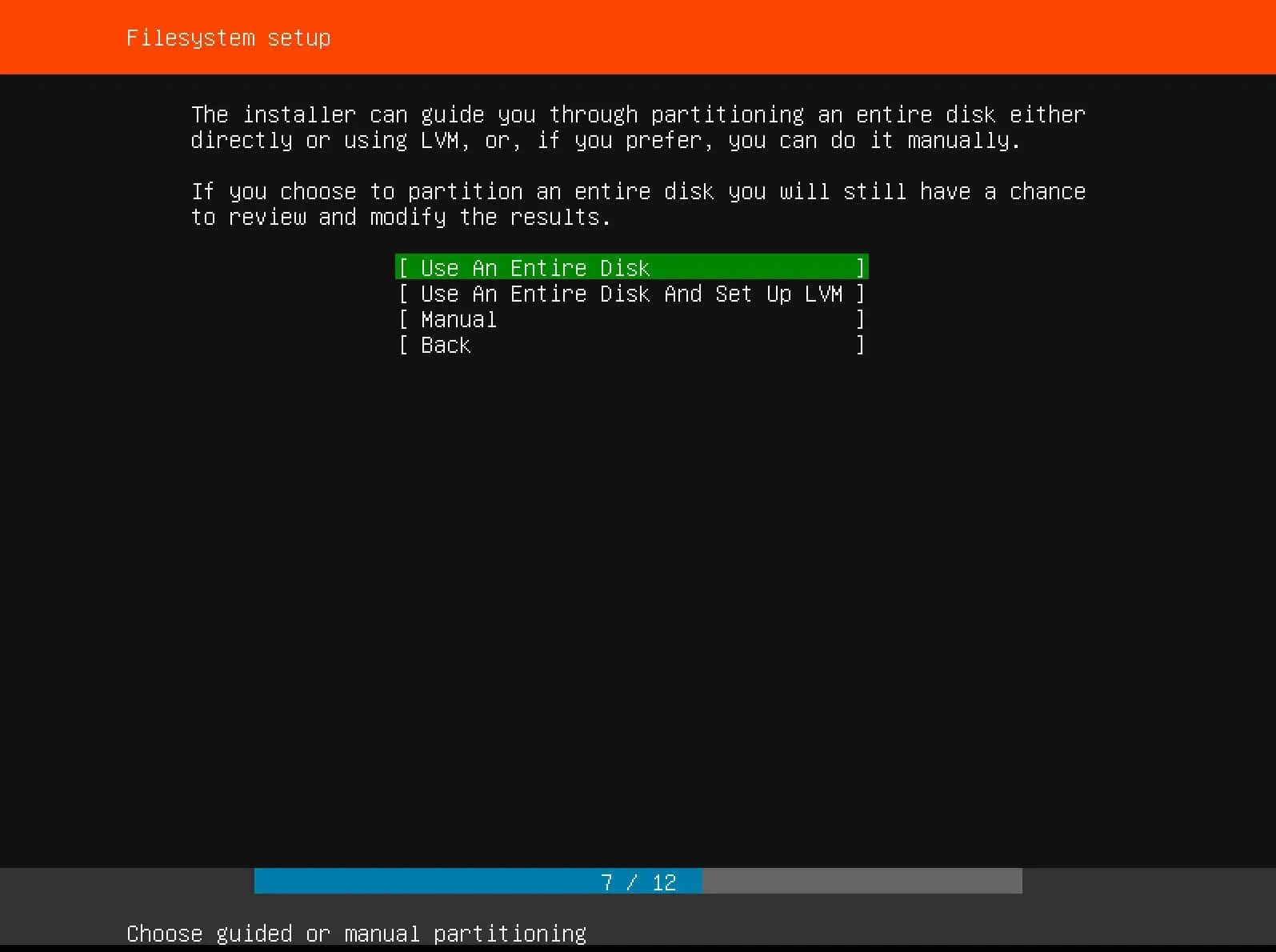
At the next step, you need to choose which disk the new operating system will be installed on and allocate space for installation.
NOTEAll free disk space will be allocated for the system.
Select “Use An Entire Disk” and press the “Enter” button.
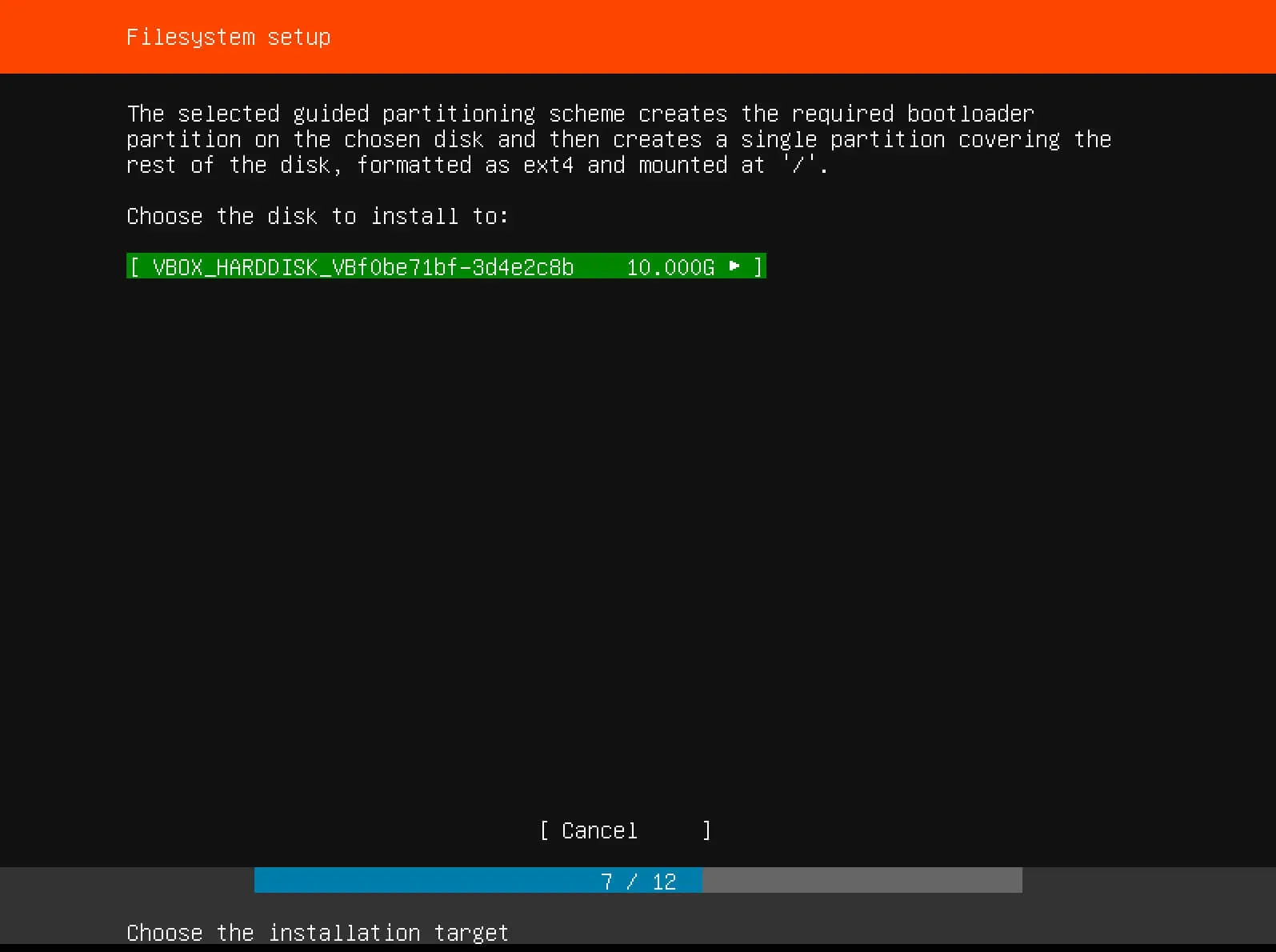
Now you need to choose which disk the operating system will be installed on.
NOTEIn this example, one 10Gb disk is installed.
Select the disk on which you want to install the system and press the “Enter” button.
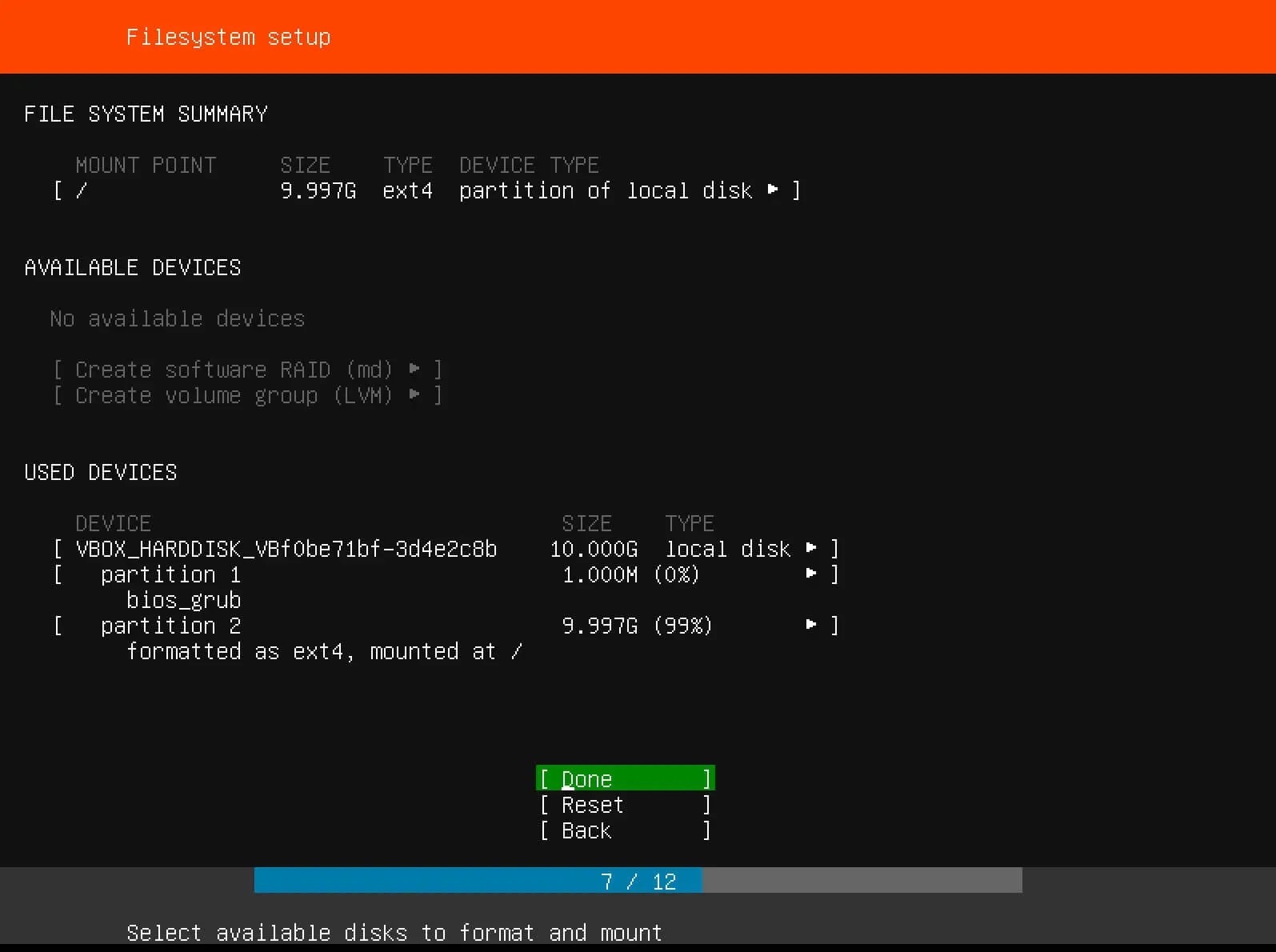
In the next step, you can see what partitions will be created on the disk.
Click on the “Done” button.
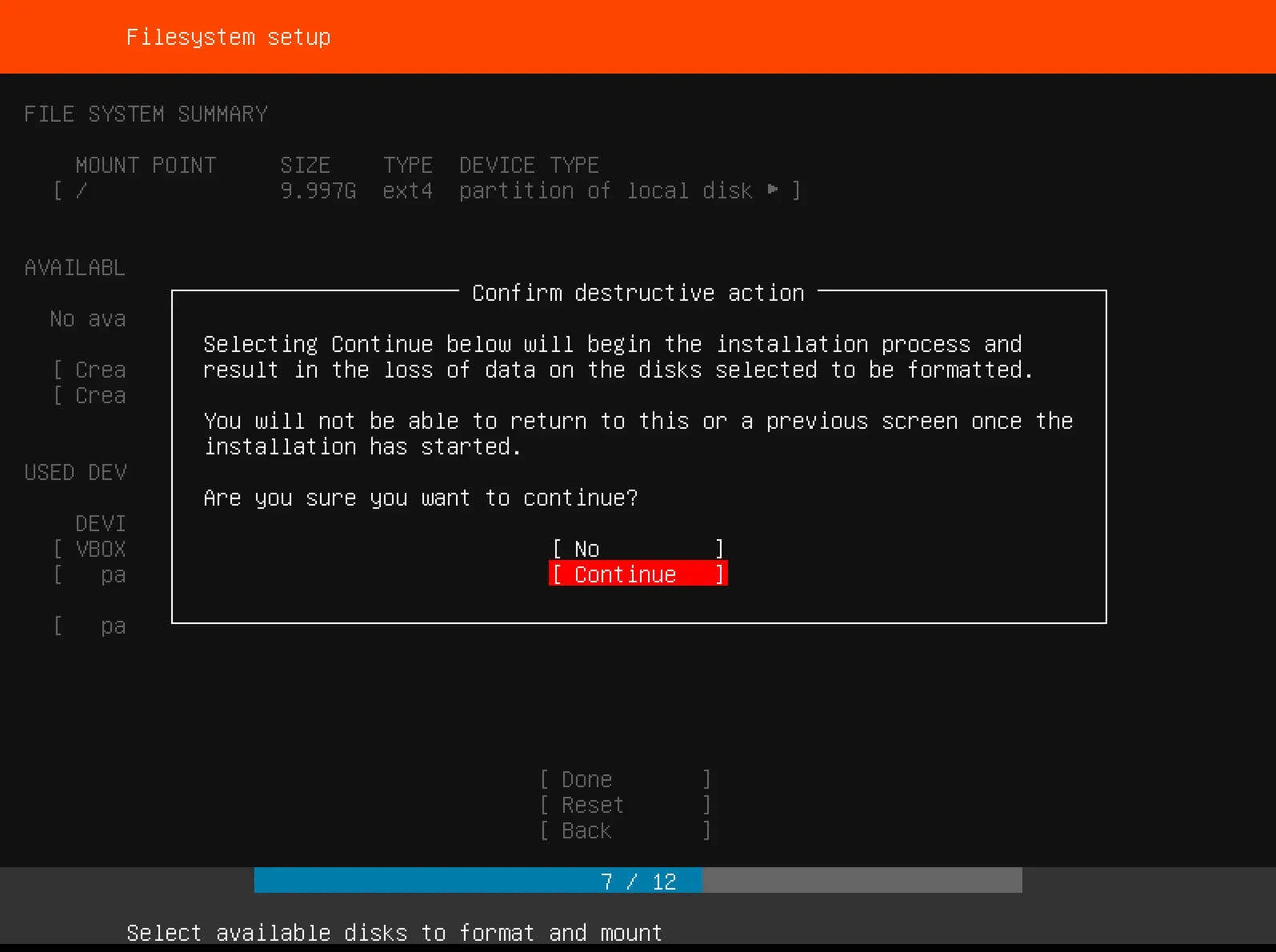
Now you need to confirm your changes.
Select “Continue” and press the “Enter” button.
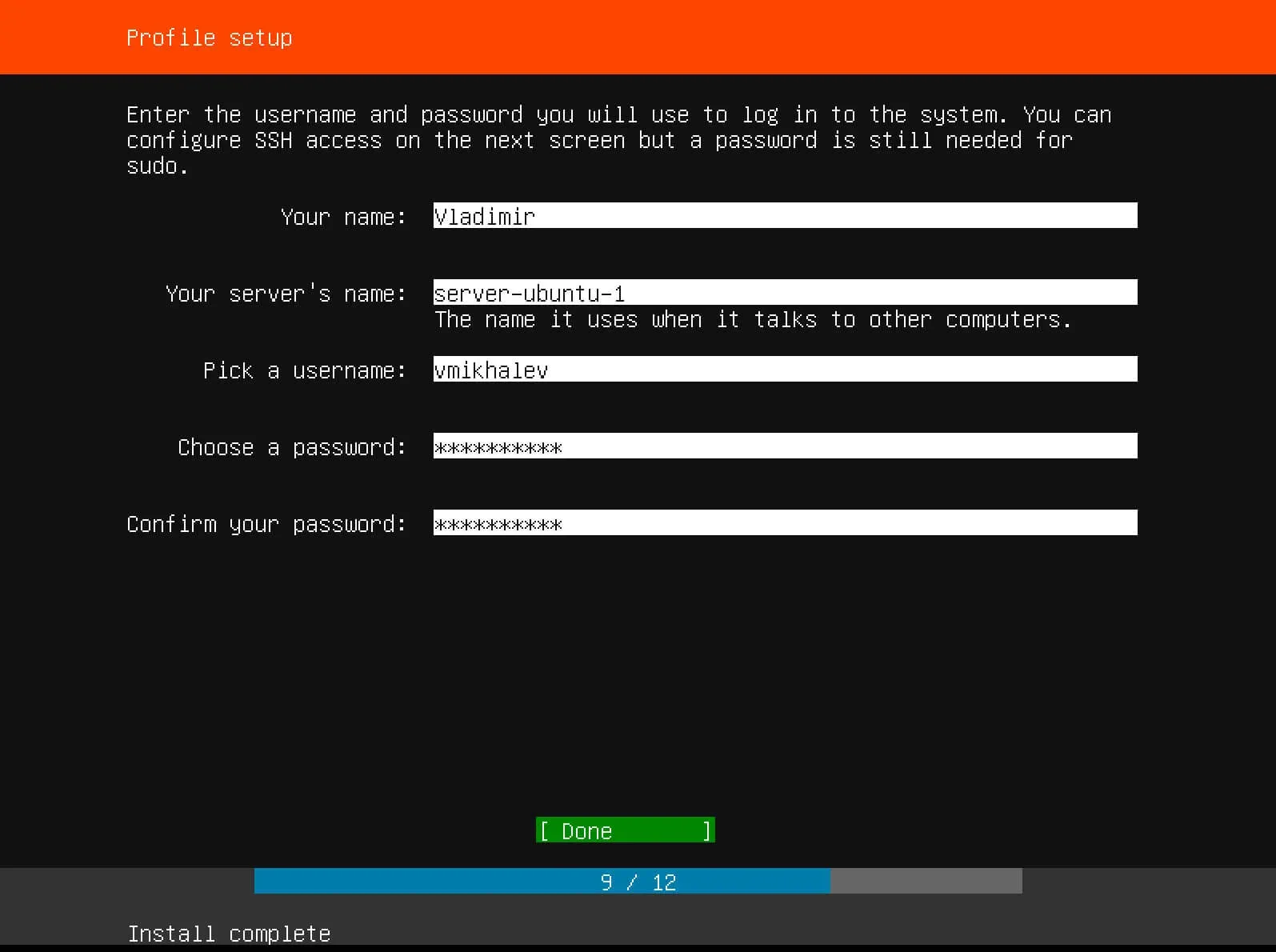
Next, you will need to specify the full username for the administrator account, the server name, then the login and password for the new account.
Click on the “Done” button.
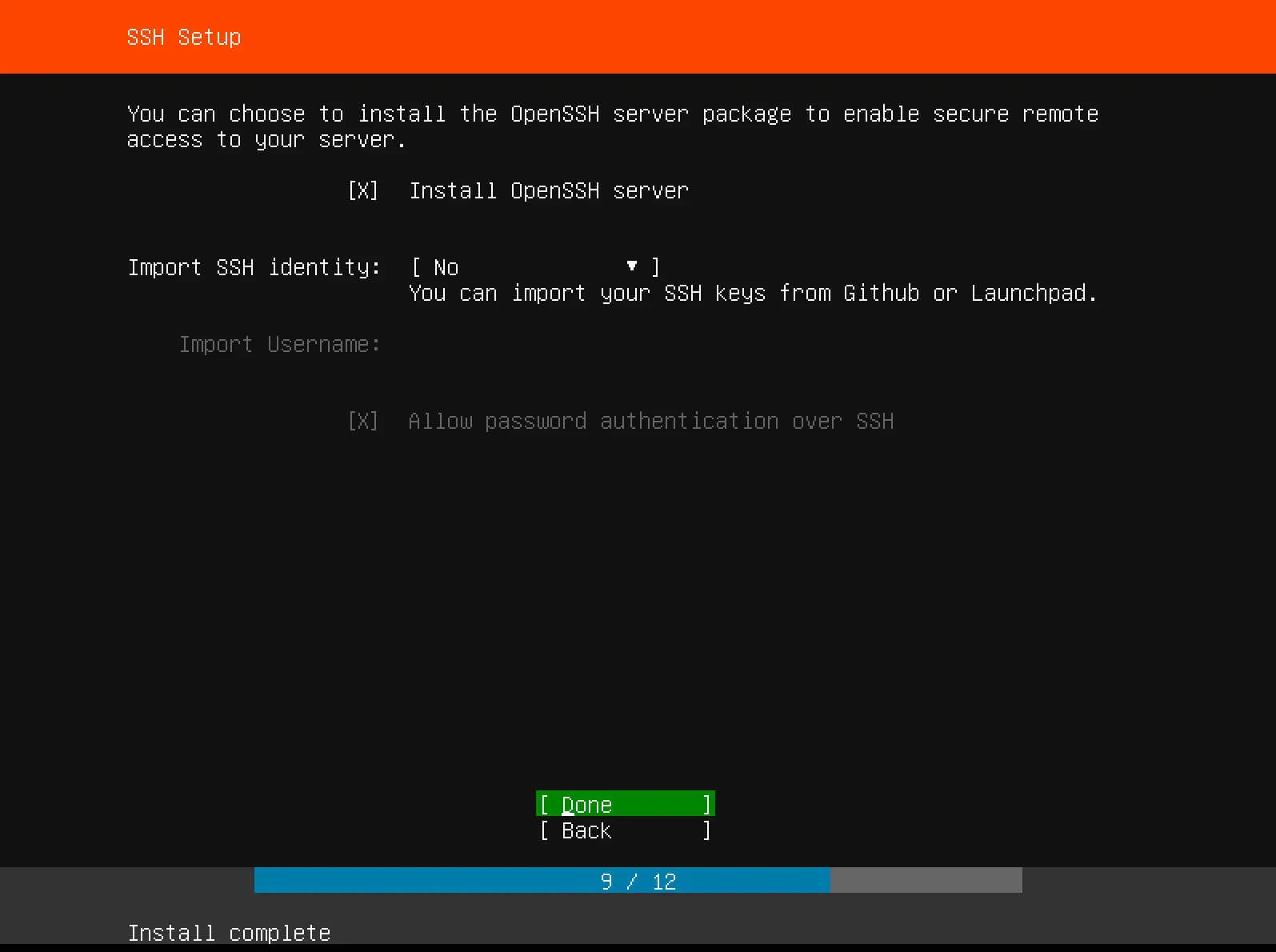
If you plan to connect to the server via SSH, then you need to select “Install OpenSSH server”.
NOTEYou can also import SSH keys from Launchpad or Github.
Click on the “Done” button.
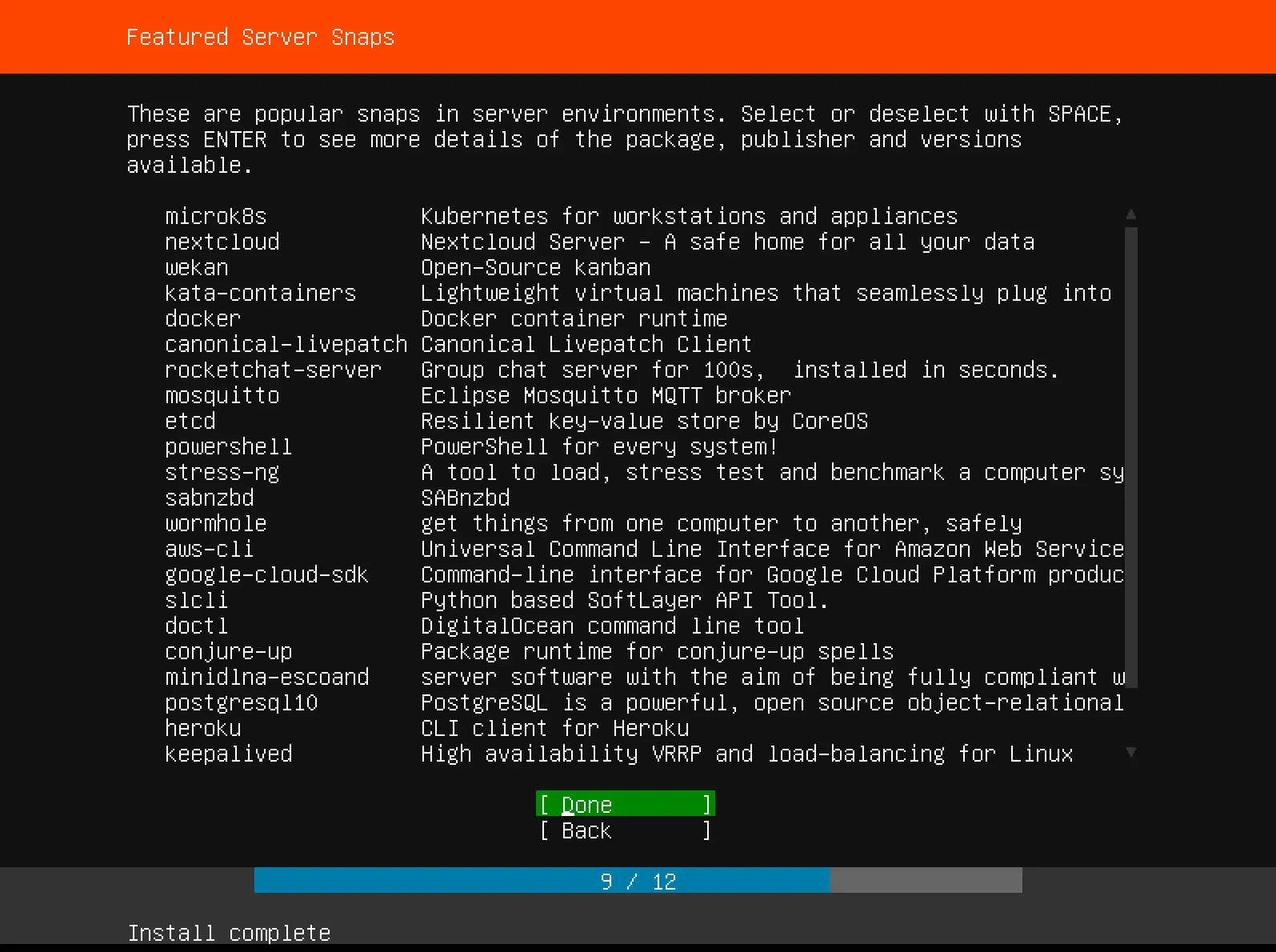
At this stage, you can take the opportunity to select additional components to install.
This tutorial walks you through installing Ubuntu Server without additional components.
Click on the “Done” button.
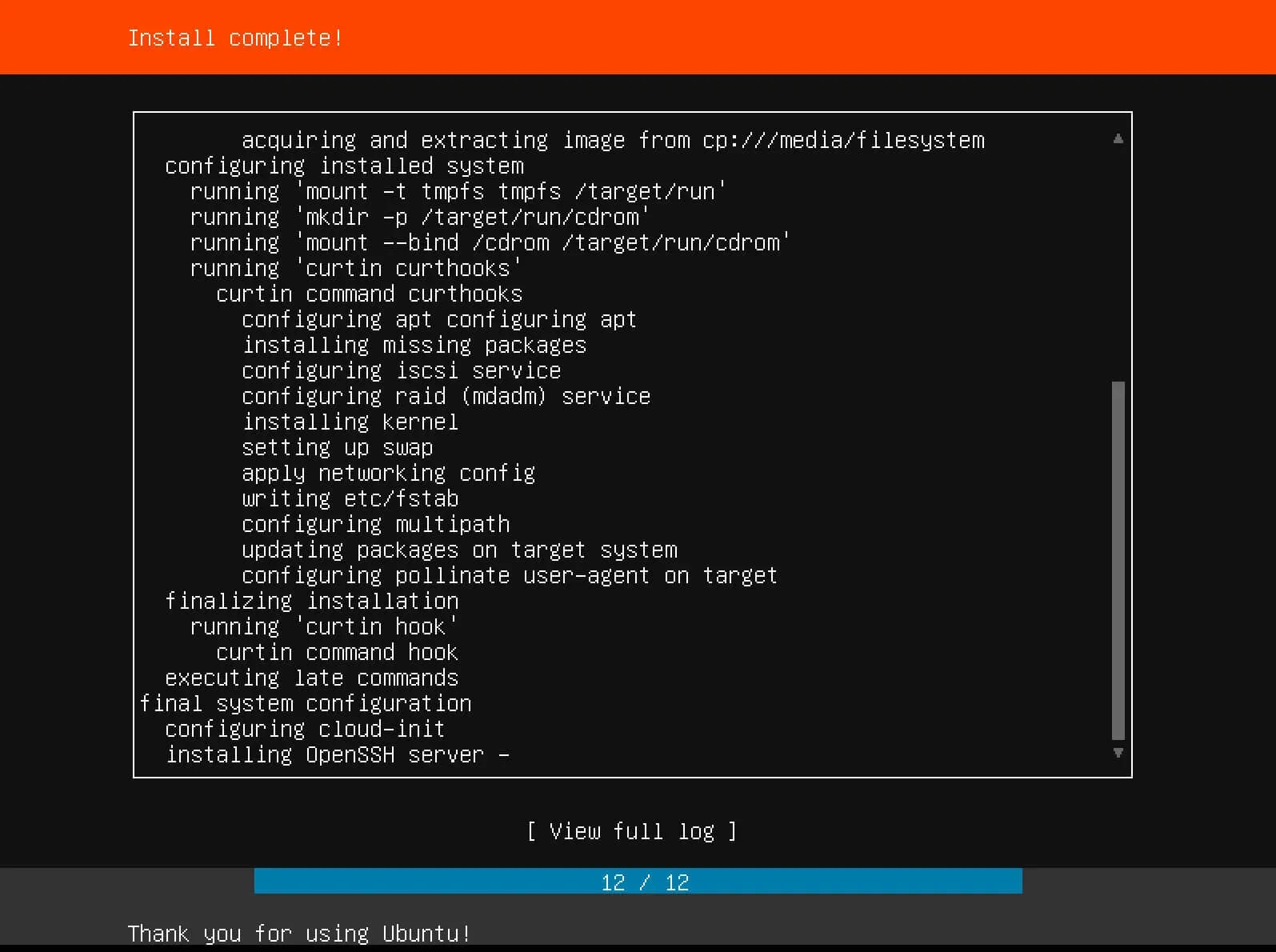
Next, you can watch the installation process of Ubuntu Server 18.04.
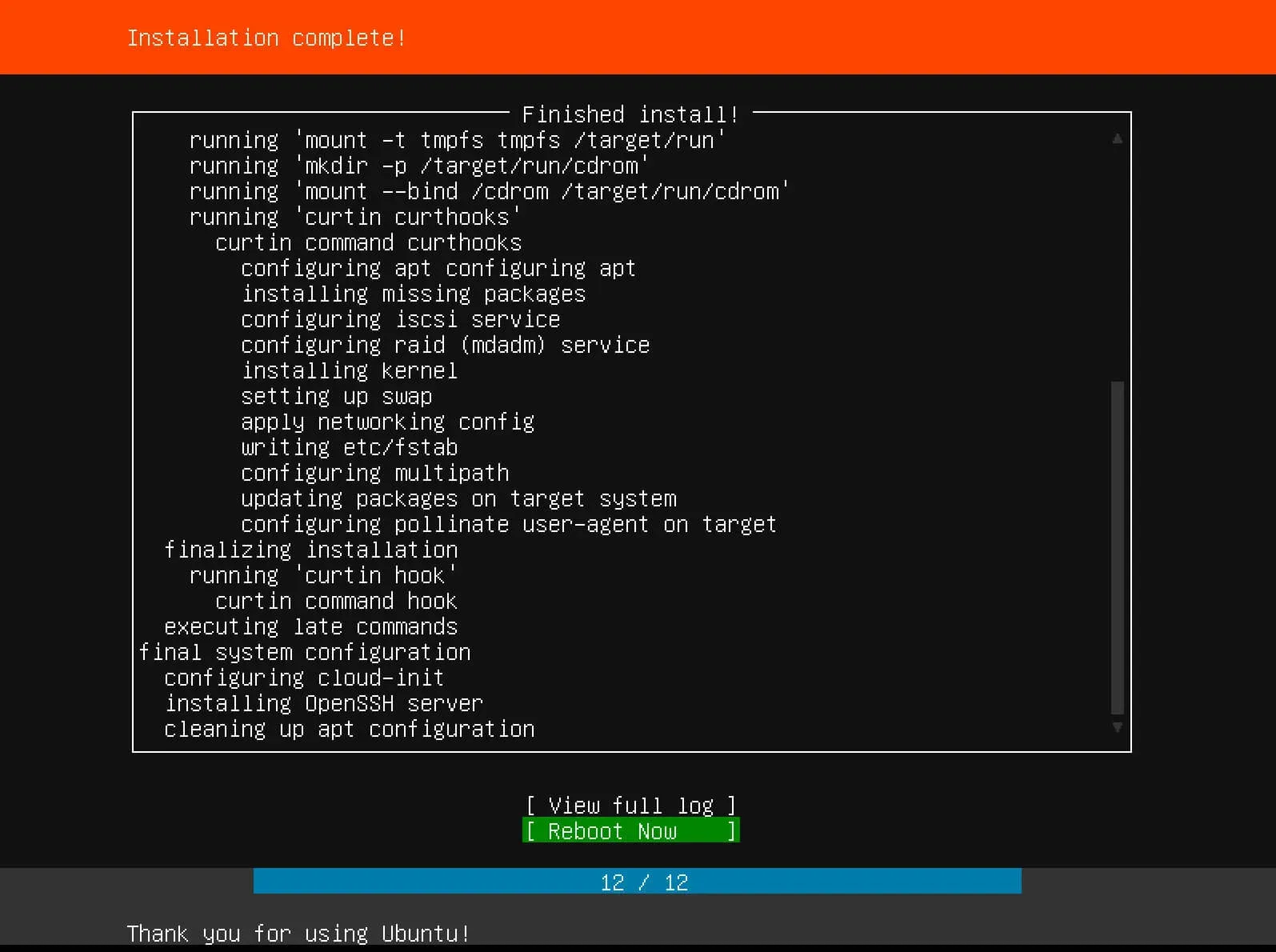
The Ubuntu Server 18.04 installation is complete.
Click on the “Reboot Now” button.
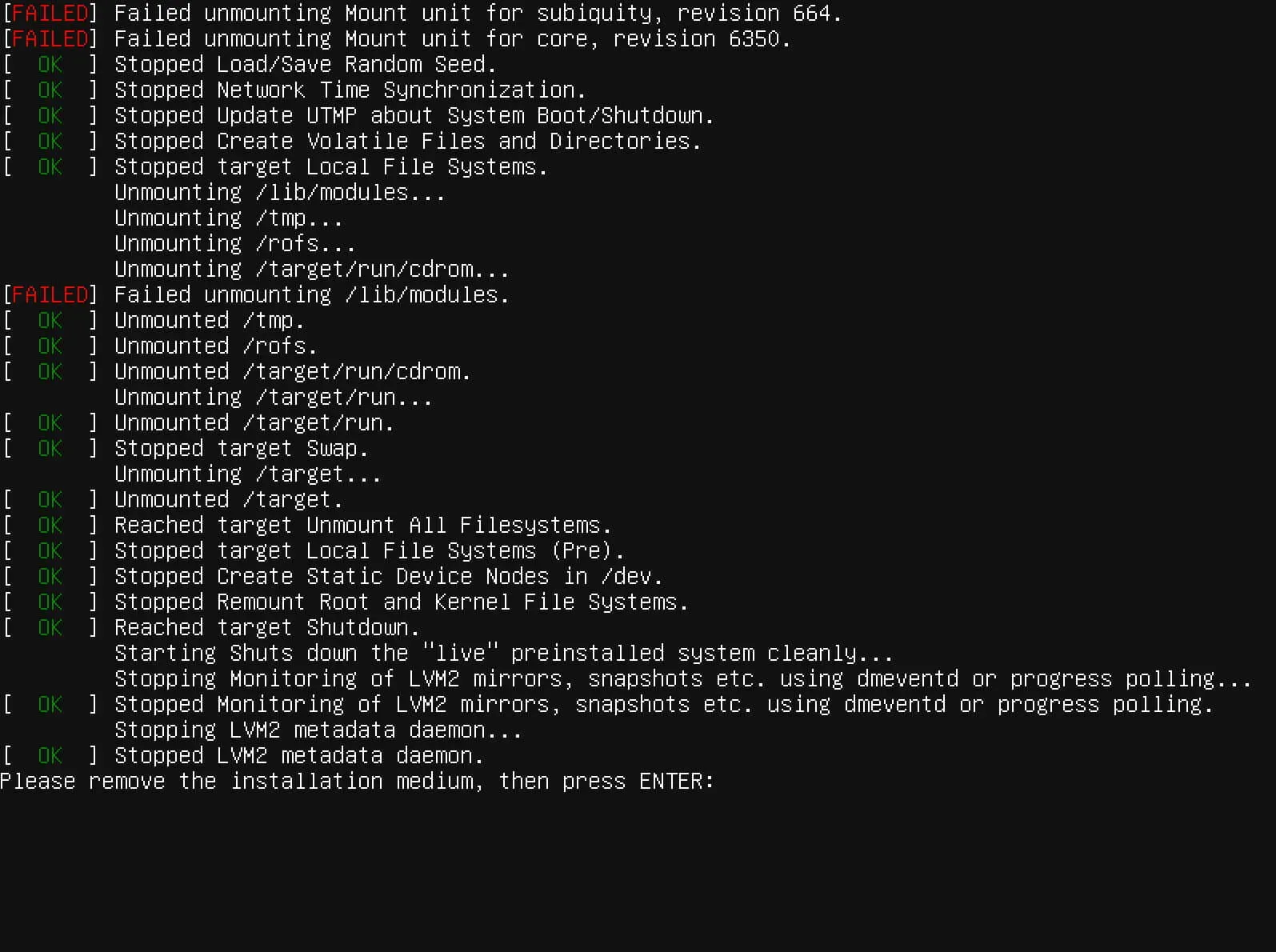
Now you need to remove the Ubuntu Server 18.04 installation disc from the CD/DVD drive.
Press the “Enter” button.
Next, you need to specify the username and password for authorization in Ubuntu, which was specified earlier during the installation of the system.